eBay
How to Integrate eBay Channel in OMS ?
Follow Below Steps to Integrate eBay Channel
1. How to Install applications
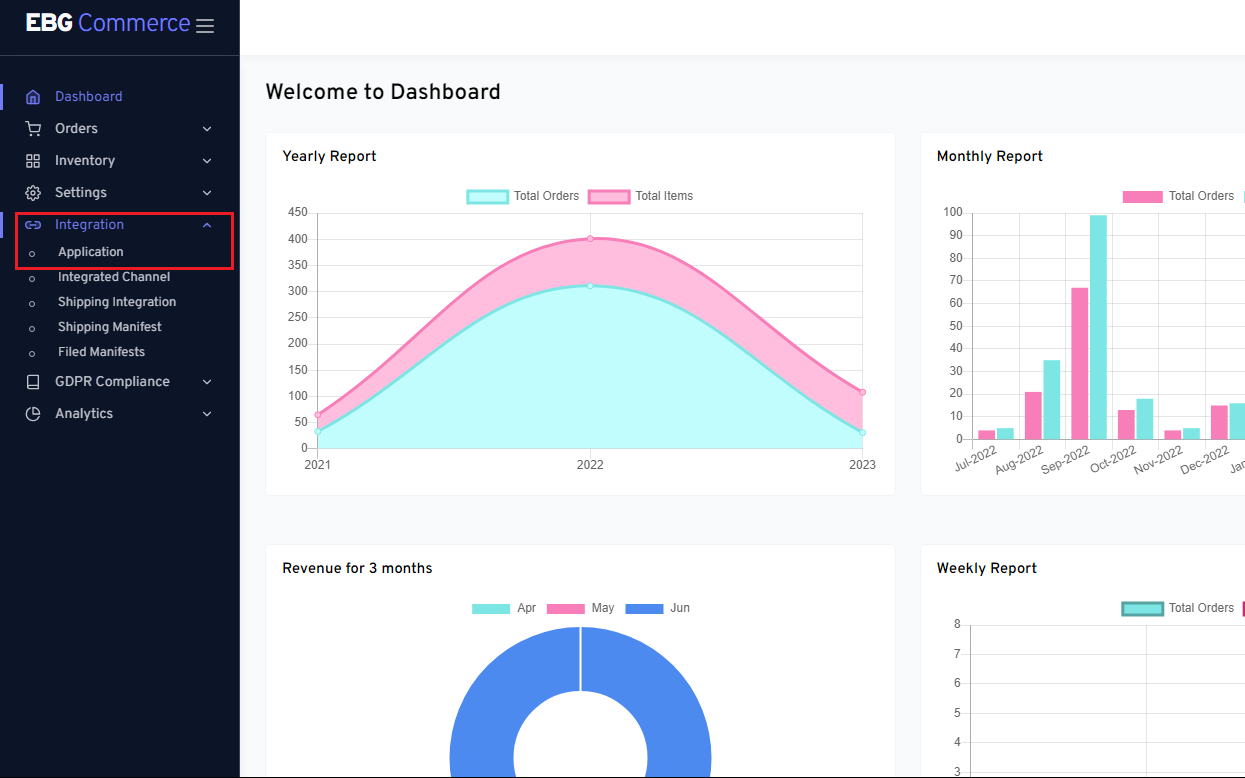 Choose Integration from the menu: Find the navigation menu by going to your account's main dashboard. Select the "Application" menu from the list of options. This menu is often found in the Integration section.
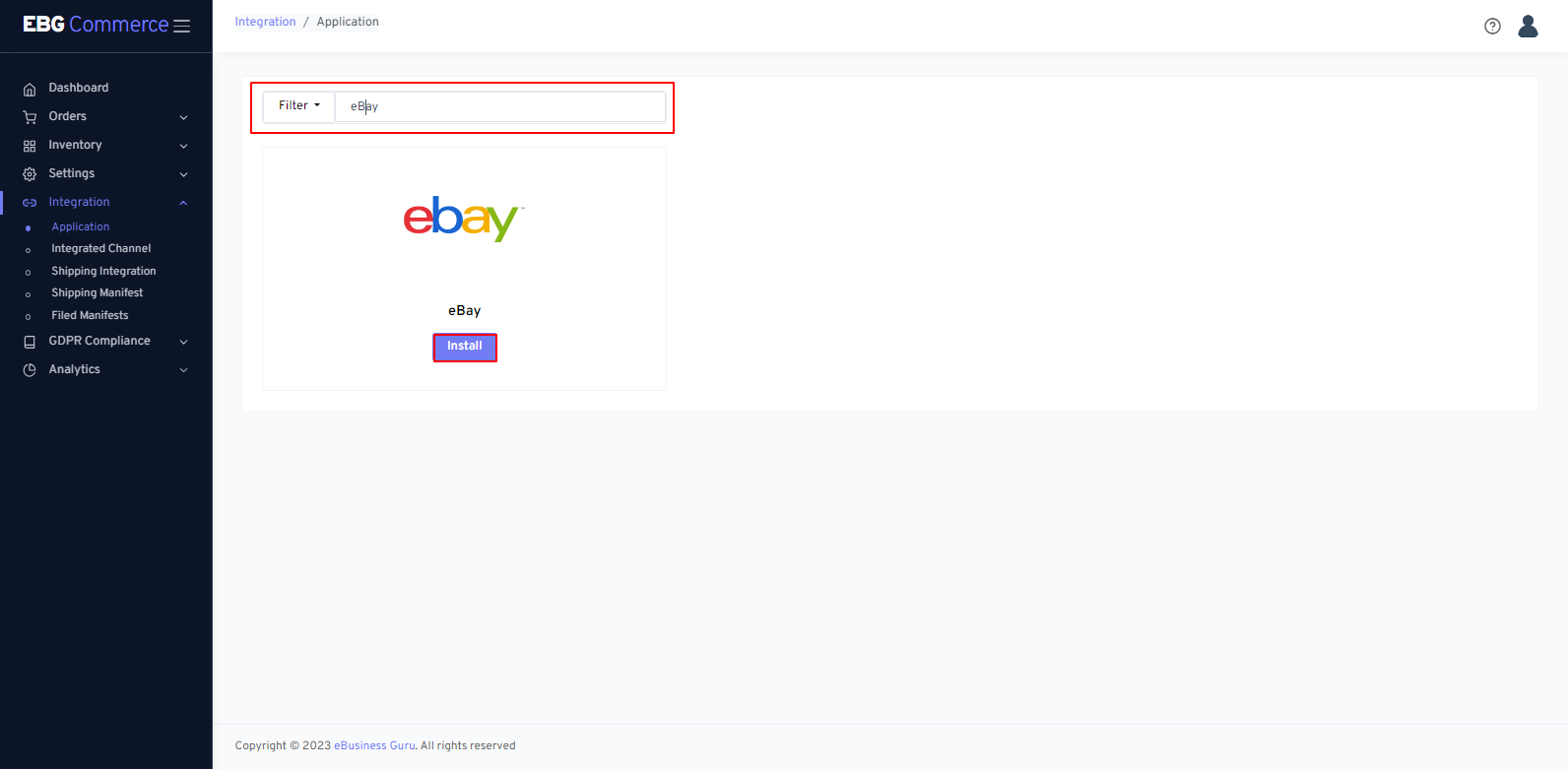 Search eBay in the filter input box: You'll see a search or filter input box on the Application Screen. Enter "eBay" there to search for an eBay Application.
Then click on the install button: As soon as you have found the eBay integration option in the filtered list, click on the "Install" button next to it.
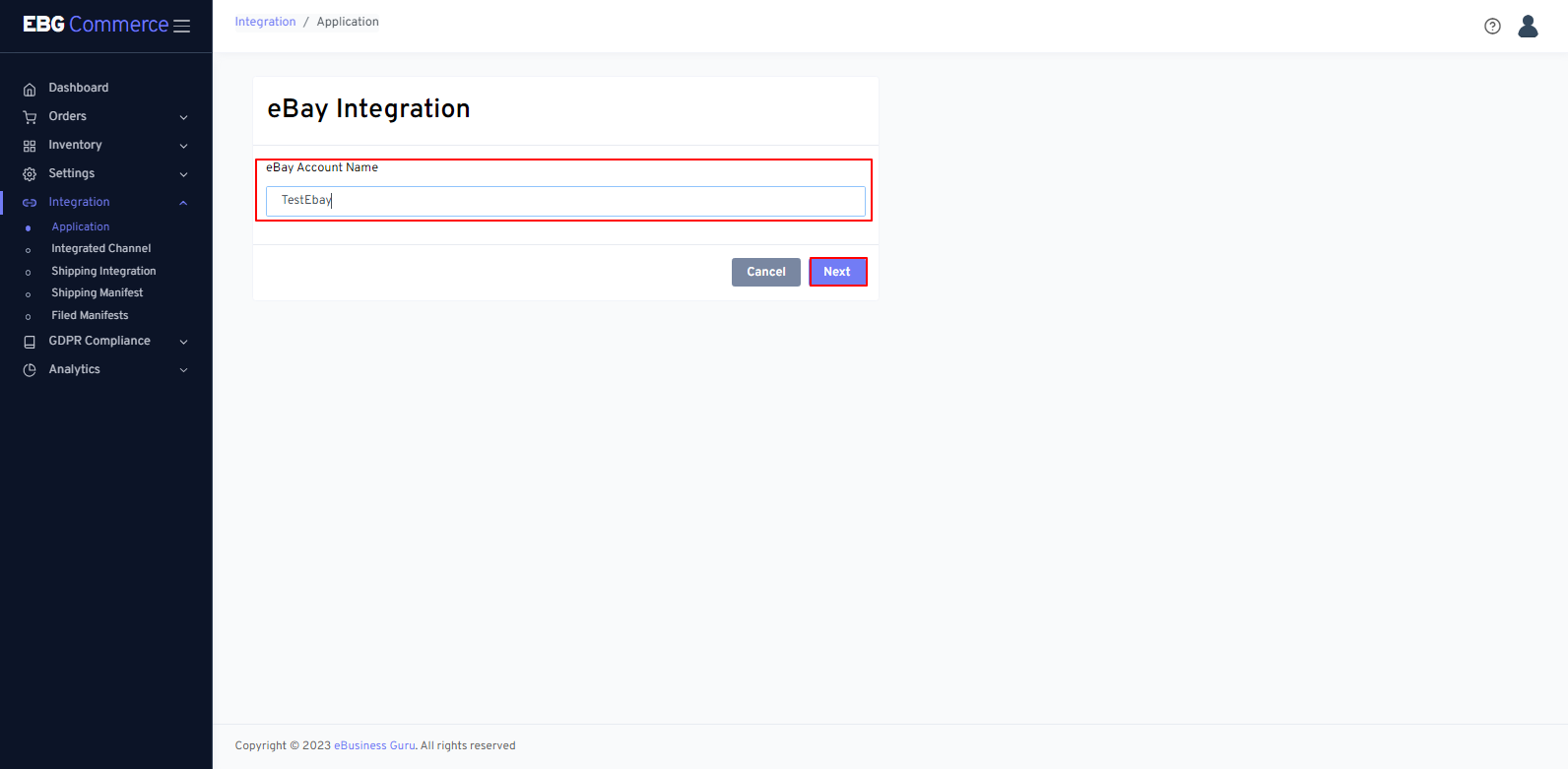 Enter the account name to integrate with the eBay account: In this step, you need to provide a name or identifier for the account you want to integrate with the eBay application.
Then click on the Next button: After entering the account name or identifier, locate the "Next" button on the screen and click on it. This will proceed to the next step of the integration process.
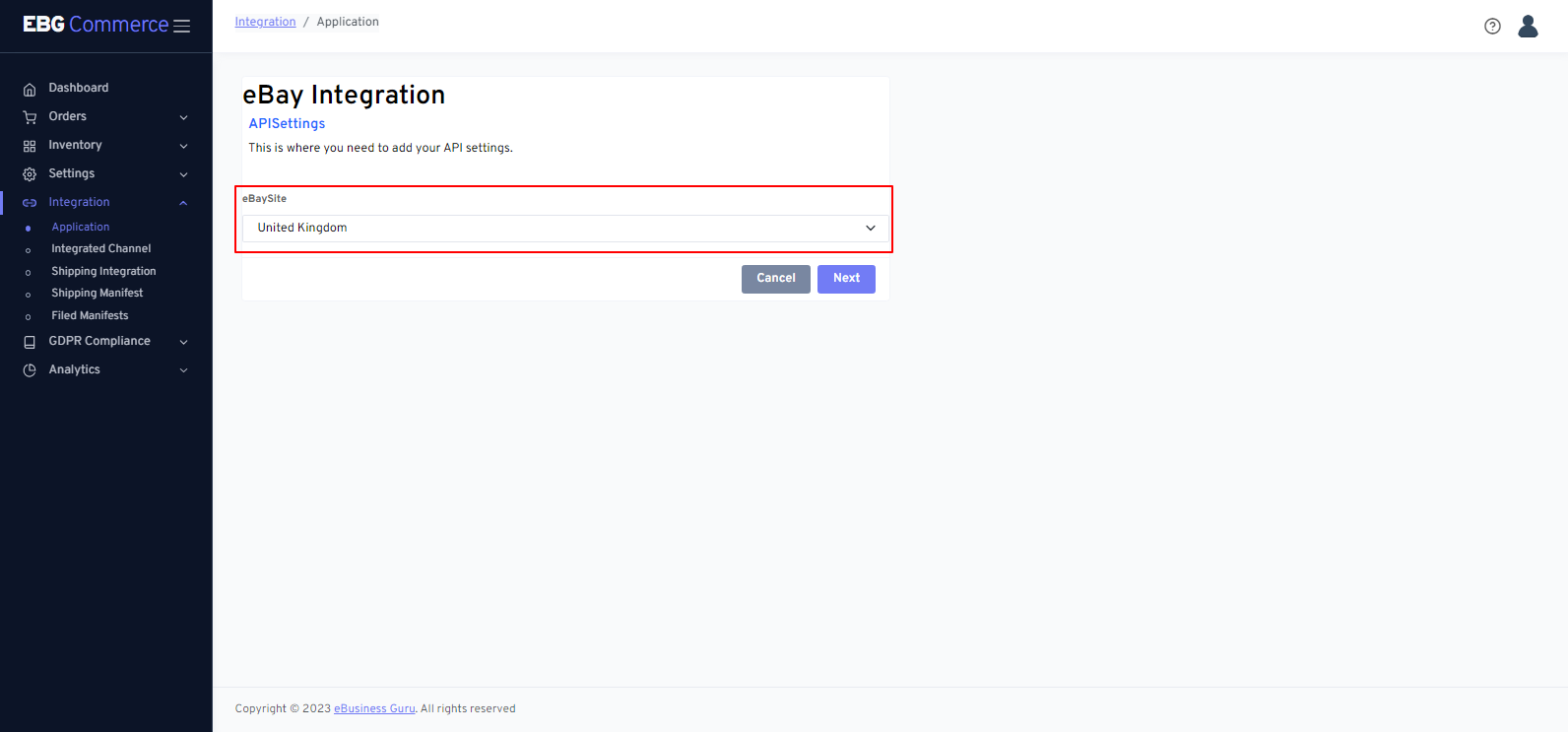 Select country for the eBay site
Then, click on the save button to go to Next.
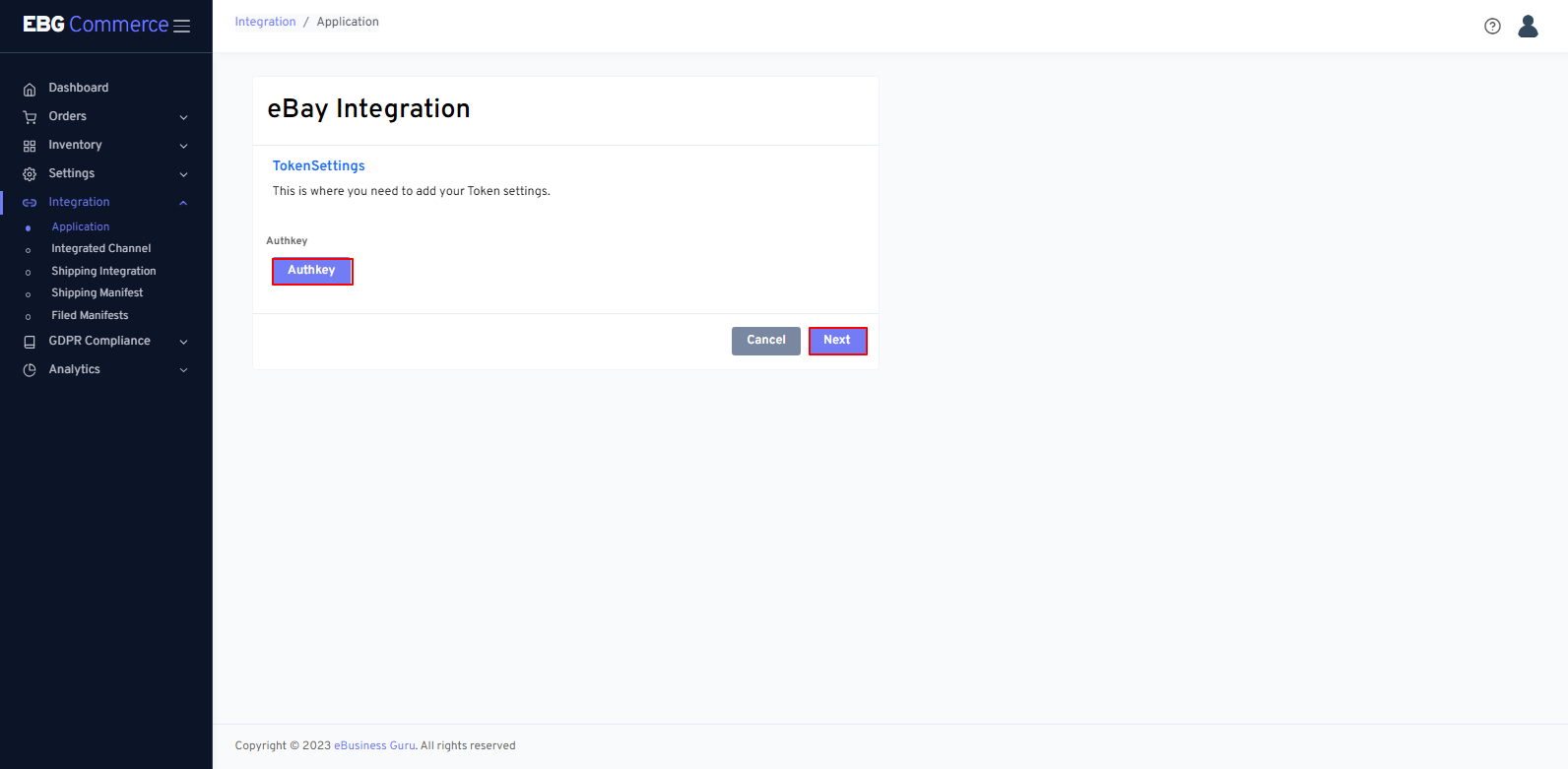 Grant channel authorization: In this stage, you must give permission for the channel integration. A button or link that points you to the authorization page will be given to you. To reach the authorization page, click the button or link provided.
Note: If you choose "Next" without first obtaining authorization, a warning on the screen will say, "Please grant authorization first to move to the next step." Before moving on to the next stage, make sure the permission procedure is finished.
To create a token or provide the required rights, follow the instructions after you've reached the authorization page. This token acts as authorization for the channel's and your integration.
Once you successfully authorise the channel,, you will be redirected to the following page.
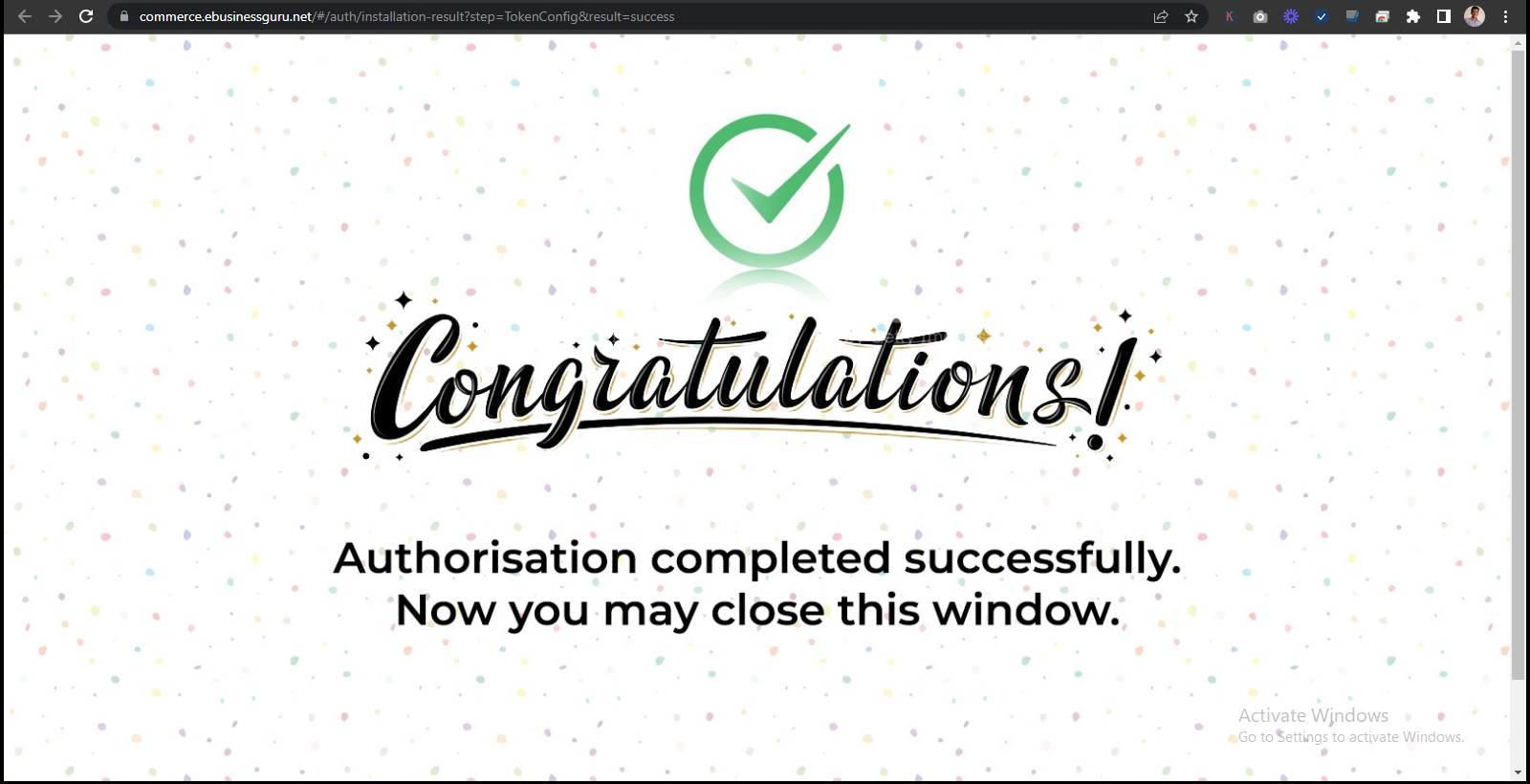 You will be sent to a screen that says "Congratulations." This screen shows that the channel integration process has been completed successfully. Authorization was given, and the integration token was set up successfully.
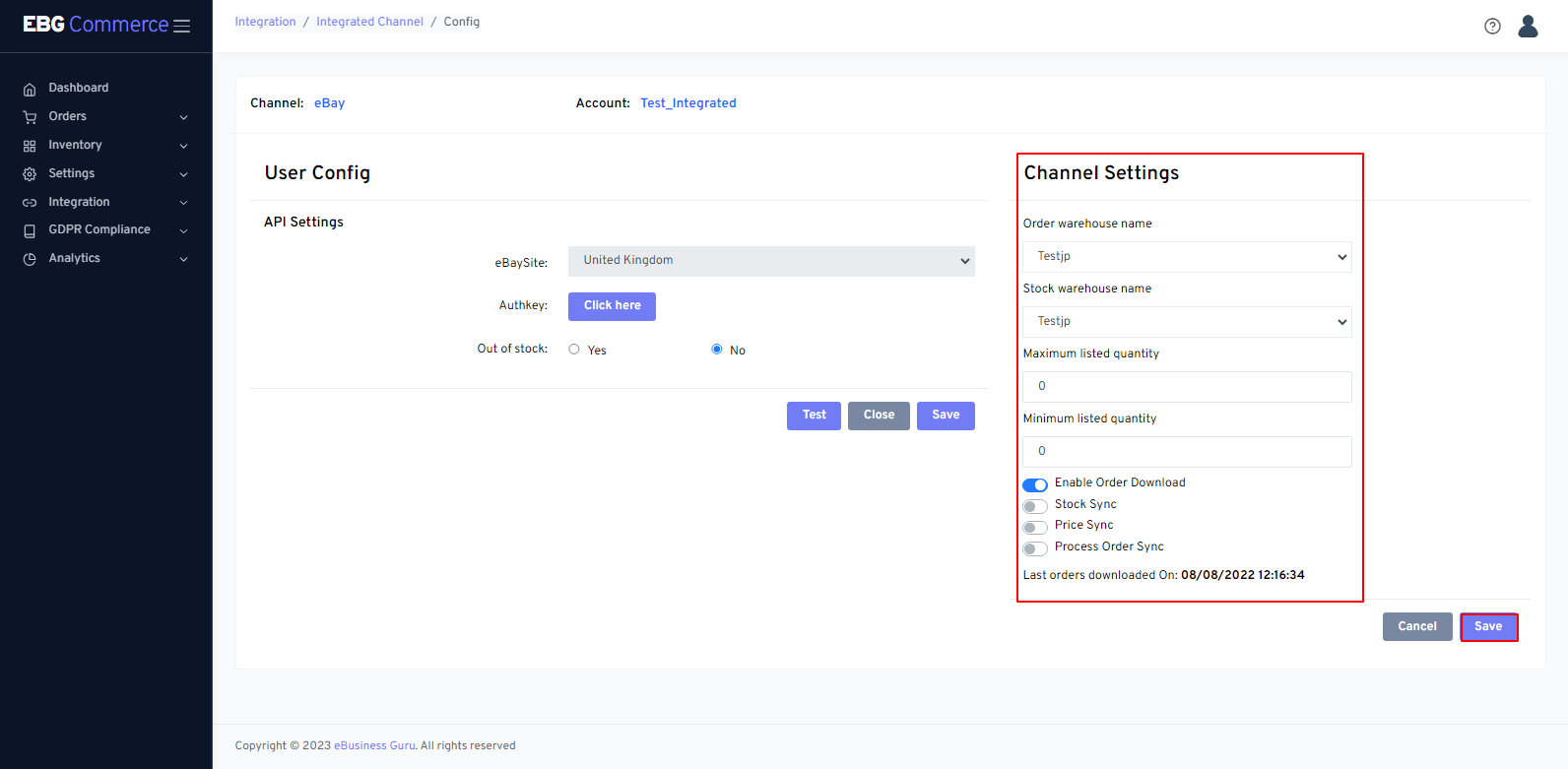 after clicking the next button, the aforementioned type of screen opens (Channel configuration screen)
Reauthorize: Reauthorize button is shown on the configuration screen. Click the "Reauthorize" button if you wish to re-authorize the eBay Channel.
Out of stock: When 'Out of stock' is enabled, eBay will show your listings as out of stock, instead of ending them, when stock level is 0.
Order Warehouse Name: Choose the warehouse name or location that will be associated with incoming orders from the integrated channel. This selection helps streamline your order fulfilment process by specifying the default warehouse for processing channel orders.
Stock warehouse name: Choose the warehouse name or location that will be associated with managing and updating stock levels for the integrated channel. This selection helps ensure accurate inventory management and stock synchronisation.
Order Download: Toggle this setting to enable or disable the automatic downloading of orders from the integrated channel into your system. When enabled, new orders placed on the channel will be automatically synchronized into your system for further processing.
Stock Sync: Toggle this setting to enable or disable the automatic synchronisation of stock levels between your system and the integrated channel. When enabled, changes in stock levels in your system will be reflected and updated on the channel, ensuring accurate inventory management.
Price Sync: Toggle this setting to enable or disable the automatic synchronisation of product prices between your system and the integrated channel. When enabled, changes in product prices in your system will be reflected and updated on the channel.
Process Order Sync: Toggle this setting to enable or disable to automate the dispatch updates between your system and the integrated channel. When enabled, updates on order processing, such as order fulfilment and shipping information (Tracking details), will be synced between your system and the channel.
Maximum listed quantity: This specifies the maximum level sent to the channel. Max List specifies the maximum level of available stock that will be sent to the channel. The level sent to the channel will never be higher than the specified number, regardless of your actual available stock level in EBG Commerce.
Example:
 Minimum listed quantity: This enables you to force the listing to be minimum listed so that the stock level gets to the specified amount instead of the default value of zero. If Minimum listed quantity is enabled it will force a listing to end/show out of stock when the submitted stock level value reaches a specified amount. When the minimum listed value is reached or passed, 0 is submitted to the channel. The minimum listed value must always be lower than the maximum listed value.
Example: Min listed = 3 eBG Commerce The available stock level changes from 6 to 3.
The minimum listed value is reached, so the submitted quantity is 0.
2. How to Edit channel config
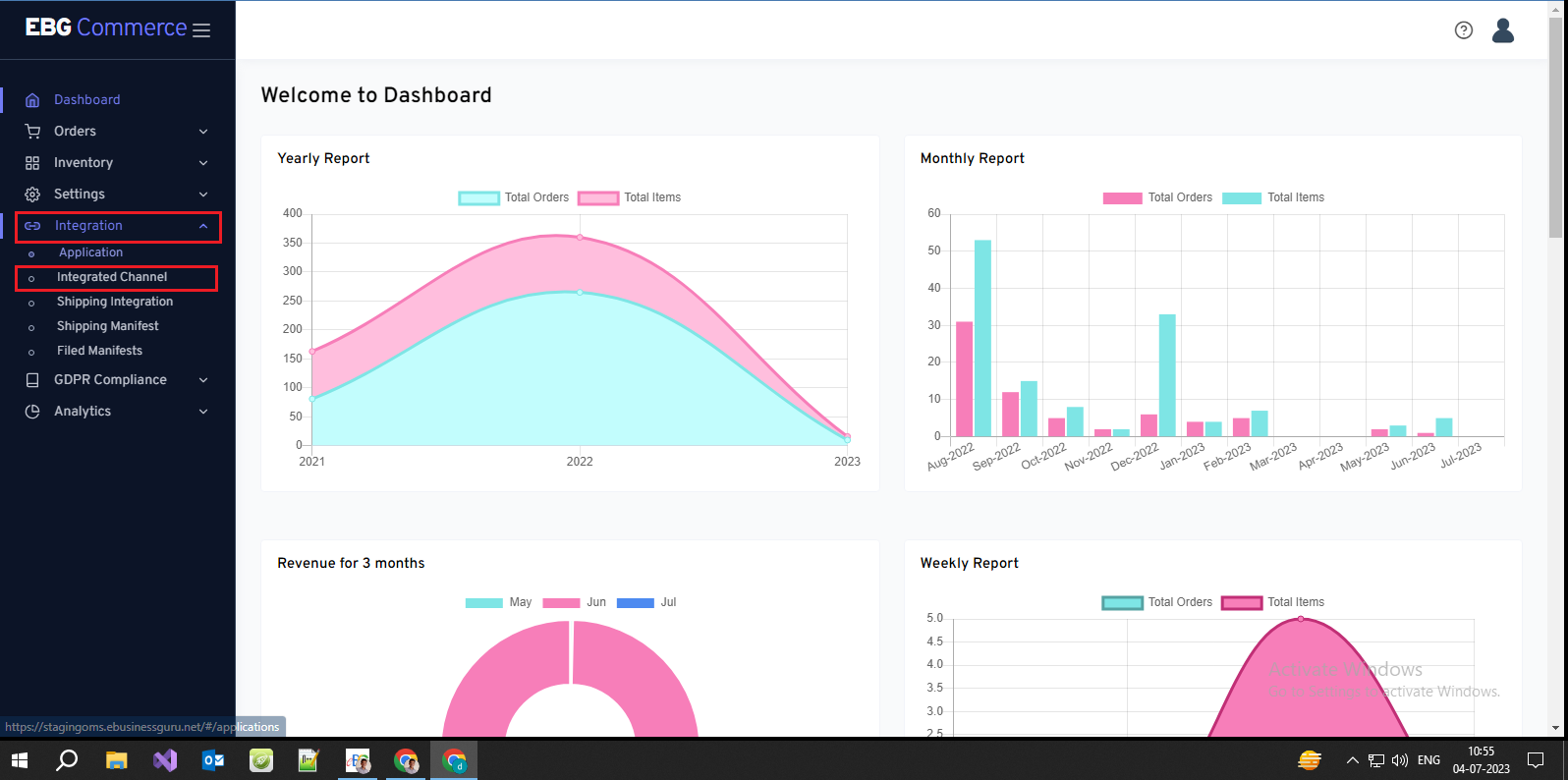 Look on the dashboard of your system for the navigation menu. In the application menu, look for and choose the "Integrated Channel" menu option to access the integrated channel settings and adjustments. Click the "Integrated Channel" menu item.
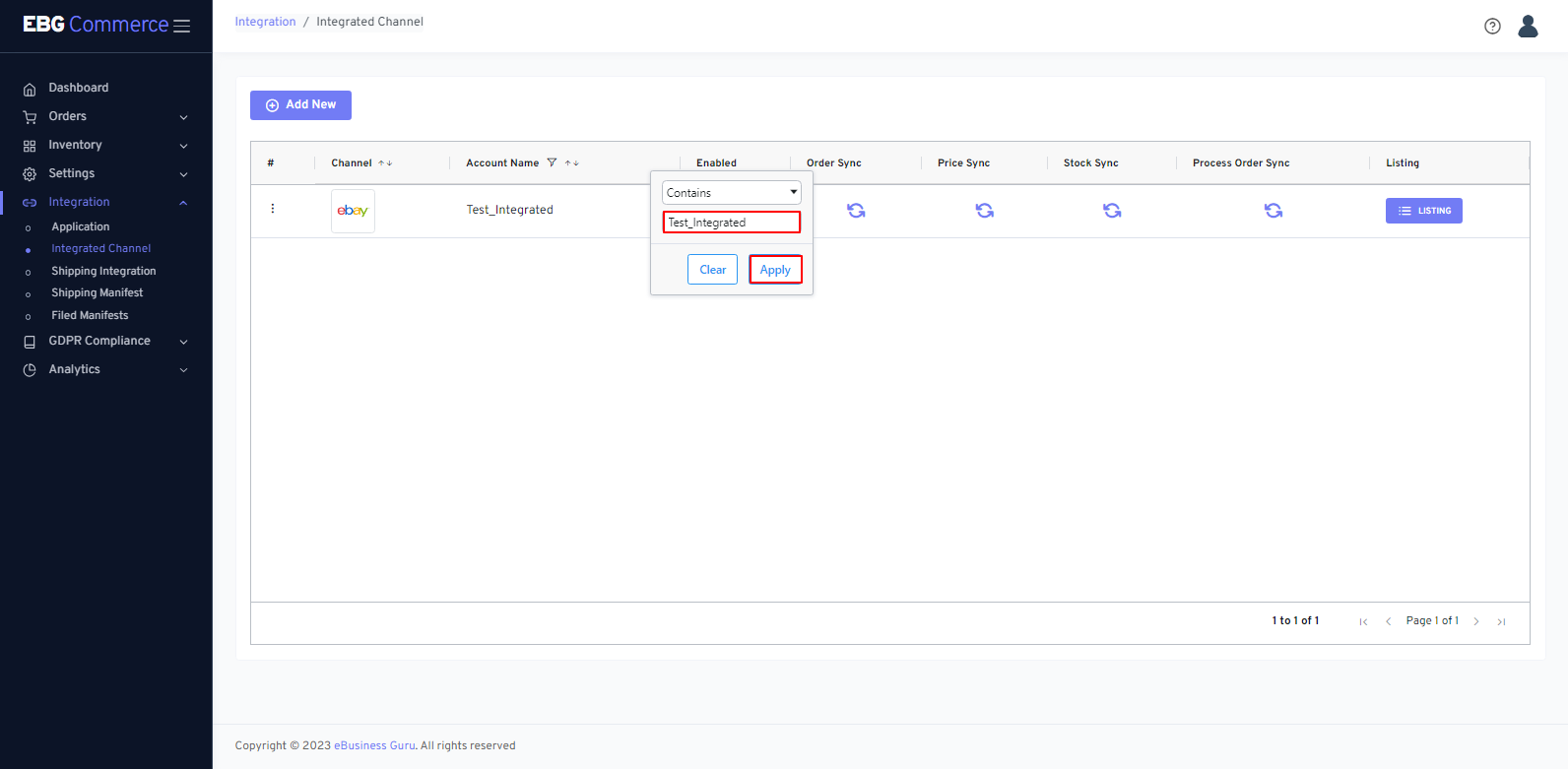 Click the "AccountName" column to find the name you gave the channel when you created it.
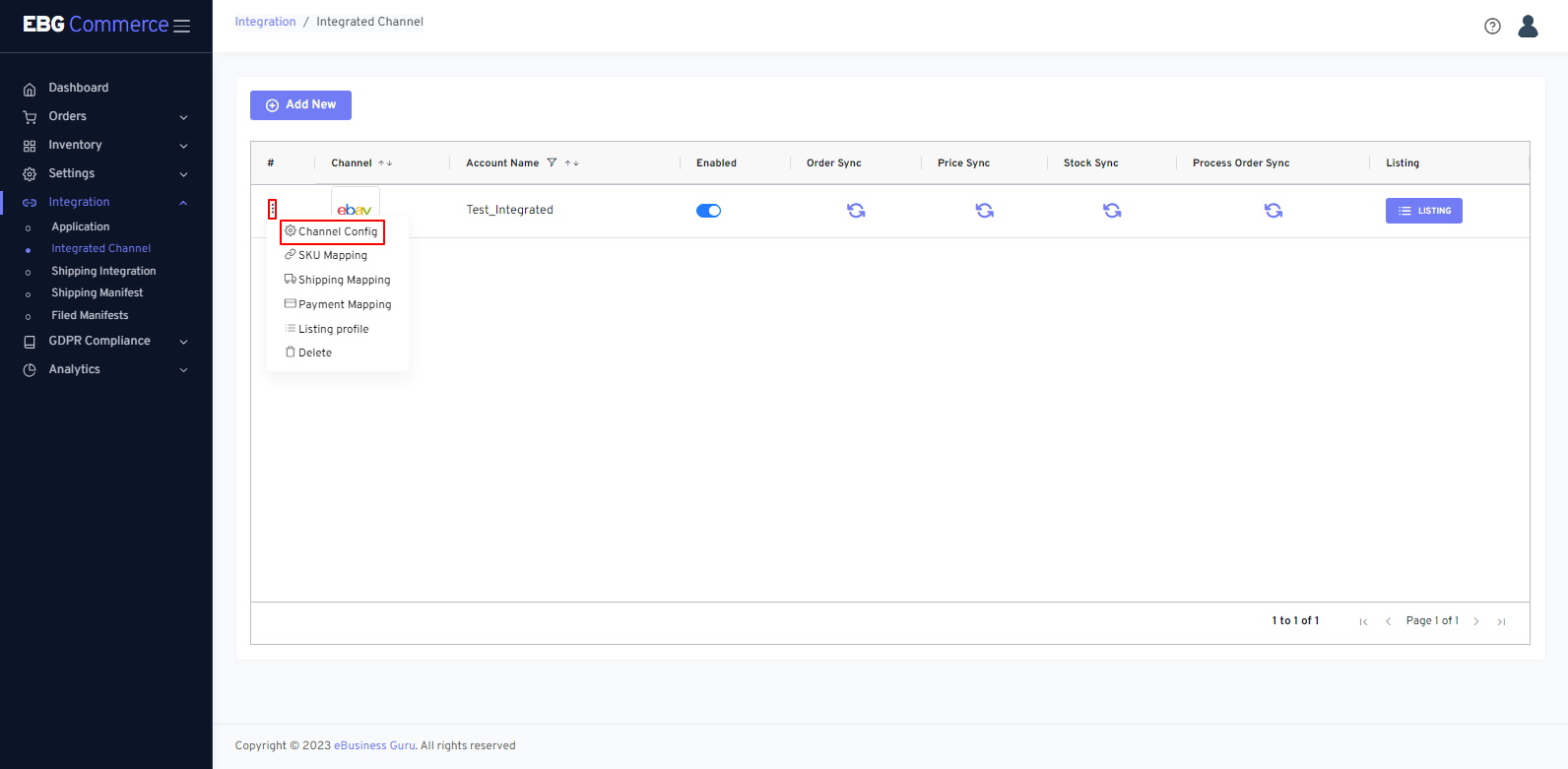 Now, click the three dot button. After clicking the three dots button, a pop-up submenu appears. Click on the Channel Config option if you want to edit the configuration.
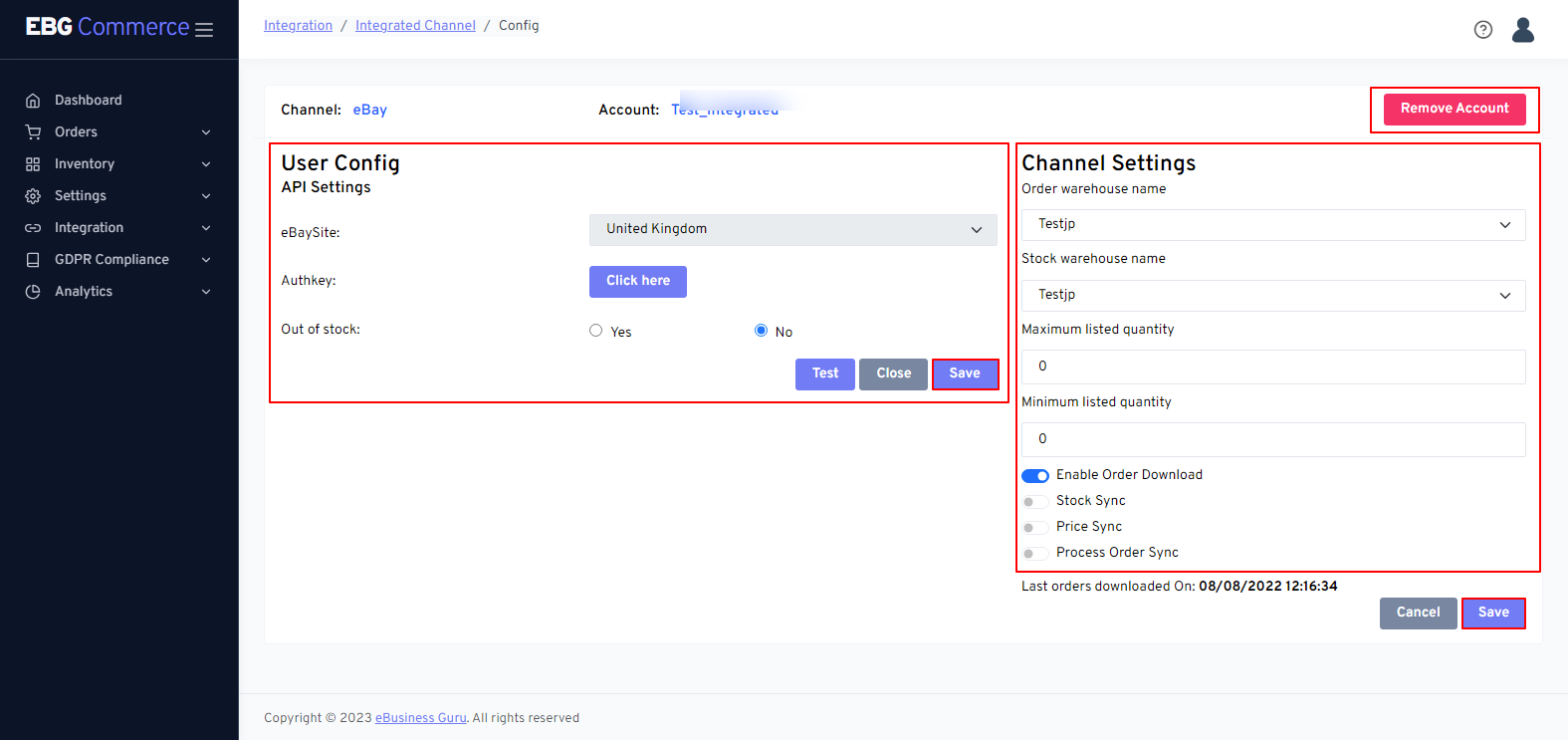 Remove Account: if you want to remove this account then click on “Remove Account” button.
You will see a "confirmation" window after click on the “Remove Account”.
Remove Account: if you want to remove this account then click on “Remove Account” button.
You will see a "confirmation" window after click on the “Remove Account”.
Above Snapshot shows the edit channel configuration screen and You can modify the configuration to meet your needs.
Then, click on the Save button to save all configurations.
3. How to map eBG Commerce SKUs with eBay SKUs
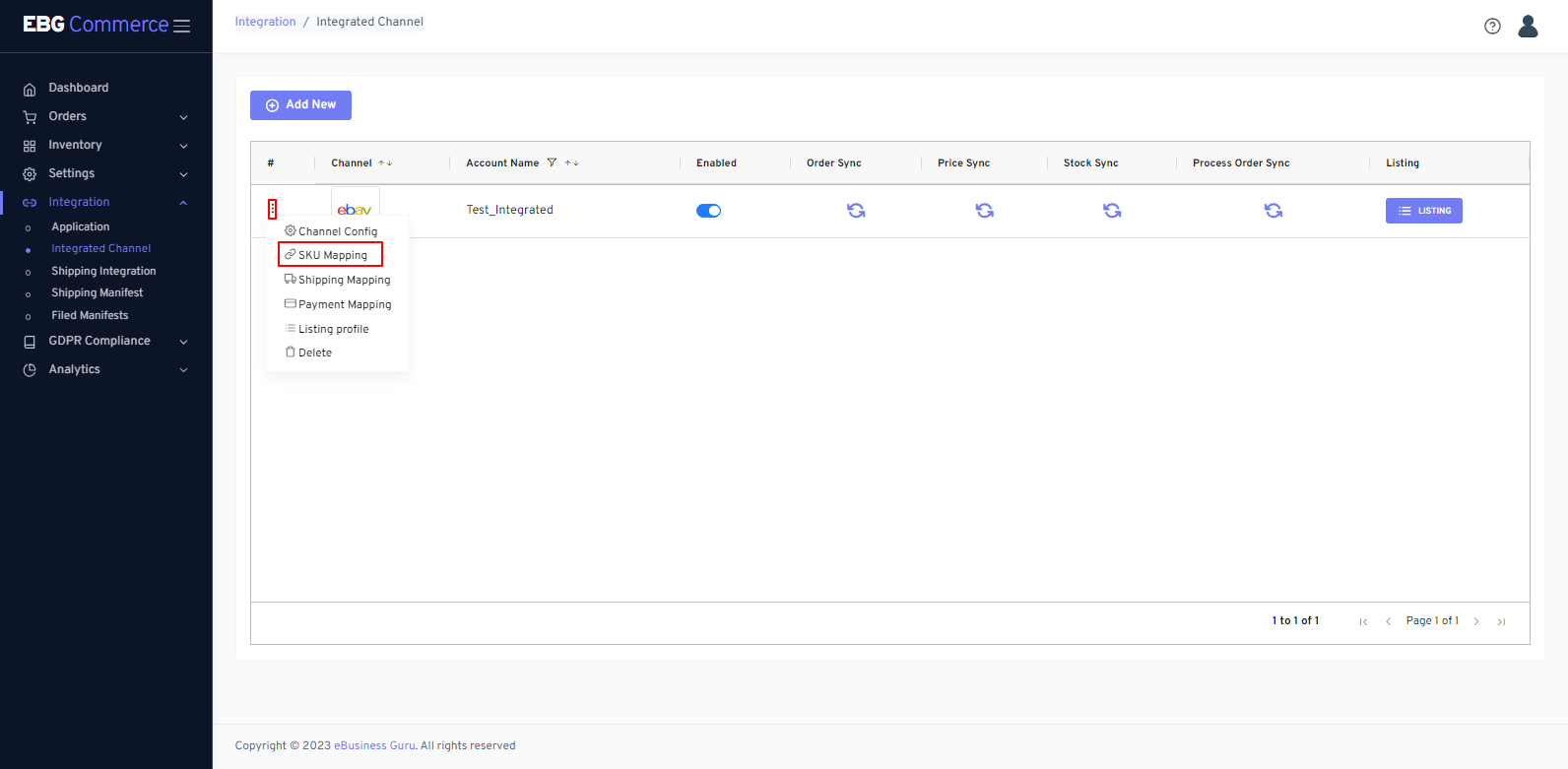 Click on SKU Mapping Option
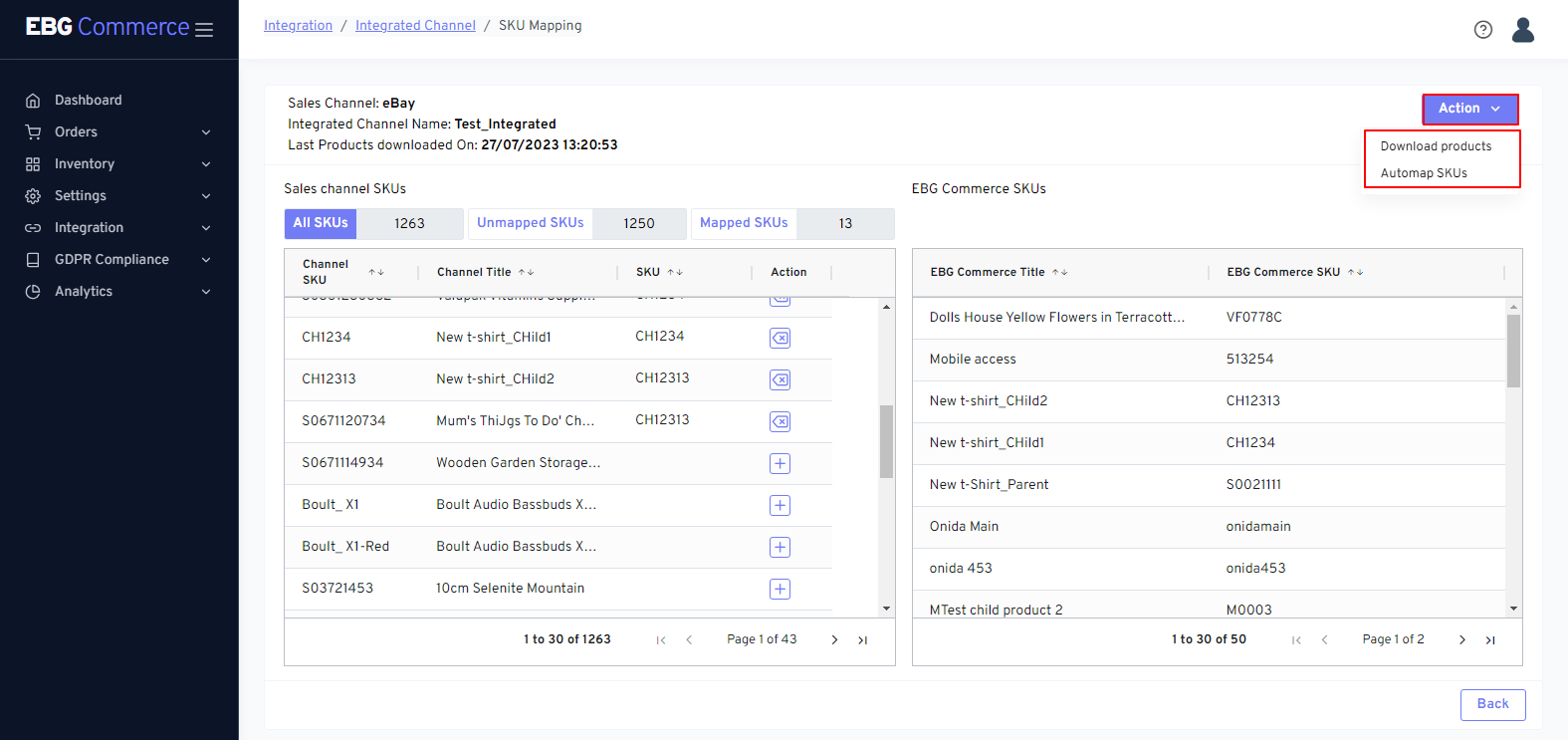 Download Products: Click on the "Download Products" option to initiate the process of downloading products from the integrated channel. This action will retrieve and import the product data from the channel into your system. Only active listing products will be displayed on this SKU mapping screen.
Automap SKU: Enabling the "Automap SKU" option automates the mapping of SKUs (Stock Keeping Units) between your system and the integrated channel. This feature helps ensure that the correct products and variants are synchronised and listed accurately on the channel. By automating the SKU mapping process, you can save time and effort by manually mapping SKUs.
Note:- Channel and EBG Commerce SKUs should be the same.
4. How to map eBG Commerce shipping with eBay shipping
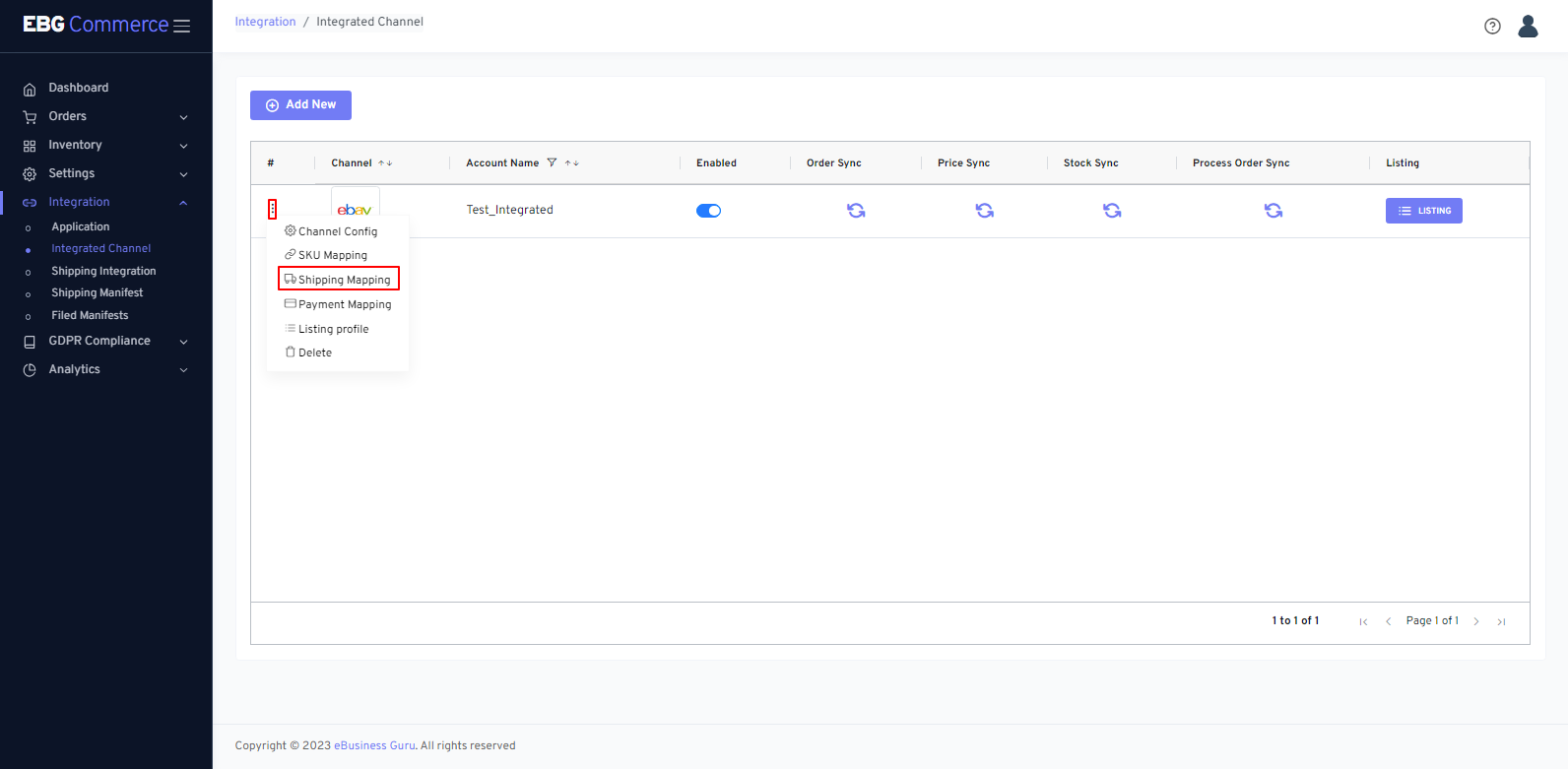 Click on Shipping Mapping
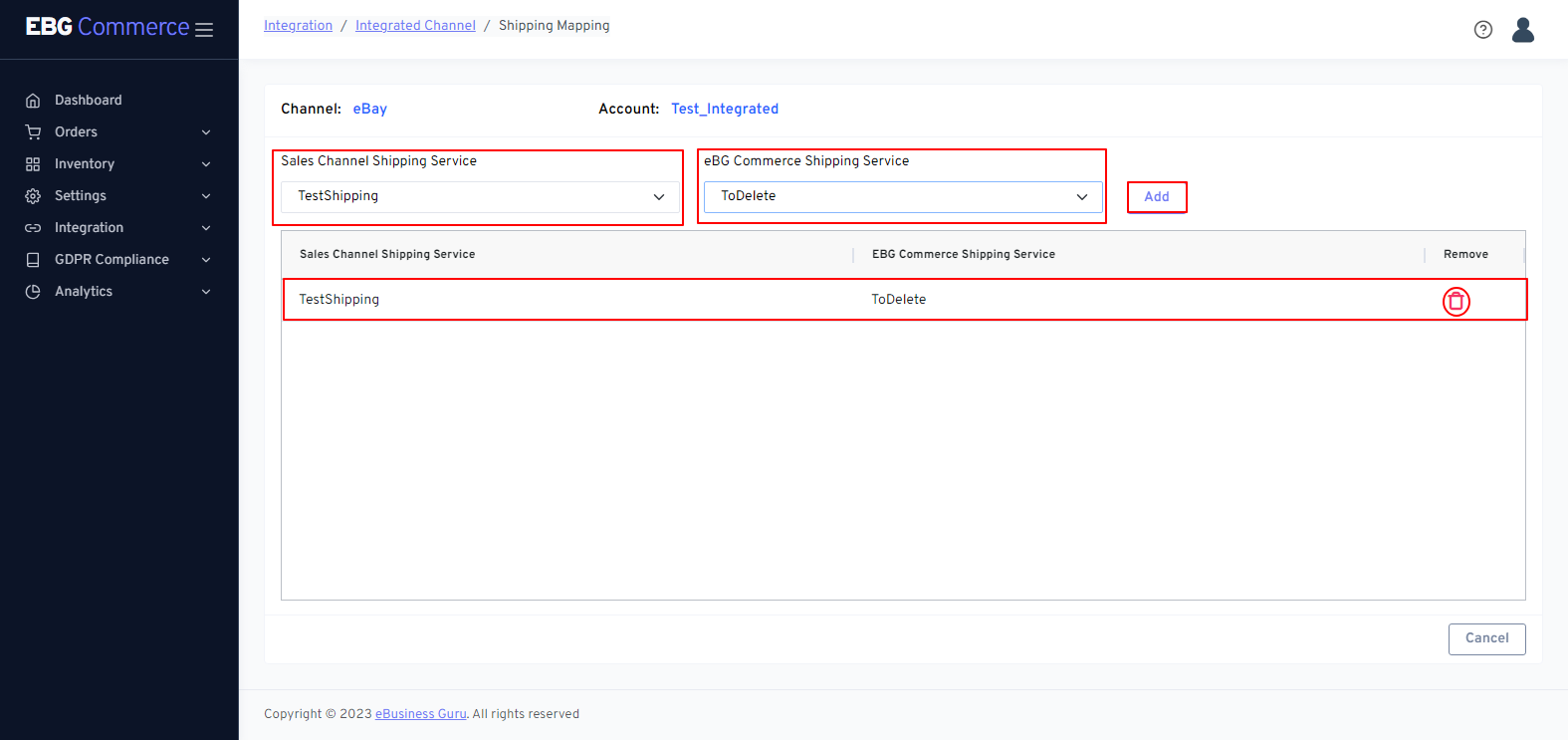 Select Sales Channel Shipping Service: Choose the shipping service or method provided by your sales channel. This option allows you to select the appropriate shipping service that will be used for orders placed through the integrated channel.
Select EBG Commerce Shipping Service: Choose the shipping service or method specific to EBG Commerce. This selection allows you to match and associate the corresponding shipping service from EBG Commerce with the one selected from your sales channel.
After selecting the appropriate shipping services, click on the "Map Fields" button. This action will initiate the mapping process, linking the selected shipping services between your sales channel and EBG Commerce. Mapping the fields ensures that the correct shipping service information is communicated and used for order fulfillment.
5. How to map eBG Commerce Payment with eBay Payment
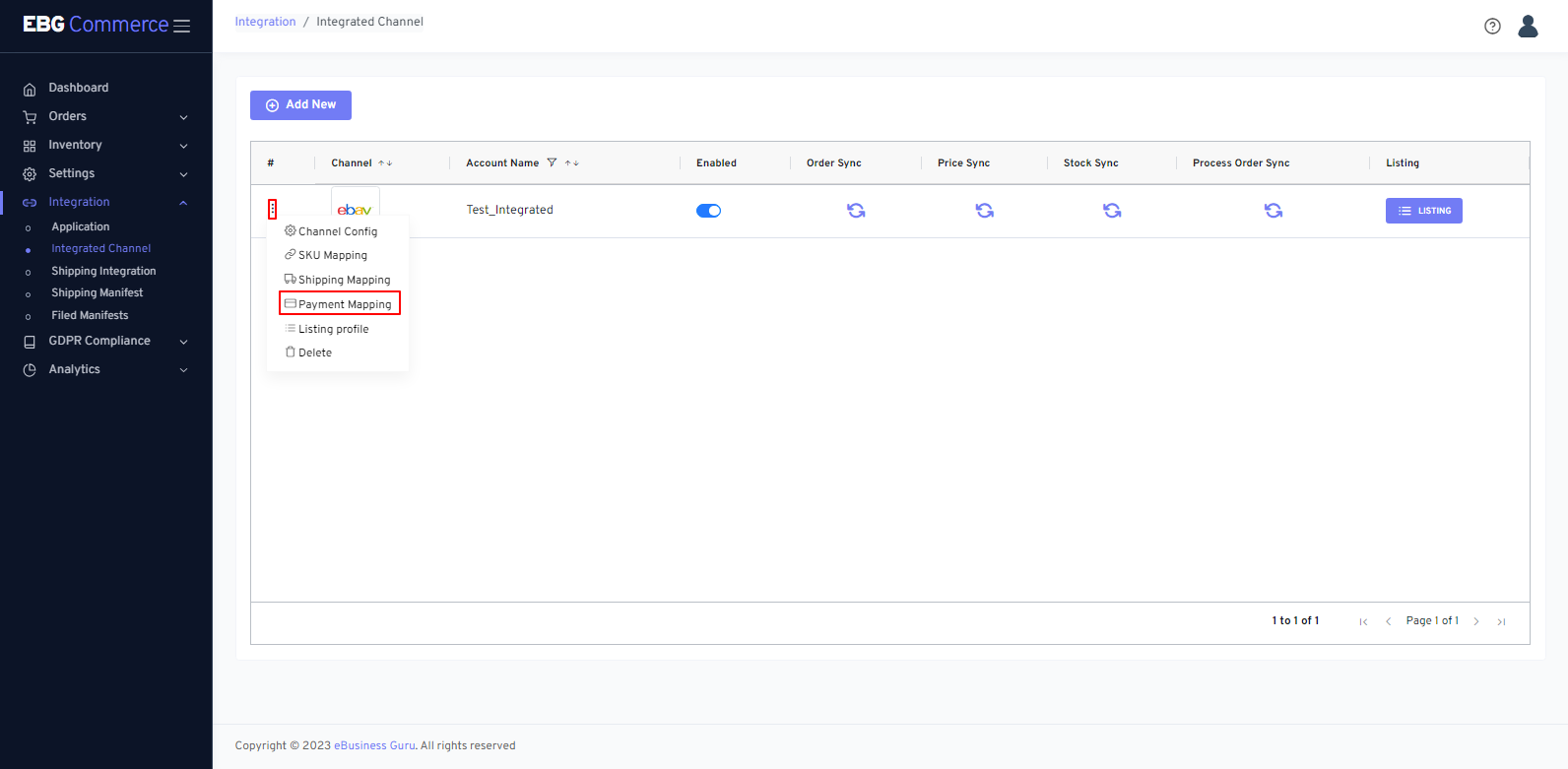 Click on Payment Mapping
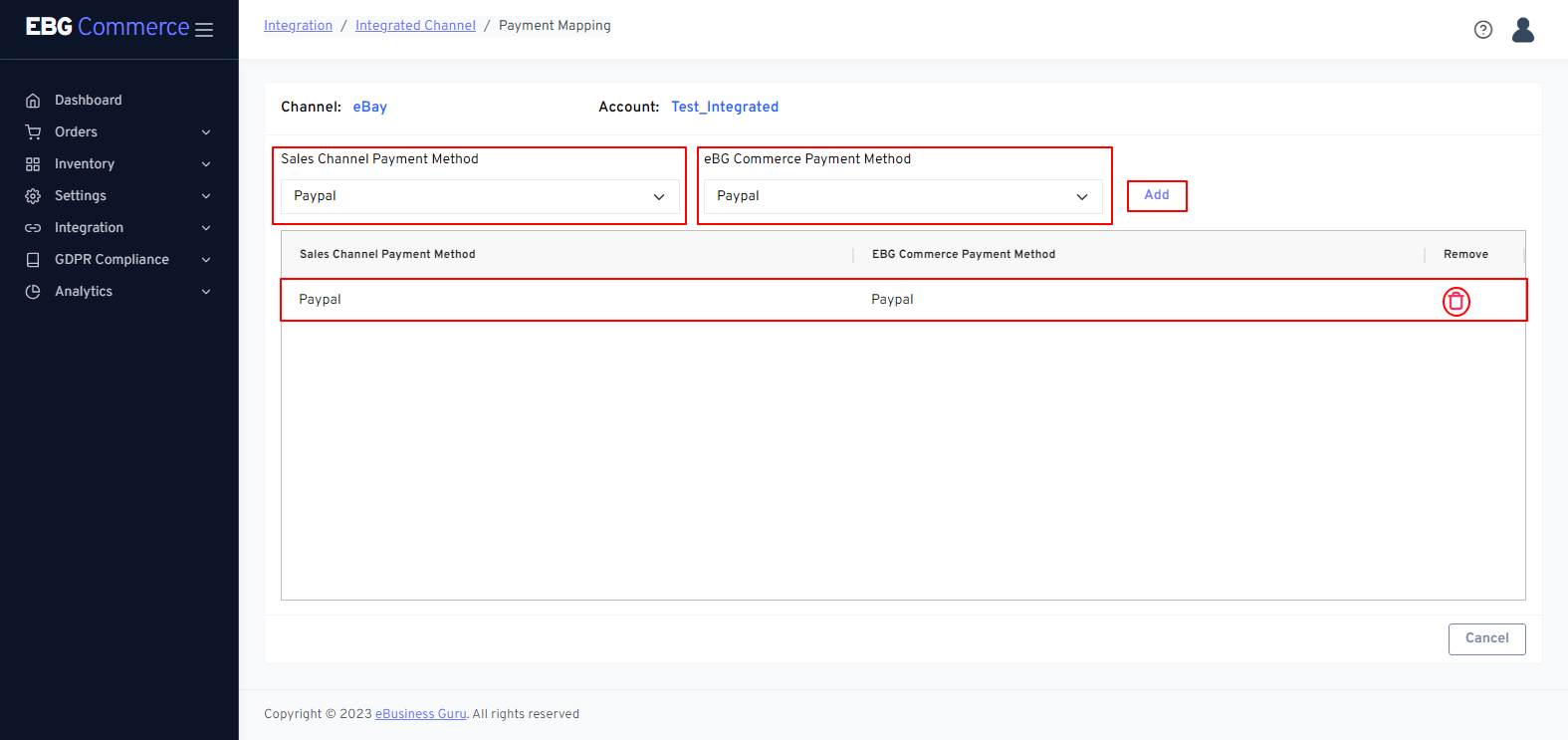 Sales Channel Payment Method: This refers to the payment methods available on the channel or integrated platform. It represents the payment options that customers can choose from when making a purchase through the channel.
EBG Commerce Payment Method: This refers to the payment methods supported by EBG Commerce, which is the integrated platform you are using.
6. How to Sync Orders
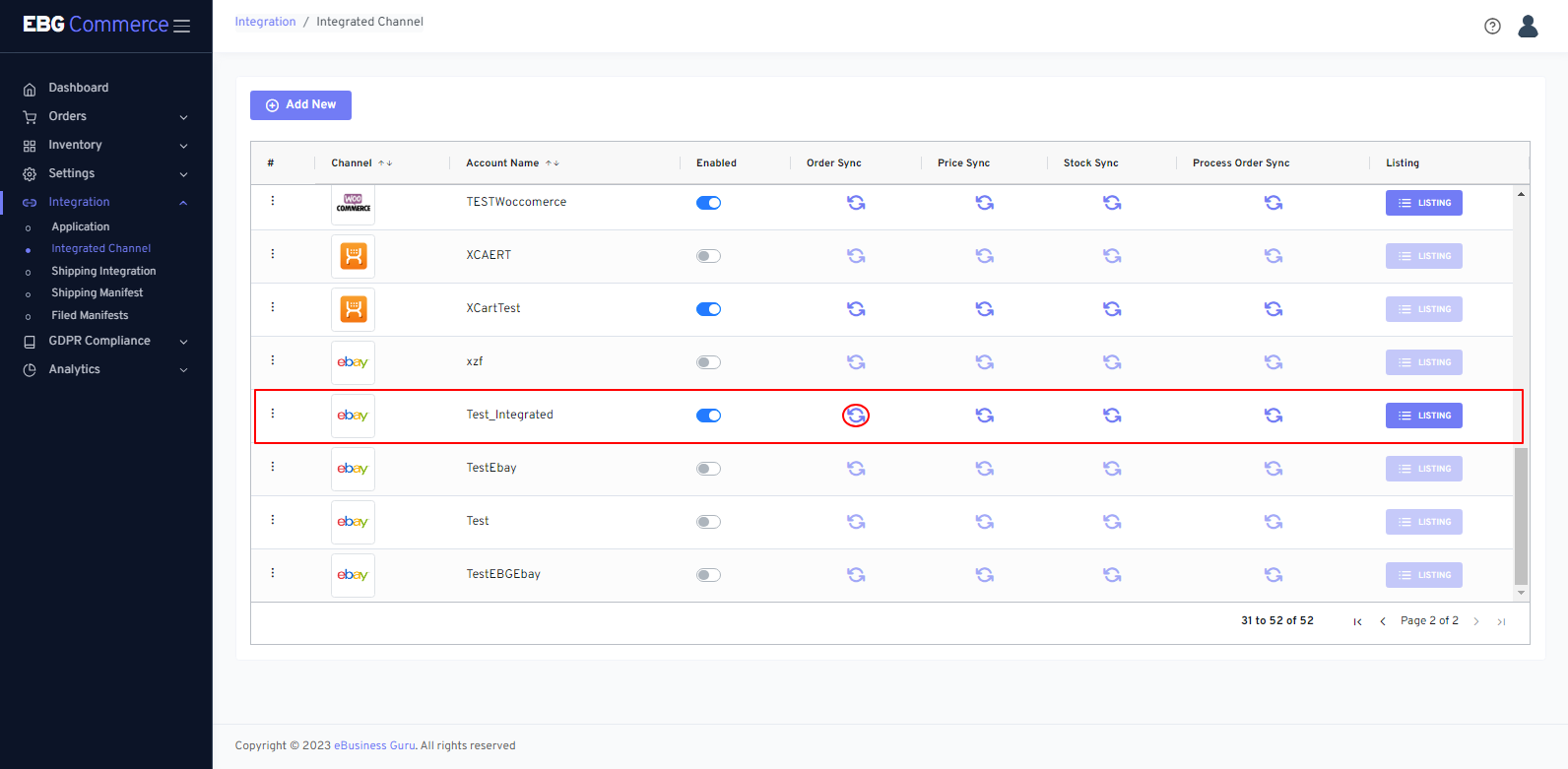 OrderSync: By enabling OrderSync to download eBay orders into EBG Commerce.You can process orders, remove orders, and update orders. It's a comprehensive solution that empowers you to efficiently process, modify, and remove orders, all while maintaining data accuracy and reducing operational complexities.
Notes:- This feature allows you to forcefully trigger a sync process.
7. How to Sync Price
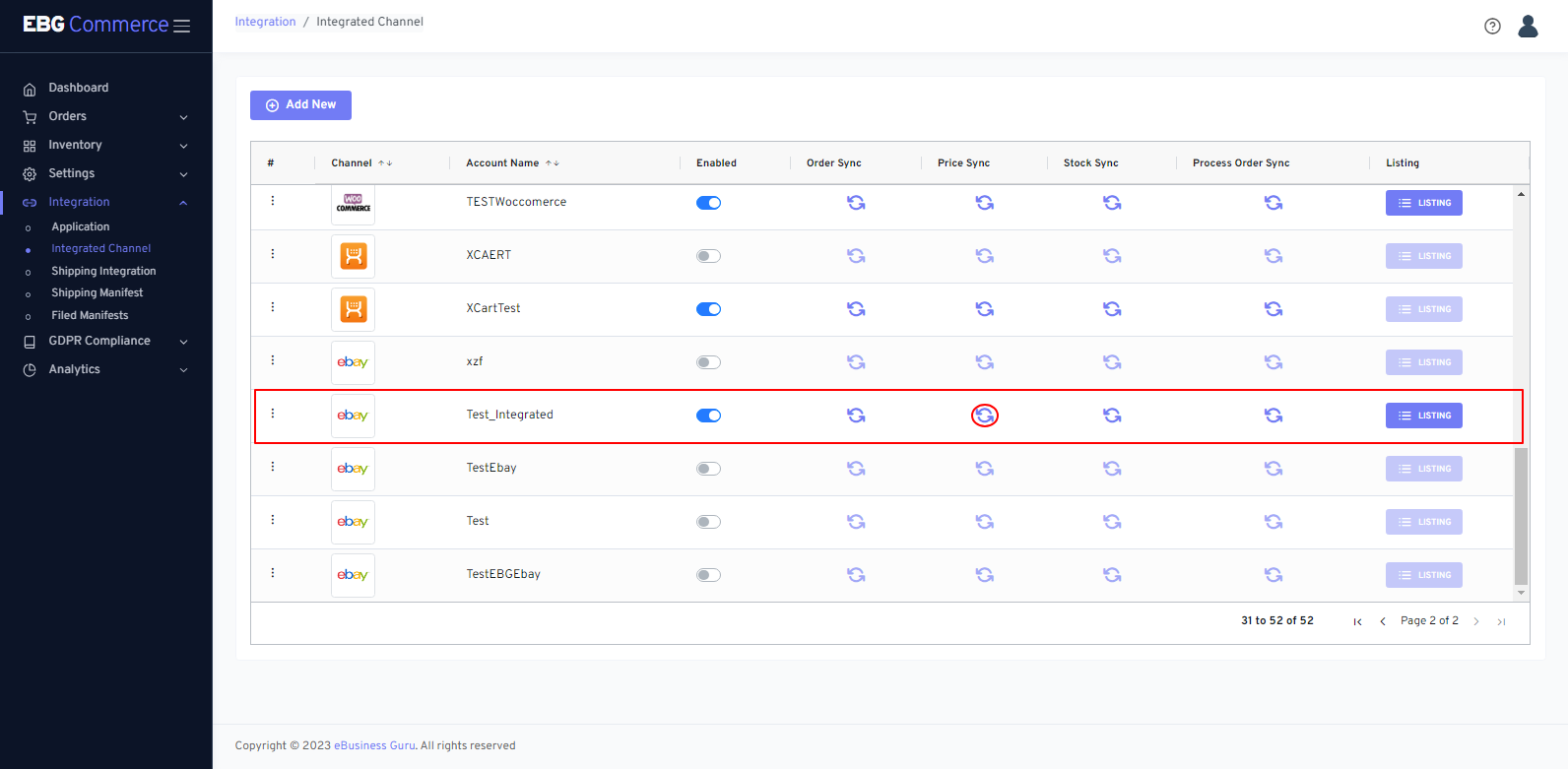 PriceSync: Enable the PriceSync feature to synchronise product prices between your system and the integrated channel. This ensures that the prices displayed on the channel are accurate and up-to-date with the prices set in your system.
Notes:- This feature allows you to forcefully trigger a sync process.
8. How to Sync Inventory
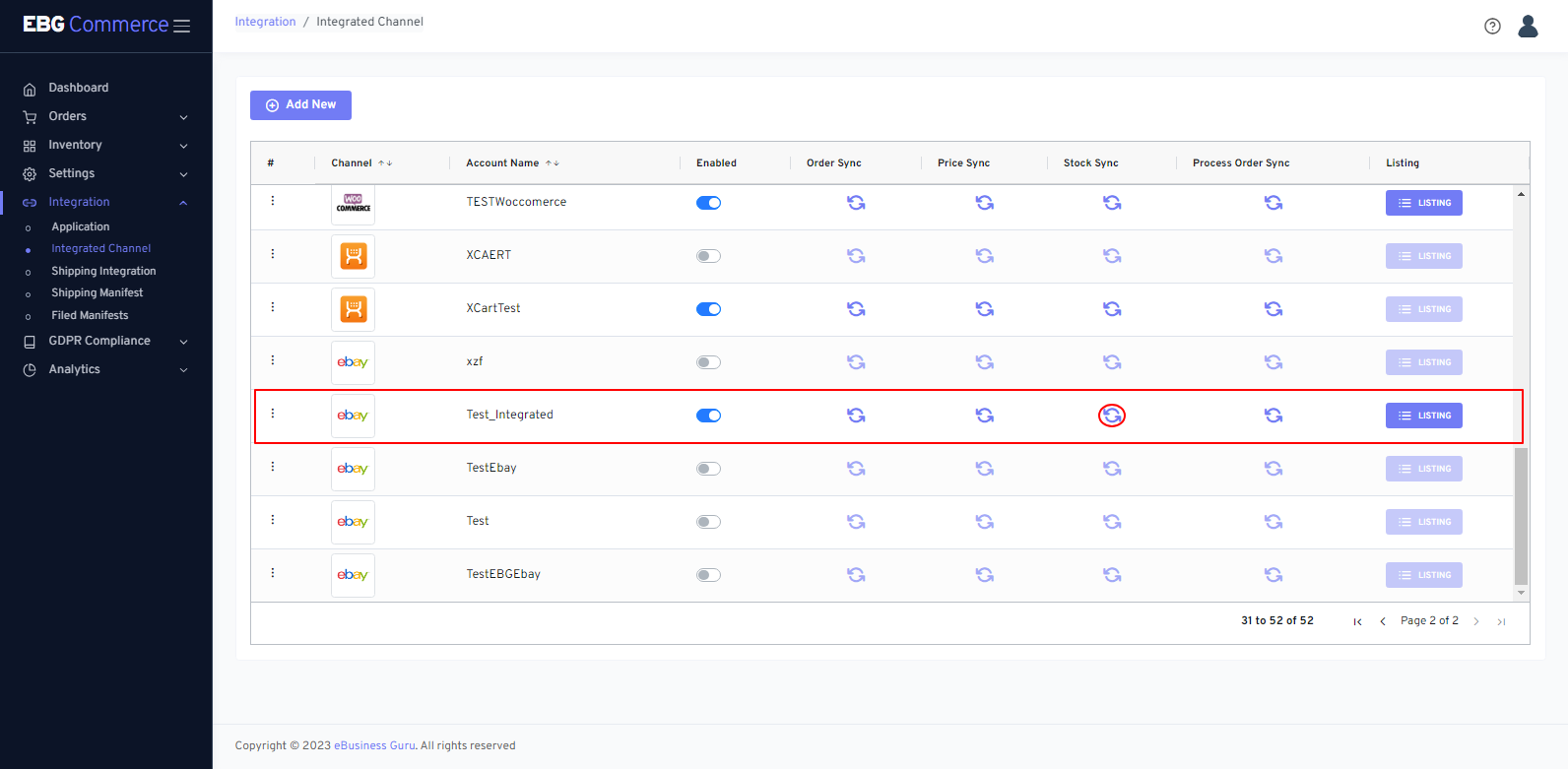 StockSync: Enable the StockSync feature to synchronise stock levels between your system and the integrated channel. This ensures that the available inventory is accurately reflected on the channel, preventing overselling or displaying out-of-stock items.
Notes:- This feature allows you to forcefully trigger a sync process.
9. How to sync Process orders
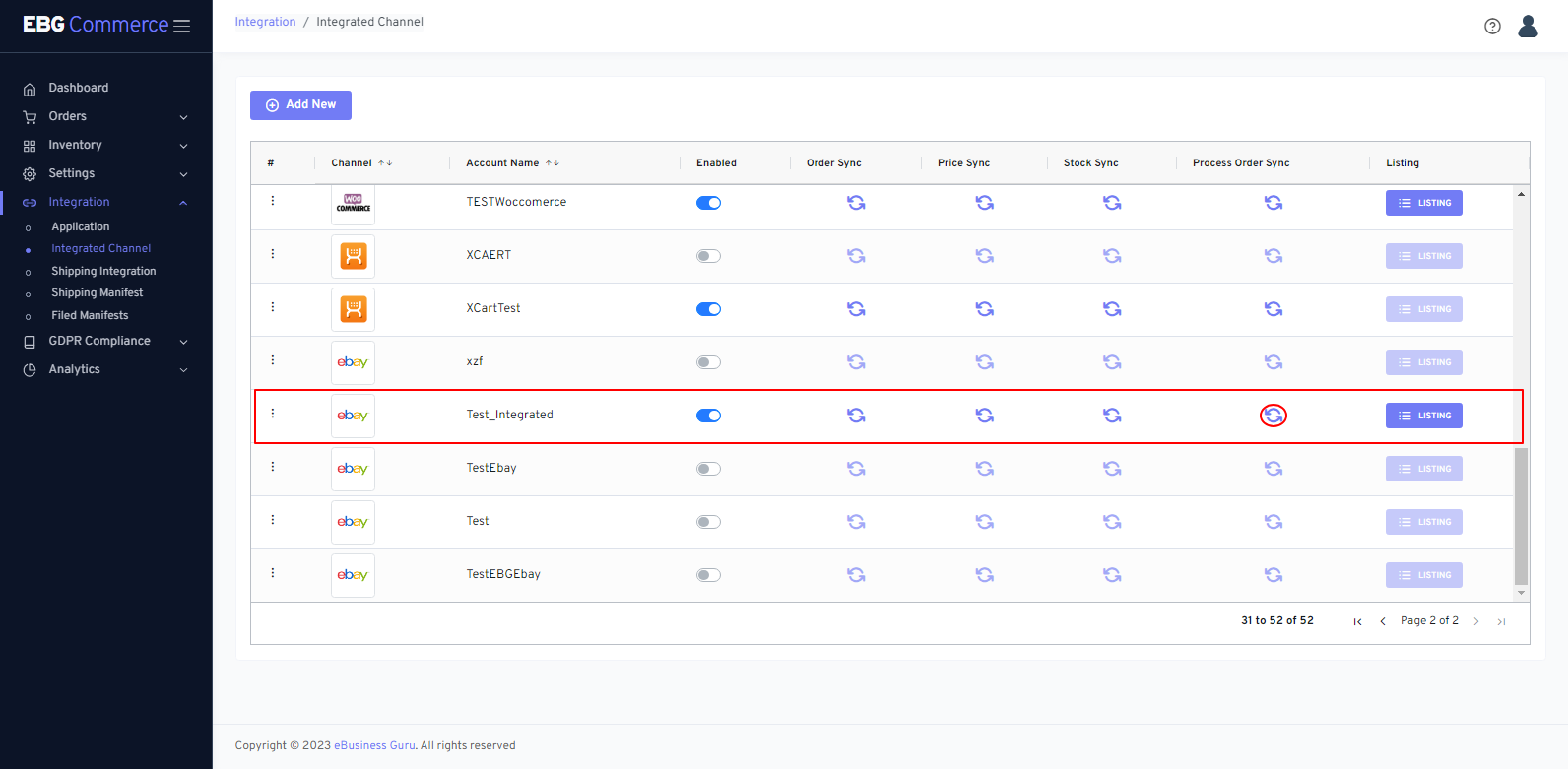 ProcessOrderSync: Enable the ProcessOrderSync feature to synchronise the processing of orders between your system and the integrated channel. This includes updating order fulfilment statuses, tracking information, and sending notifications to customers regarding the progress of their orders
Notes:- This feature allows you to forcefully trigger a sync process.
10. How to Delete Application
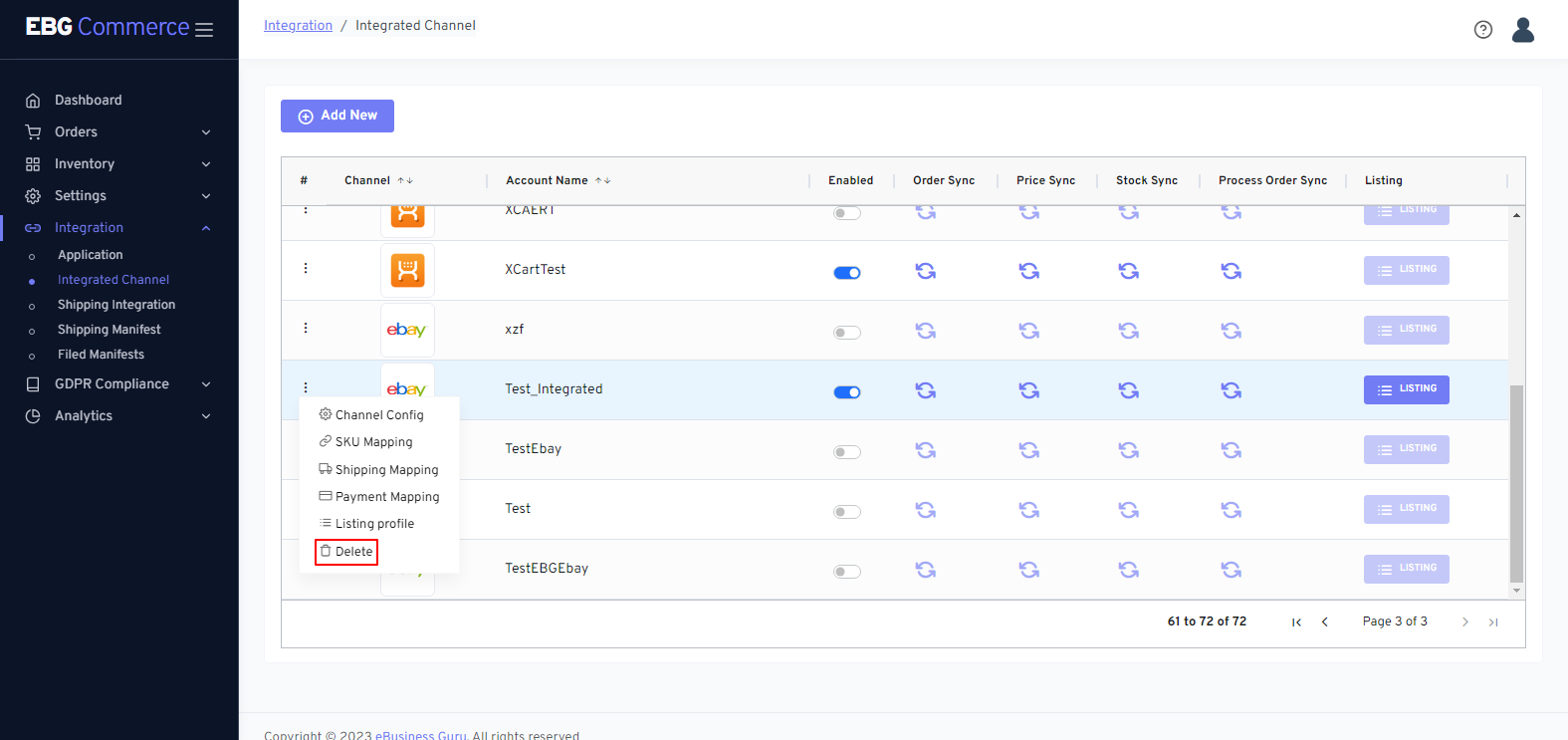 Find the channel you want to delete and click on three dot button.You can choose “Delete”.
You will see a "confirmation" window after selecting the Delete option.
Find the channel you want to delete and click on three dot button.You can choose “Delete”.
You will see a "confirmation" window after selecting the Delete option.
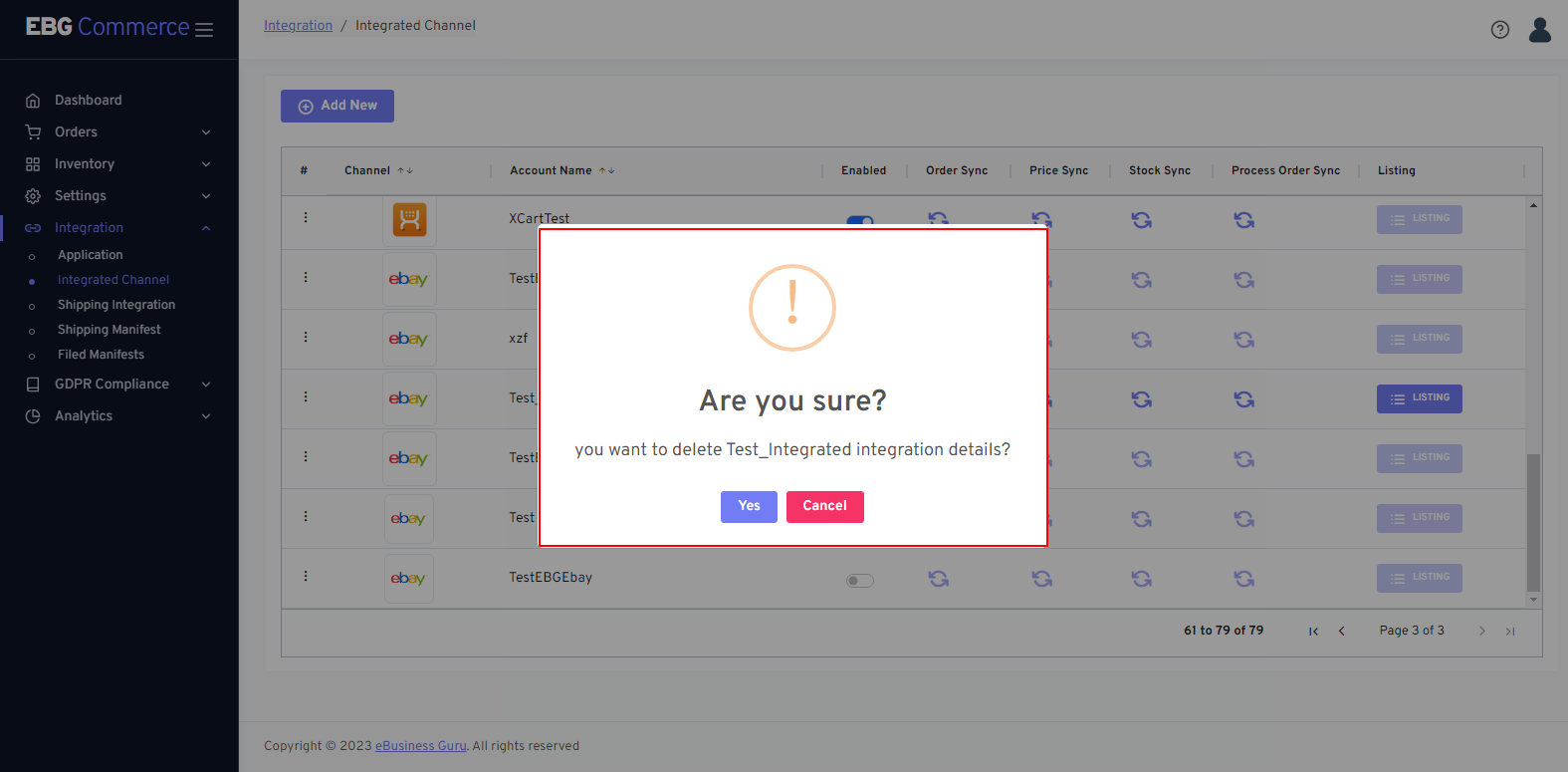 A confirmation popup will open, click “Yes” to delete the Channel or Application.
11. How to List Products
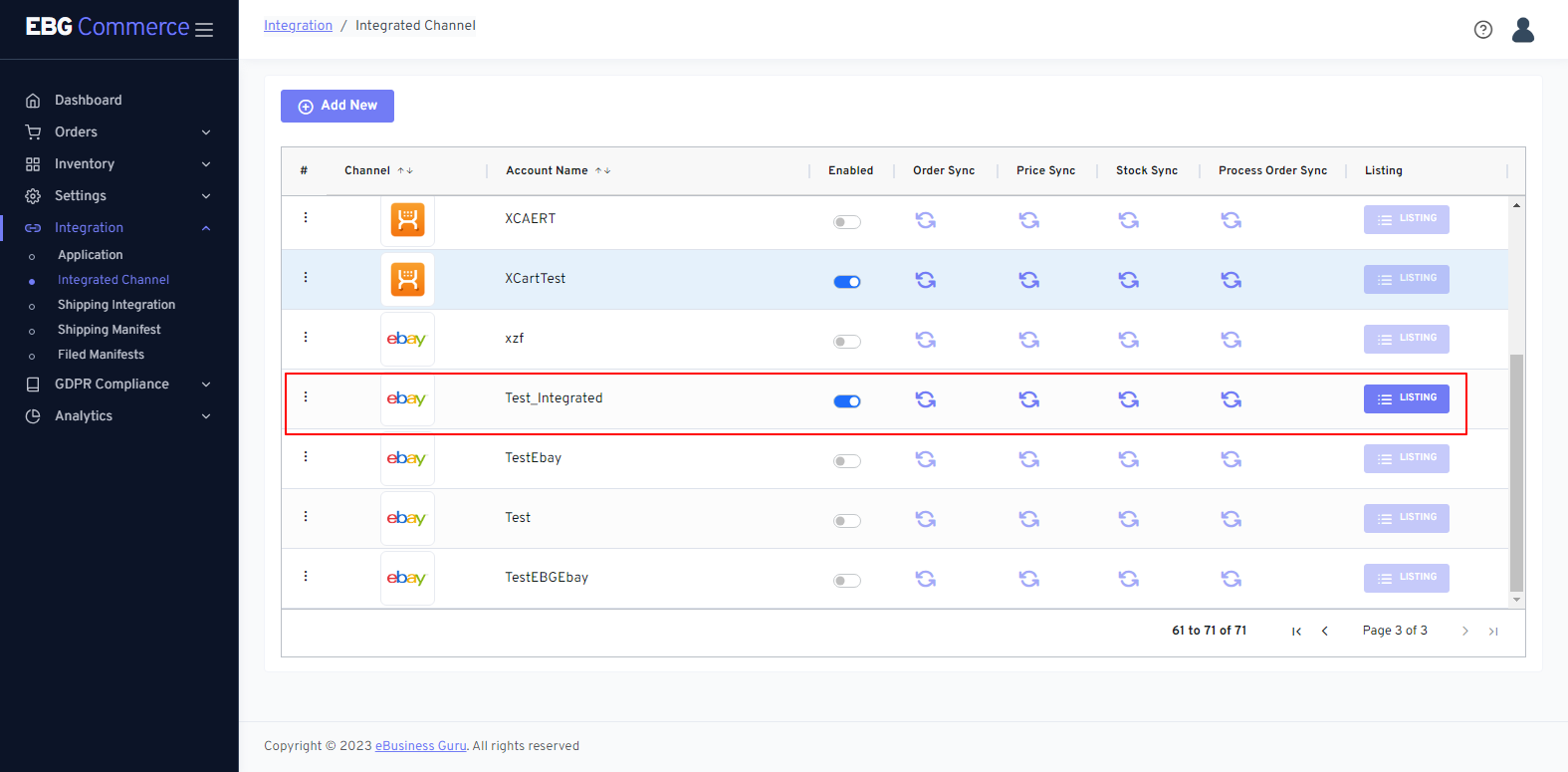 If you wish to add products to a channel, then click the Listing button in the Listing column.
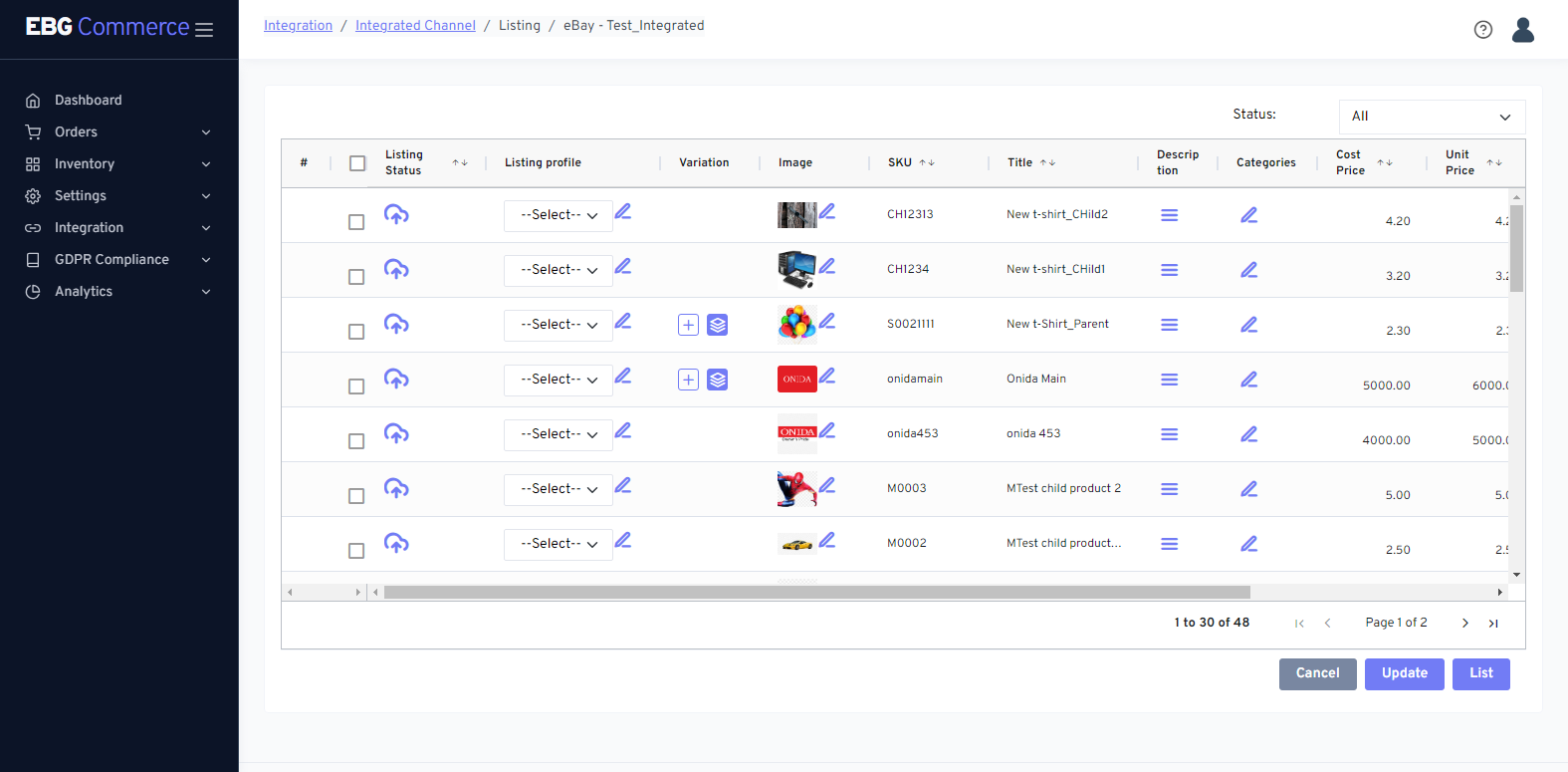
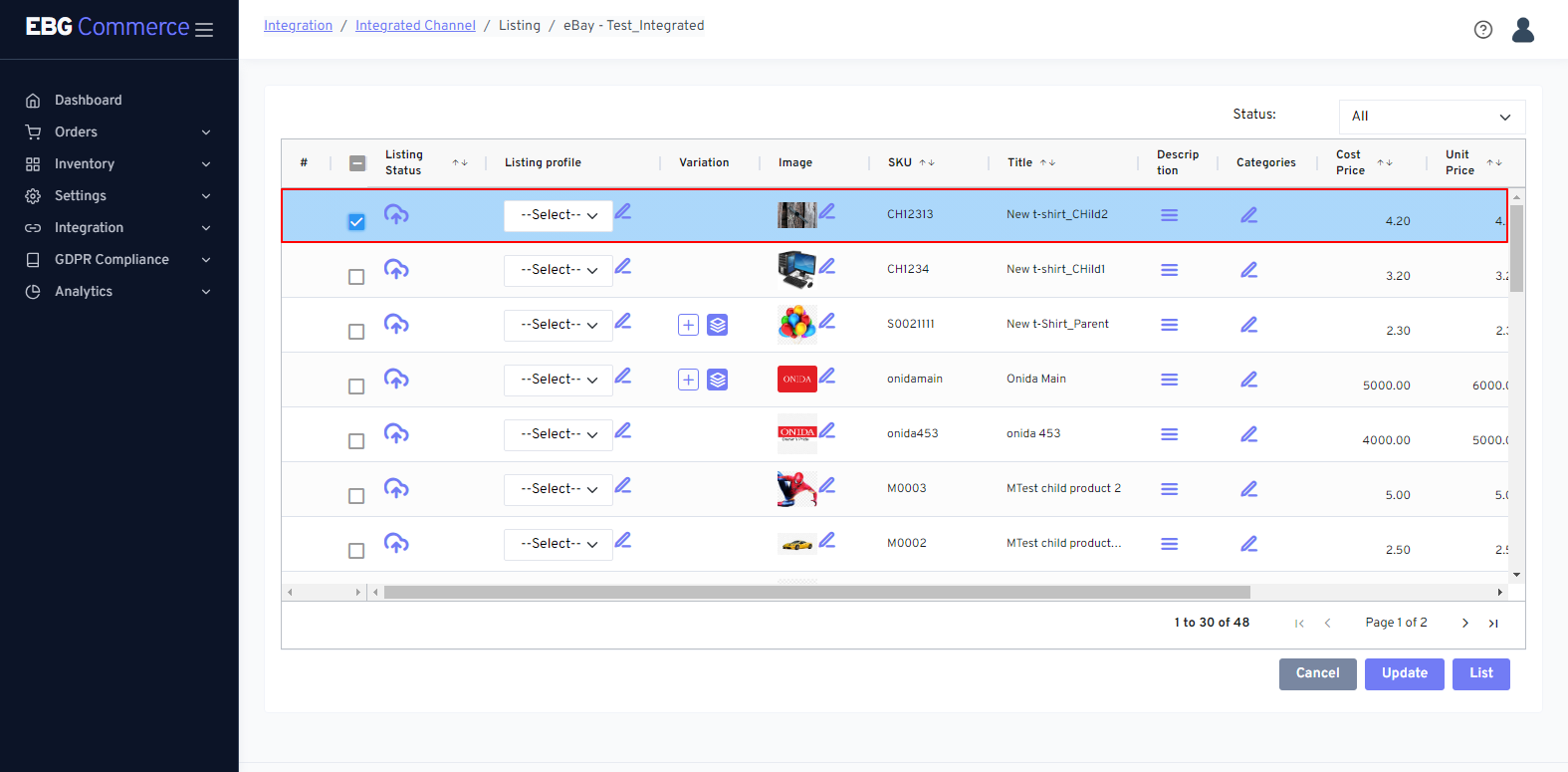
- Click the product's checkbox to choose it.
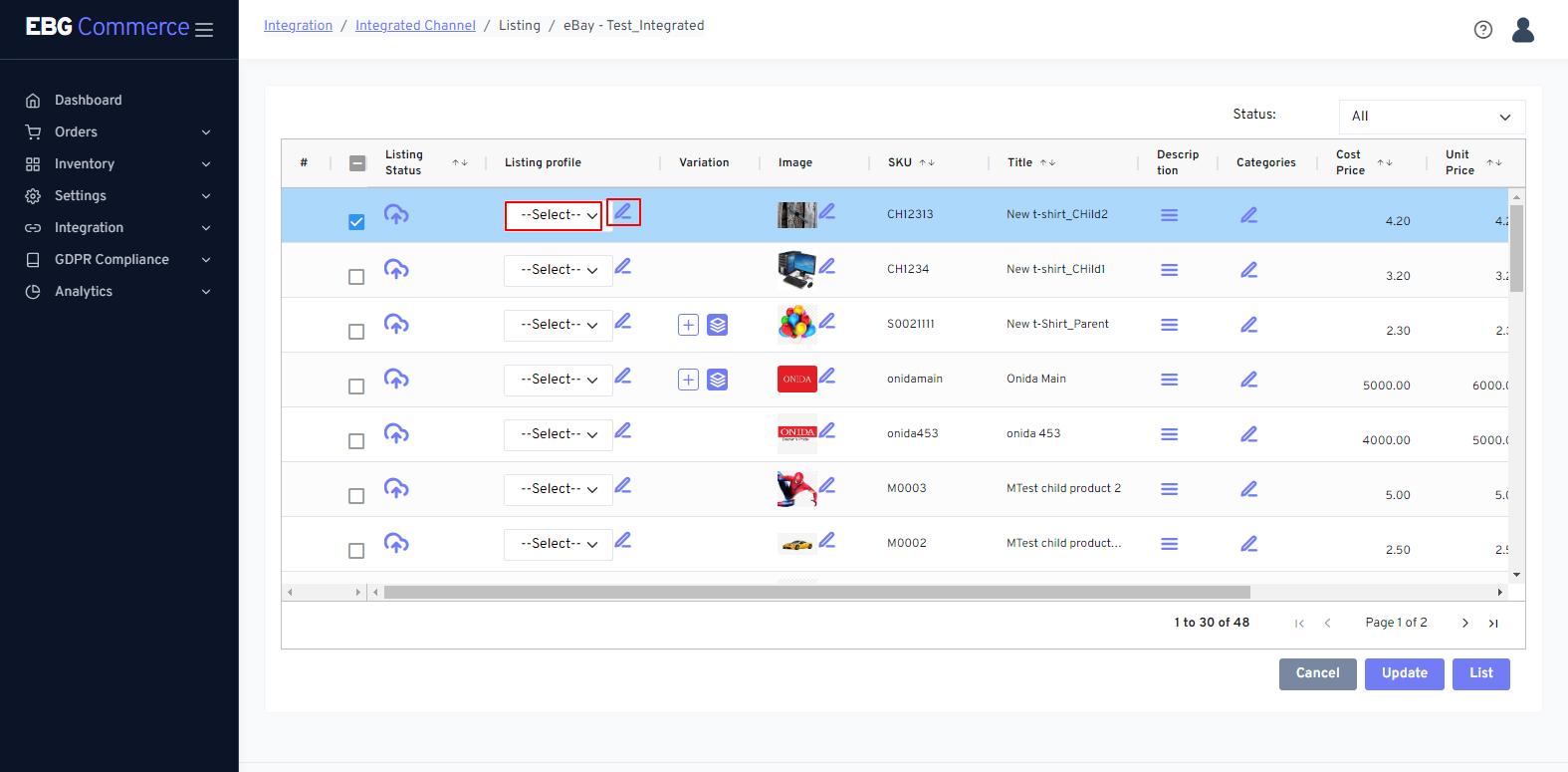
- Choose the "Listing Profile" option, then the desired listing profile, to create a listing profile. Click on the pencil icon in the listing profile column to add a new listing profile. Note that creating a listing profile is necessary.
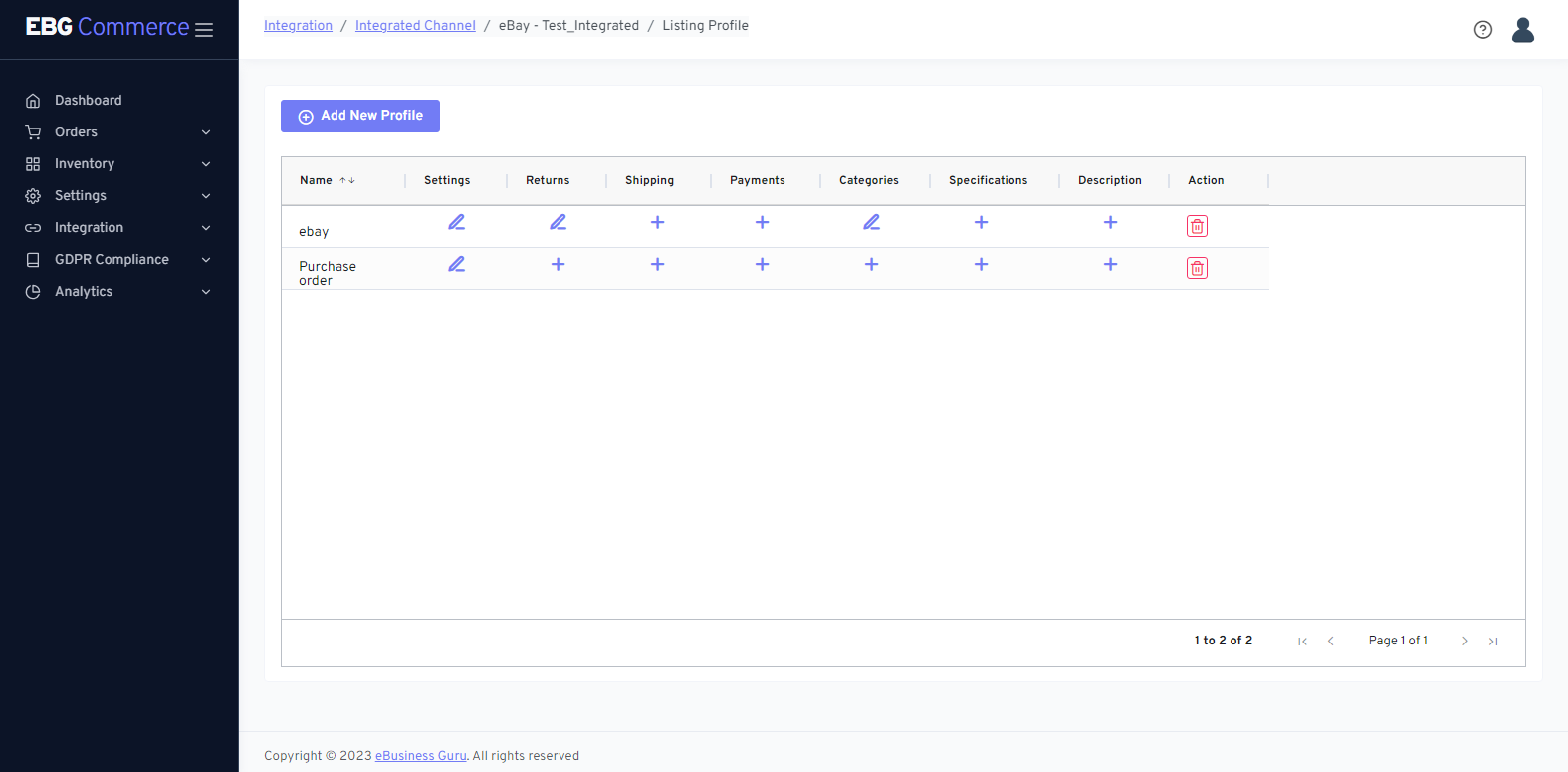 When you click the Pencil Icon , you are sent to the screen shown above.
You can create a new Listing Profile by following the steps below.
When you click the Pencil Icon , you are sent to the screen shown above.
You can create a new Listing Profile by following the steps below.
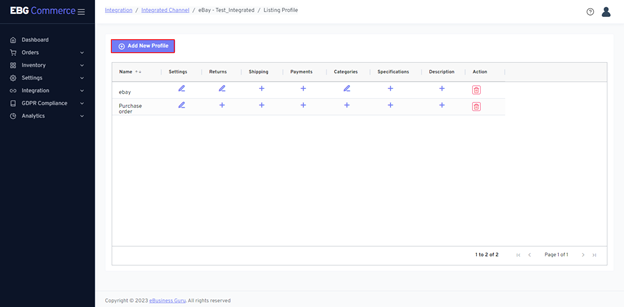
- Click Add New Profile Button
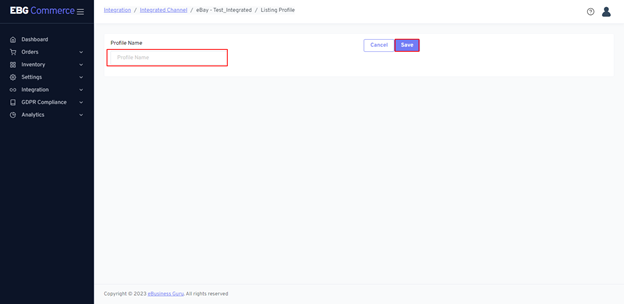 When you click the Add New Profile Button, you are sent to the screen shown above.
 - Enter Profile Name in text box
- Then, click on Save button
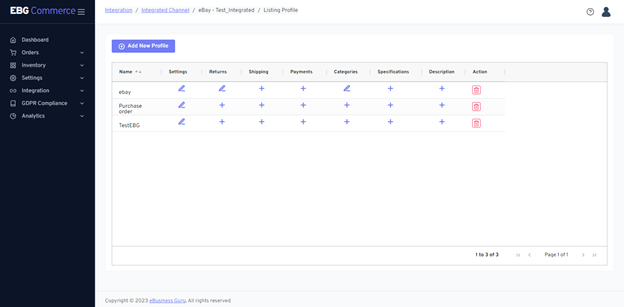 When you click the Save button, you are sent to the screen shown above.
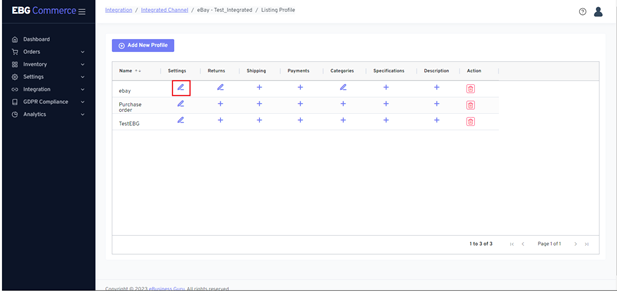
- Click the Pencil symbol that is offered in the Settings column if you wish to add settings to the listing profile.
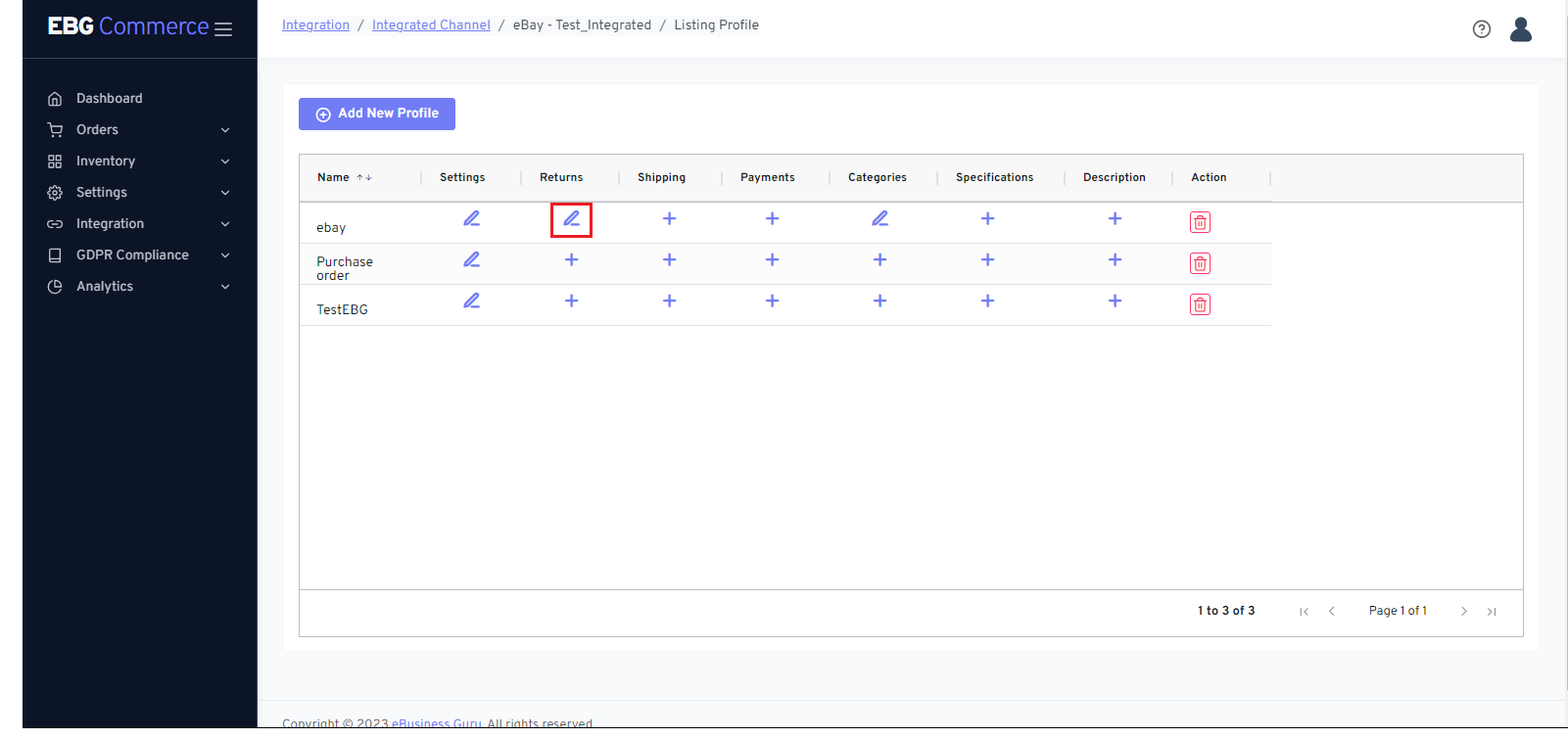
- Click the Returns pencil symbol that is offered in the Returns column if you wish to add a Returns profile to the listing profile.
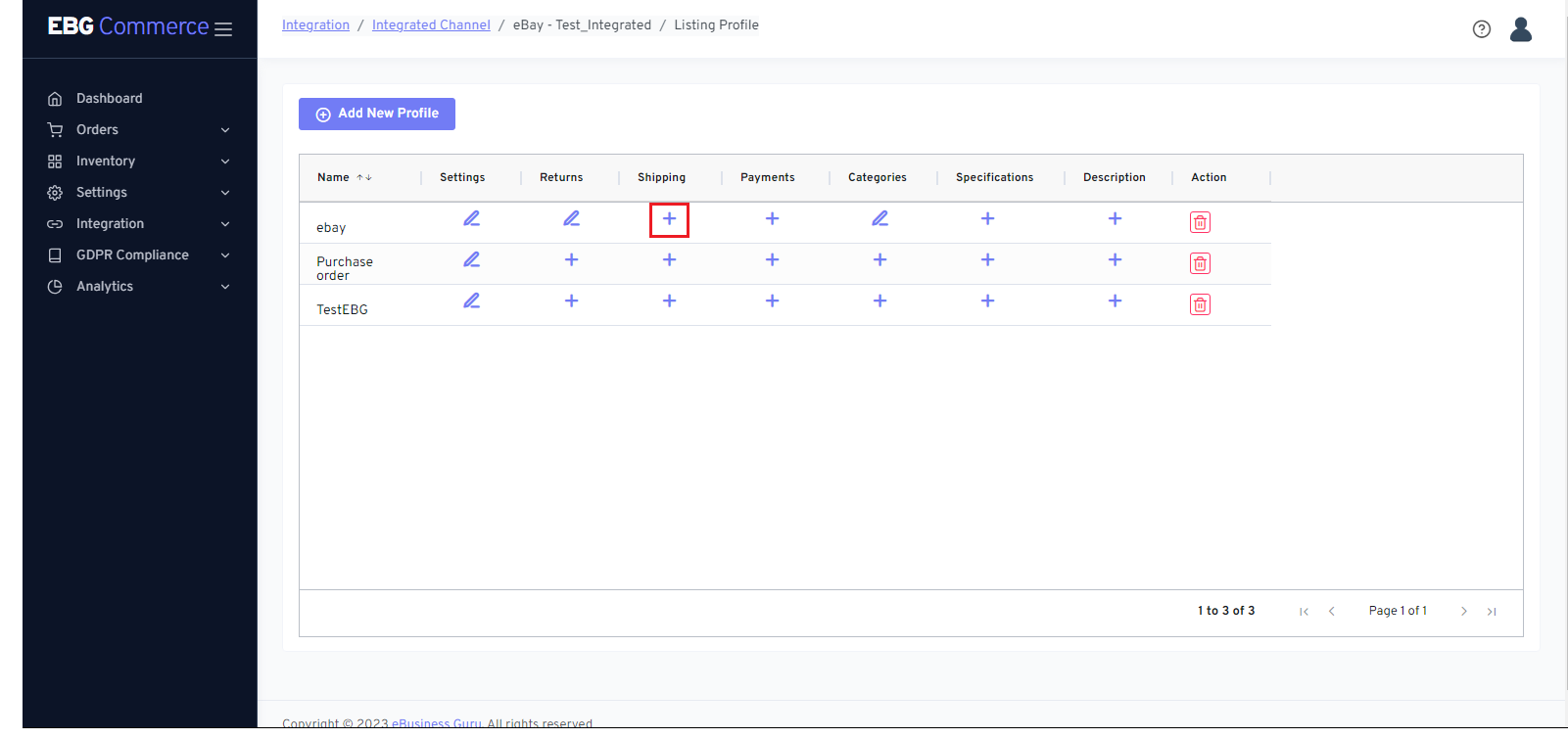
- Click the Shipping plus symbol that is offered in the Shipping column if you wish to add a shipping profile to the listing profile.
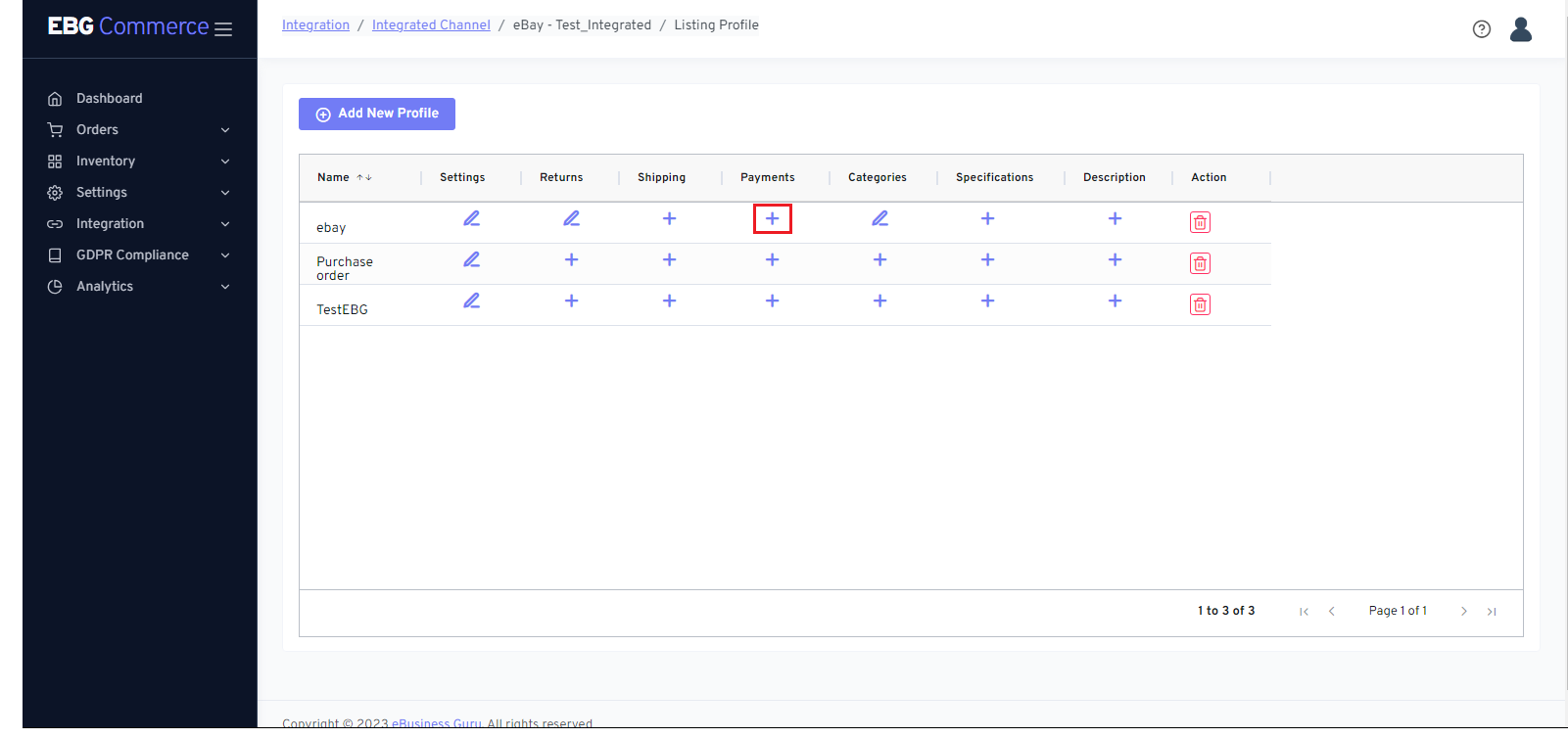
- Click the Payments plus symbol that is offered in the Payments column if you wish to add payment information to the listing profile.
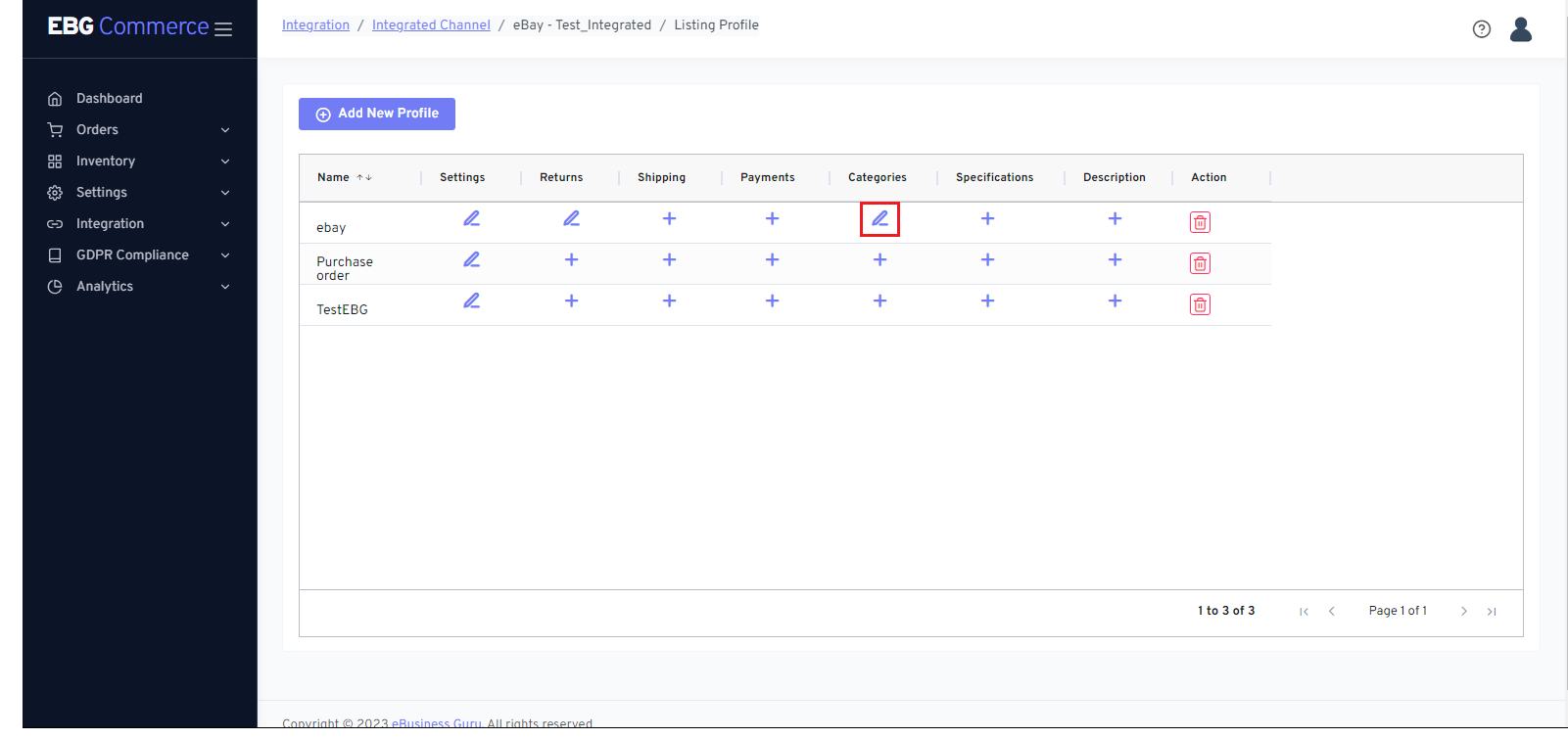
- Click the Categories pencil symbol that is offered in the Categories column if you wish to add categories to the listing profile.
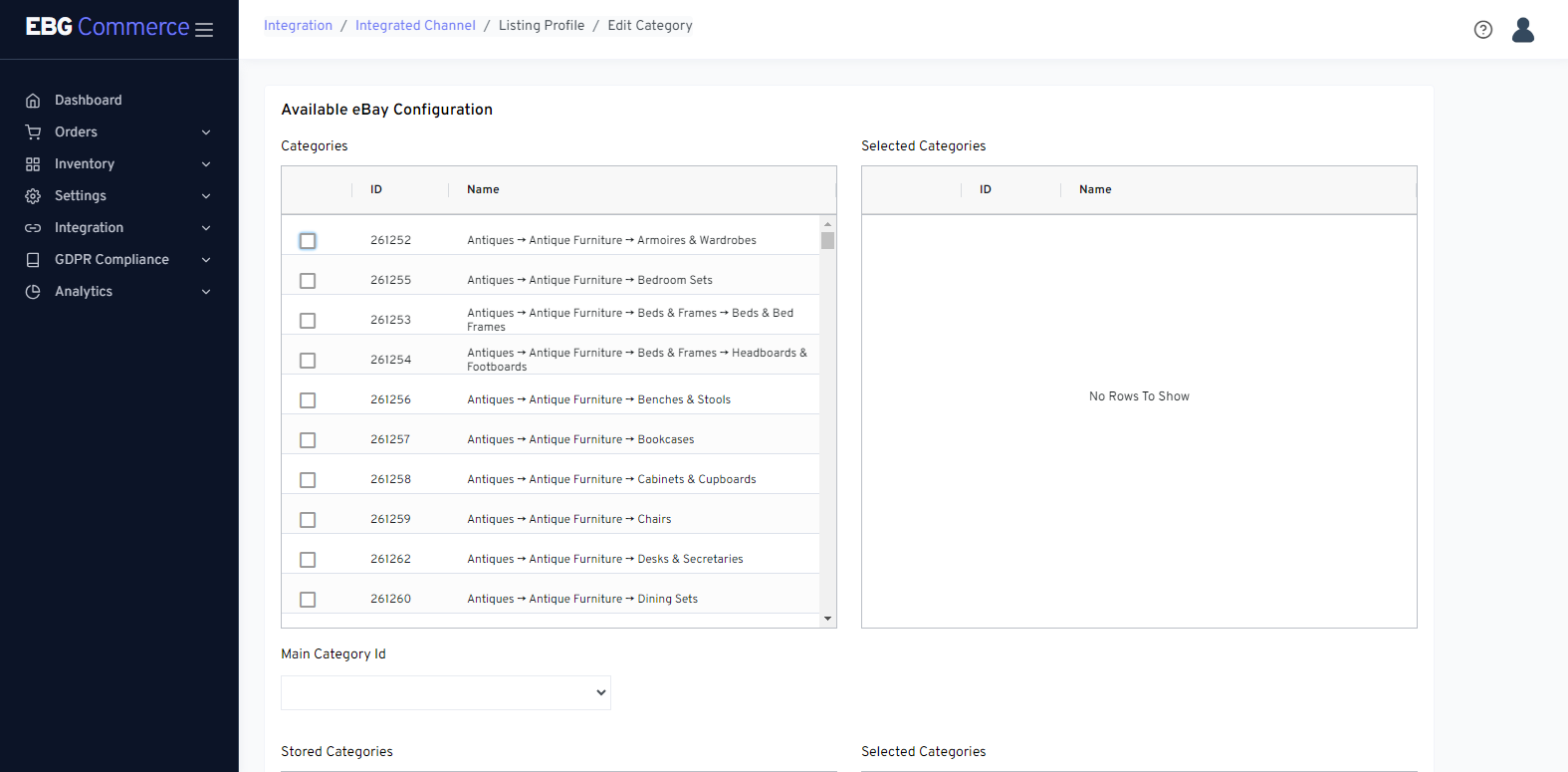 When you click the Categories pencil icon, you are sent to the screen shown above.
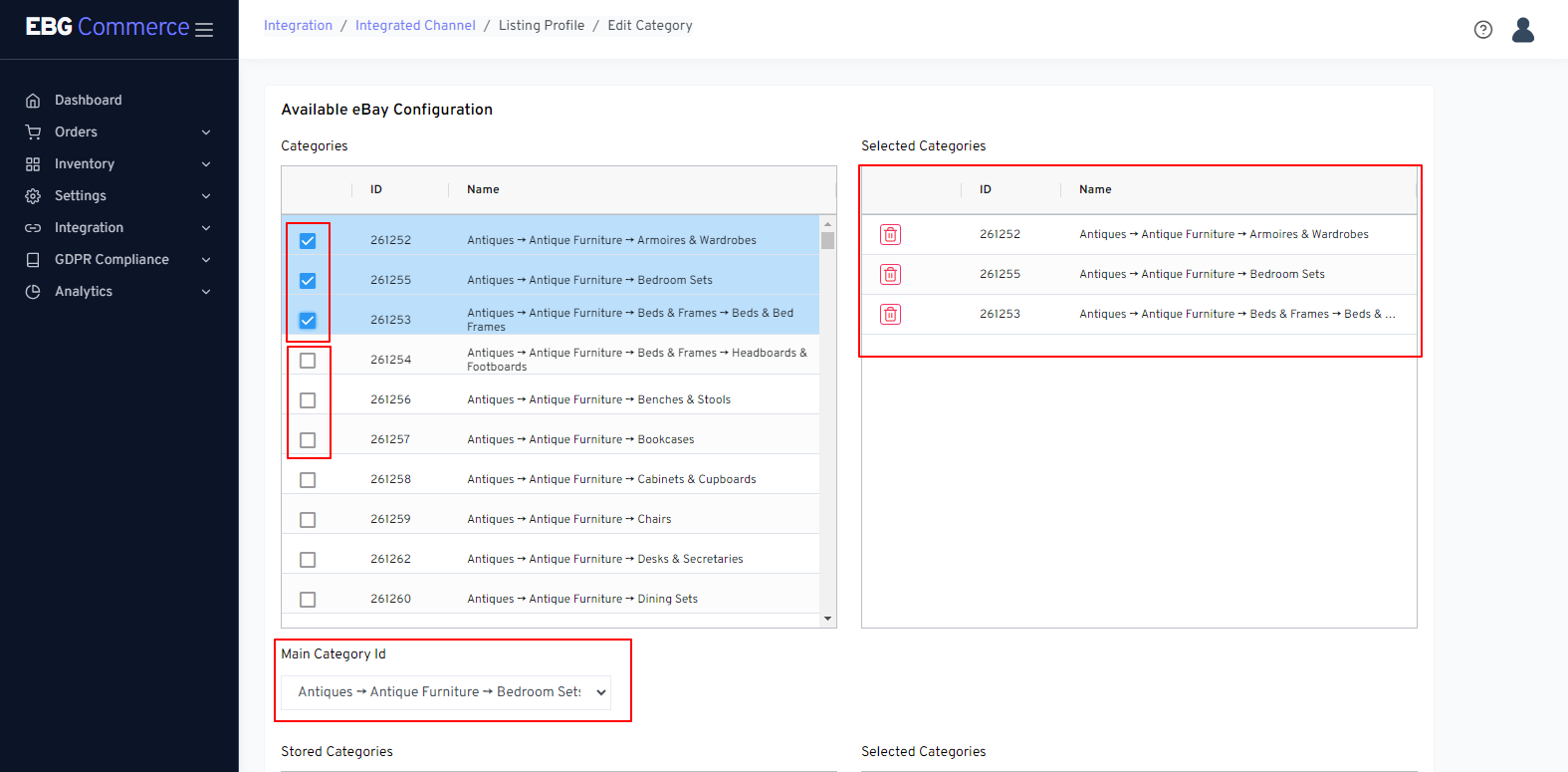
- To add categories, choose the Categories checkbox. Select the appropriate category so that it displays on the right side of the page “Selected categories”.
- Additionally, you may choose the Main Category in the listing profile for the products.
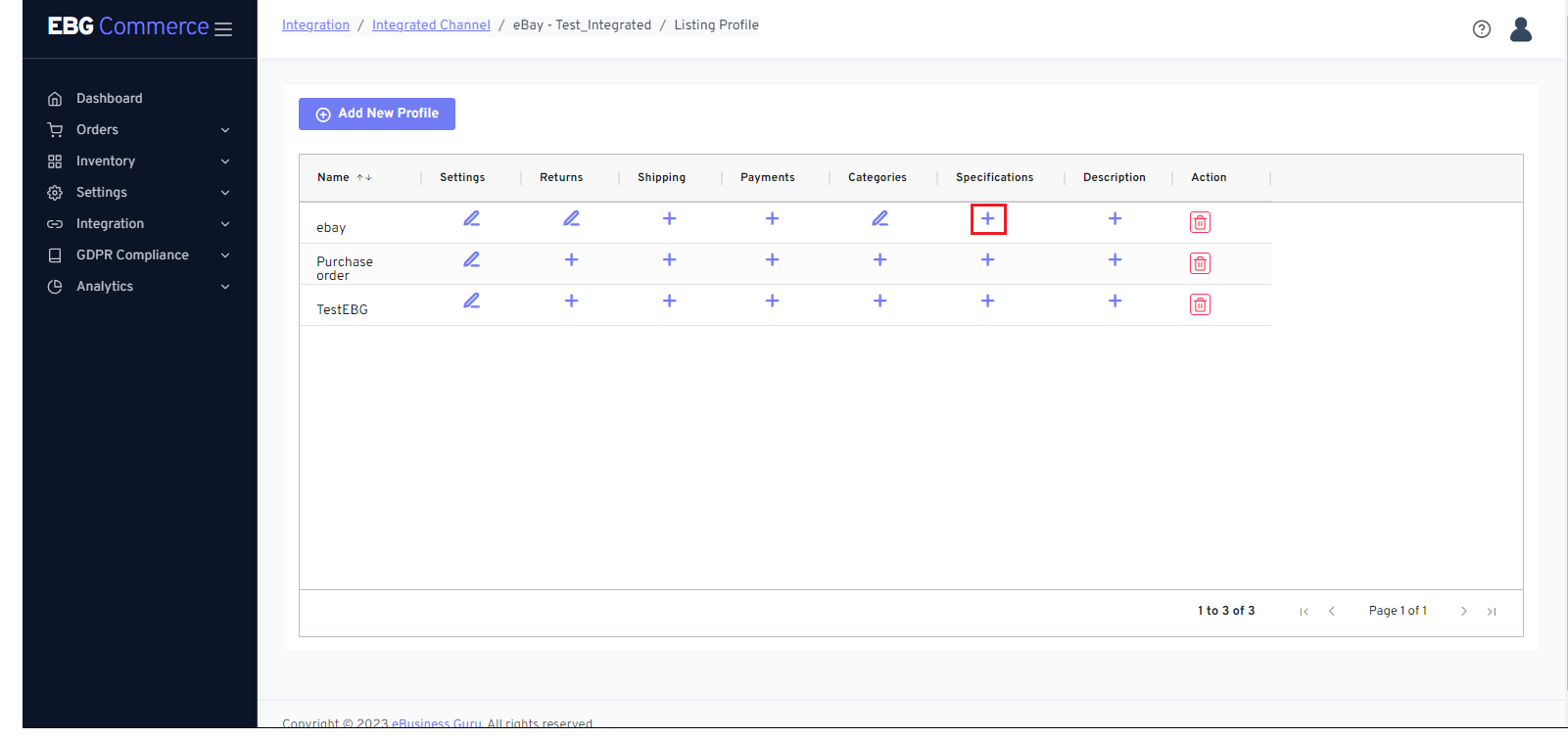
- Click the Specification plus symbol that is offered in the Specification column if you wish to add specifications to the listing profile.
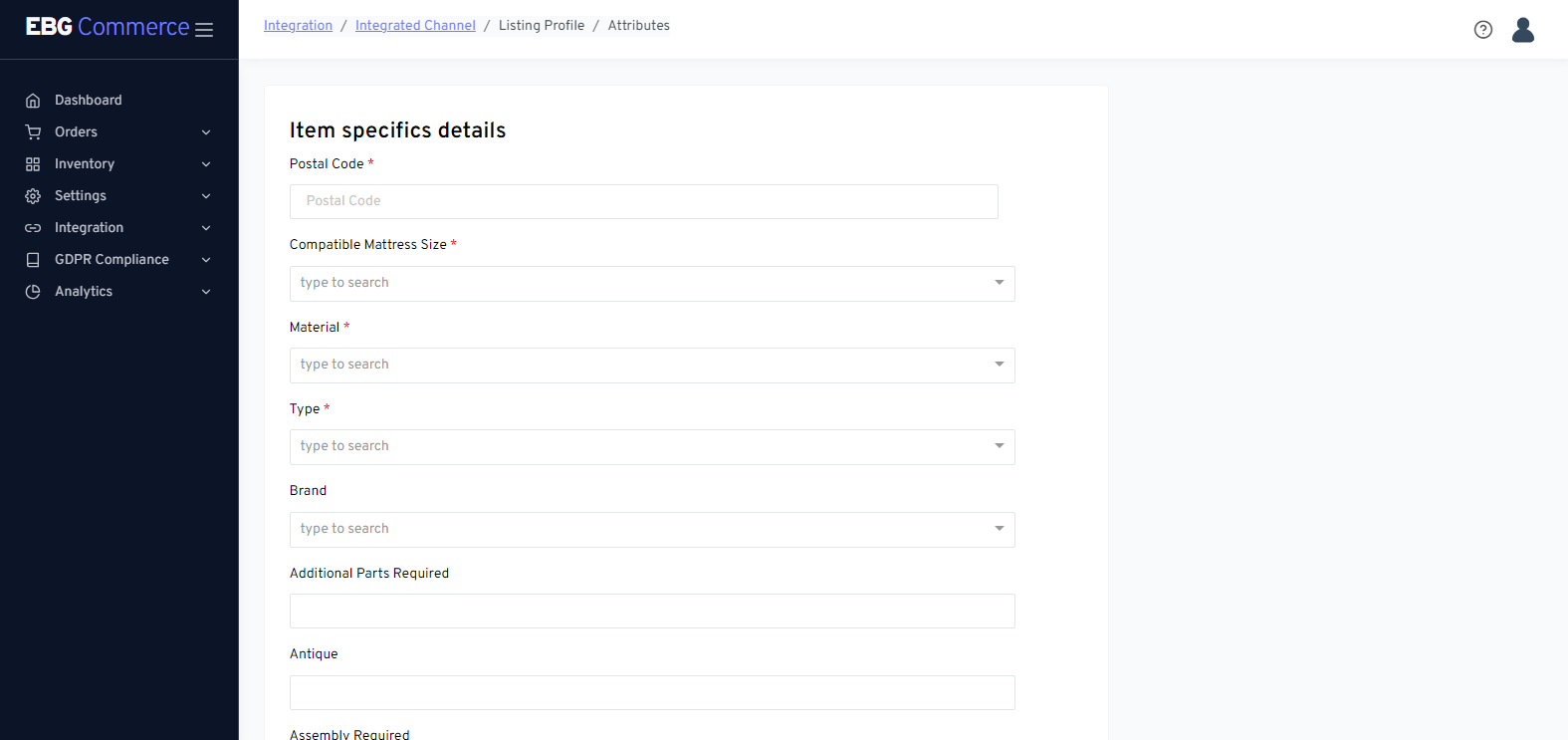
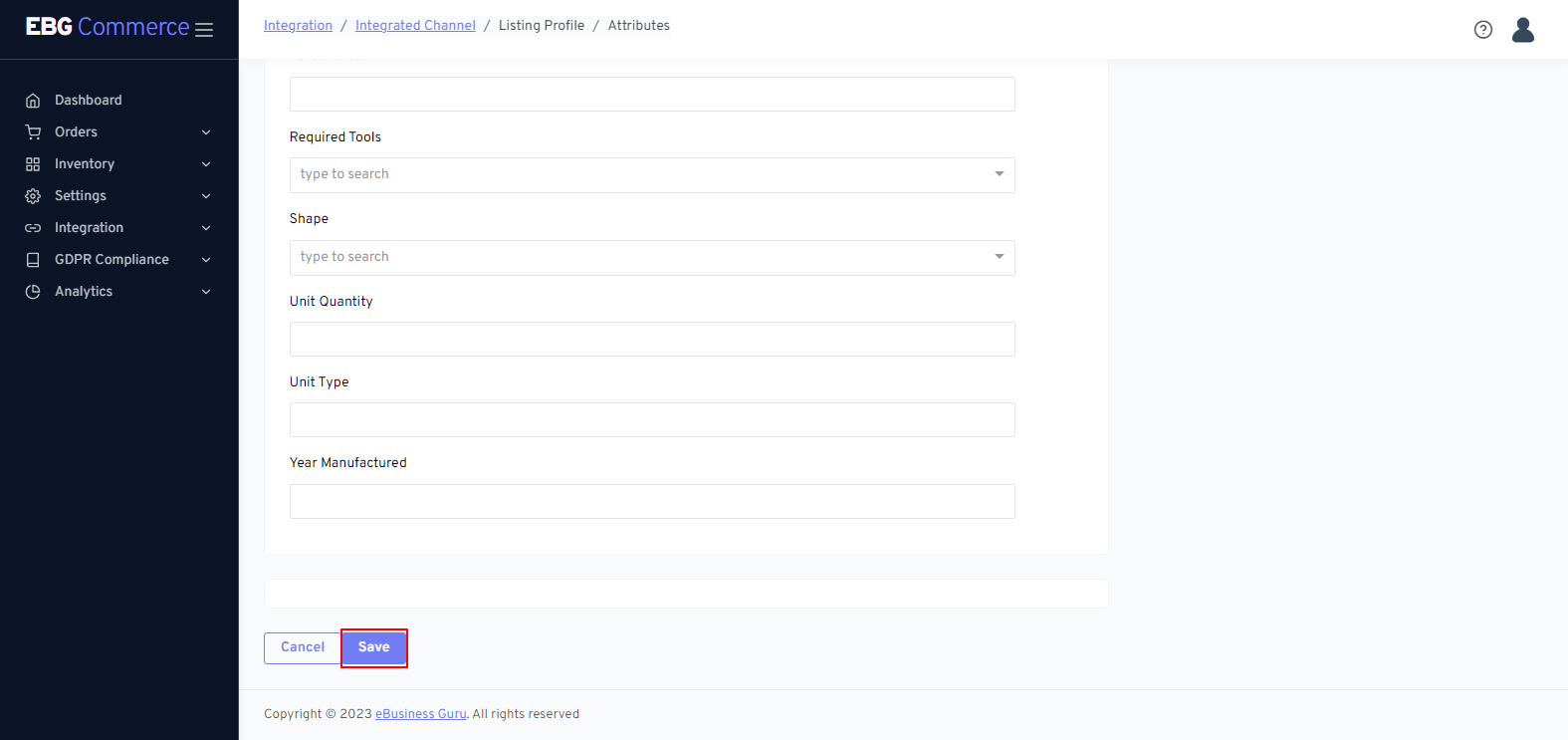 When you click the Specification plus icon, you are sent to the screen shown above.
Enter Specification according to your requirements, then click on Save button
When you click the Specification plus icon, you are sent to the screen shown above.
Enter Specification according to your requirements, then click on Save button
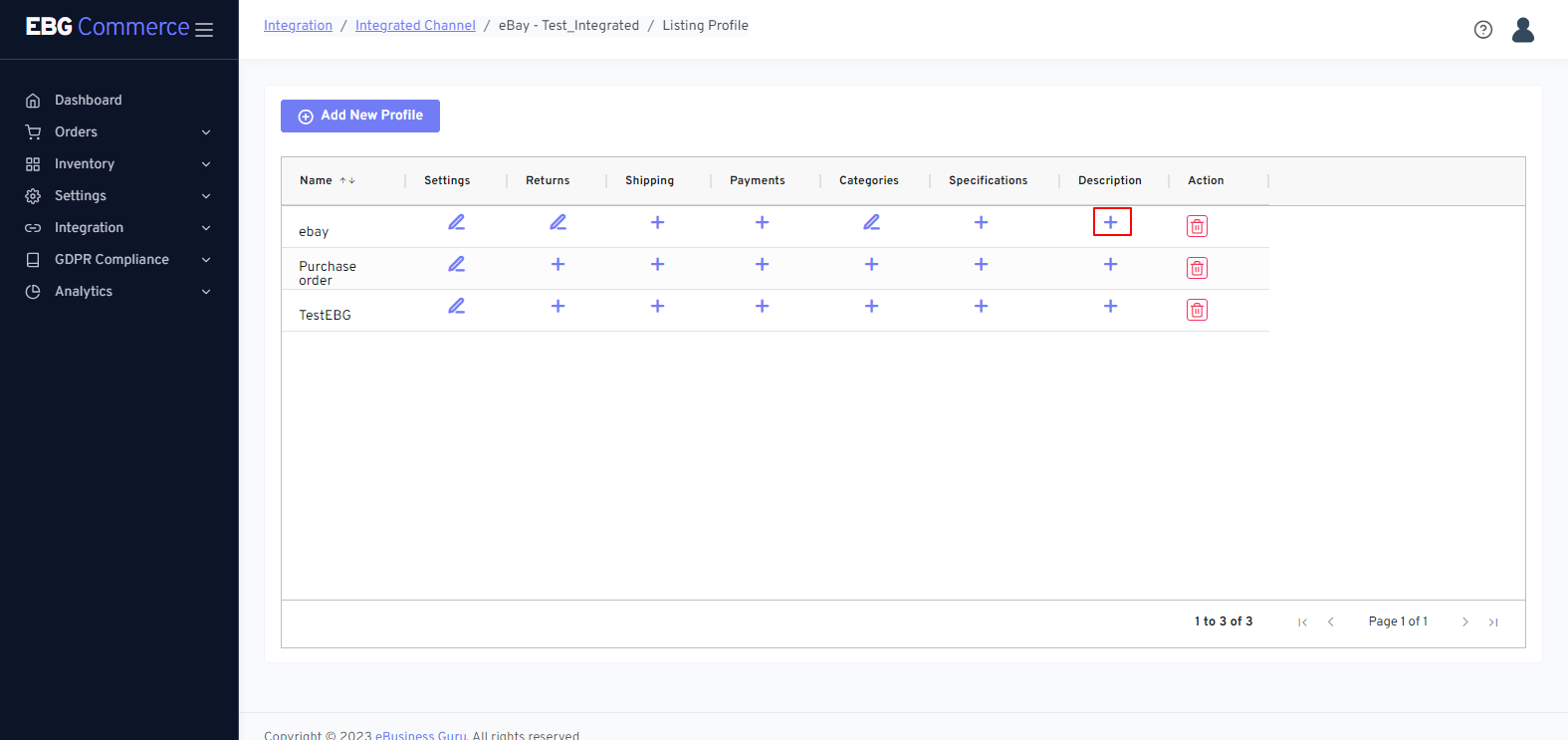
- Click the Description Plus symbol that is offered in the Description column if you wish to configure a description for the listing profile.
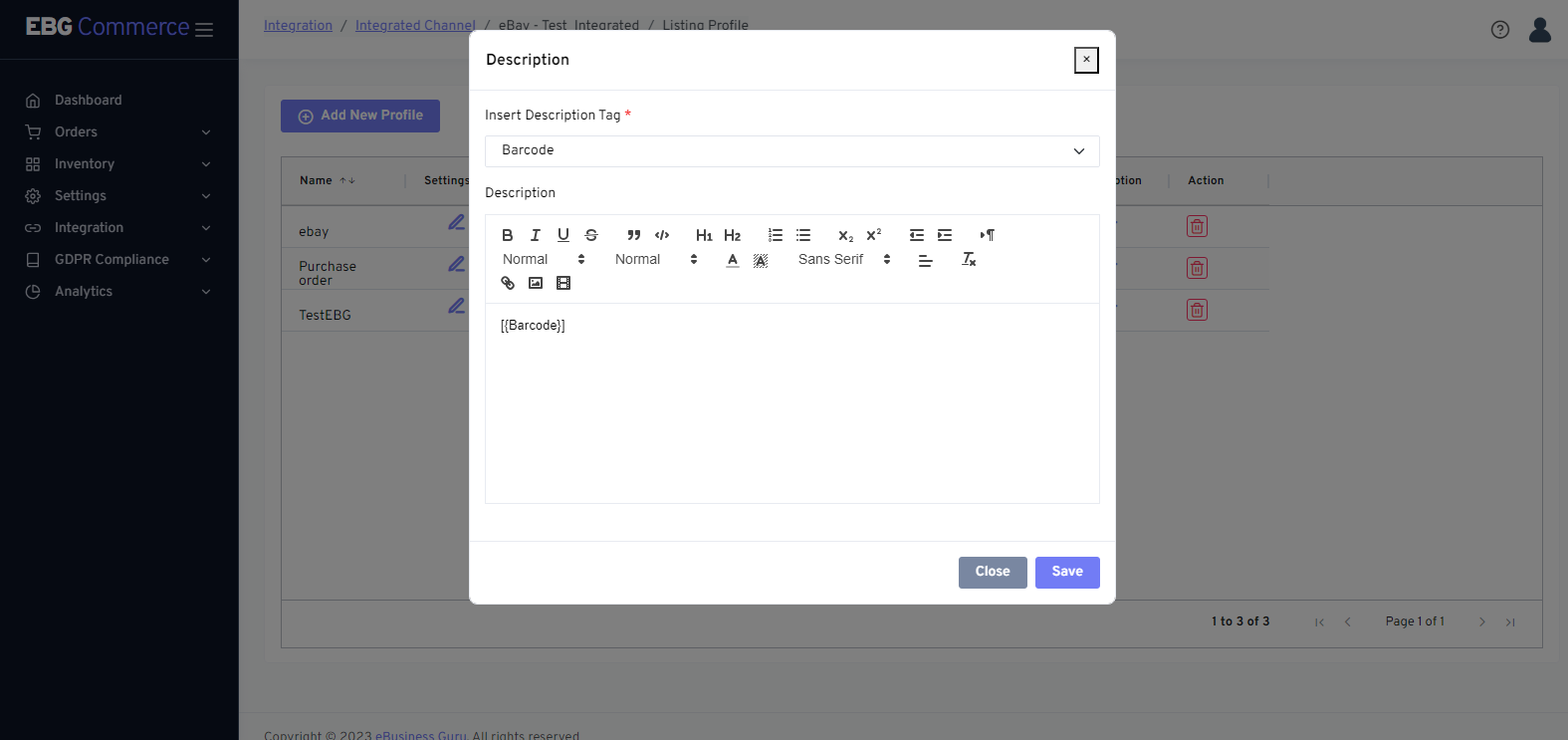 After clicking the Description Plus icon, the above type of screen will open.
Add a description according to your requirements and save it.
After clicking the Description Plus icon, the above type of screen will open.
Add a description according to your requirements and save it.
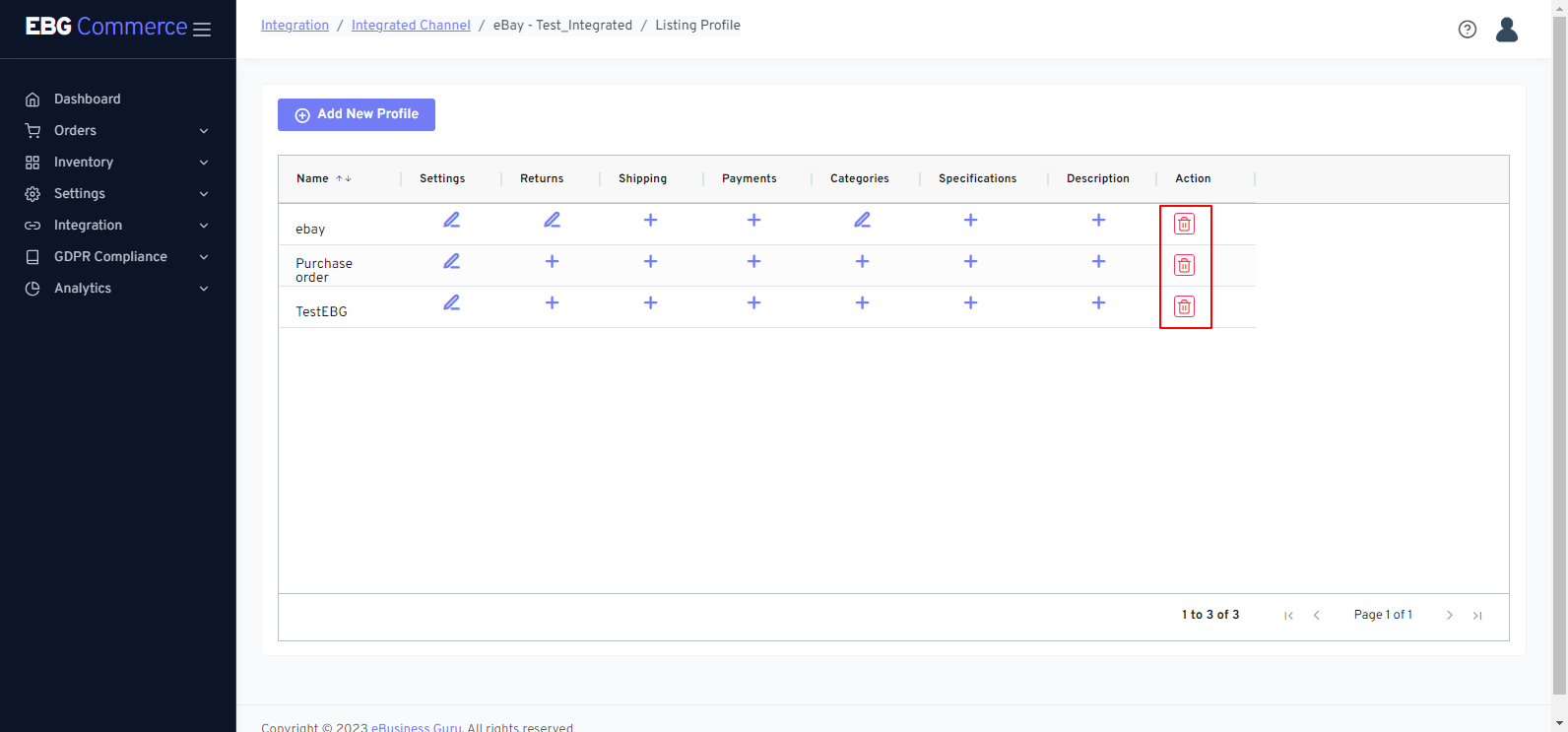 If you want to delete your listing profile, click on the delete icon.
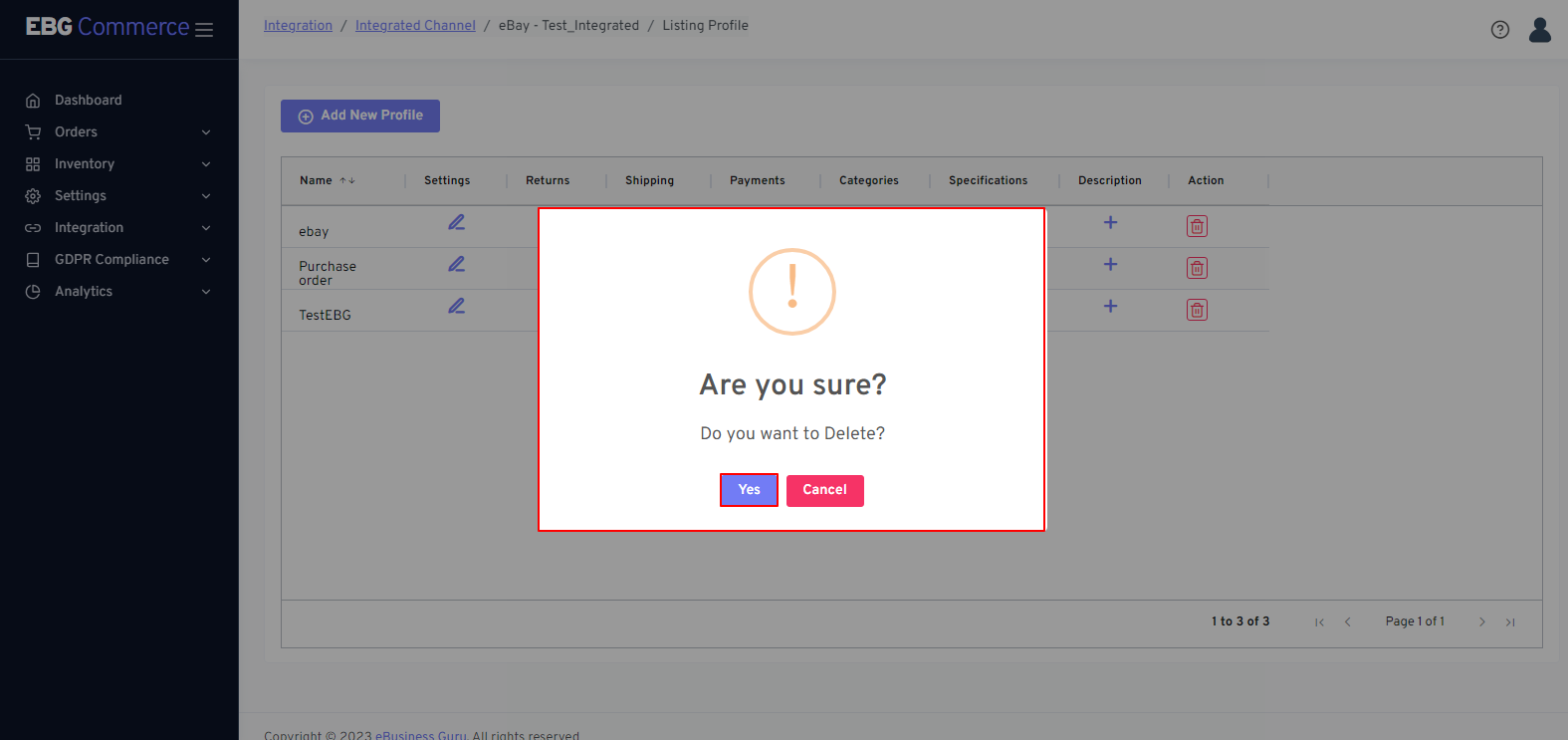 After clicking the Delete Icon, a confirmation popup will appear. Confirm it to delete the listing profile.
You can override your listing profile description for the particular product by clicking on the description button on the listing screen, as shown below.
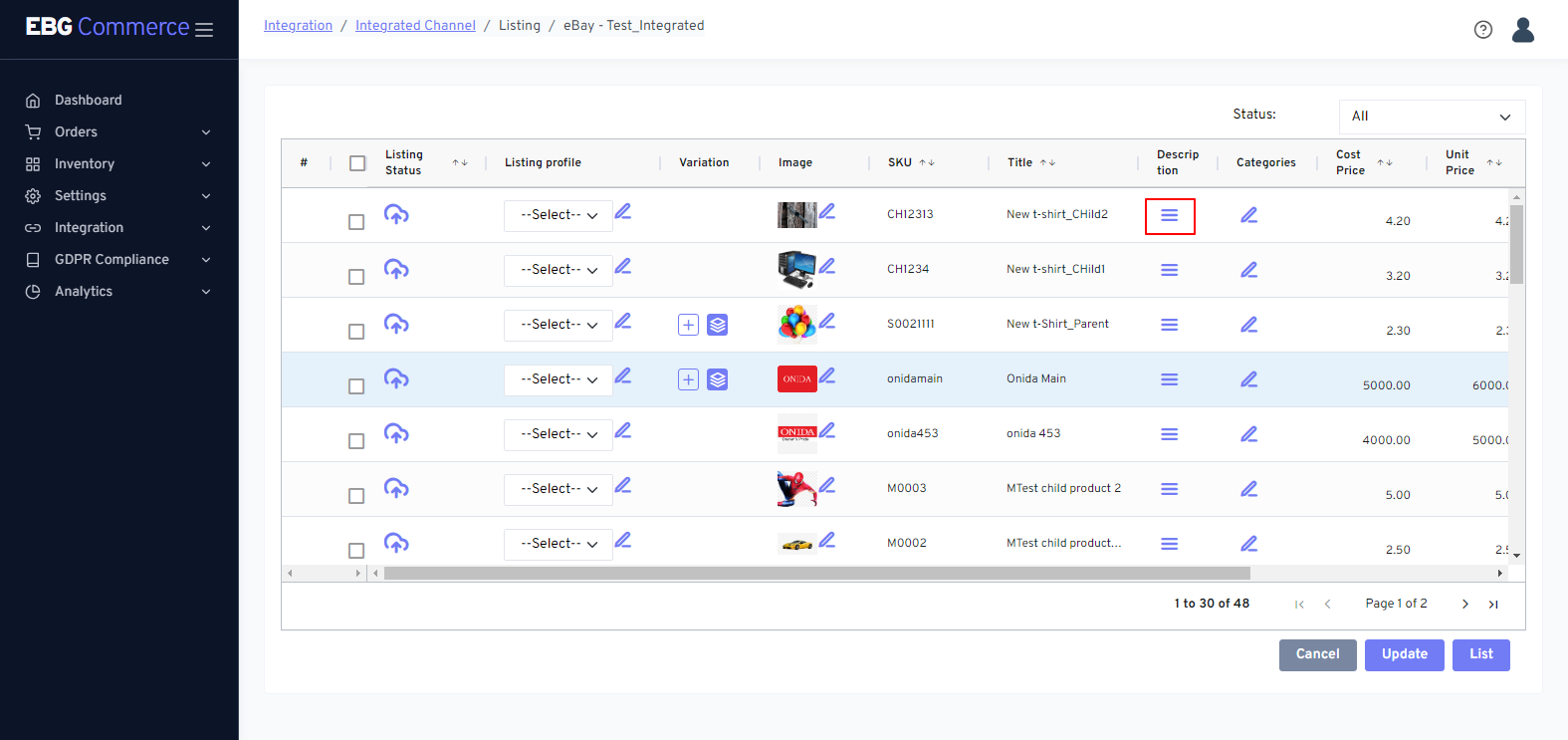
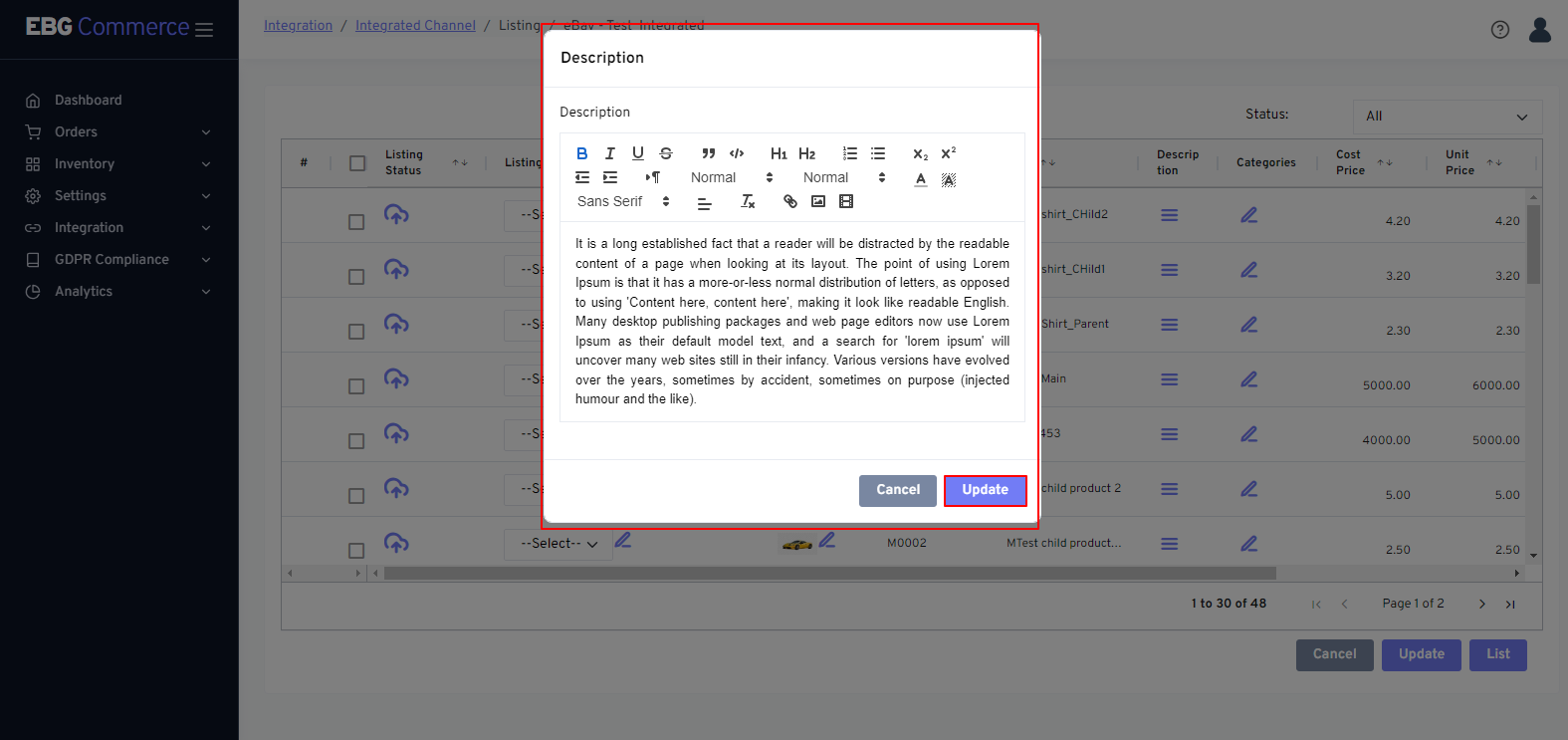
- Open the description box after clicking the description button. Write a description of the product in that and click on the update button. This will update the description for the particular product only; it will not change the listing profile configuration.
Similarly, you can specify the product category for the particular product by clicking on the pencil icon in the category field from the listing screen, as shown below.
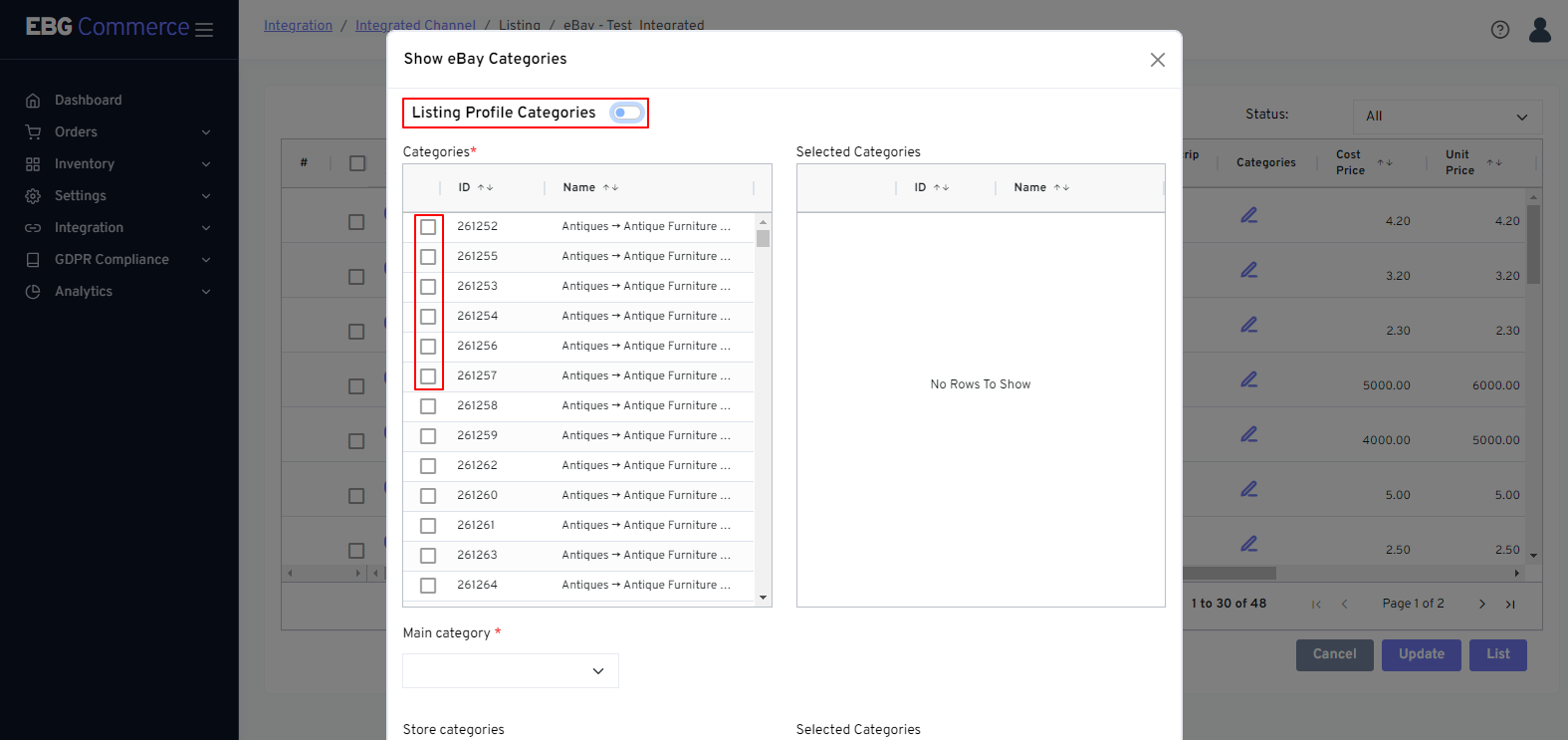
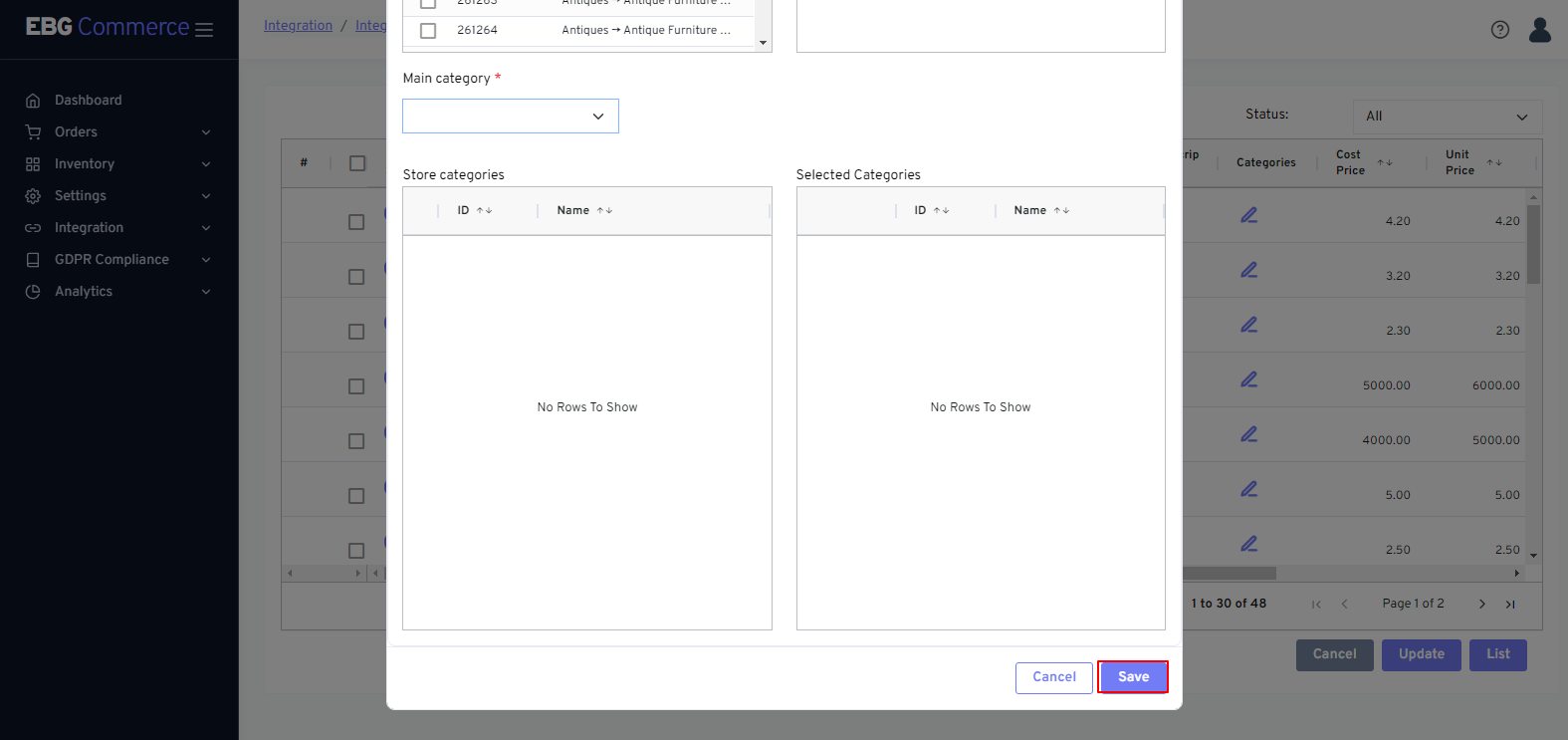 On this screen, you have the option to select a category from the listing profile or select from the available categories for this particular product.
Choose the categories you need, then click the "Save" button.
Click the pencil symbol in the specification column of the table if you want to add or update specifications for the product.
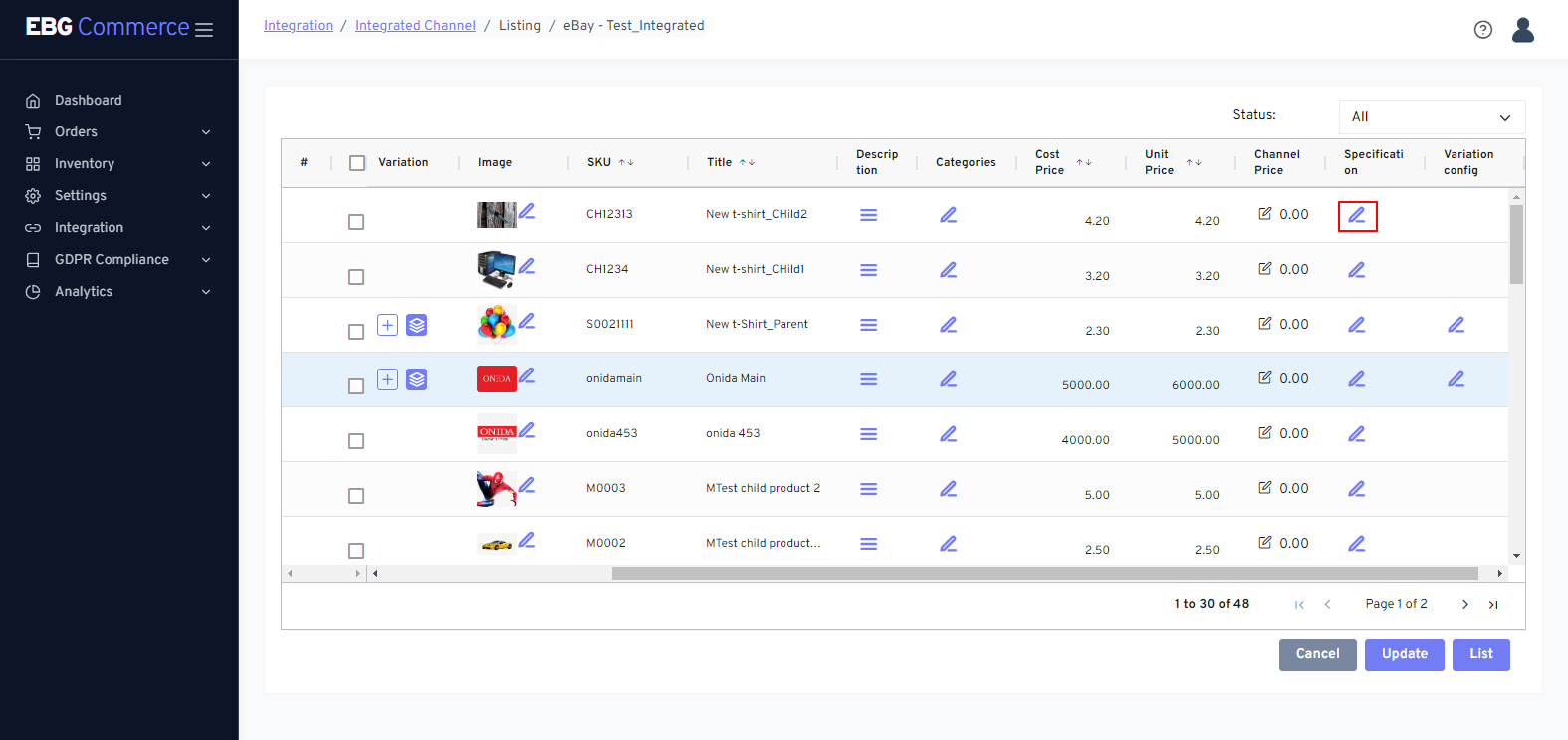
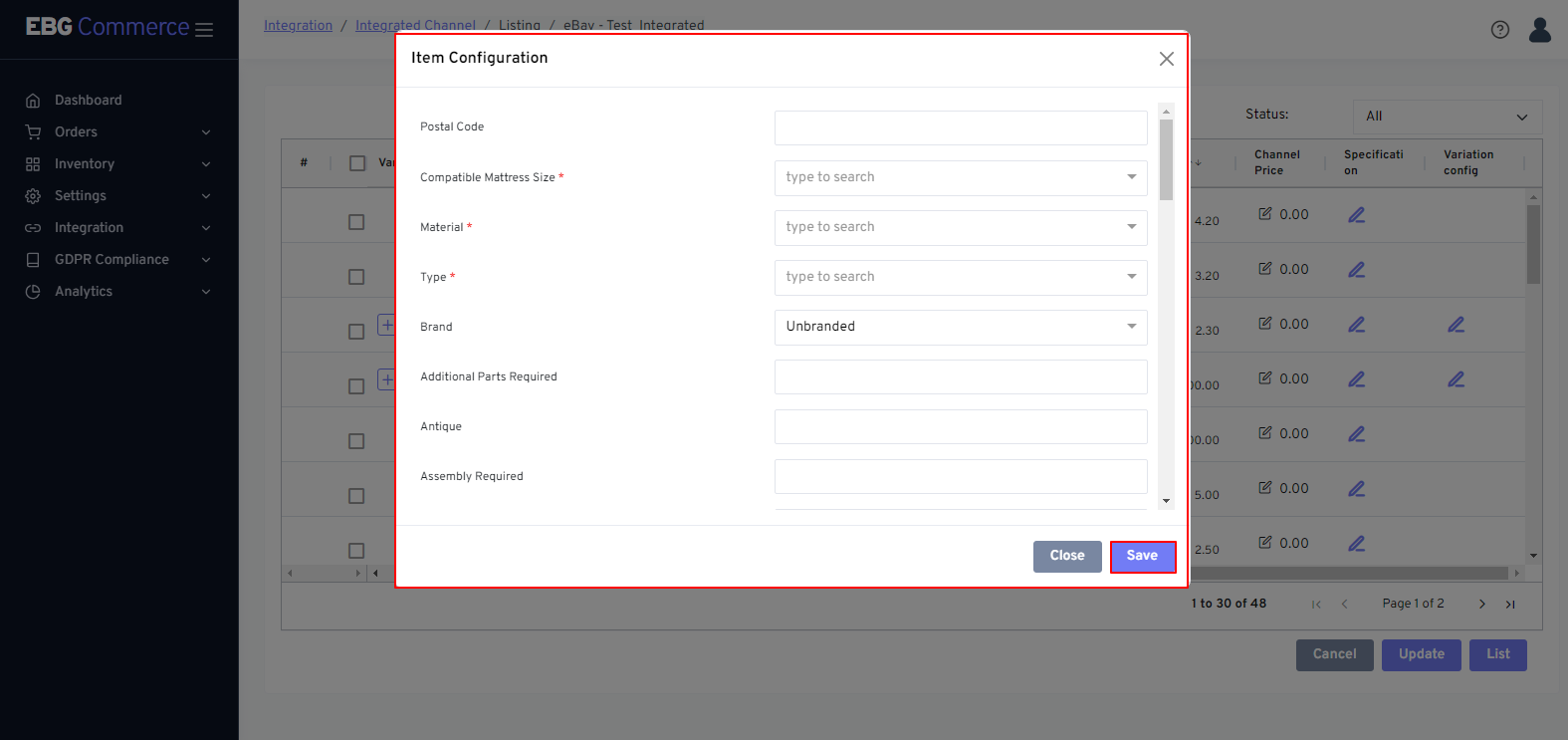 After clicking the specification button, the aforementioned popup will open. Add specifications there as needed, then click on the “Save” button to save the specifications.
Click the pencil symbol in the variation column of the table if you want to add a variation, as below.
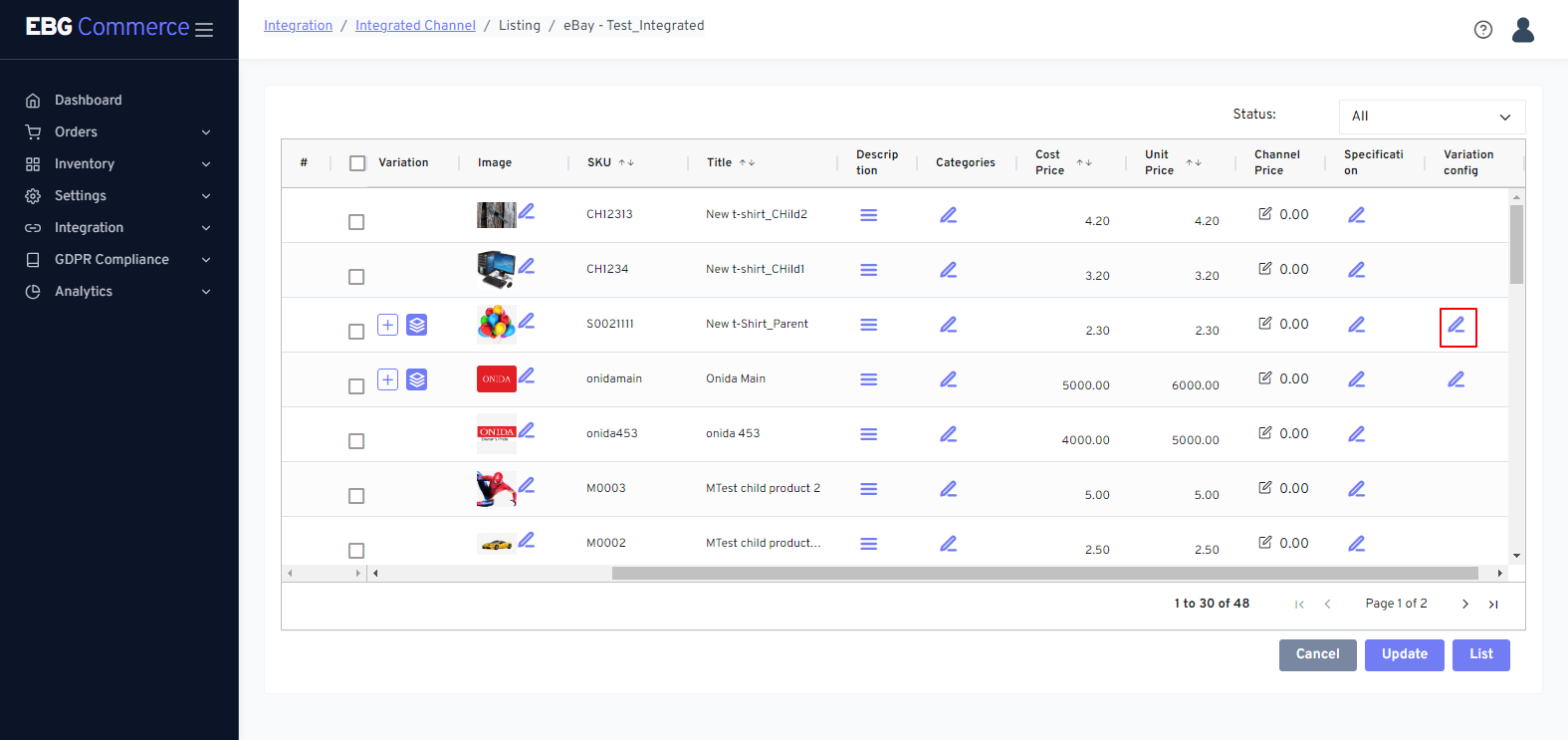
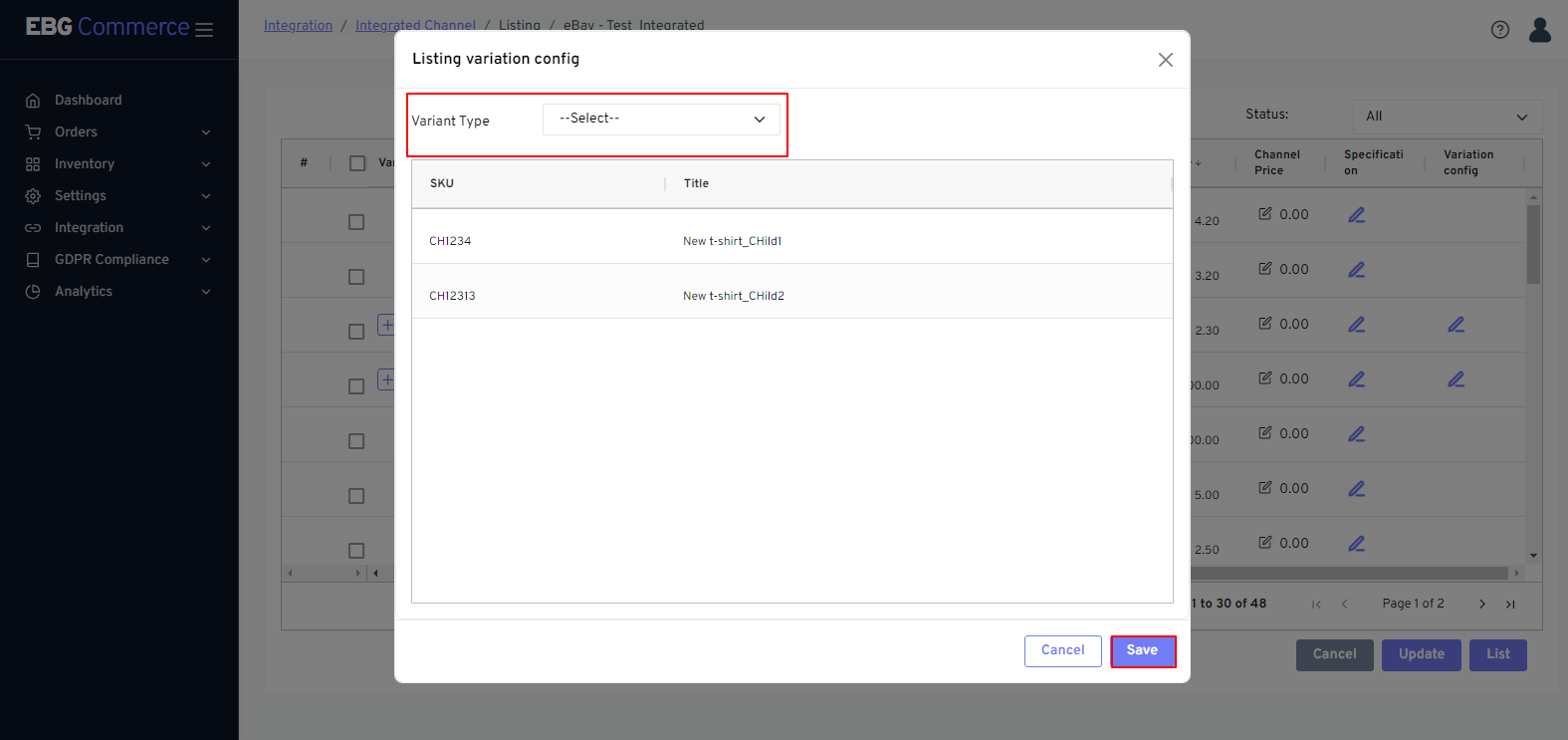
If you want to add a variant, follow the steps below.
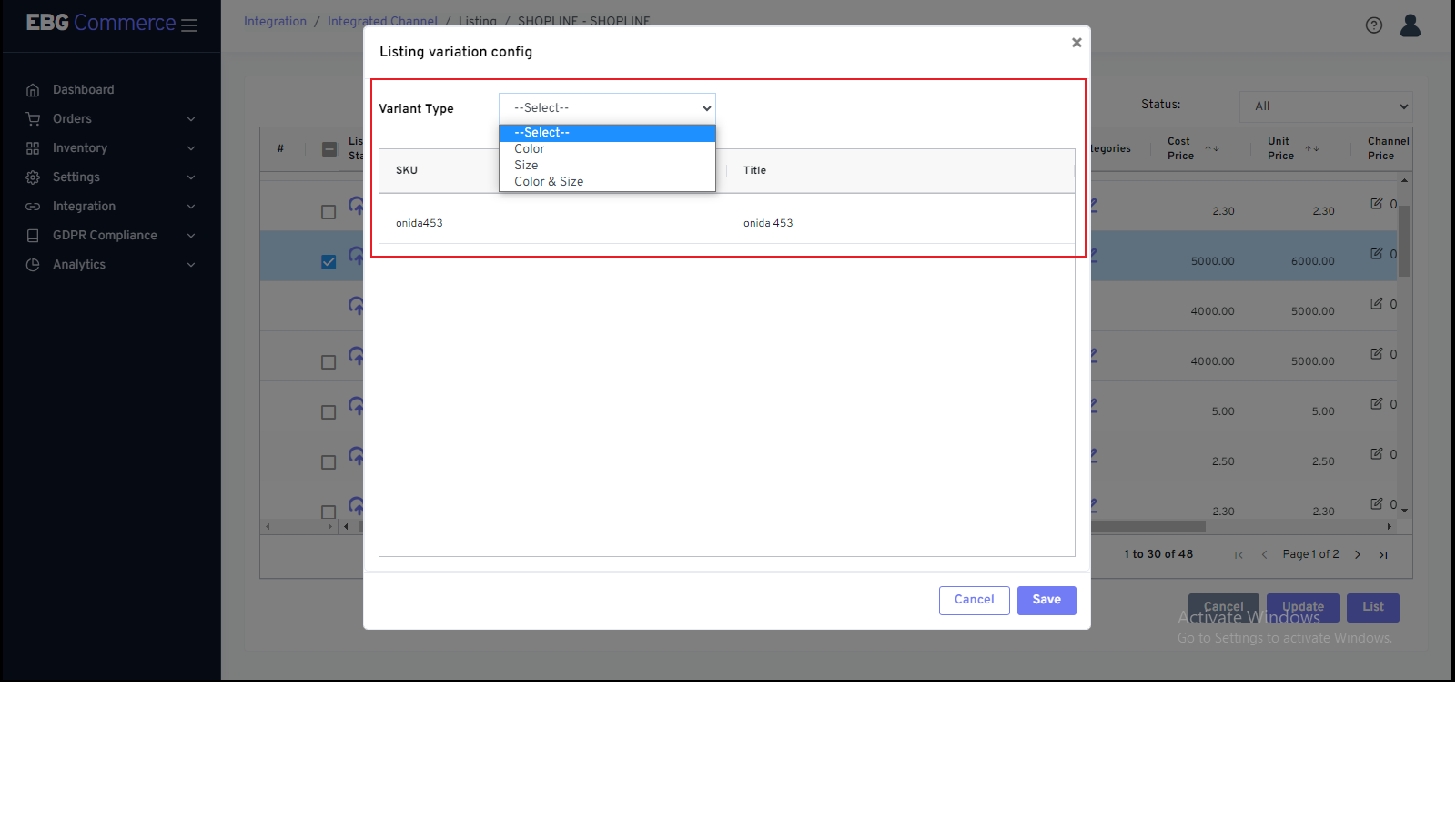
-
Pick a variant type from the drop-down menu.
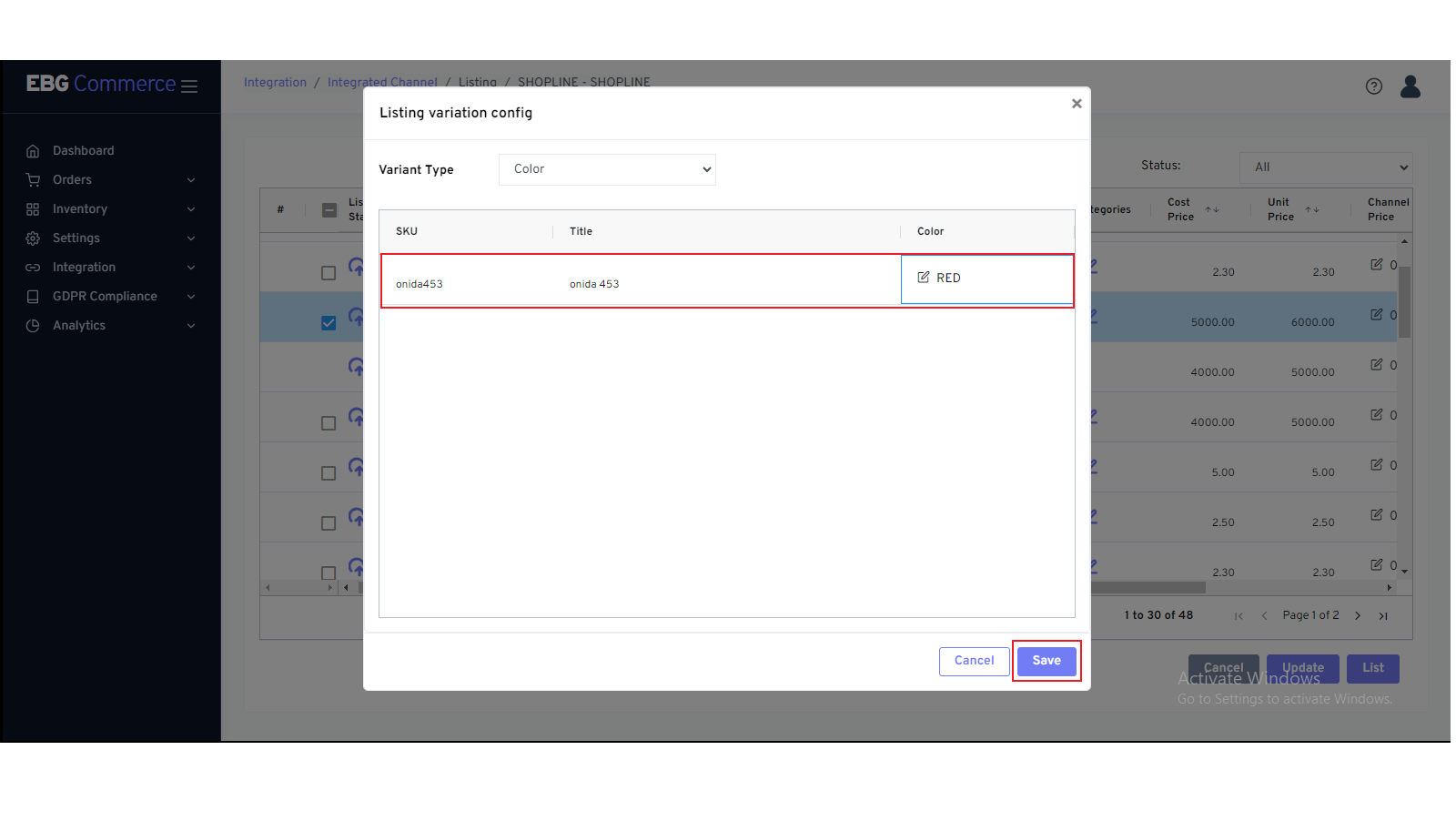
-
After that, the variant type represented in the grid's final column was added. Double-click that, and then type the title as needed.
Note: If you didn’t find the desired variant type, then contact the support team. The team will create the variant type for you.
Click the List button once the aforementioned steps have been finished.
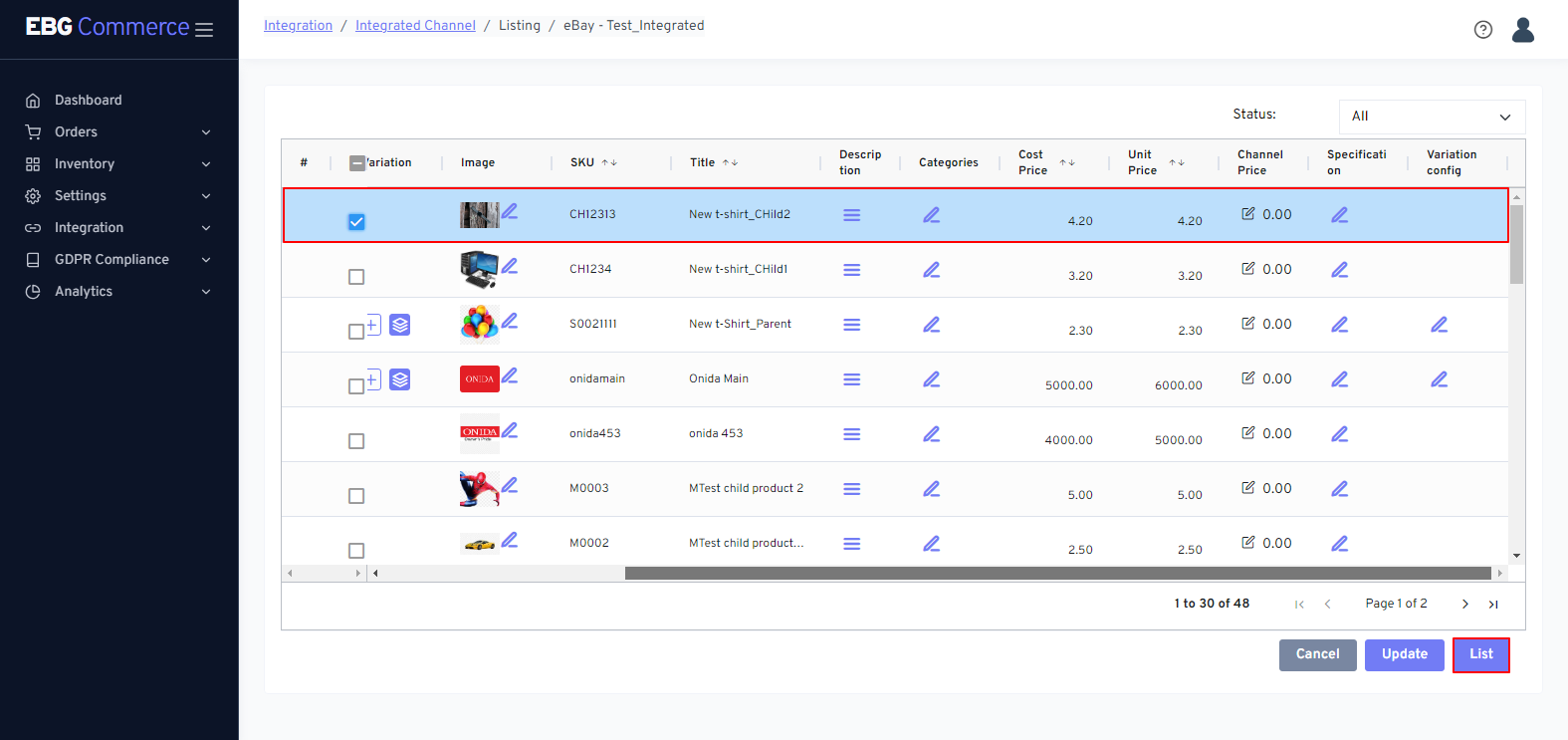 Once your listing is successfully created on the channel, you will see the right check icon in the listing status field.
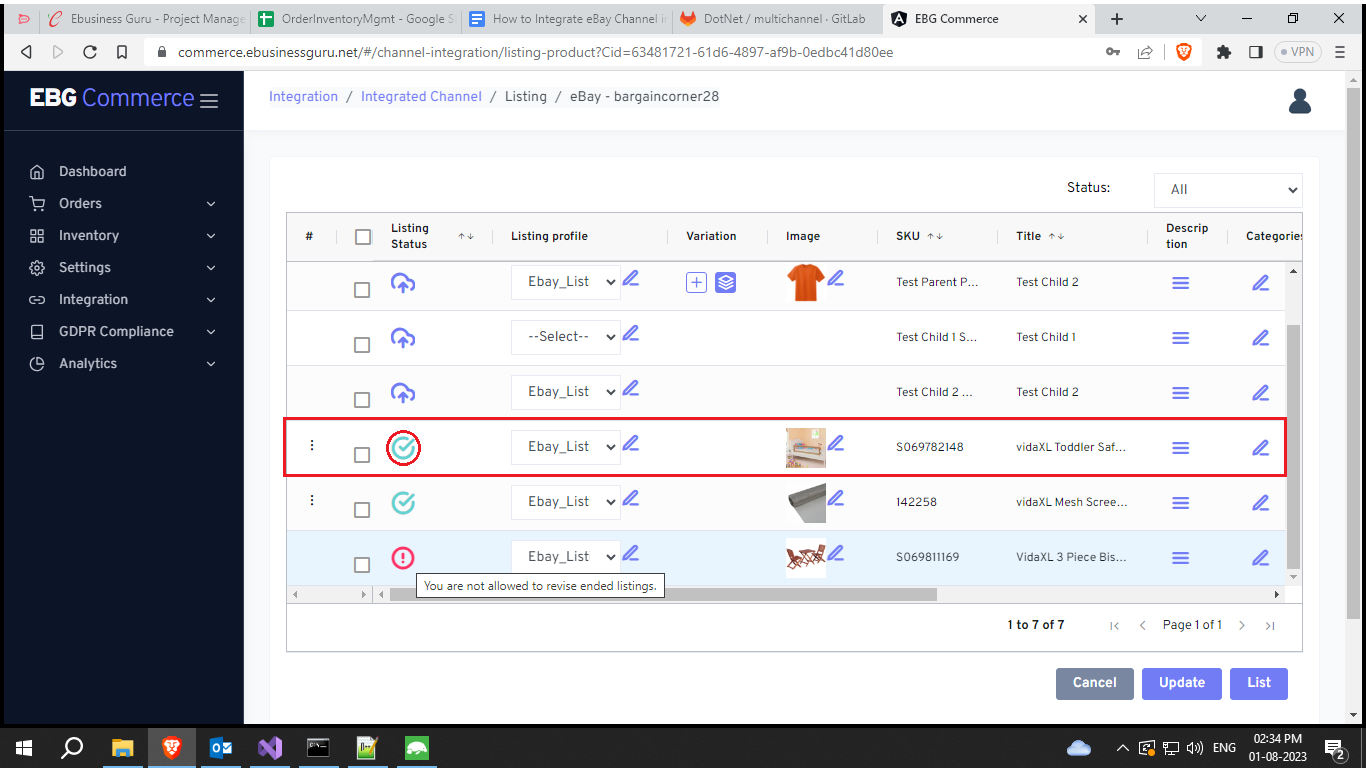 If you wish to see if your product is listed, click the green check symbol button.
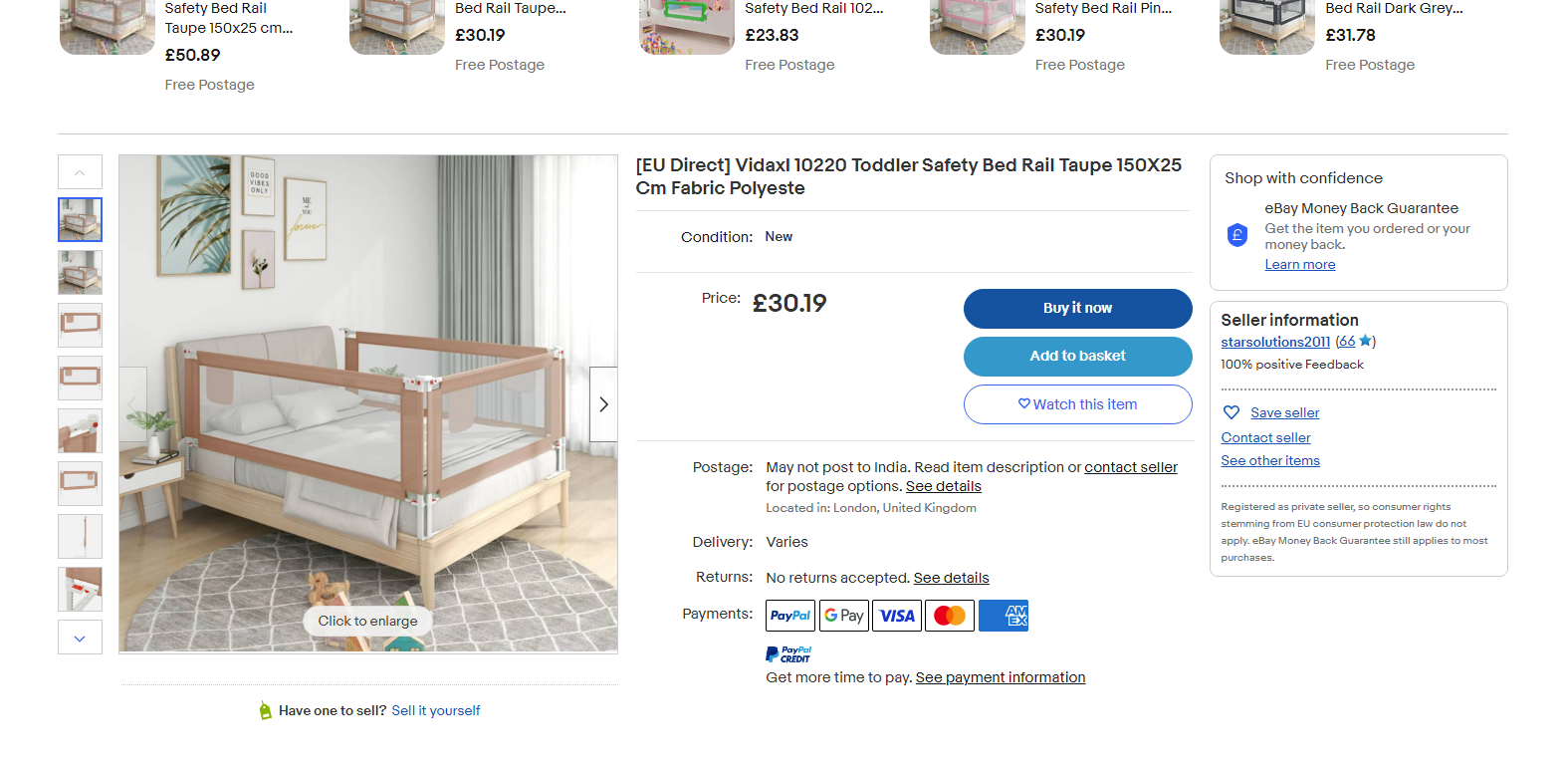 When you click the green checkmark button, the eBay product information page will open.
Once your listing is successfully created on the channel, you will see the right check icon in the listing status field.
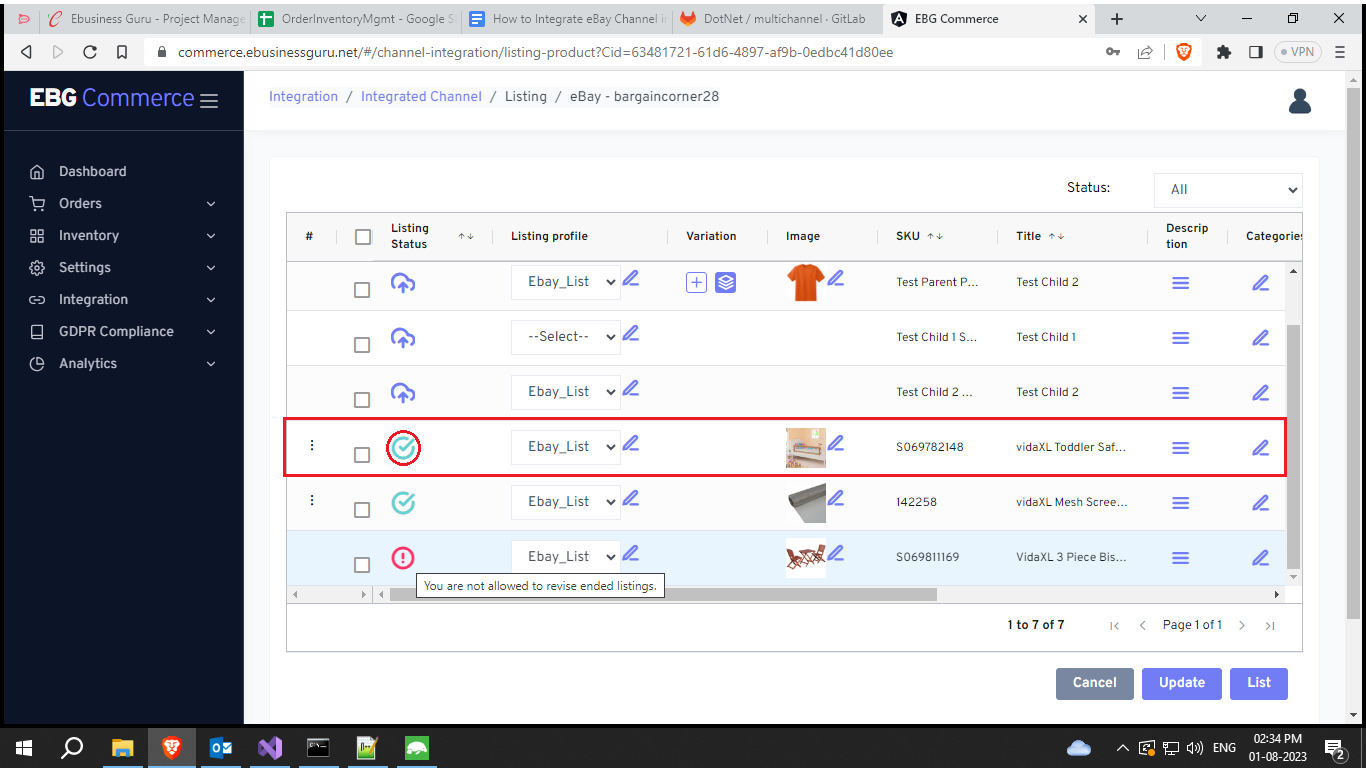 If you wish to see if your product is listed, click the green check symbol button.
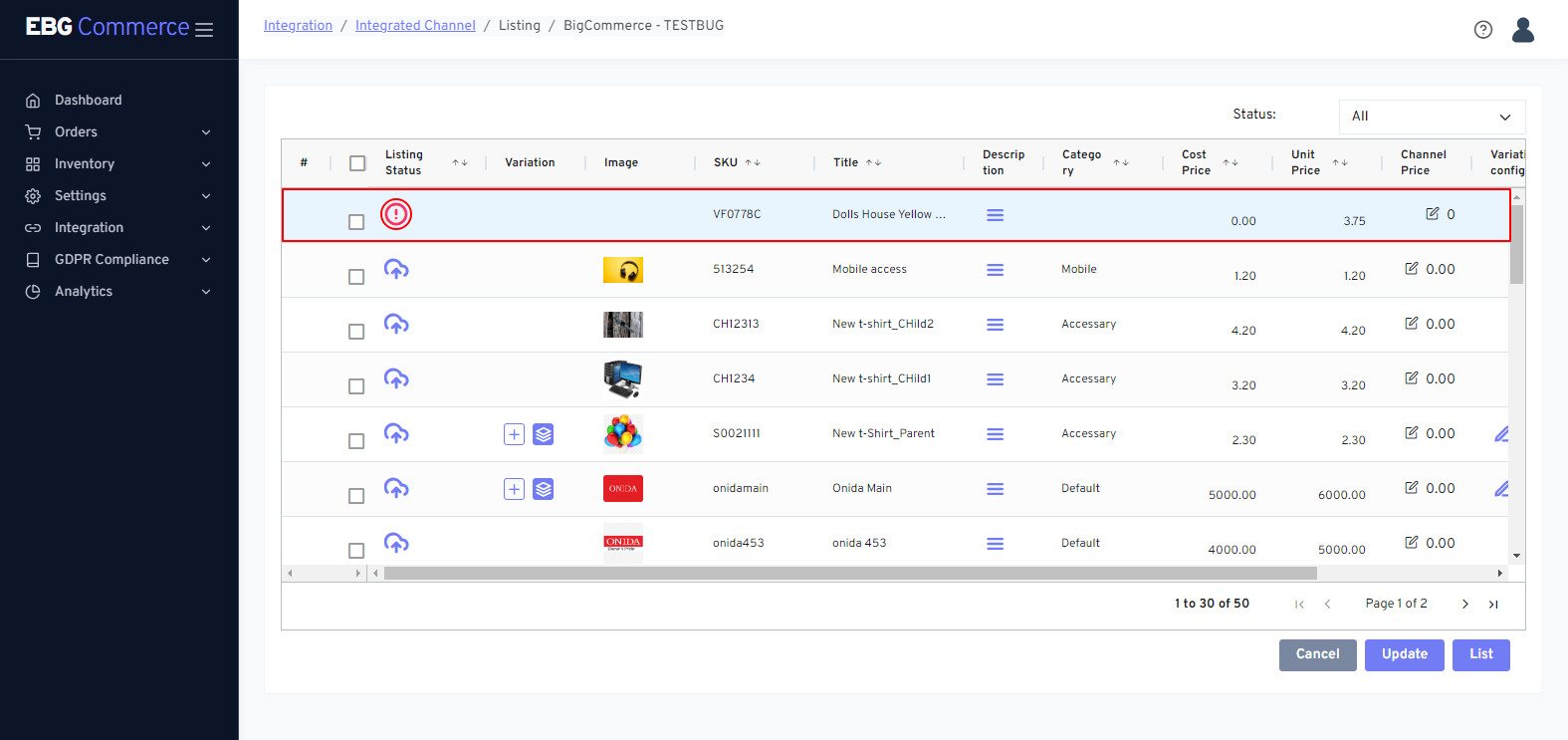 When an error occurs when listing a product, the listing status symbol will change.
12. How to Delete Product
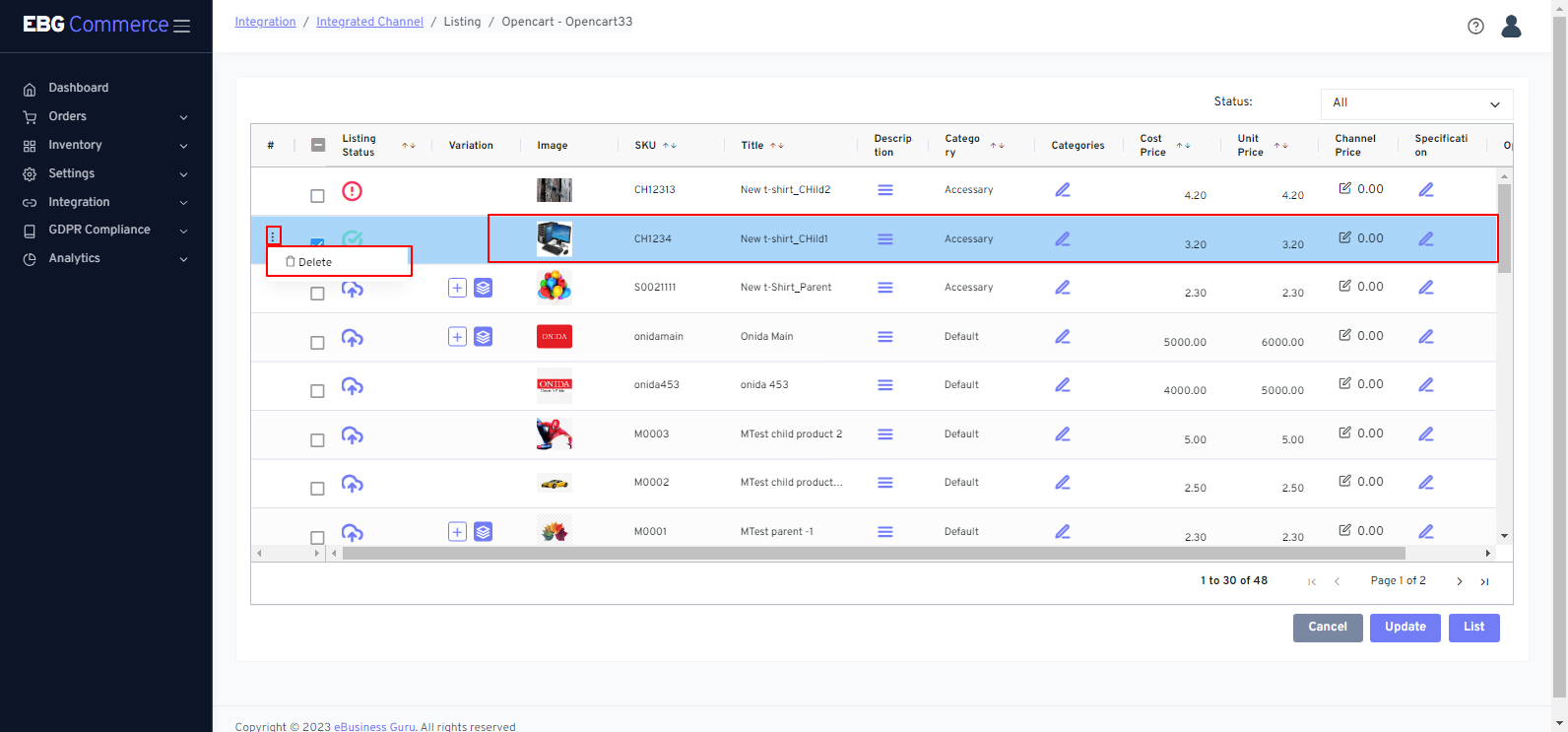 Find the product you want to delete and click on the three dot button. You can choose “Delete”.
You will see a "confirmation" window after selecting the Delete option.
Find the product you want to delete and click on the three dot button. You can choose “Delete”.
You will see a "confirmation" window after selecting the Delete option.
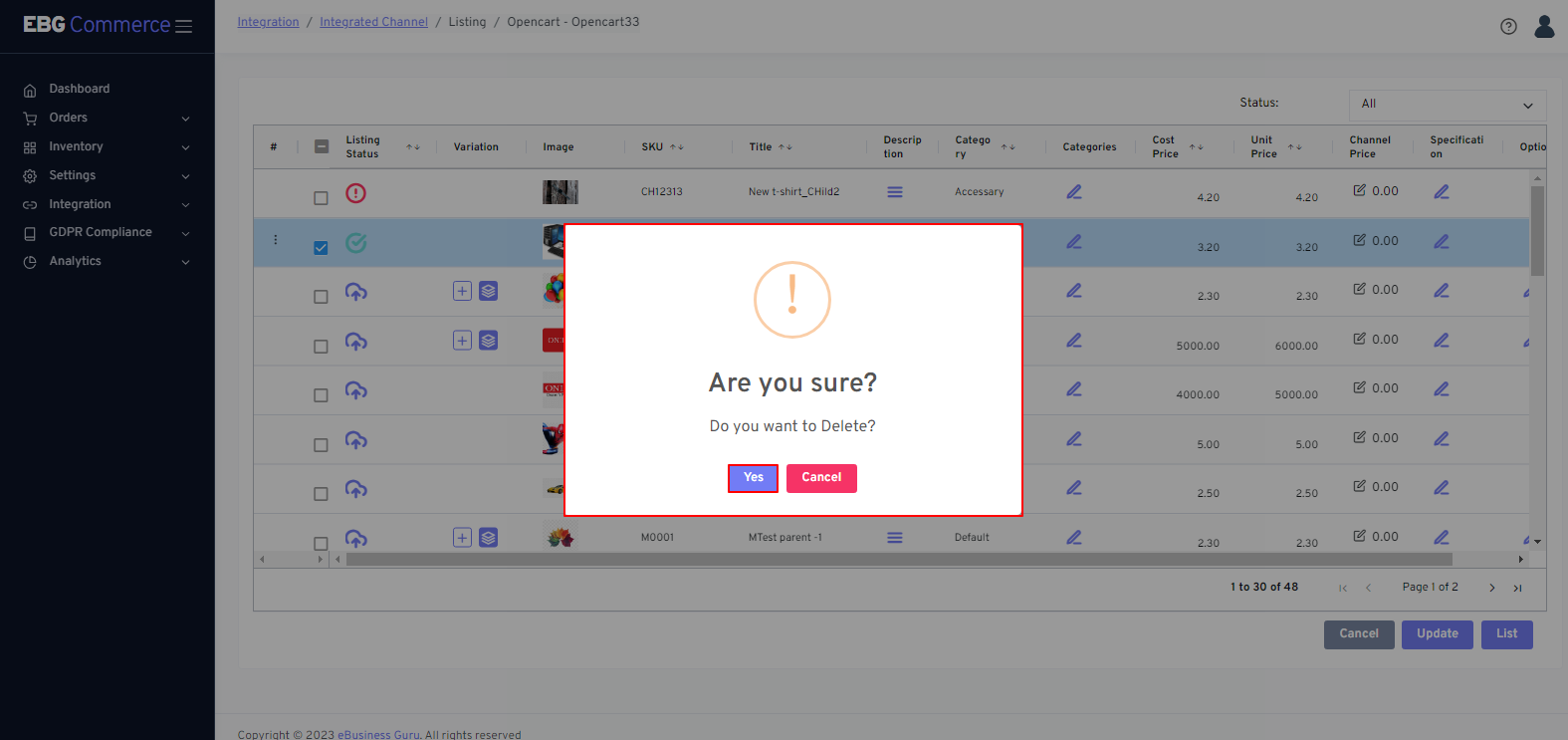 Then, click on “Yes” button
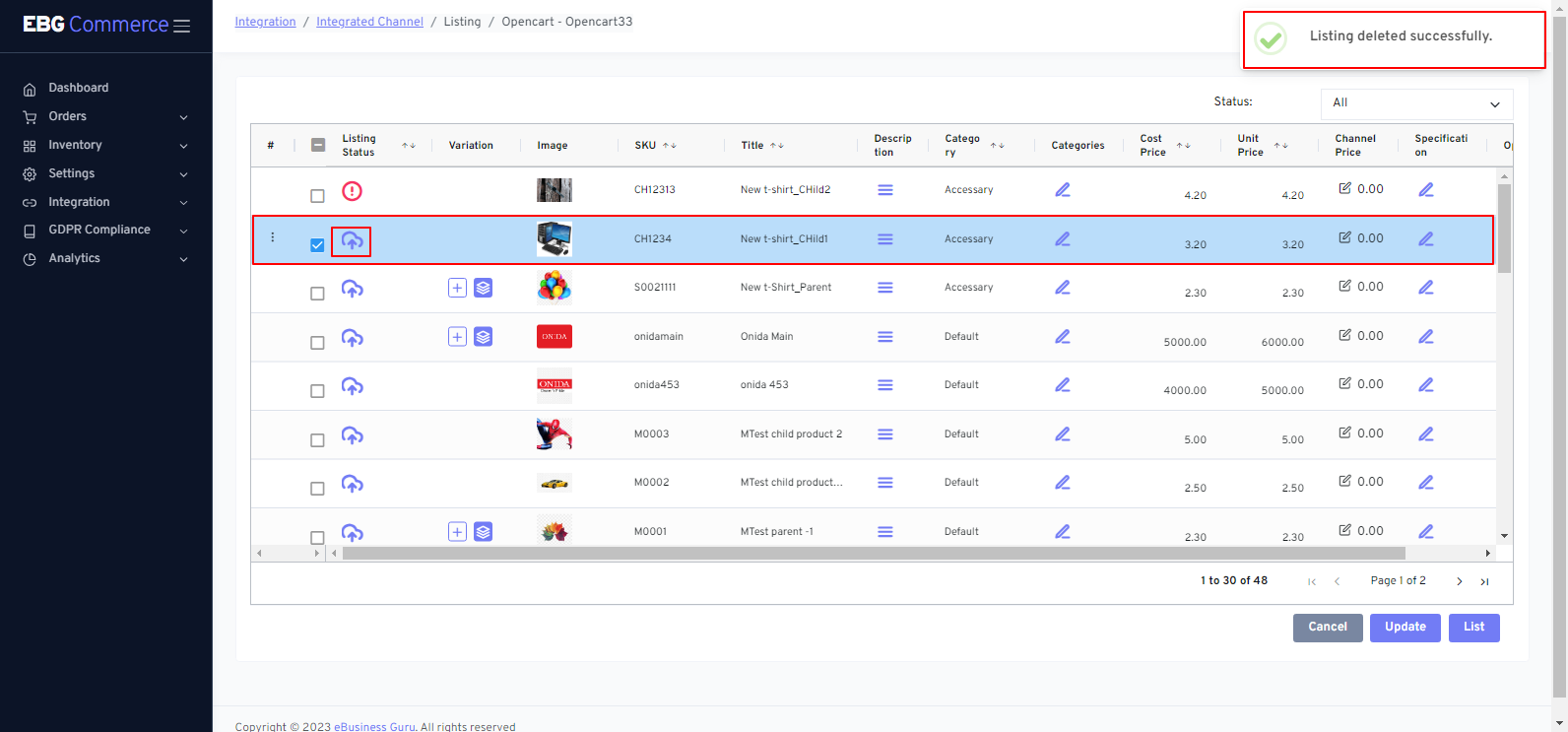 After successfully deleting a product from the channel, the product icon will be changed.