DPD Shipping Integration
This guide provides the steps for adding the DPD Shipping integration to eBG Commerce.
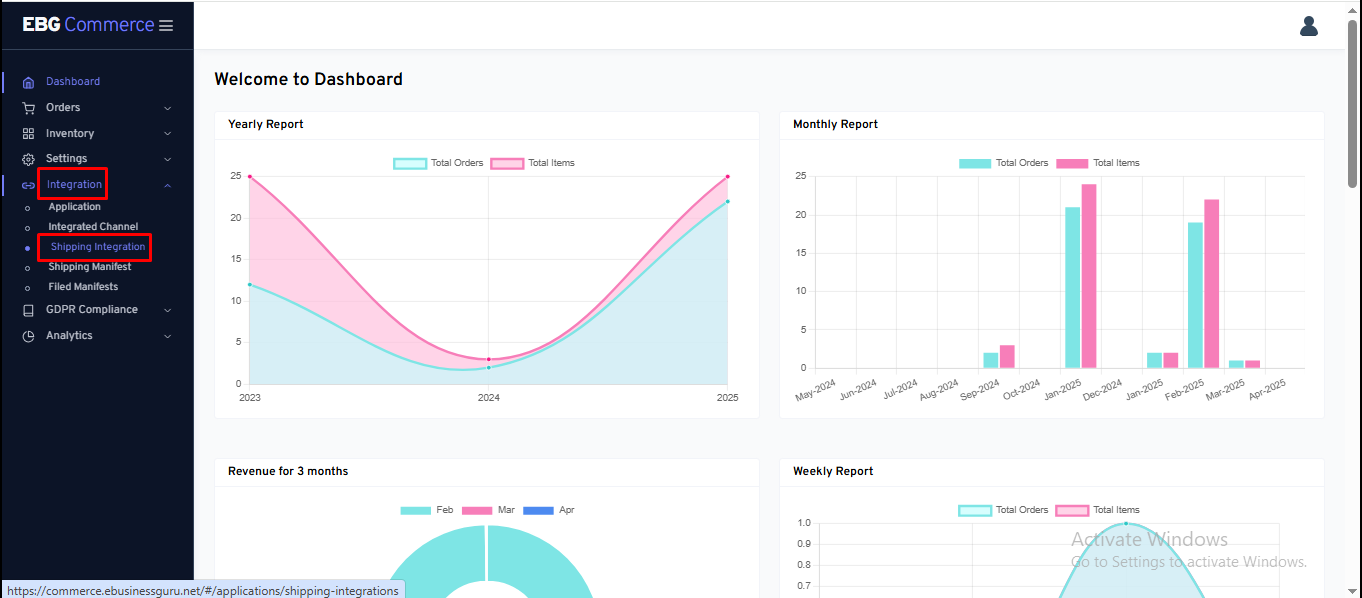
- In eBG Commerce, go to Integration => Shipping Integration
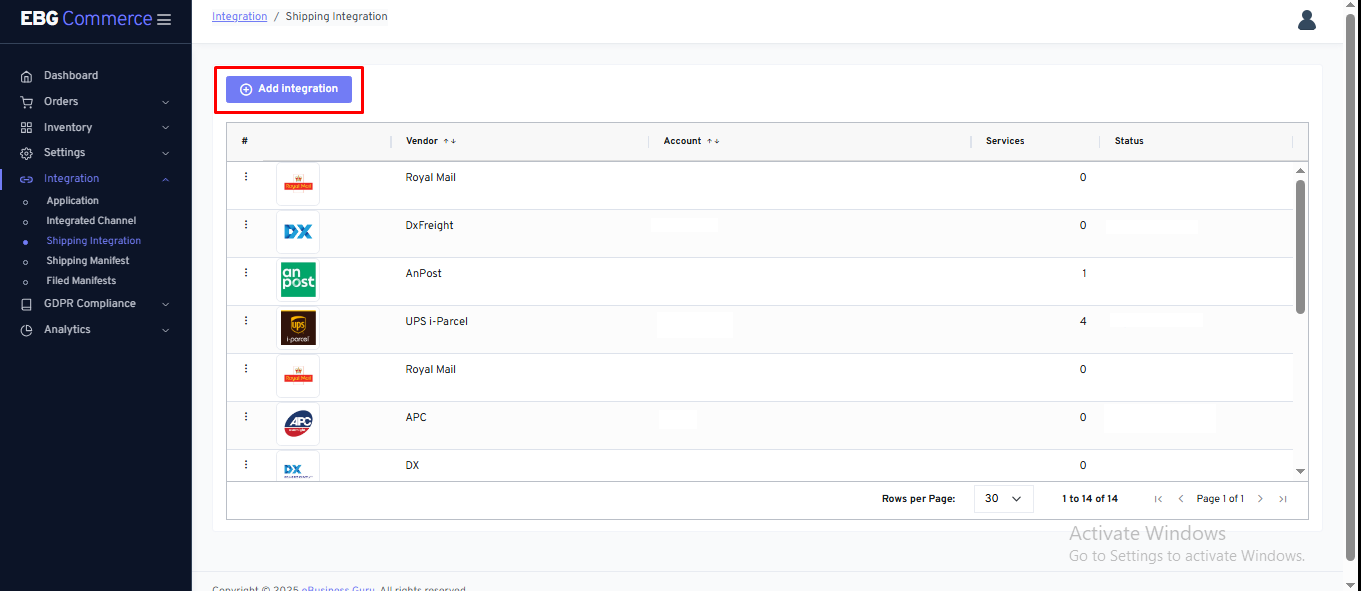
- Click on Add Integration
- Search the Integration or Select the integration that needs to be integrated.
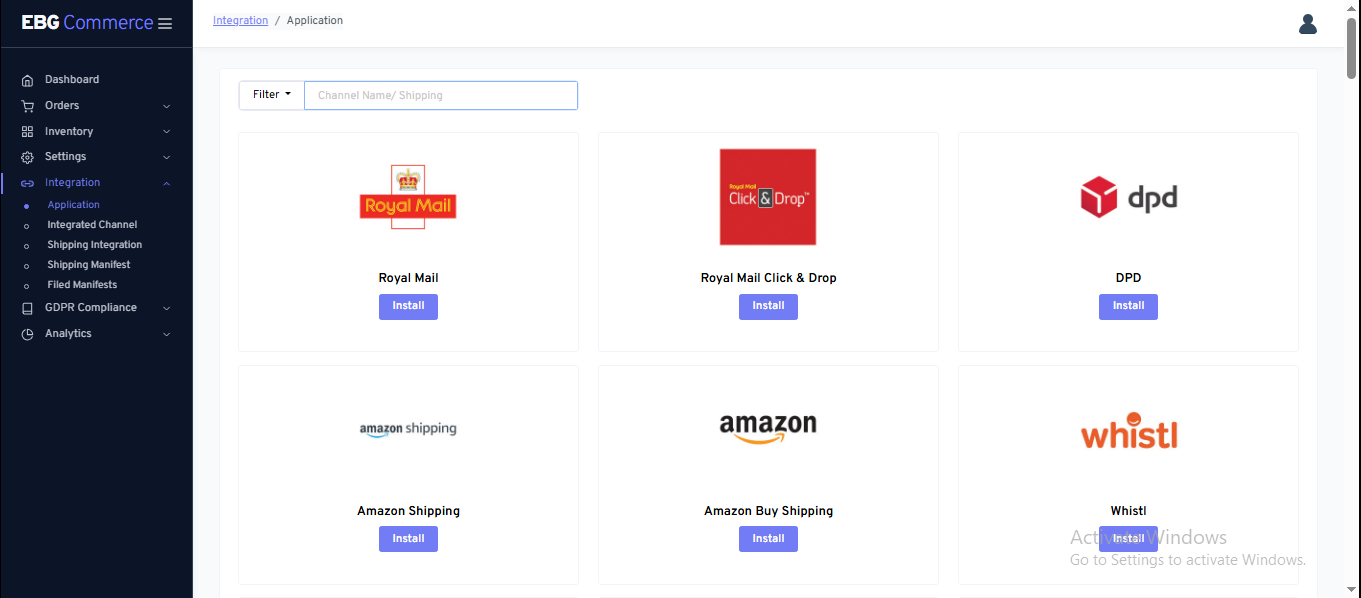
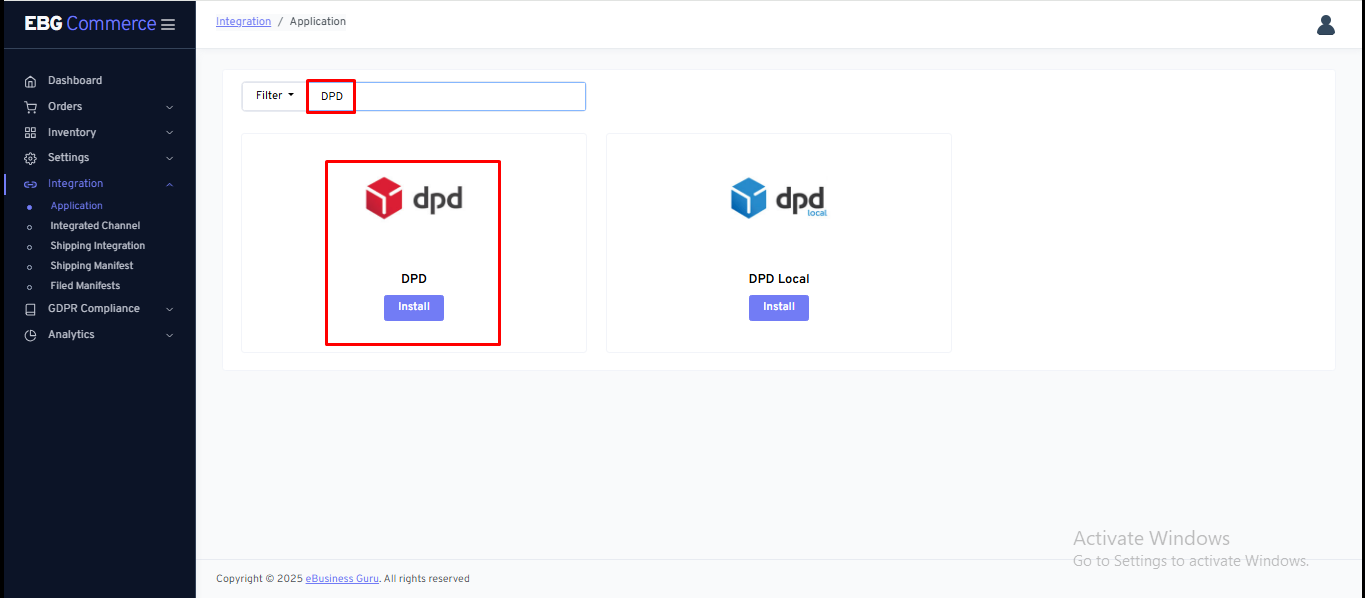
- Search “DPD” and click on Install.
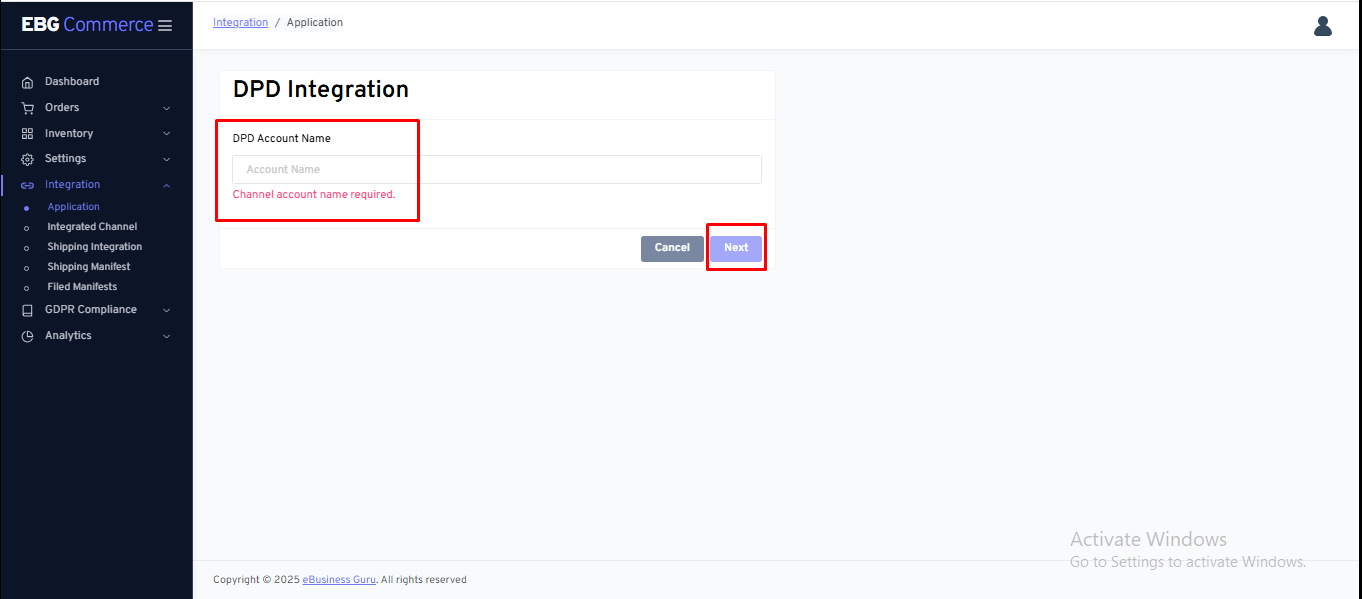
- Add the Account Name and click on Next.
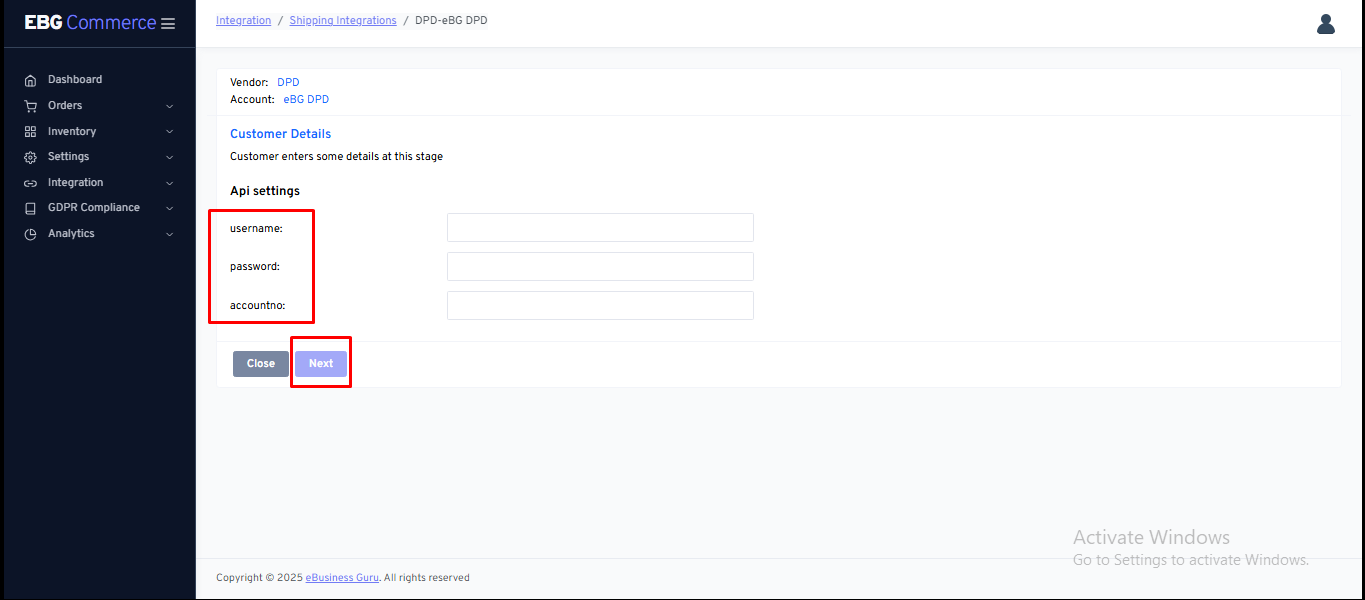
- Add below details [username, password and account number] and Click on Next.
-
Integration will be done and the user can now add the services.
-
Once integration is completed the user can check the status of integration on Shipping Integration
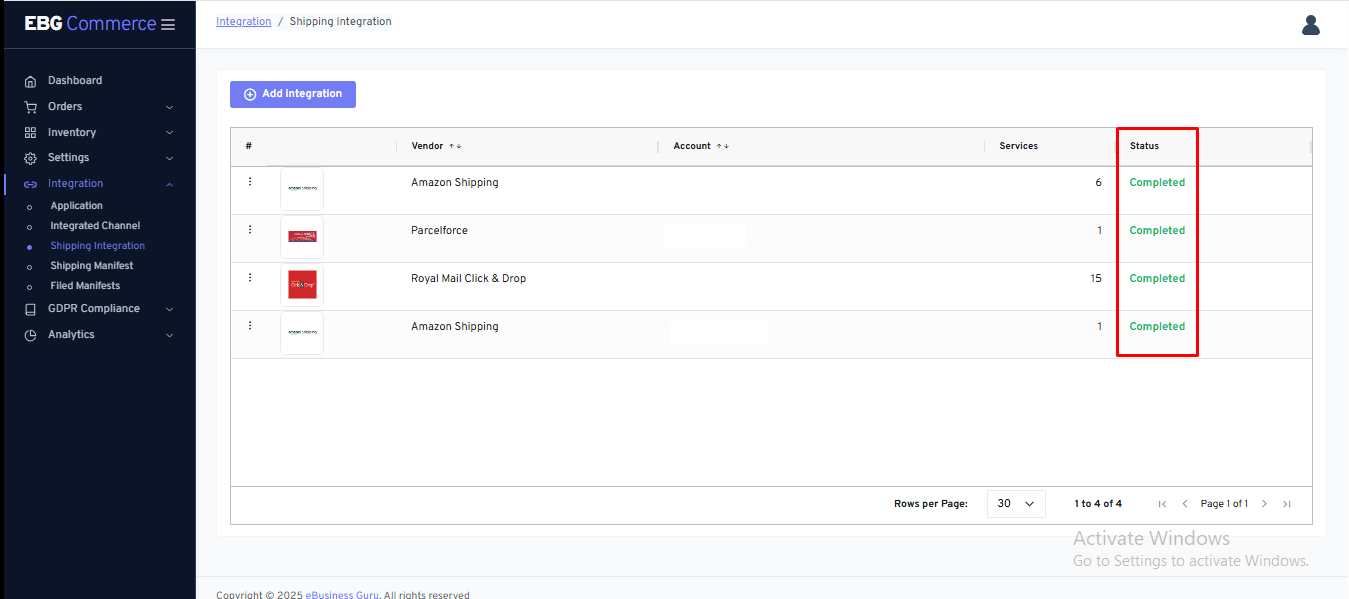
- A three-dot menu is located on the left side of the integration image. When clicked, it displays four options: Config, Property, Service and Delete.
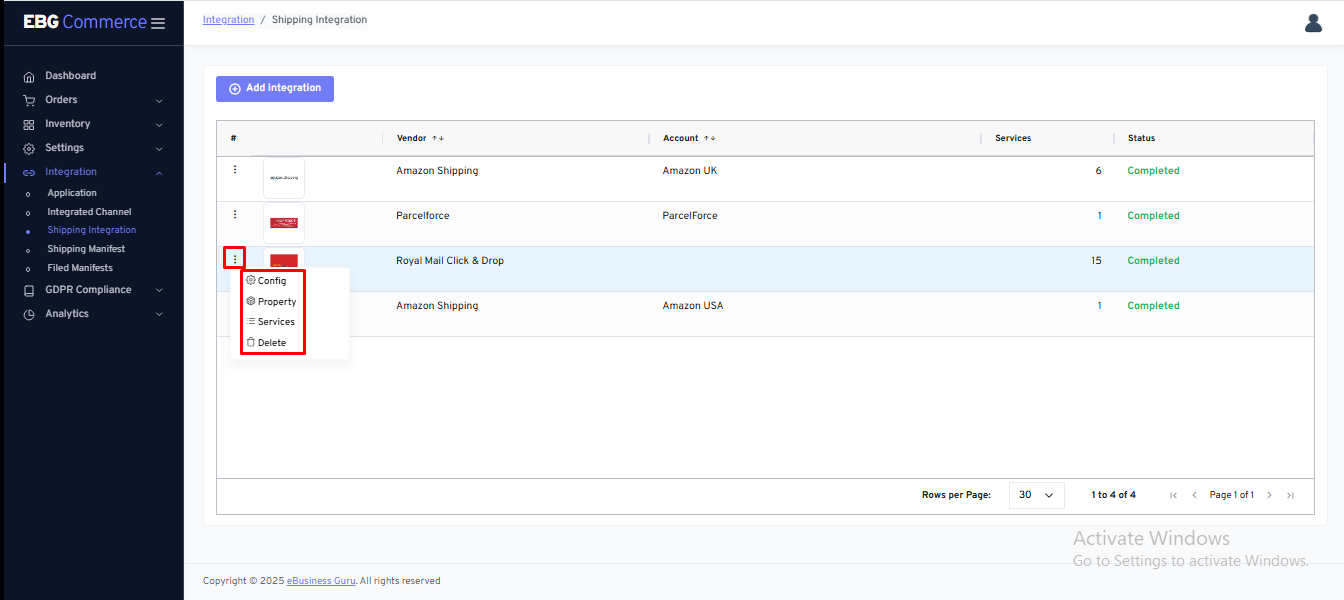
- Config - Here if you want to change or add any details that were used at the time of integration can be done.
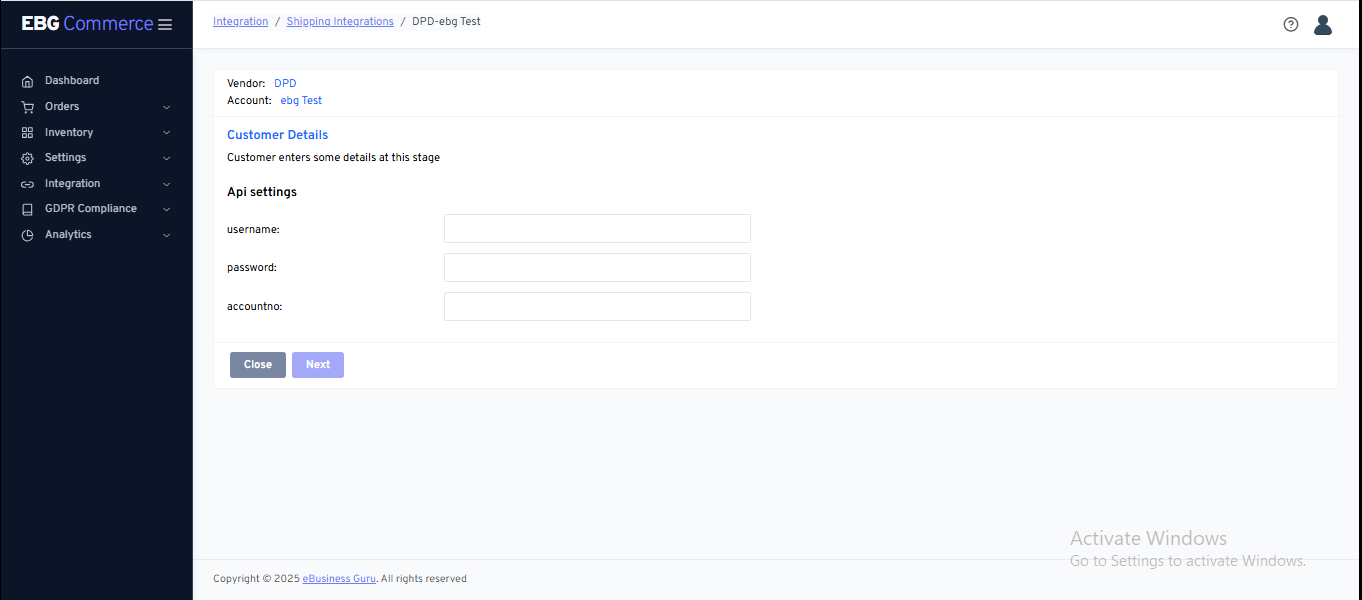
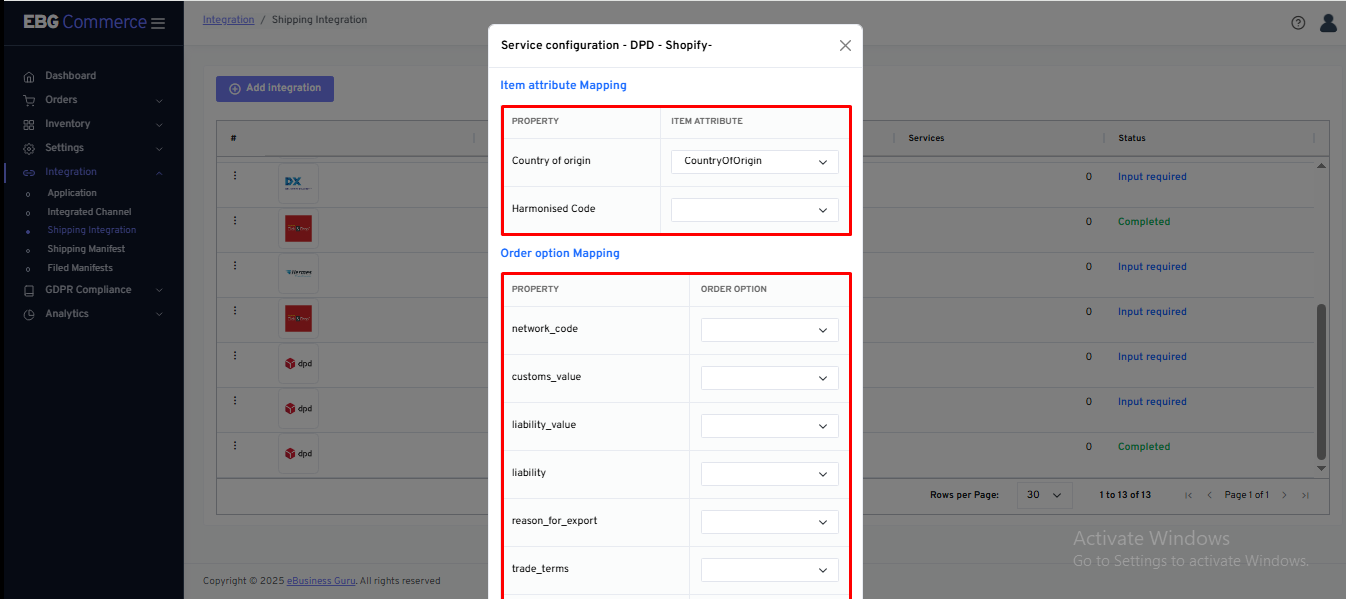
- Property - Several fields are required on the Shipping Vendor's side to successfully generate the label. These fields are included here and can also be mapped to your item's extended properties.
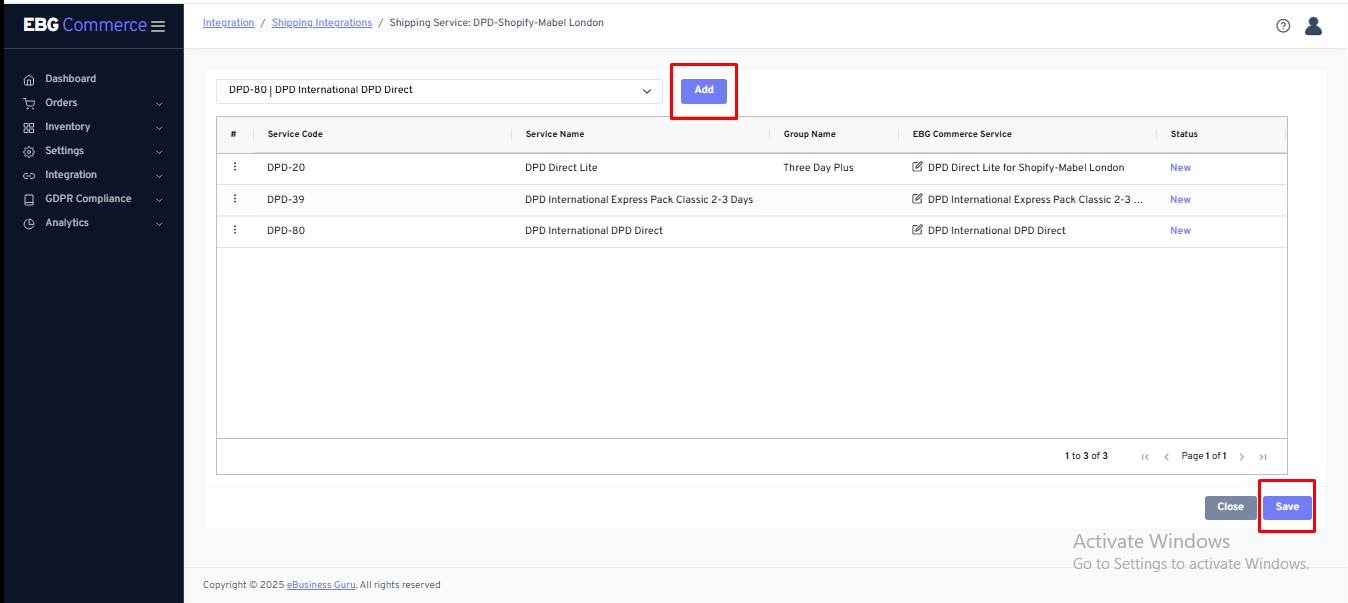
- Services - The user can add the required services in the integration, which can then be used for printing labels for orders.
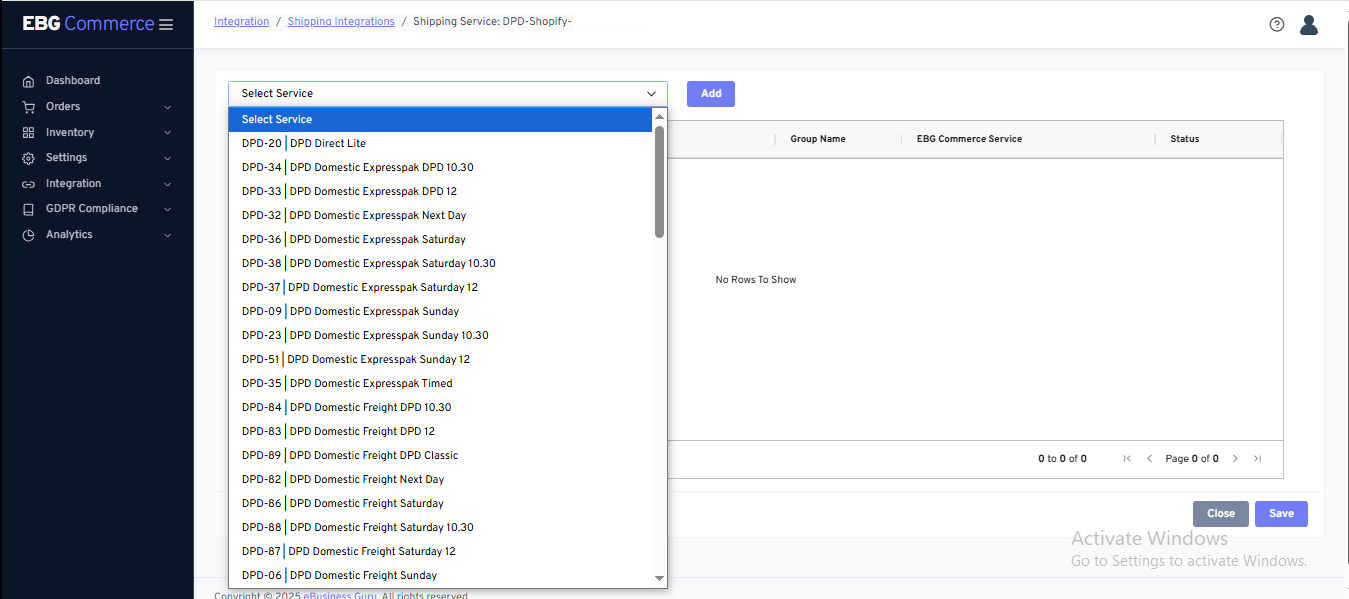
- The user can select the services and click on Add, once all the services are added Click on Save.
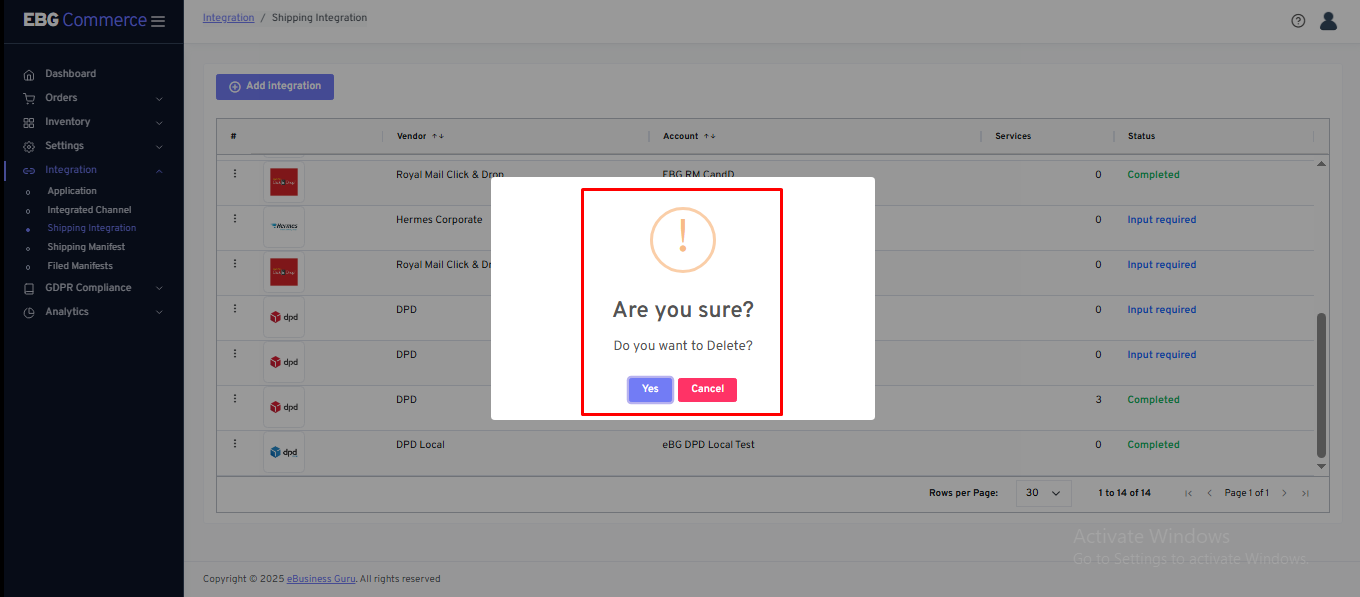
- Delete - To delete the integration, the user can click on Delete. A confirmation pop-up will appear, and upon confirmation, the integration will be deleted