Open Orders
On this page:
Create an order
eBG Commerce allows you to create orders manually for telephone clients or others that don’t use your website(s).
- Open the Orders section.
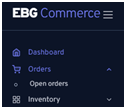
- Select Open Orders
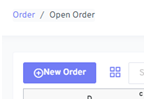
- Click New Order
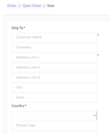
- Enter the customer details and address in the Ship To fields.
a. Select the correct Country from the drop down list. - If the billing address is different to the shipping address, then click on the Bill to Different Address link, and enter the name and address for billing.
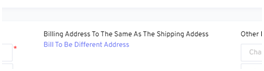
- Enter an order number or reference if appropriate under Other Info.
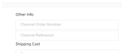
- Set the Shipping Cost for the order.
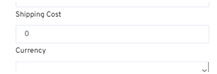
- If the Currency is selected is incorrect for this order, update it.
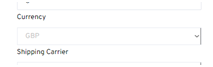
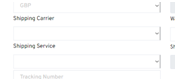
- Select the Shipping Carrier and Shipping Service that should be used to send this order to the customer
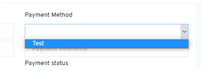
- If you have set up Payment Methods in eBG Commerce, select the correct one next.
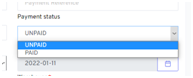
- Set the current Payment Status of the order.
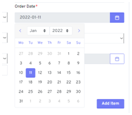
- If the order needs to be backdated, update the Order Date.
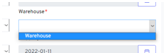
- Allocate the order to the Warehouse it will be shipped from.
- Set the Shipping Due Date, if not the default of today.
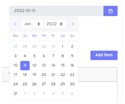
- To add products to the order:
a. Click the Add Item button.
 b. Enter a SKU or title (full or partial) in the search field, and click the Search button.
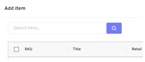 c. Tick the box for each item you want to add to the order.
i. Tick the box in the header row to select all items listed.
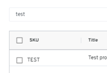 d. Click the Add button.
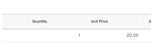
 e. Edit the Quantity if necessary.
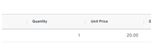 f. The Discount and the Unit Price can also be edited.
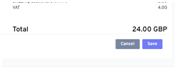
- Click Save to add the order to the Open Orders screen.
- Please note - the shipping method and payment method dropdown lists will not populate unless you have created or integrated shipping services and created payment methods in Settings.
- For manual orders, you’re responsible for confirming payment, as there is no automatic method for eBG Commerce to confirm.
Edit an order
- Open the Orders section.
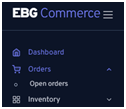
- Select Open Orders.
- Use Search to locate the order you want if it’s not immediately visible.
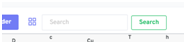 a. You can also click on a column heading to reorder the list by that field.
i. First click sorts Ascending.
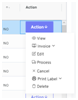
ii. Second click sorts Descending. - Click the Action button for the order.

- Select Edit Order from the menu.
- Amend any fields that need to be updated.
- Click Save.
- Amending the content of orders from an online platform or marketplace like Amazon may cause issues with automatic confirmation of dispatch. We advise you to avoid this where possible except for changing shipping services.
Process an order
Processing an order should occur after it has been boxed, labelled and is awaiting pickup. It will trigger the order to be marked as dispatched on the selling channel.
- Open the Orders section.
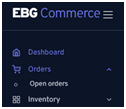
- Select Open Orders.
- Use Search to locate the order you want if it’s not immediately visible.
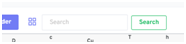 a. You can also click on a column heading to reorder the list by that field.
i. First click sorts Ascending.
ii. Second click sorts Descending.

- Click the Action button for the order.
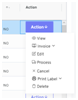
- Select Process from the menu.
- Review the order to confirm it’s the correct order.
- Click Print Label if you haven’t already printed the shipping label and added the tracking information to the order.
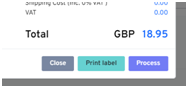
- Click Process to complete the order.
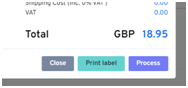
- If the order hasn’t had the shipping label printed before it is processed, this cannot be added after, and the tracking number would have to be manually added on the channel to pass it to the customer.
Cancel an order
If you can’t fulfill an order or the customer changes their mind, you can cancel it within eBG Commerce to prevent it being sent.
- Open the Orders section.
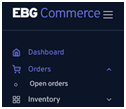
- Select Open Orders.
- Use Search to locate the order you want if it’s not immediately visible.
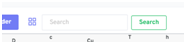 a. You can also click on a column heading to reorder the list by that field.
i. First click sorts Ascending.
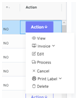
ii. Second click sorts Descending. - Click the Action button for the order.

- Select Cancel from the menu.
- Select the Reason for cancellation from the options shown.
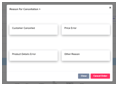
- Click Cancel.
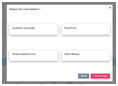
- The order will be marked as cancelled.
Review processed orders
If you get a query from a customer, you can revisit their order to confirm it’s details including tracking details or notes.
- Open the Orders section.
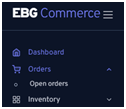
- Select Open Orders.
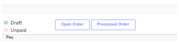
- Click on the Processed Order button.
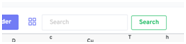
- Use Search to locate the order you want if it’s not immediately visible.
 a. You can also click on a column heading to reorder the list by that field.
i. First click sorts Ascending.
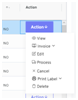
ii. Second click sorts Descending. - Click the Action button for the order.

- Select View from the menu.
- Once you have finished reviewing the order, click Back.