Process orders
Processing an order should occur after it has been boxed, labelled and is awaiting pickup. It will trigger the order to be marked as dispatched on the selling channel.
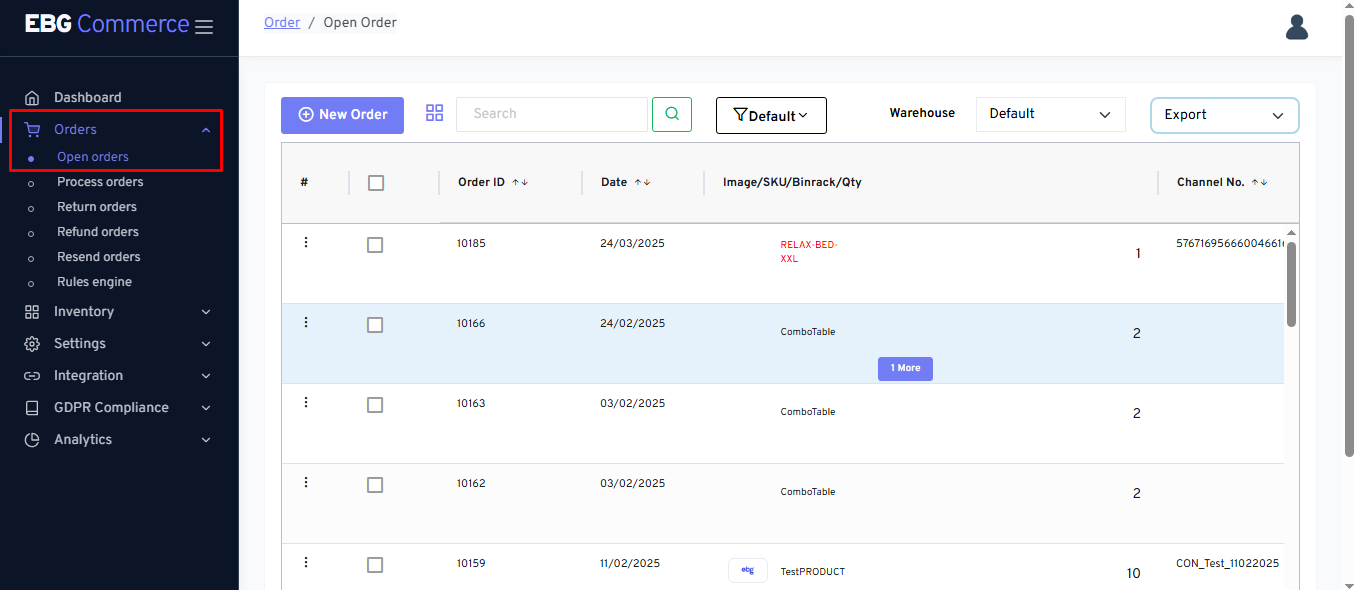
- Open the Orders section.
-
Select Open Orders.
-
Use Search to locate the order the seller want if it’s not immediately visible.
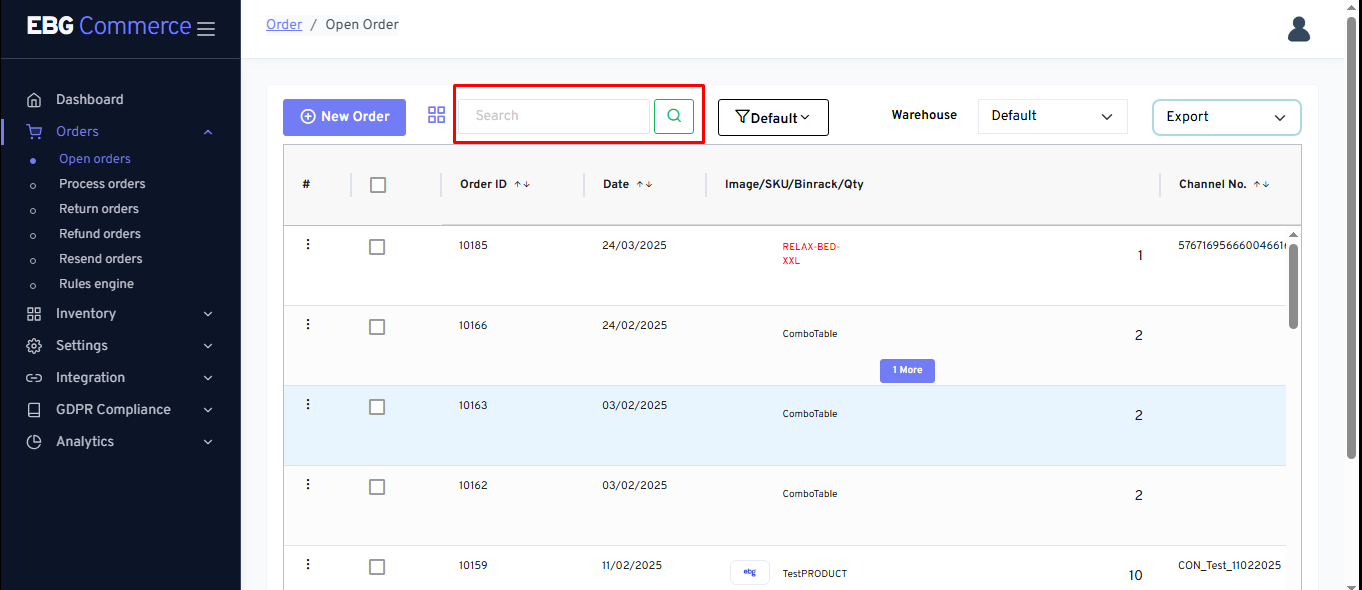
a. the seller can also click on a column heading to reorder the list by that field.
i. First click sorts Ascending.
ii. Second click sorts Descending.
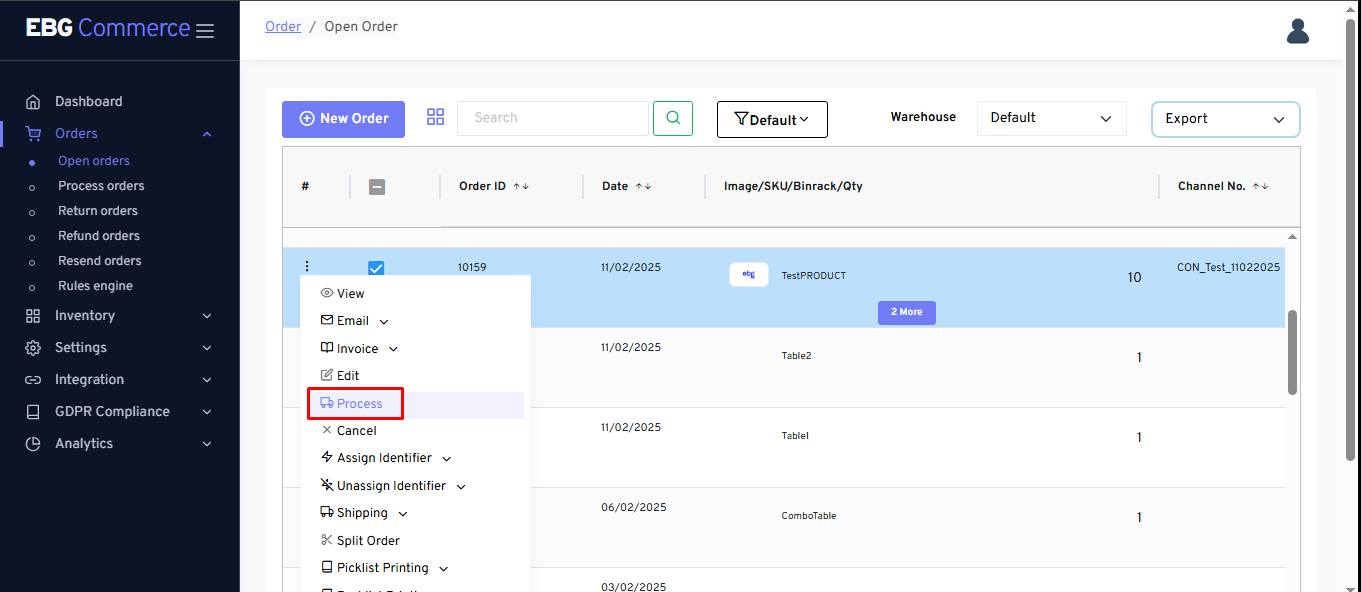
- Click the Action button for the order.
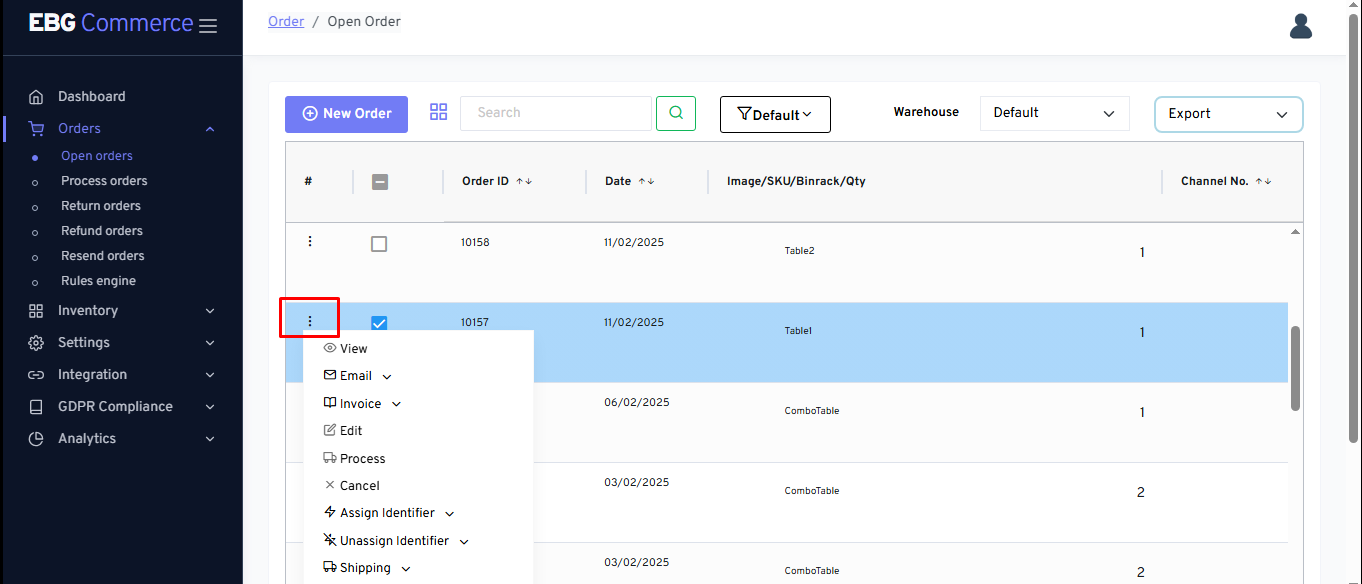
- Select Process from the menu.
If “Display Prompt for Scanning Item while Processing” option is enabled into setting, below screen will be displayed
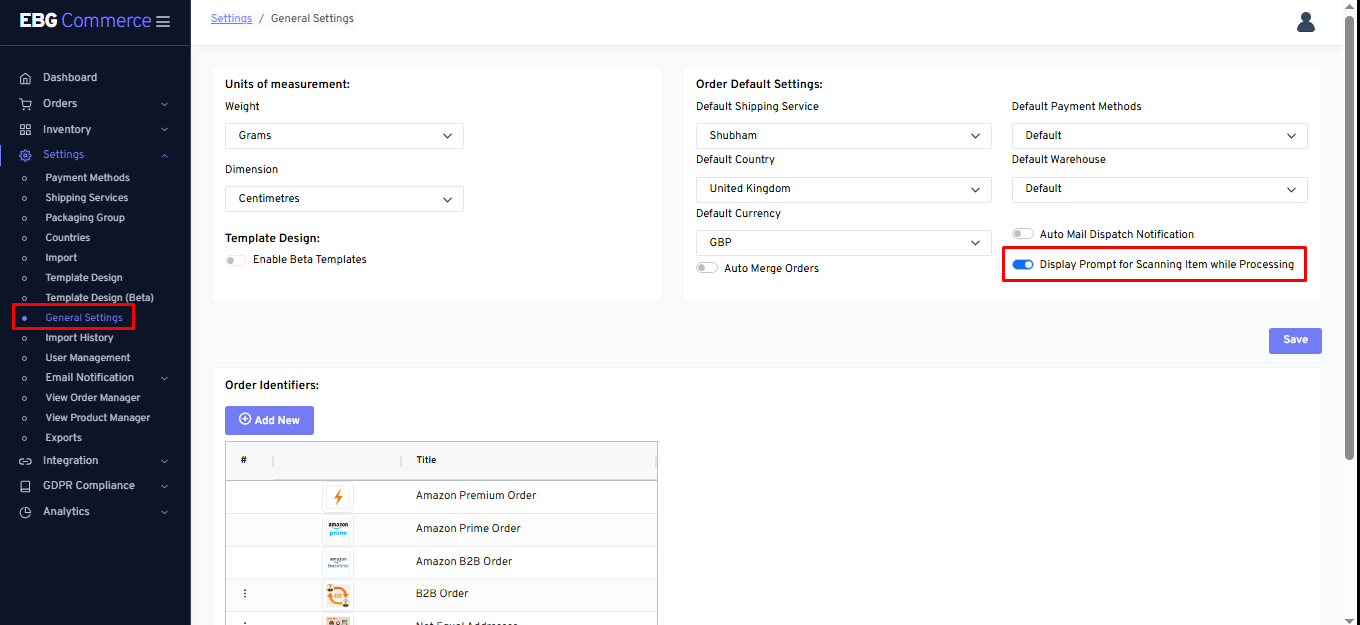
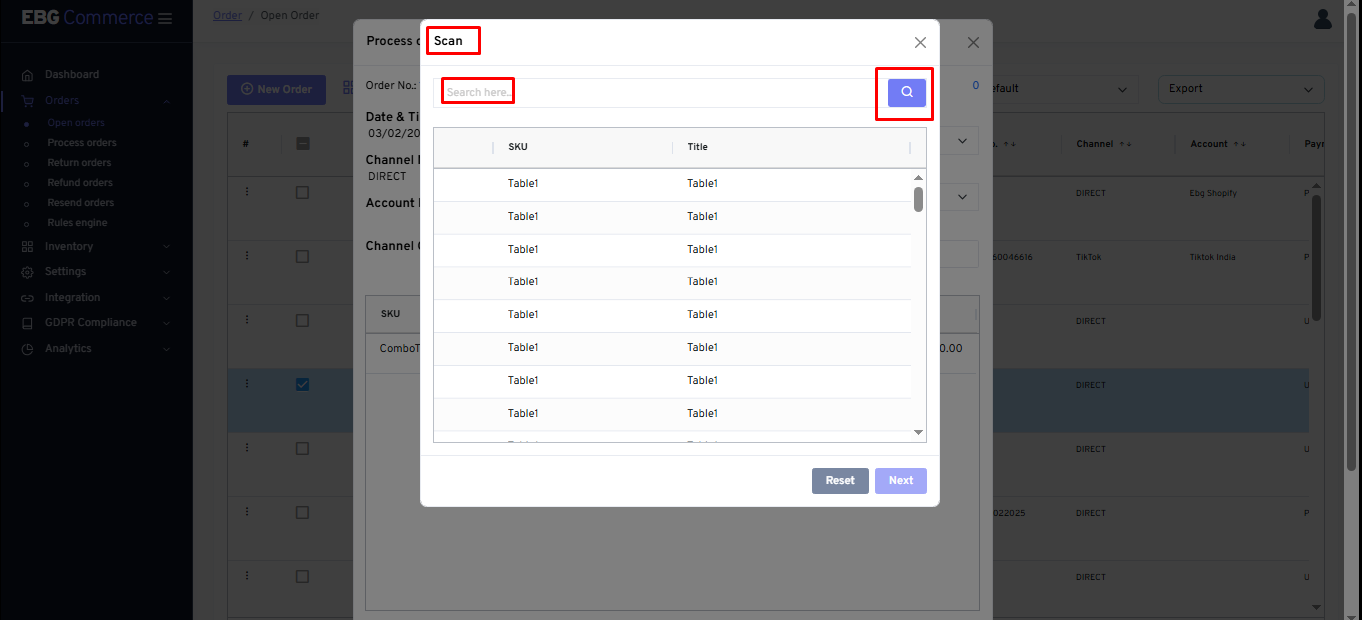
Otherwise, seller can click on “Item scan” button so that the same above screen gets displayed
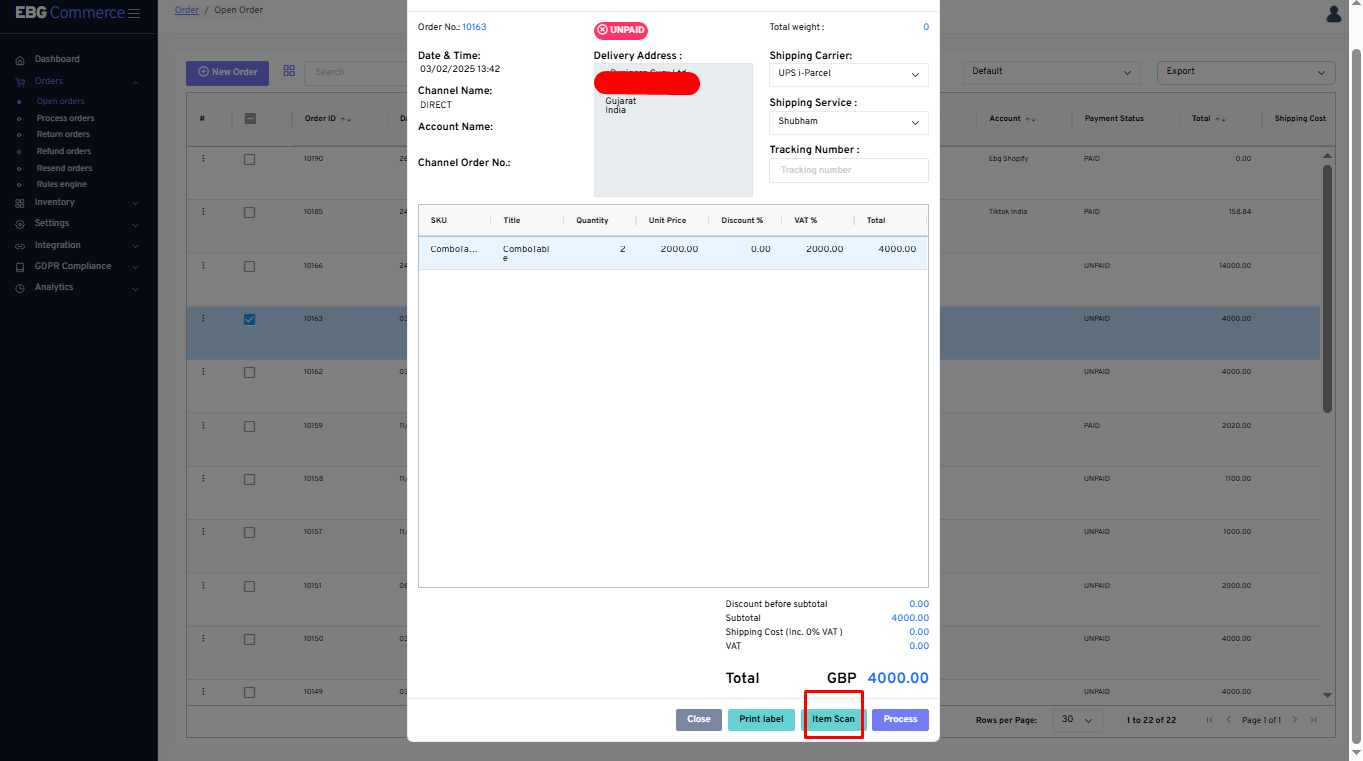
-
Review the order to confirm it’s the correct order.
-
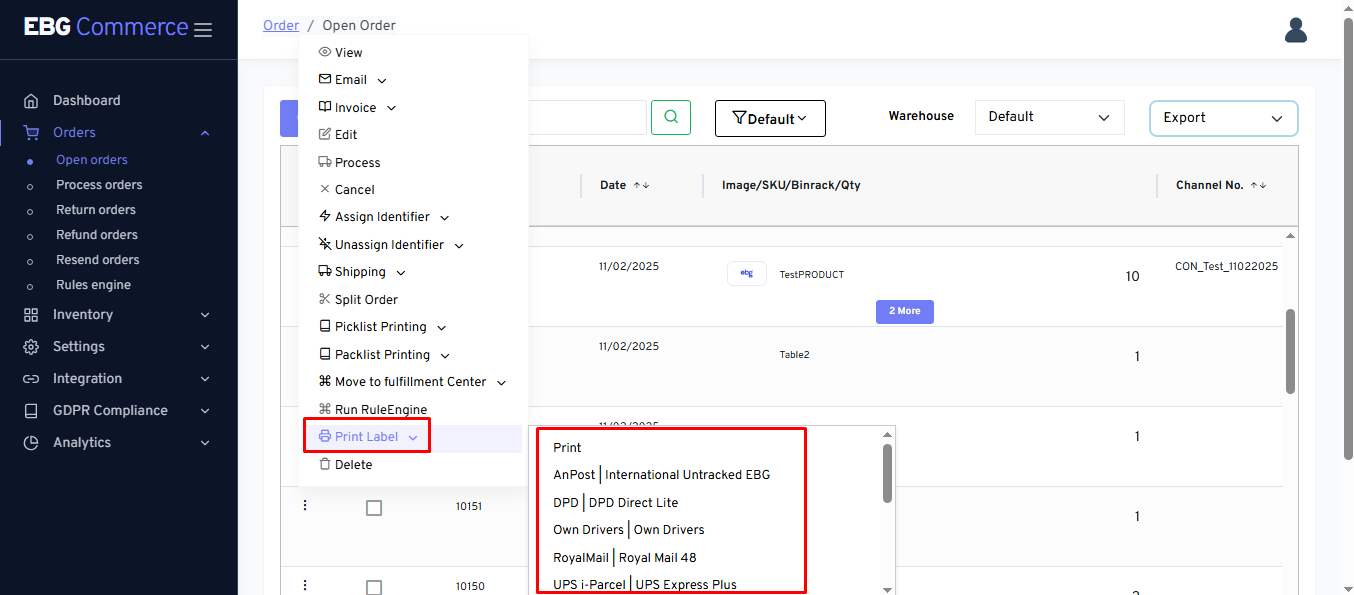
Click Print Label if the seller hasn't already printed the shipping label and added the tracking information to the order.
- Click Process to complete the order.
If the order hasn’t had the shipping label printed before it is processed, this cannot be added after, and the tracking number would have to be manually added on the channel to pass it to the customer.
Review processed orders
If the seller gets a query from a customer, the seller can revisit their order to confirm its details including tracking details or notes.
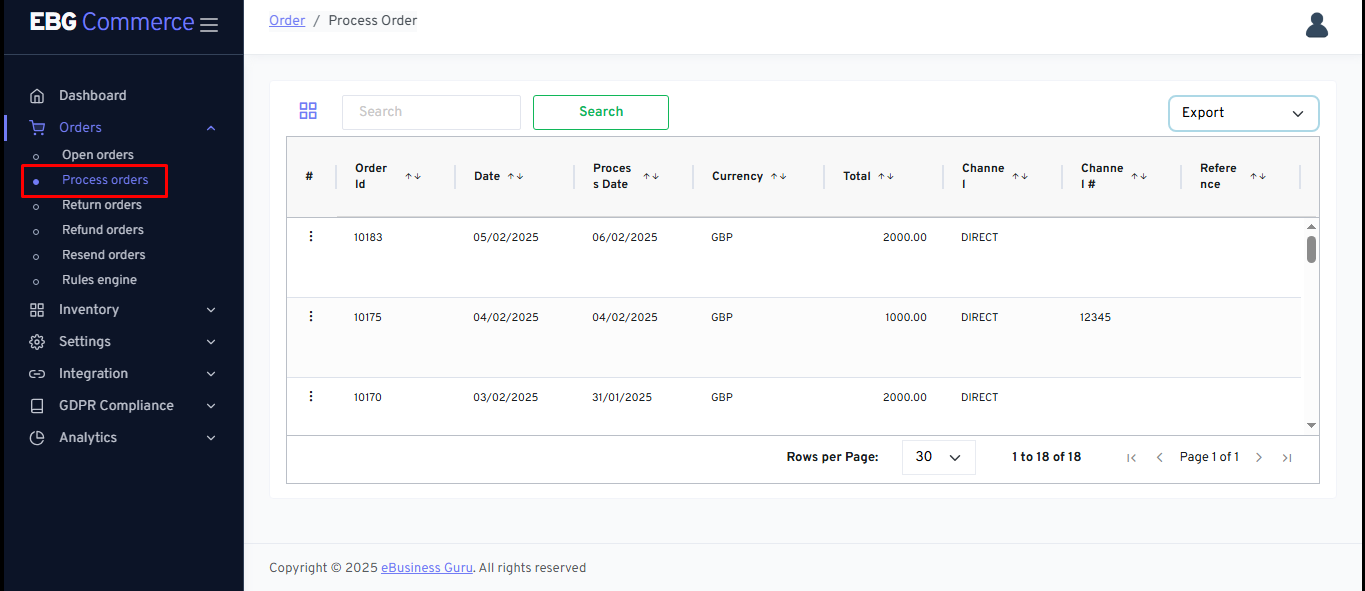
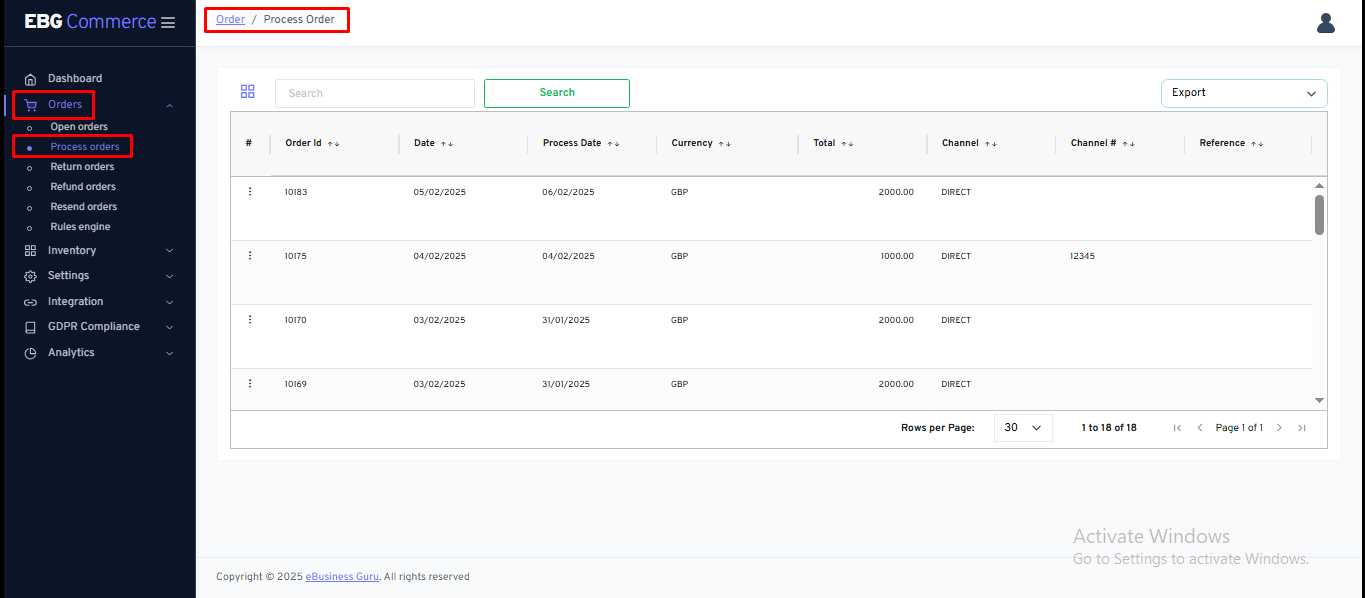
- Open the Orders section.
-
Select Processed Orders.
-
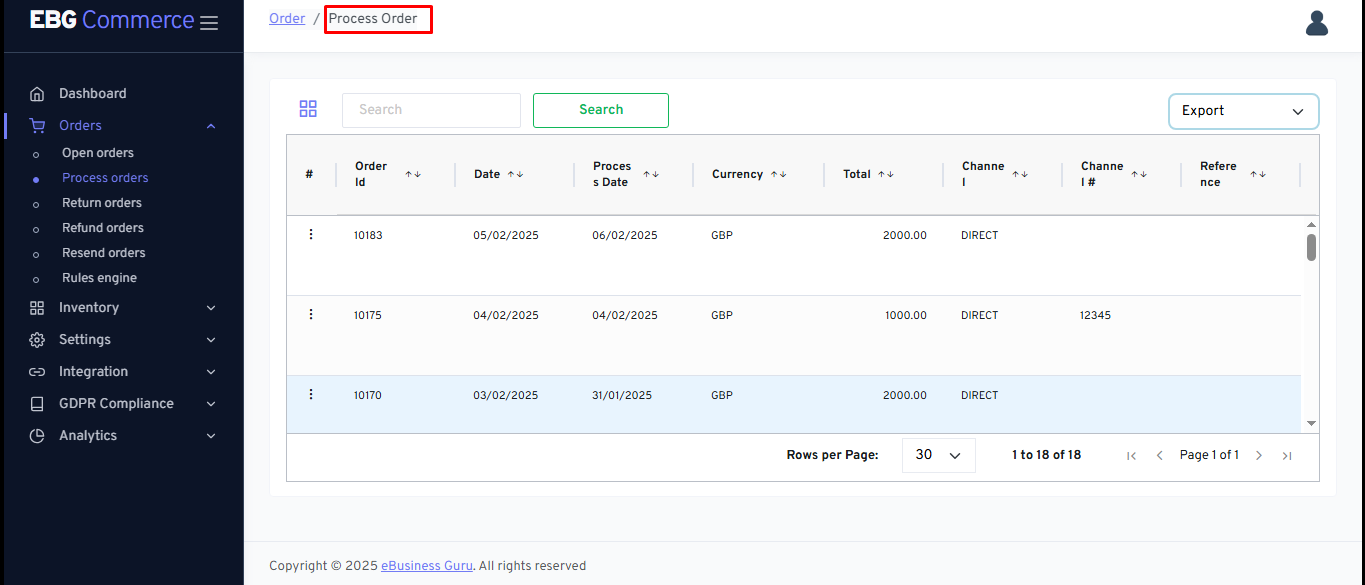
Click on the Processed Order button.
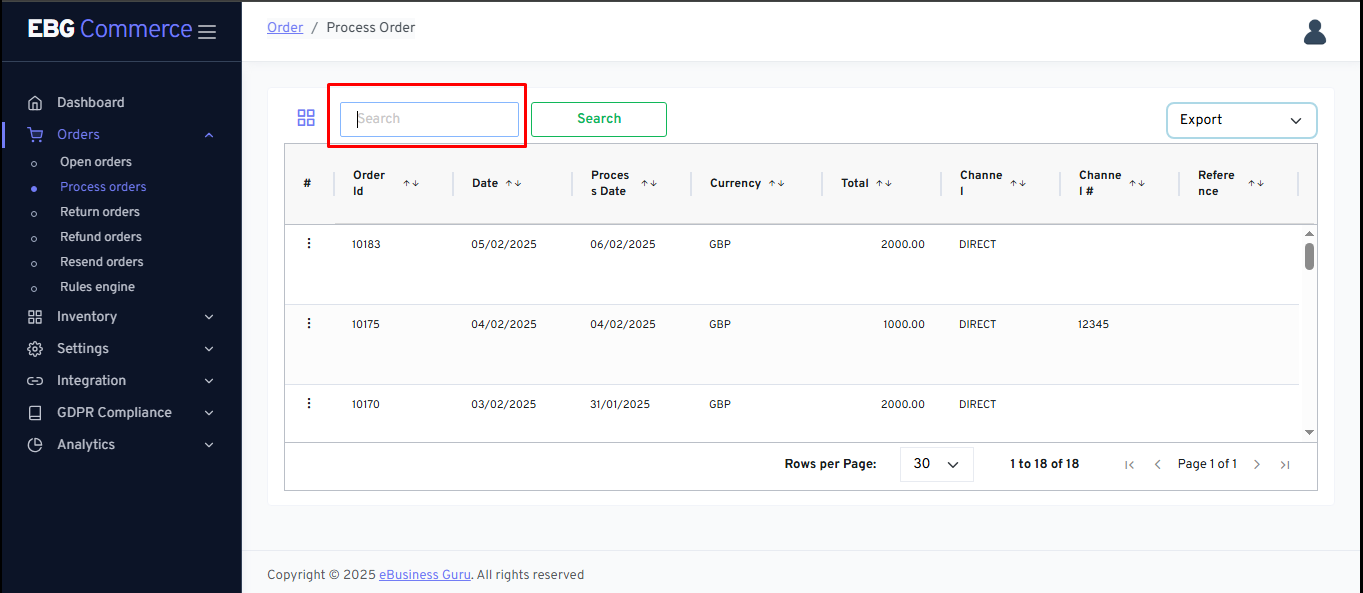
- Use Search to locate the order the seller want if it’s not immediately visible.
a. the seller can also click on a column heading to reorder the list by that field.
i. First click sorts Ascending.
ii. Second click sorts Descending.
- Click the Action button for the order.
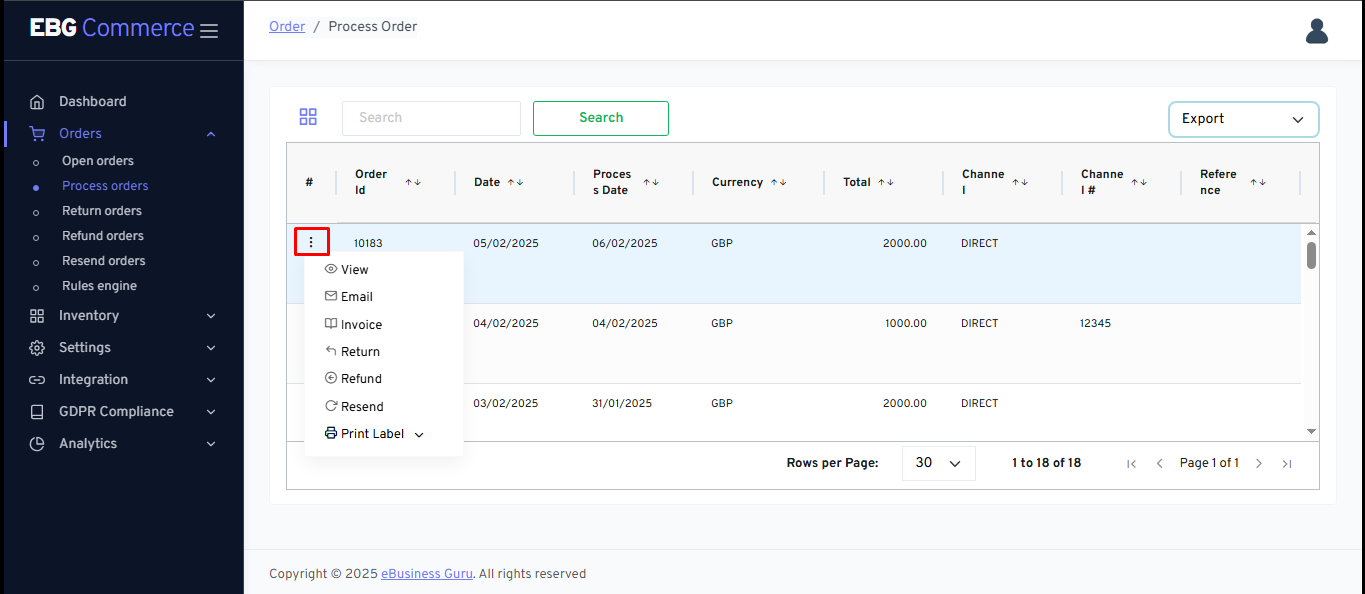
- Select View from the menu.
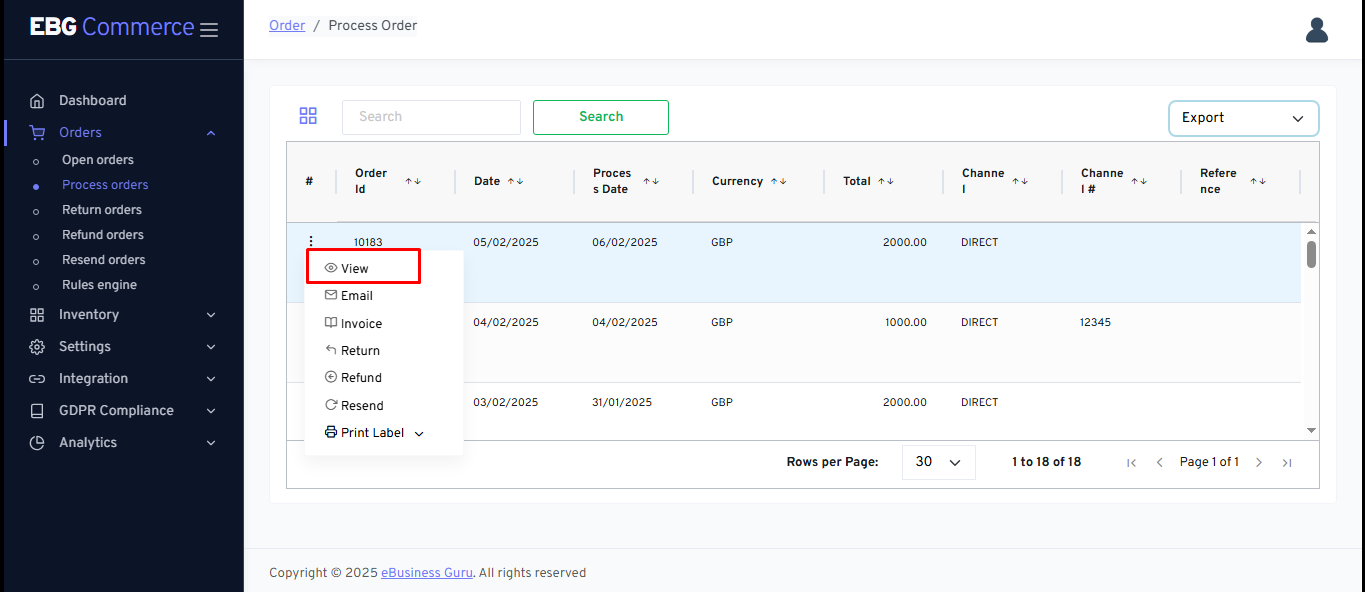
- Once the seller have finished reviewing the order, click Back.
Review processed orders - Screen
Sellers can open the processed order screen by following the below steps:
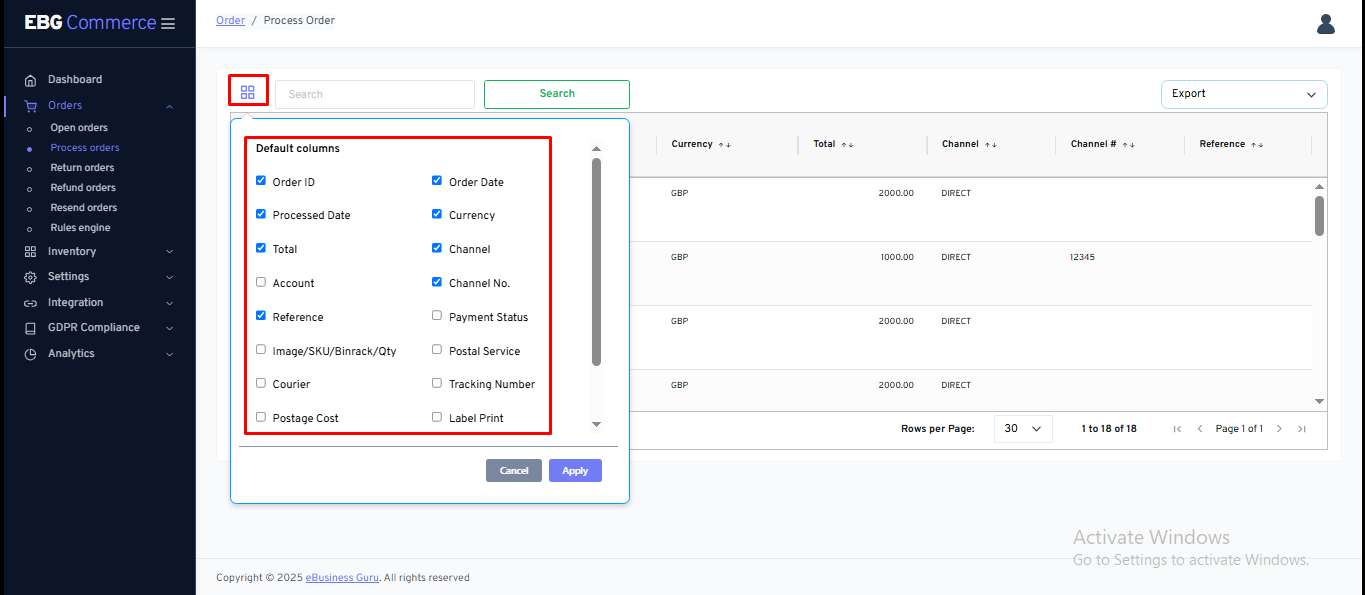
Review Processed Orders - Column Selector
Column selector feature will be helpful to select/deselect the required columns.
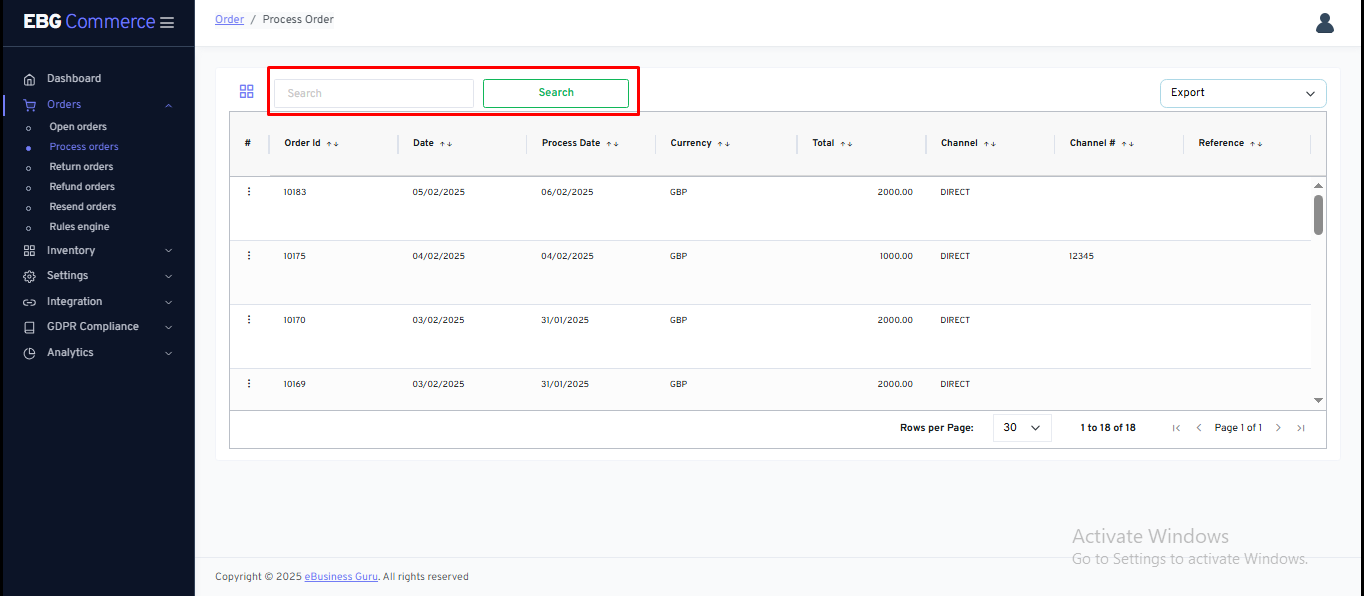
Review processed orders - Search bar
The search bar will help the sellers to find their orders which are processed.
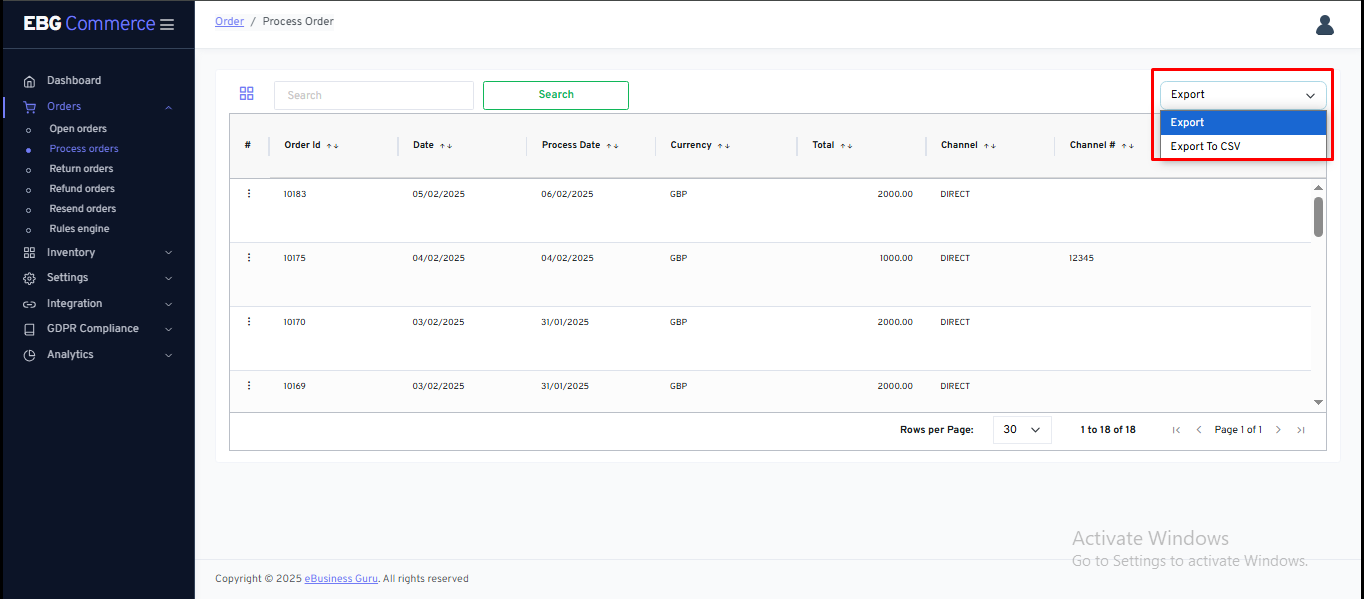
Review processed orders - Export
This option allows the seller to export the list of all processed orders in a CSV file format.
Review processed orders - Three dot menu options
While clicking on the three dot menu - seller can perform various actions on the orders.
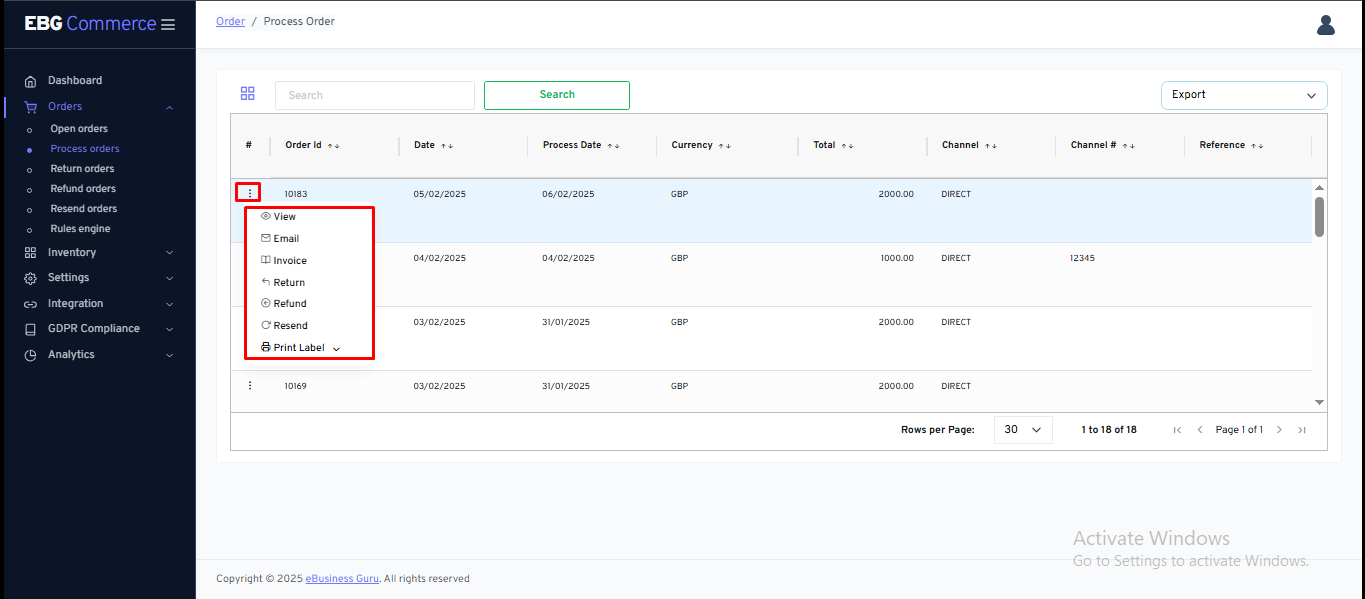
- View - This option will allow the seller to view the order details.
- Email - This option will allow the seller to send an email notification to the customer.
- Invoice - This option will help the seller to print the invoice for the order.
- Return - This option will help the seller to create a return order for the selected order.
- Refund - This option will help the seller to create a refund for the selected order.
- Resend - This option will help the seller to create a resend order for the selected order.
- Print Label - This option will allow the seller to print the shipping label of the assigned shipping service.