Open orders
Open Order screen
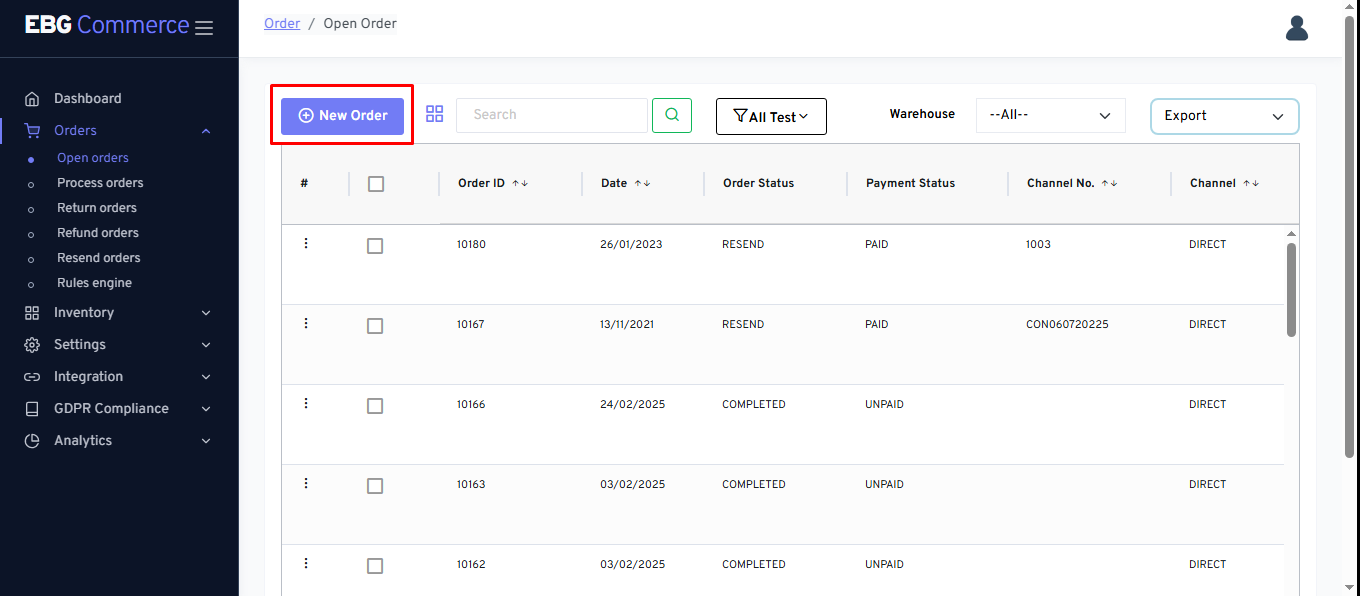
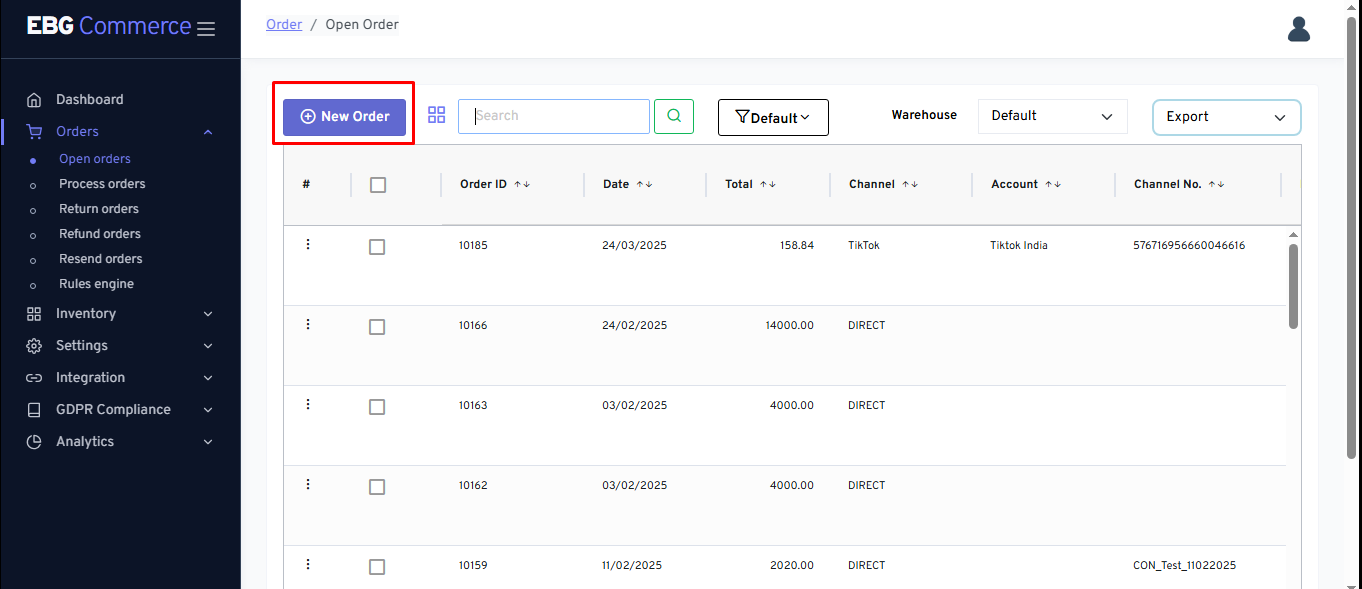
Please refer all available options and/or features on open orders screen New order - Seller can create manual order by clicking on “New Order”
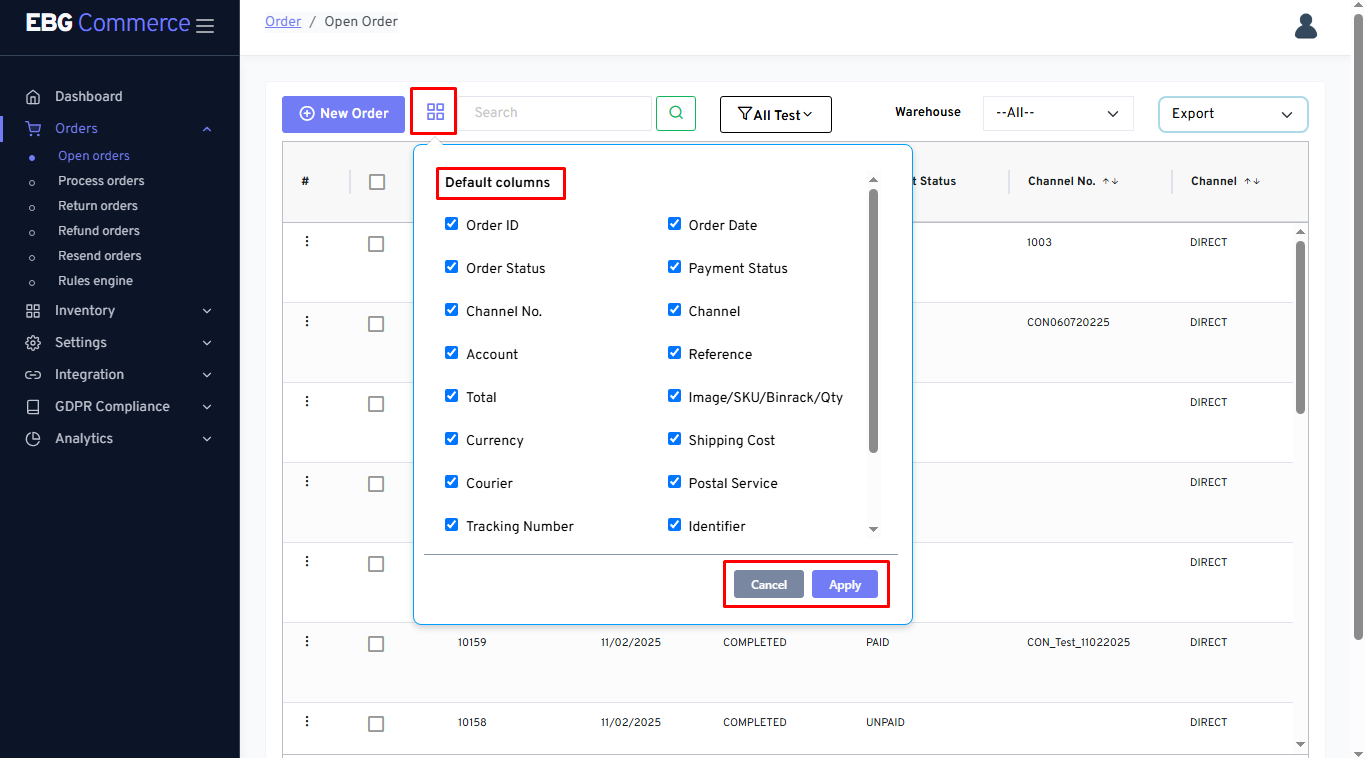
Column selector feature helpful to select/deselect the required columns
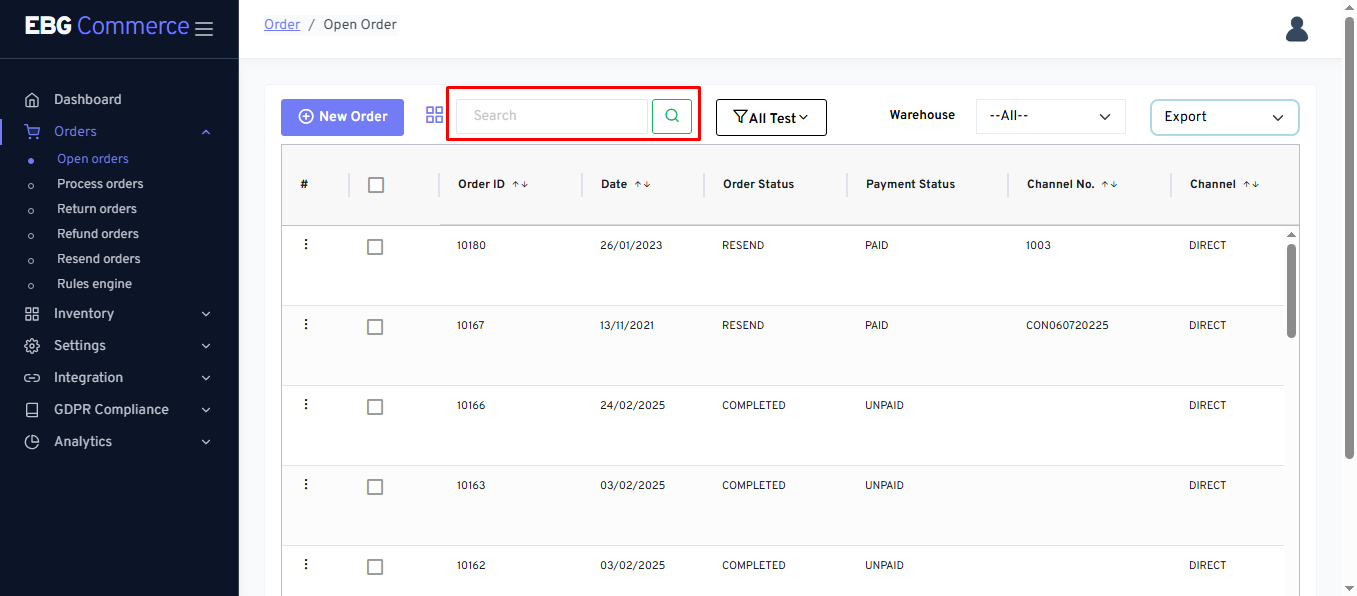
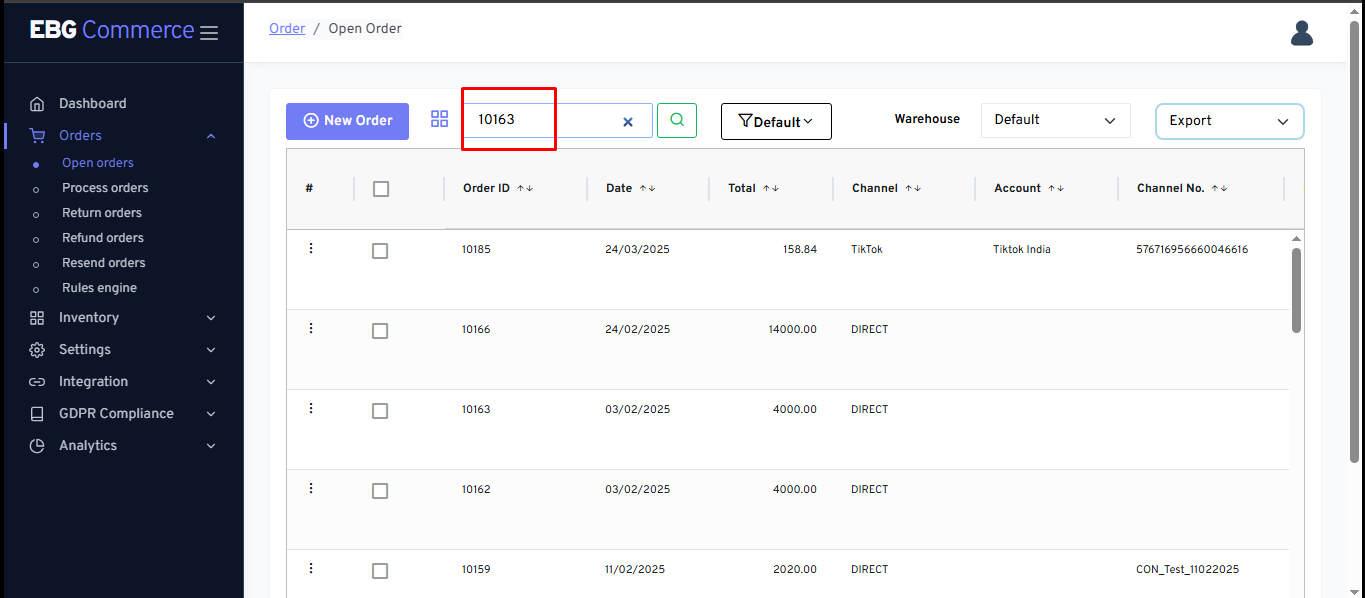
Search bar - This feature helpful to search orders based on entered details
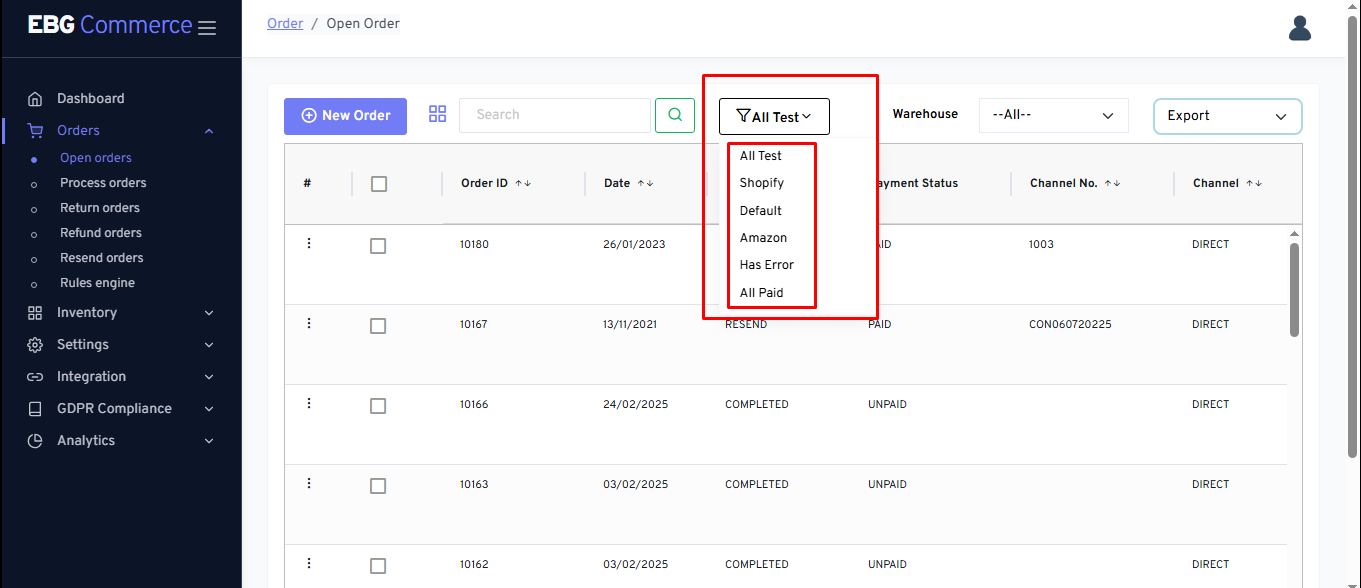
Order views - This option allows seller to switch between the created order views Note:- Order view can be created and modified from Settings => Order view manager
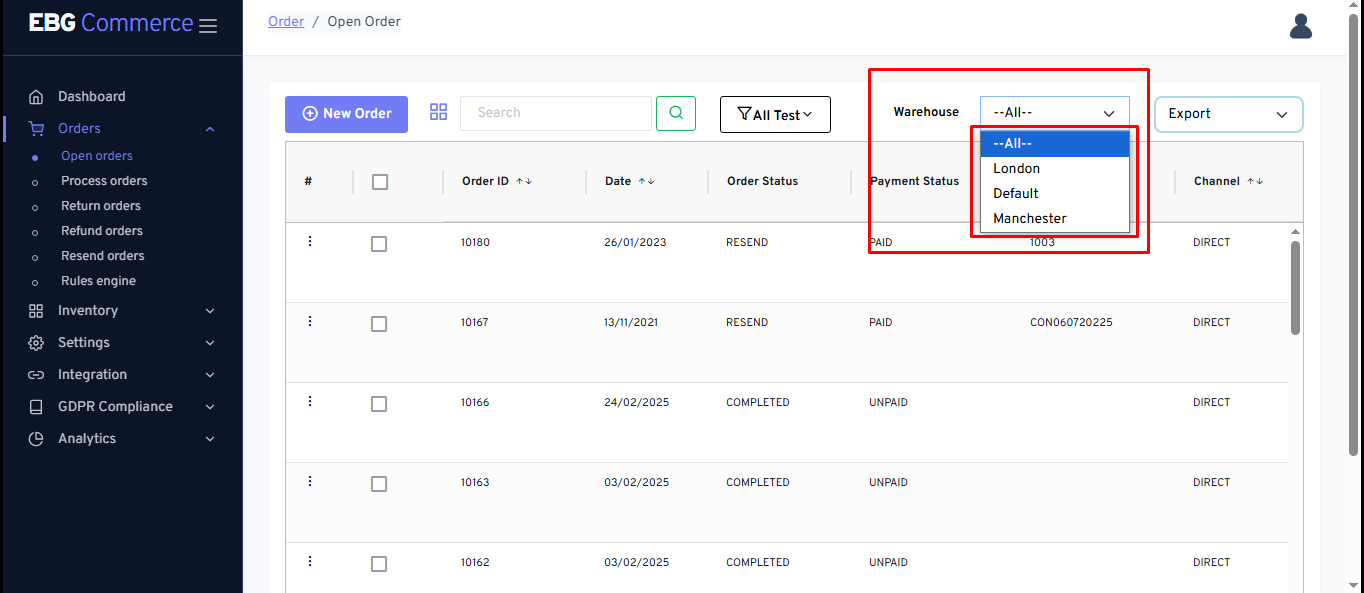
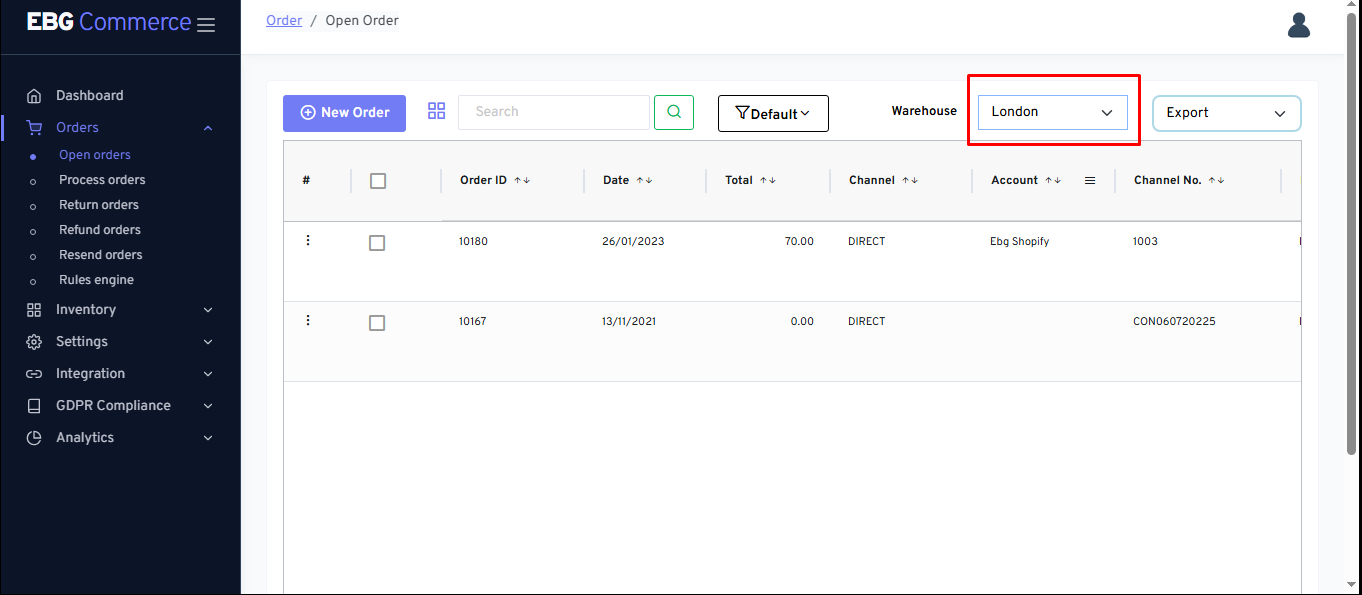
Warehouse - This option allows to switch between the Warehouses
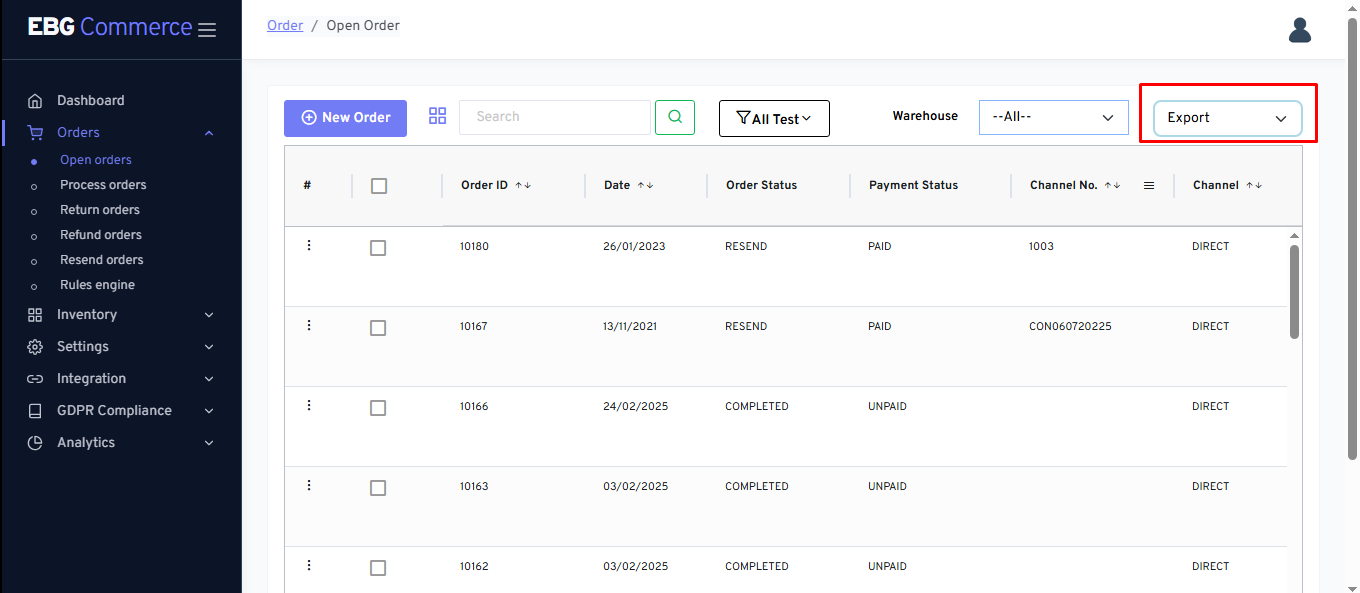
Export - This feature useful to export all open orders details in CSV file to refer it
Orders - Row per page - This option allows to choose between 10, 30, 50, 100 orders details per page
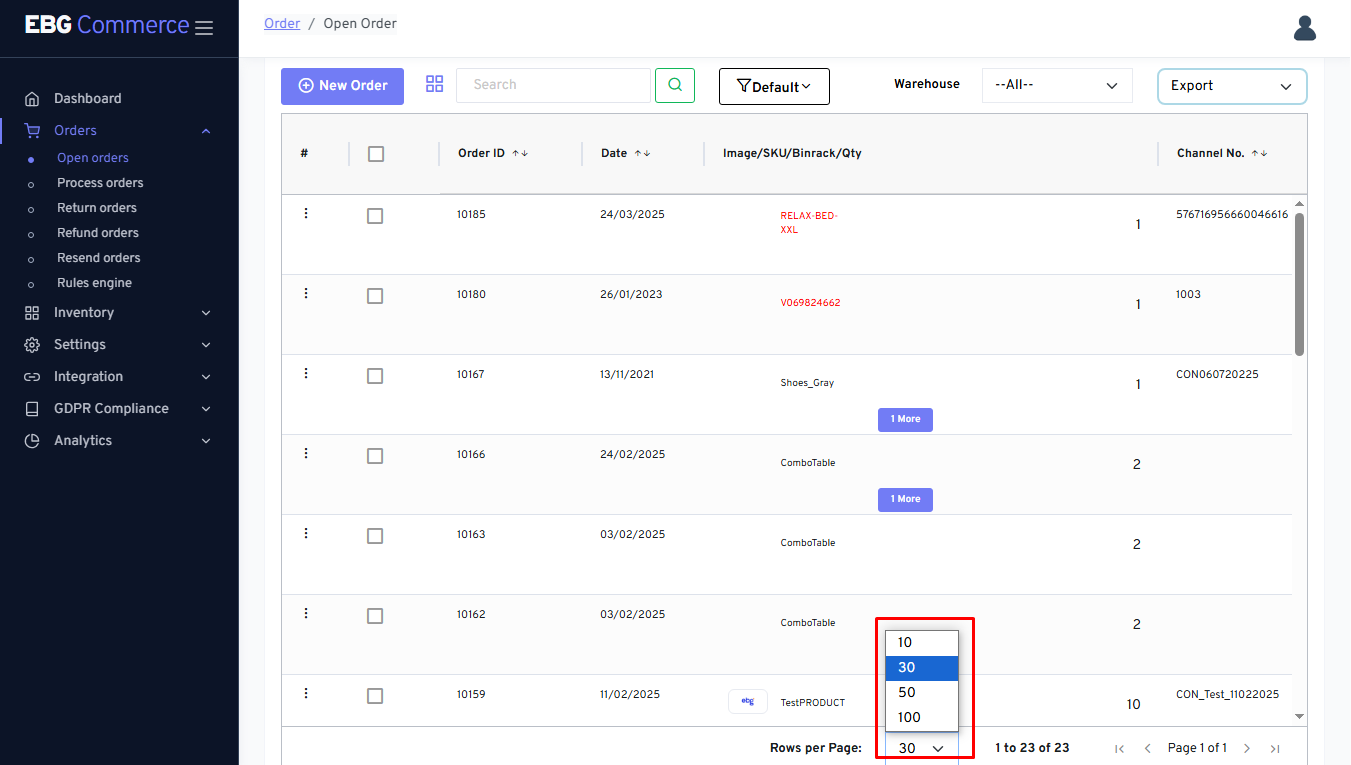
If Channel SKUs are not mapped with EBG Commerce SKUs, it displays the order items as Red
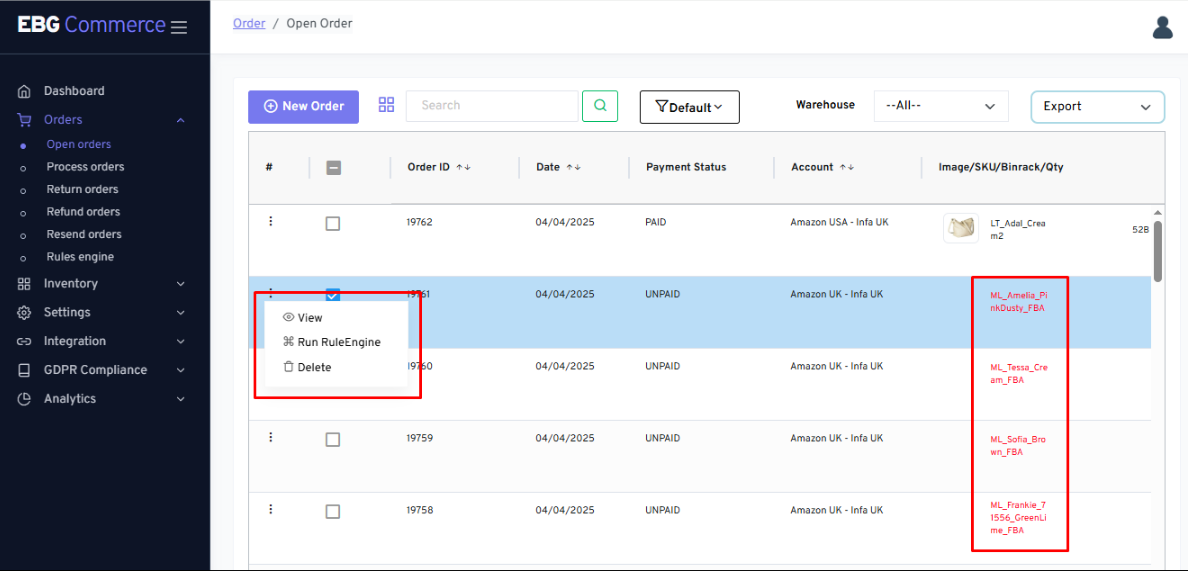
Single order selection - Three dot menu options
While working with a single order for processing.
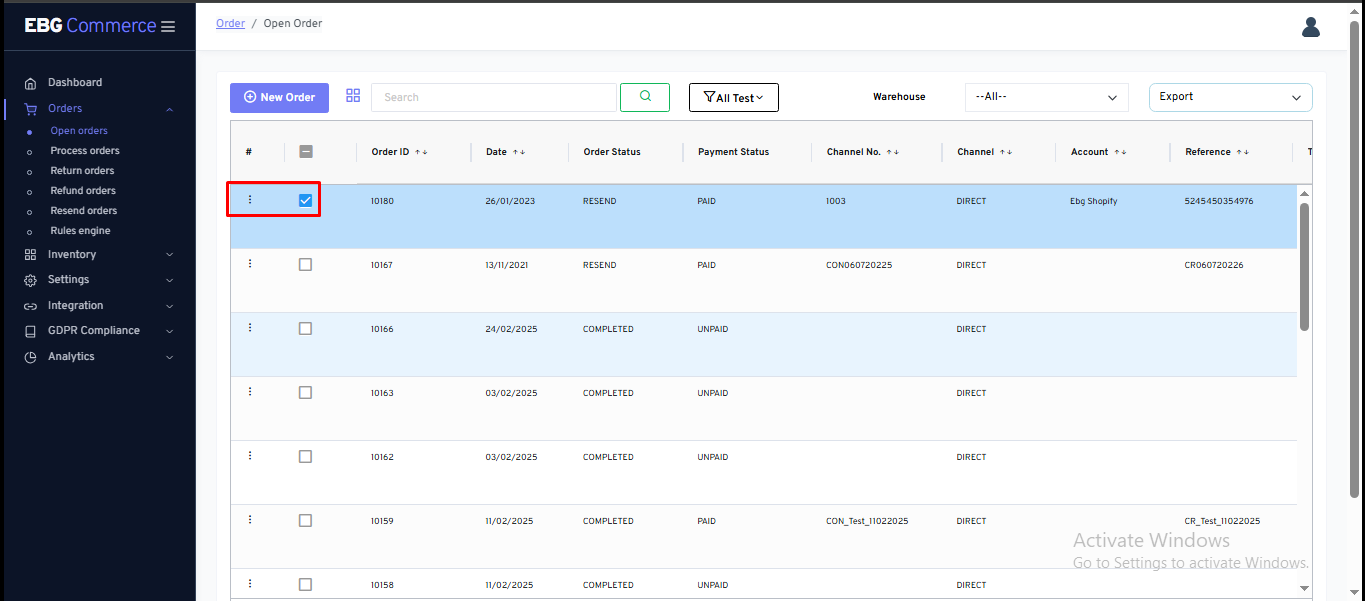
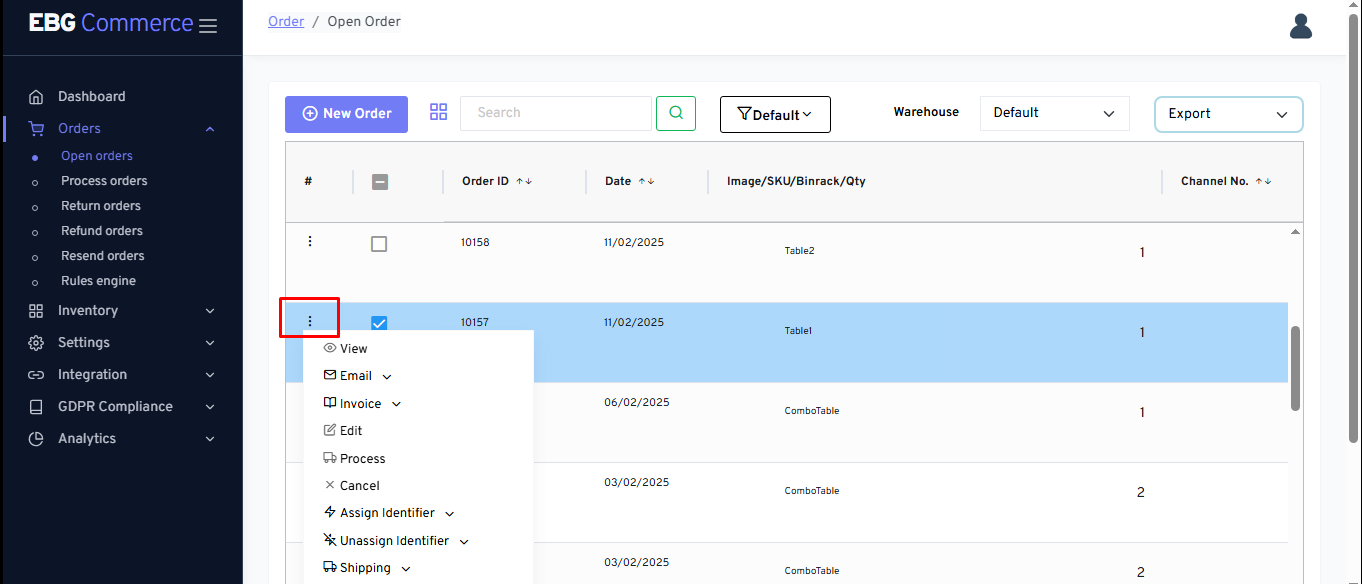
Once the seller click on the three dot menu the seller will get many options of actions that the seller can perform for the specific order.
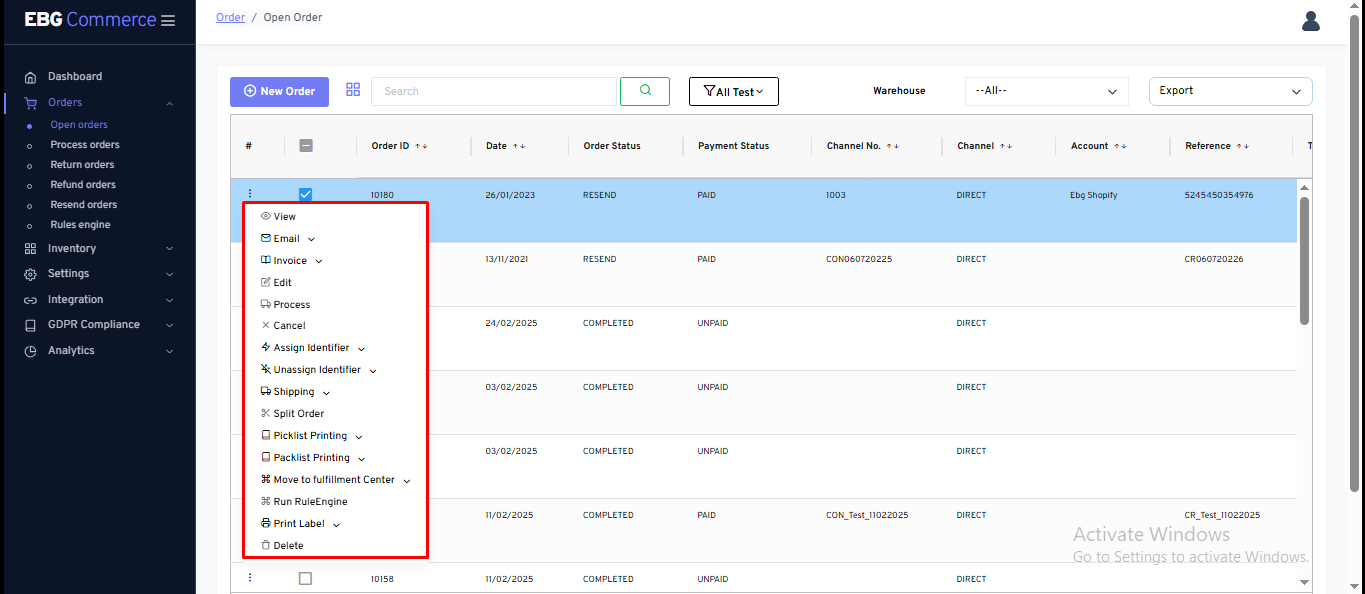
- View - This option allows the seller to view the order's details.
- Email - This option allows the seller to send email notifications manually for the order.
- Invoice - This option allows the seller to print invoices that the seller have created in the Template Designer.
- Edit - This option allows the seller to edit the details of the orders.
- Process - This option allows the seller to process the orders one by one by printing the required documents.
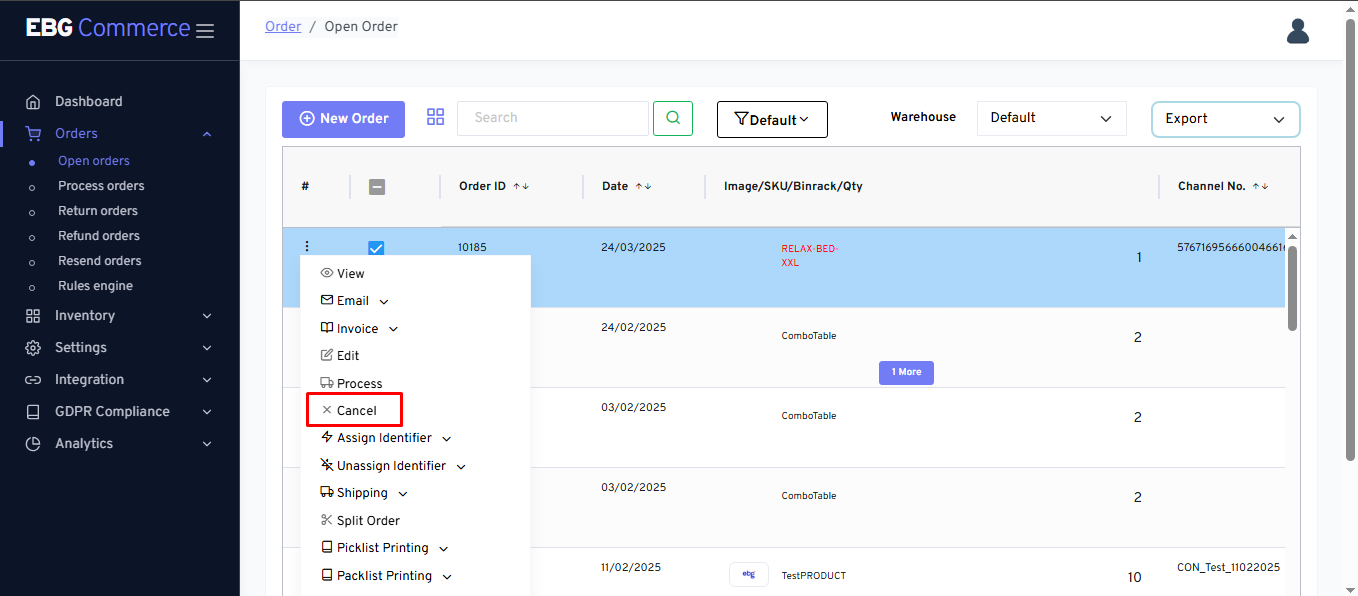
- Cancel - This option allows the seller to cancel the orders in eBG Commerce (It won’t be affected on the channel and seller have to manually cancel on channel).
- Assign Identifier - This option allows the seller to assign specific custom identifiers that the seller can create in Setting => General Setting module of the system.
- Unassign Identifier - This option allows the seller to un-assign any custom identifiers that are assigned to the order.
- Shipping - This option allows the seller to do split packaging for the order.
- Split Order - This option allows the seller to split the orders in multiple new orders.
- Picklist Printing - This option allows the seller to print the picklist that the seller have created in the Template Designer.
- Packlist Printing - This option allows the seller to print the packlist that the seller have created in the Template Designer.
- Move to Fulfillment Center - This option allows the seller to send any order to the fulfillment center.
- Run Rules Engine - This option allows the seller to run the Rules on the order and based on the configuration the shipping service will be assigned.
- Print Label - This option allows the seller to print the shipping label for the shipping service that is assigned to the order.
- Delete - This option allows the seller to delete the order in eBG Commerce (It won’t be affected on the channel as it just delete a record only ).
Multiple order selection - Three dot menu options - Bulk Actions
While working with multiple orders at a time for processing. the seller can select multiple orders by clicking on the below highlighted button.
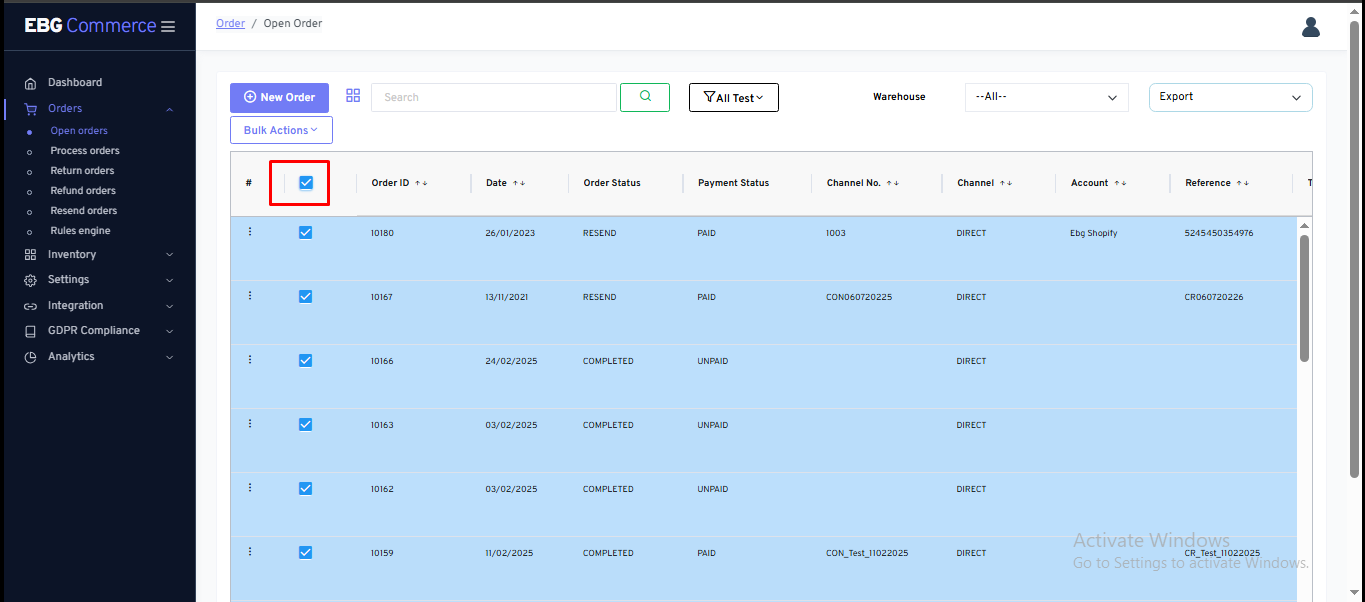
Once the seller click on the three dot menu he will get many options of actions that could be performed on all the orders in bulk.
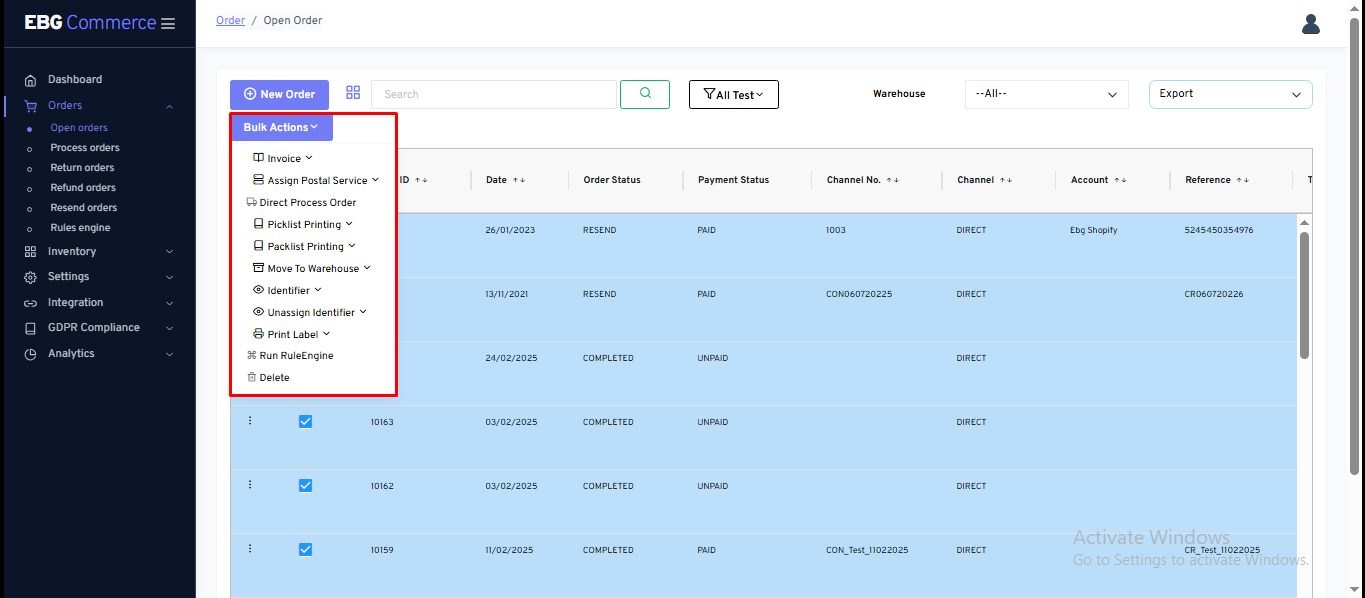
- Invoice - This option allows the seller to print invoices in bulk for all the selected orders that the seller have created in the Template Designer.
- Assign Postal Service - This option allows the seller to assign shipping services to all the selected orders.
- Direct Process Order - This option will directly process the orders and move all the selected orders from Open order to Processed Orders.
- Picklist Printing - This option allows the seller to print the picklist in bulk for all the selected orders that the seller have created in the Template Designer.
- Packlist Printing - This option allows the seller to print the packlist in bulk for all the selected orders that the seller have created in the Template Designer.
- Move to Warehouse - This option allows the seller to move the orders to another warehouse location within the system.
- Identifier - This option allows the seller to assign specific custom identifiers on all the selected orders that the seller can create in Setting => General Setting module of the system.
- Unassign Identifier - This option allows the seller to un-assign any custom identifiers that are assigned to the selected orders.
- Print Label - This option allows the seller to print the shipping label for all the selected orders.
- Run Rules Engine - This option will help the seller to run Rules on the selected orders and based on the configuration the shipping service will be assigned.
- Delete - This option allows the seller to delete the selected orders in eBG Commerce (It won’t be affected on the channel).
FFC Order
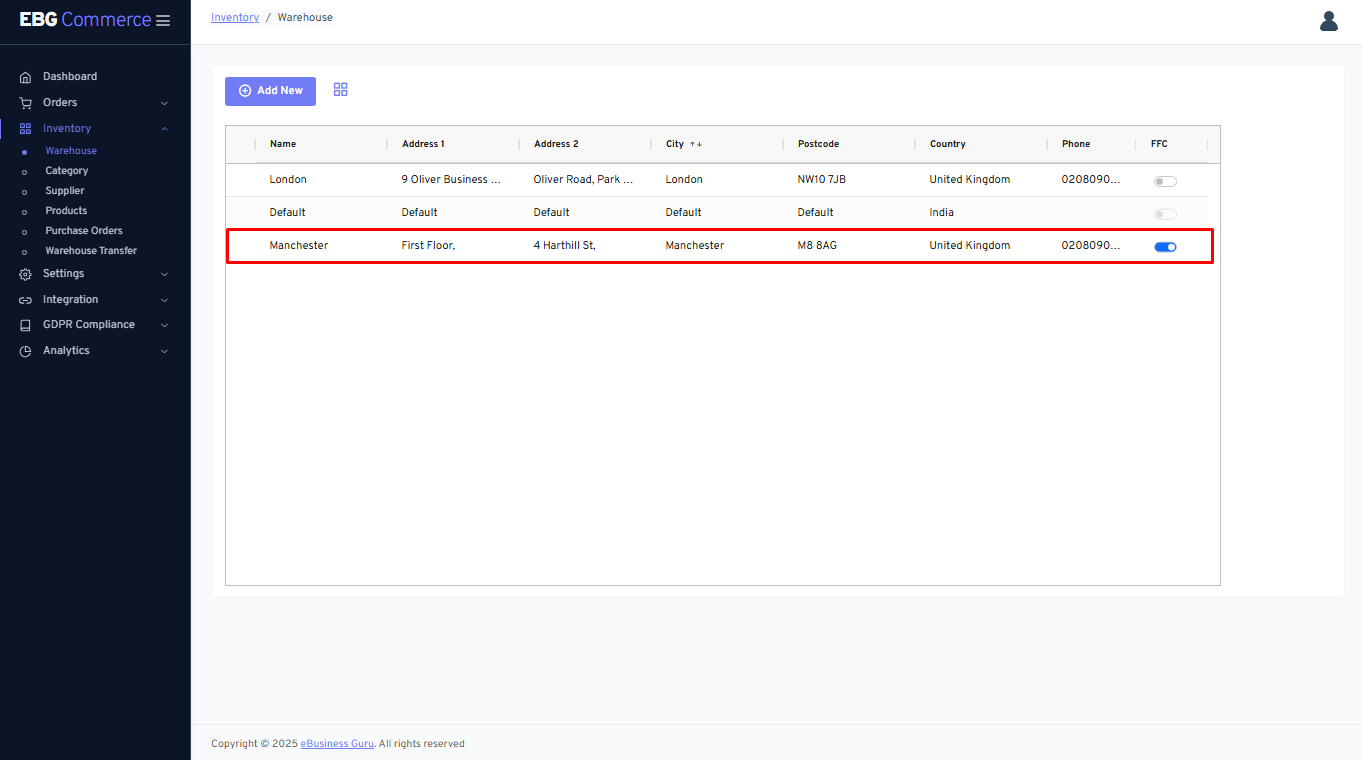
Set FFC as warehouse
If any order needs to be marked as Fulfilled by the FFC, move it to the FFC warehouse
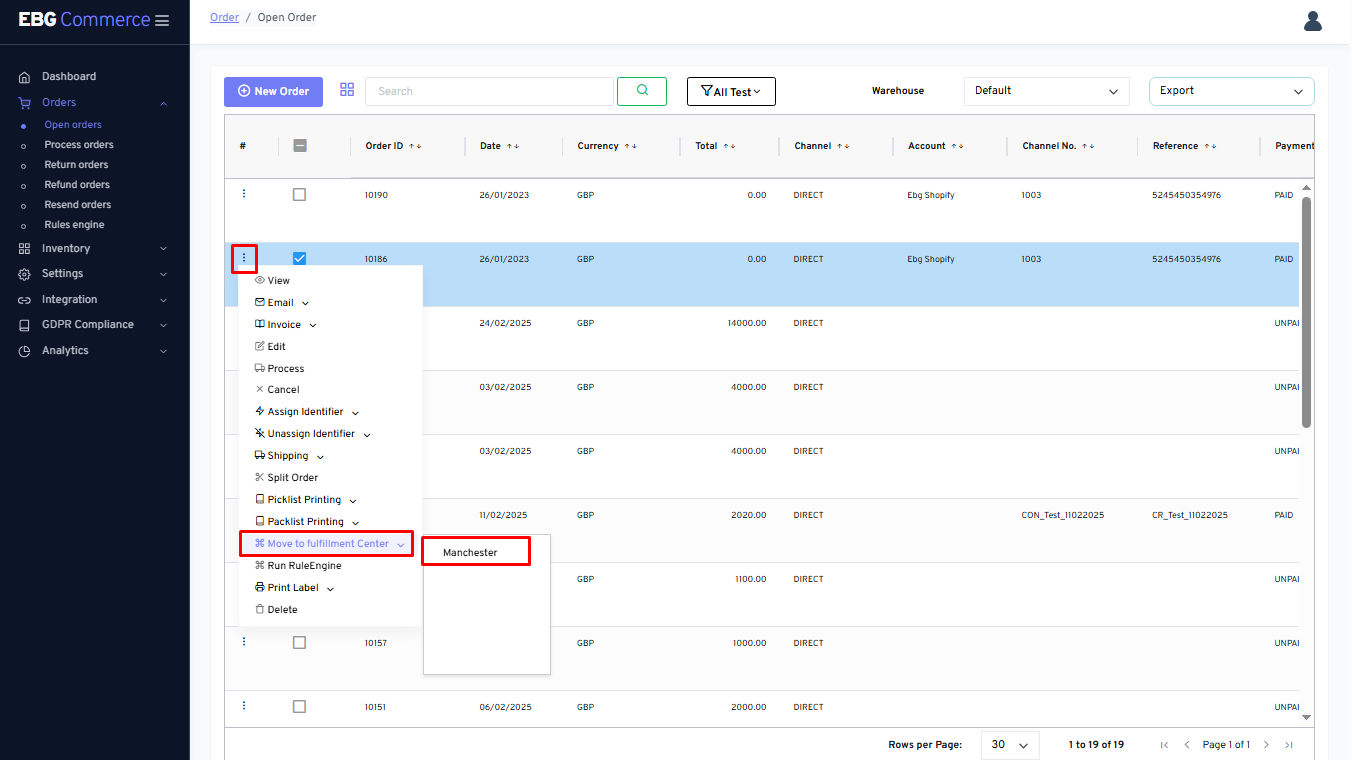
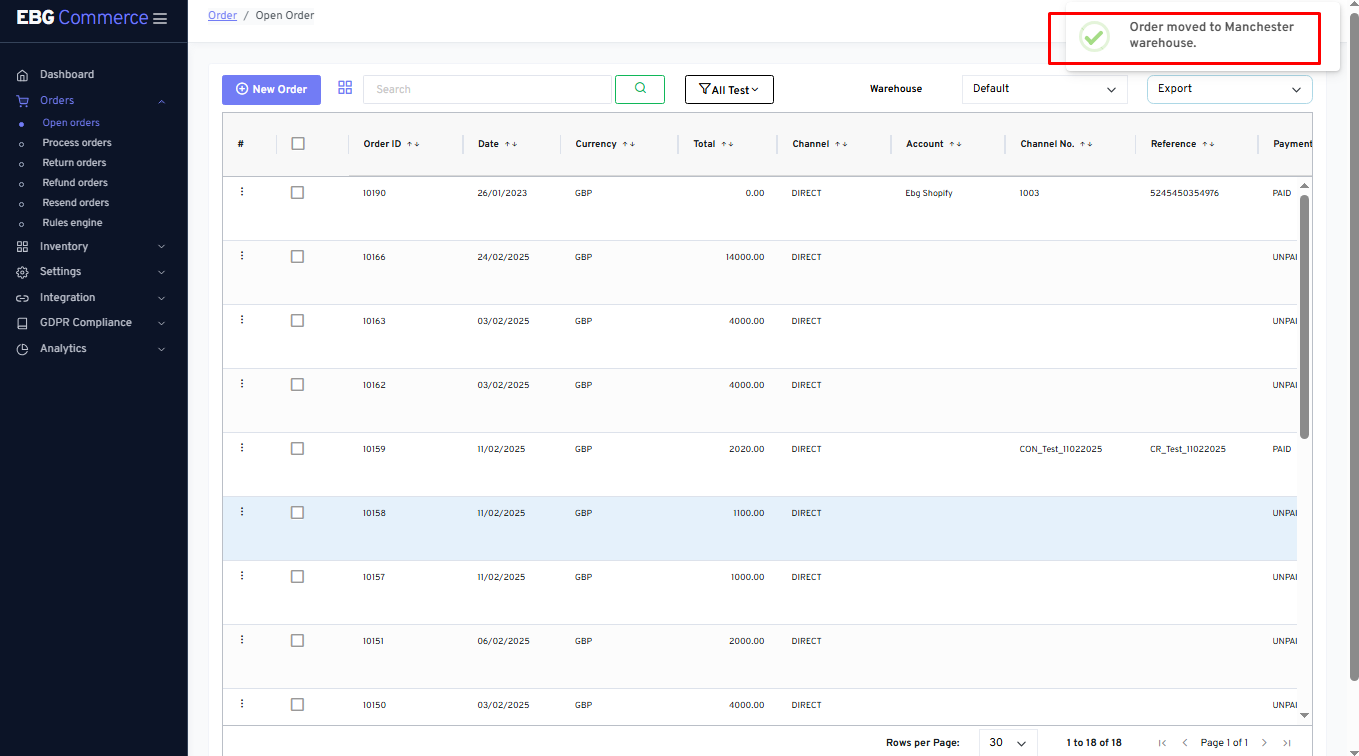
Order gets moved to the FFC warehouse
Into the warehouse “FFC”, such orders display
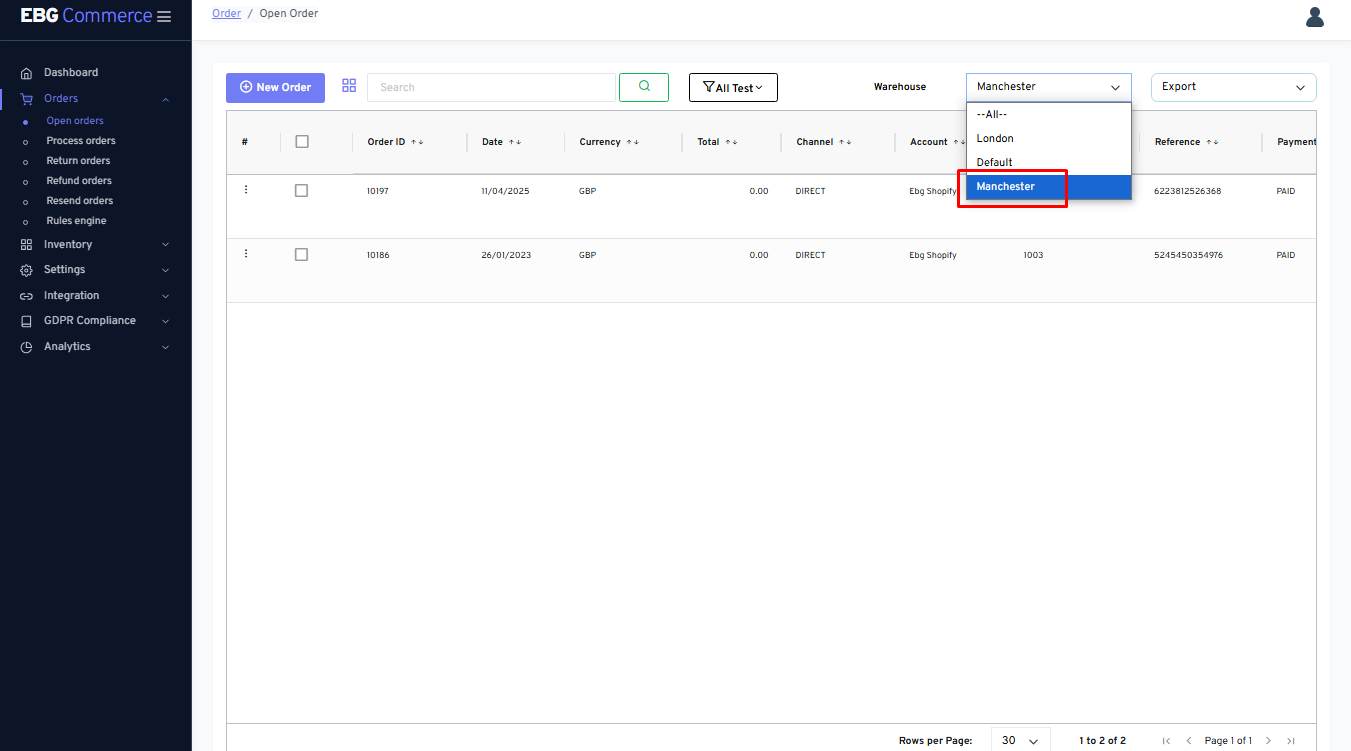
There are few options available by clicking on the three dot menu such as View for refer order details, Run rules engine to manually run the rules engine and Delete option to deleting the record
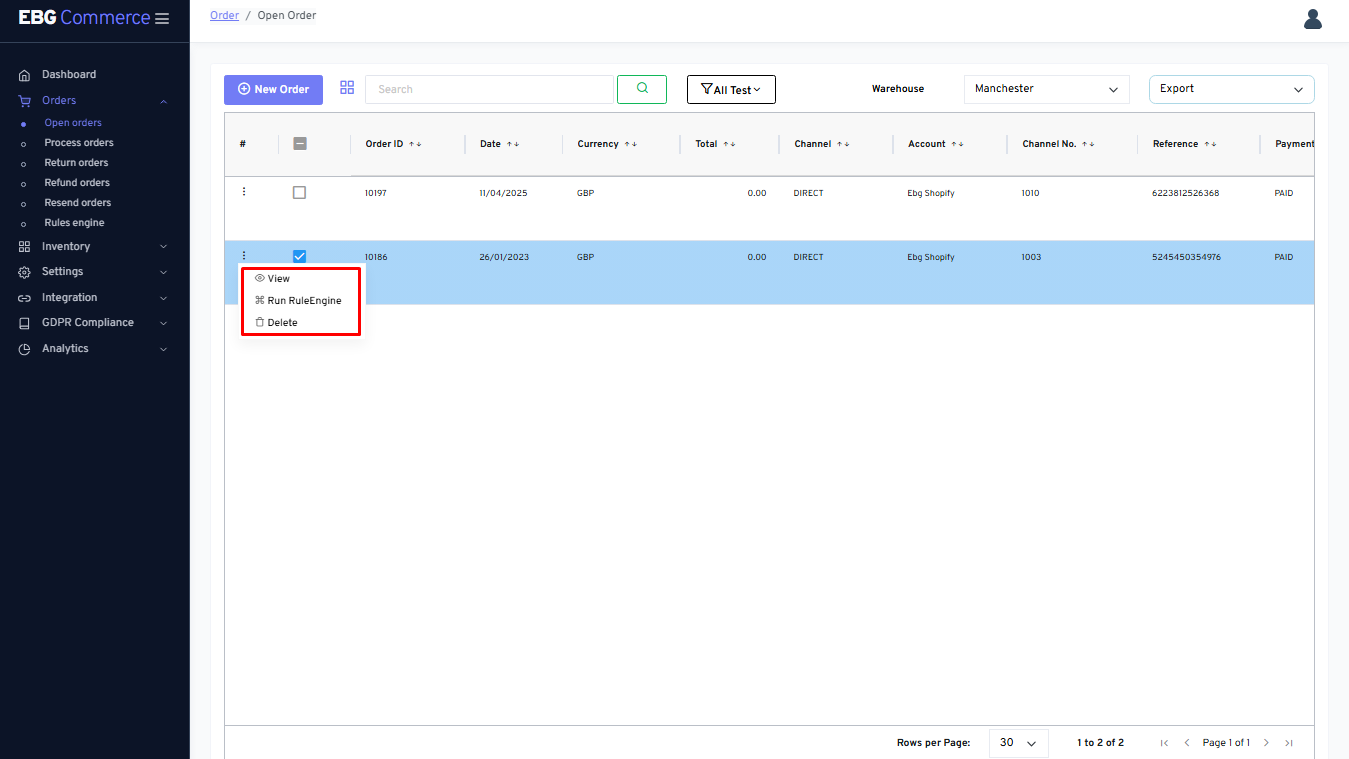
Order Views
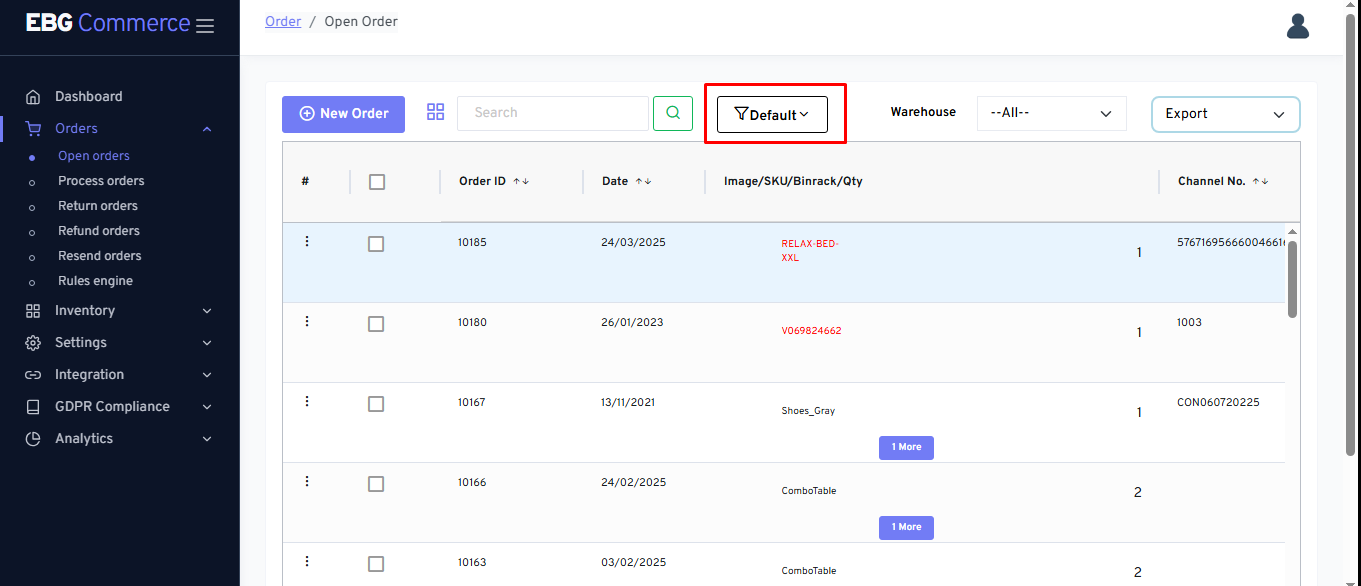
Sellers can create order views to bifurcate orders based on channel, shipping wise as well as logical conditions can be set such as more than one products, or more than one quantity, etc…
Ideally, Default order view should be display all types of orders
Please refer default order view in below snapshot
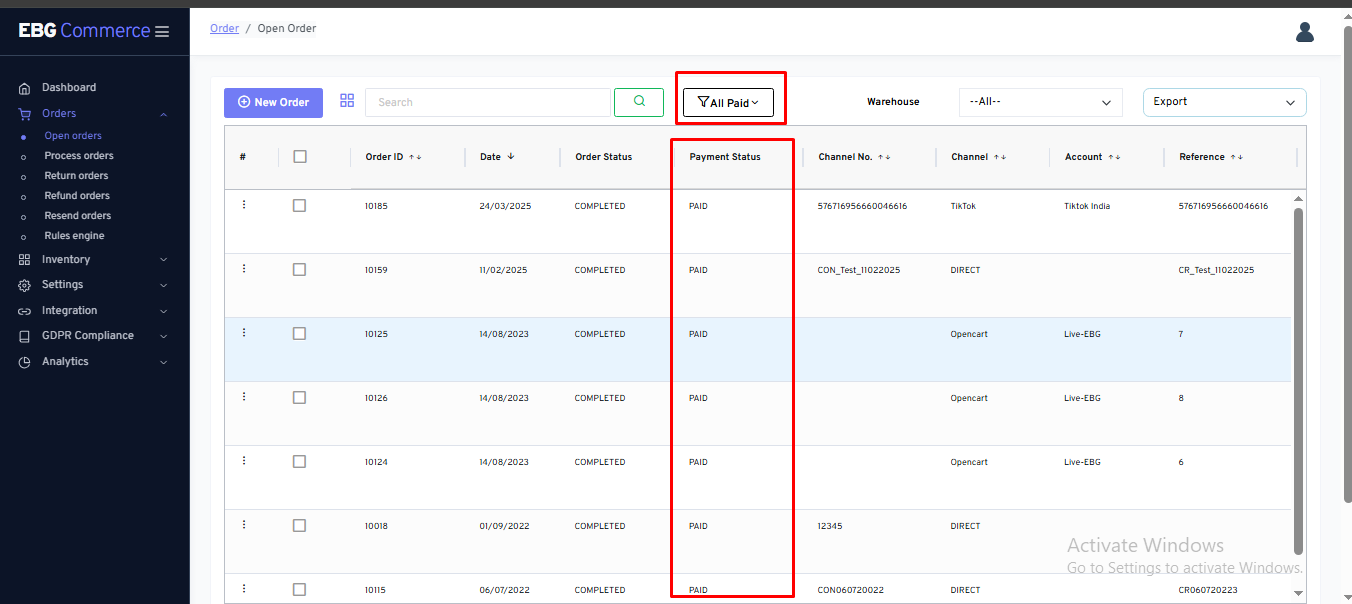
For example - Below order view created to refer all Paid status orders only
Export Orders - To export order details
Click on Export button to select an option “Export to CSV”
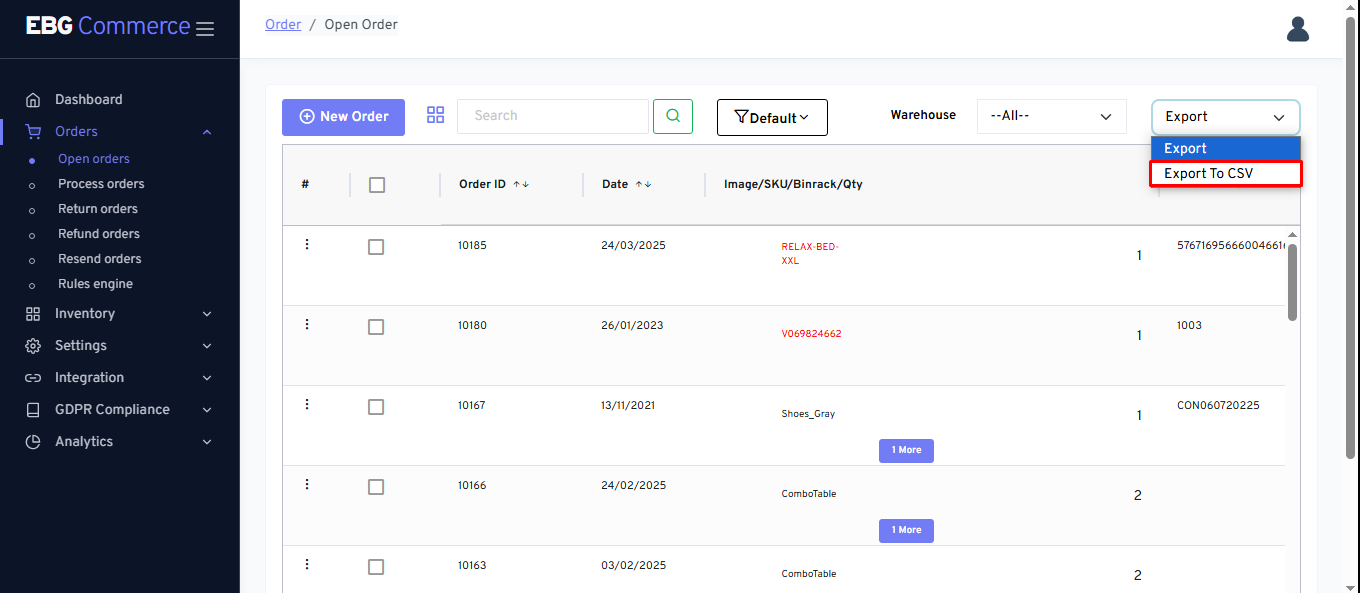
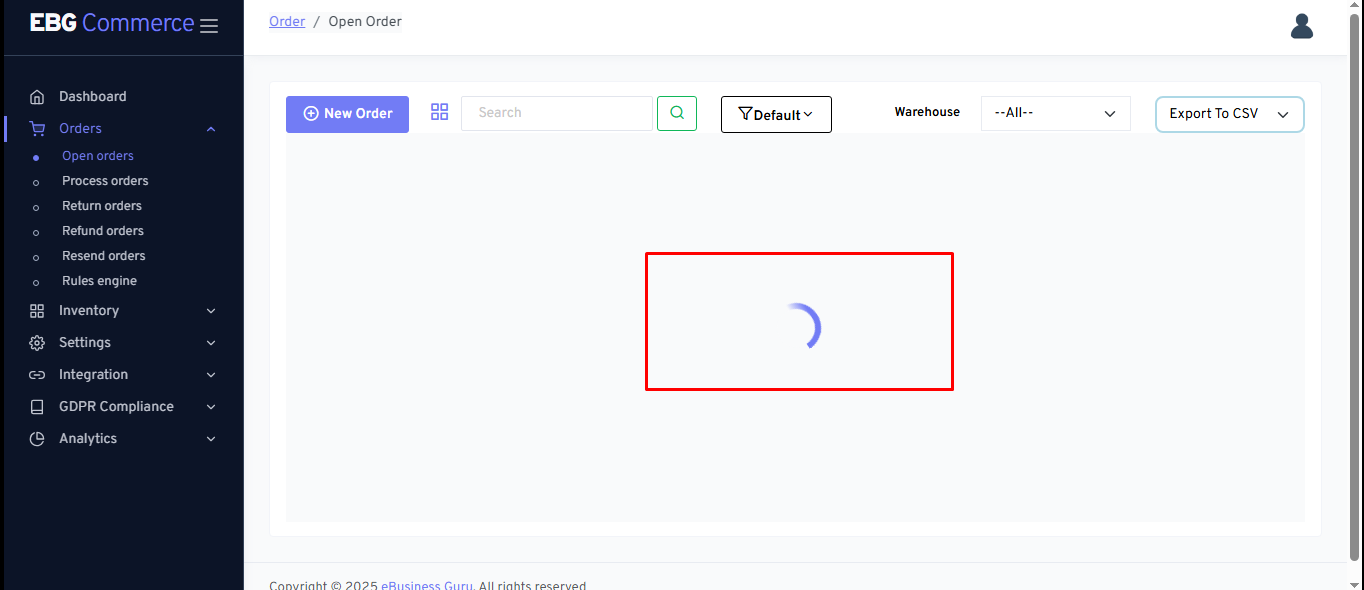
Processing bar display the status while preparing the records in backend
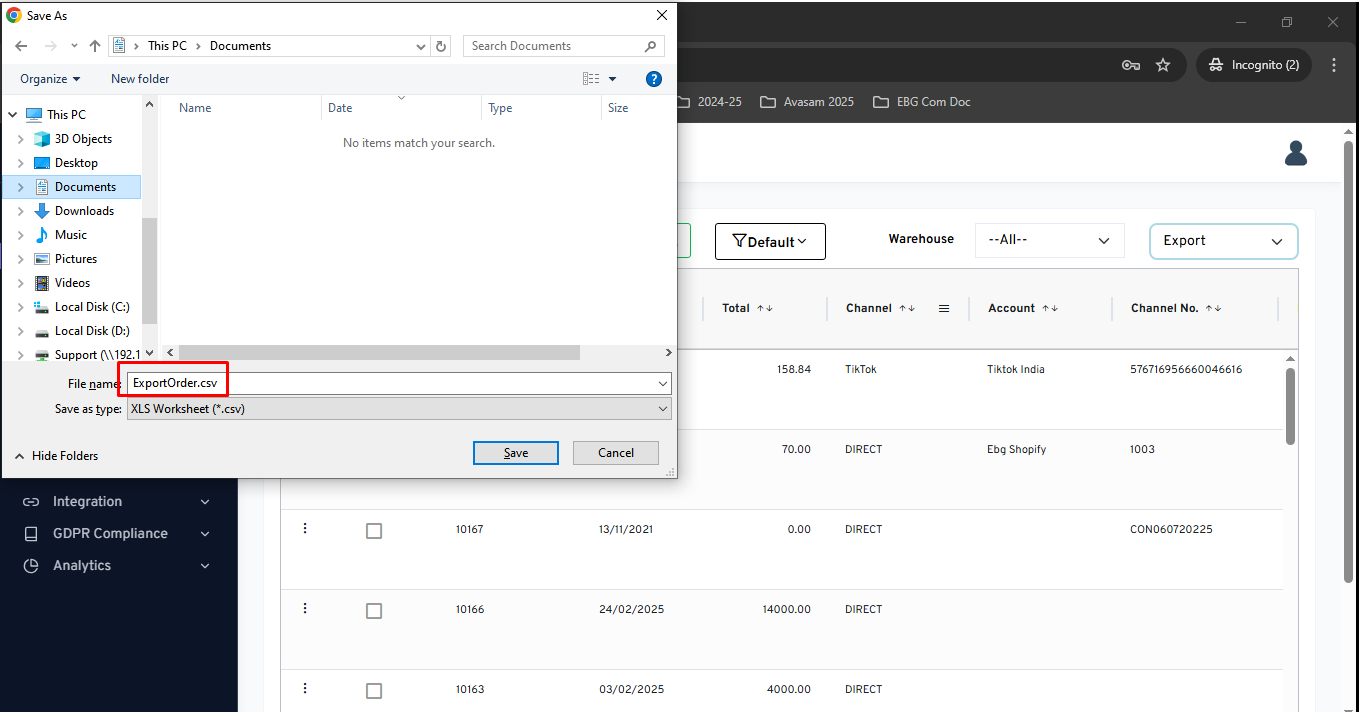
Try to save the exported CSV file into local system
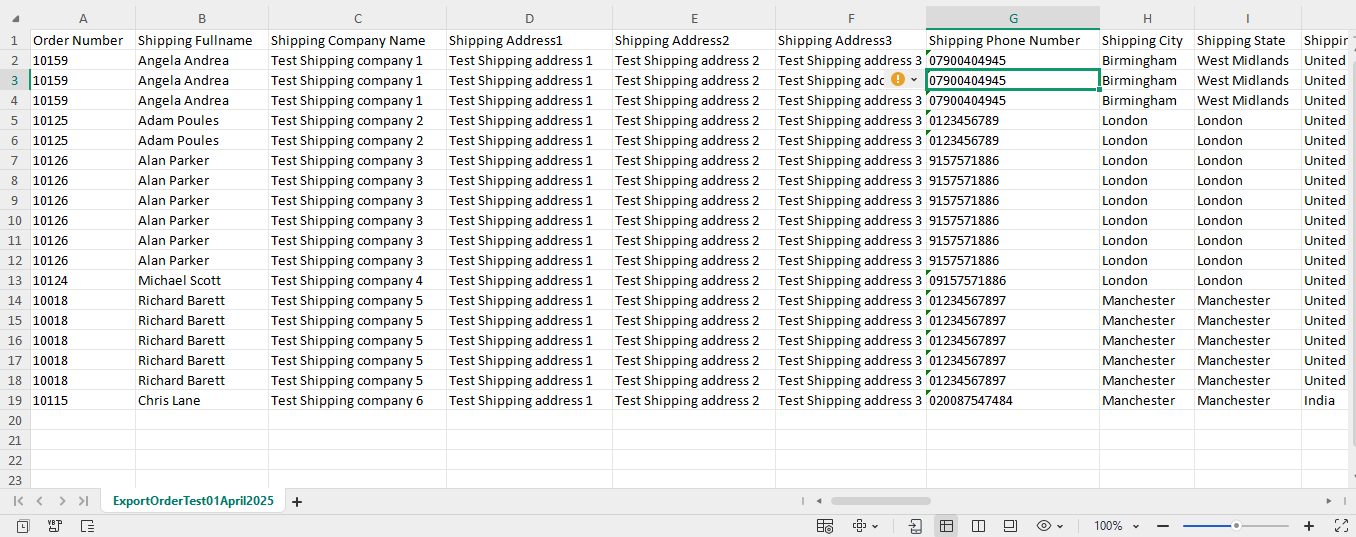
Exported CSV file display all order details
Warehouse Locations
Ideally, Default location should be having all orders as standard location
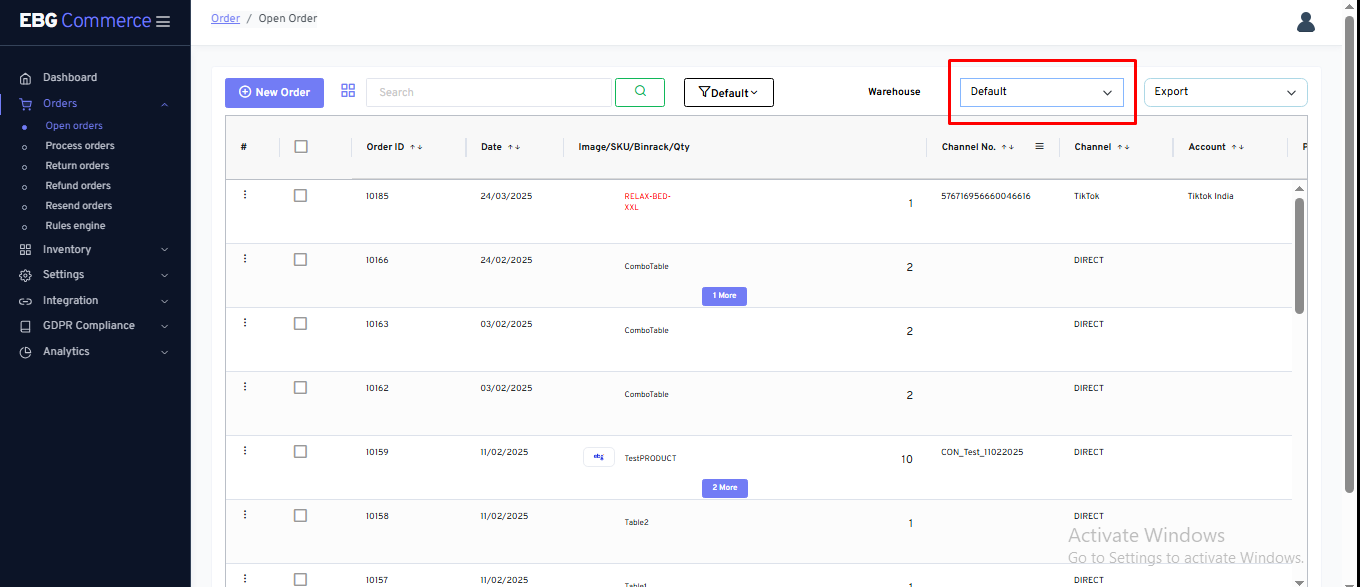
Sellers may create more than one warehouse if they manage the business from multiple places, as well as Amazon FBA locations getting created once sellers select an option to keep FBA records.
Search Bar
This option is useful for searching order details based on available information at the seller's side , like sellers can search it by Channel, Account, EBG commerce Order ID, Channel reference number, Product SKU, etc…
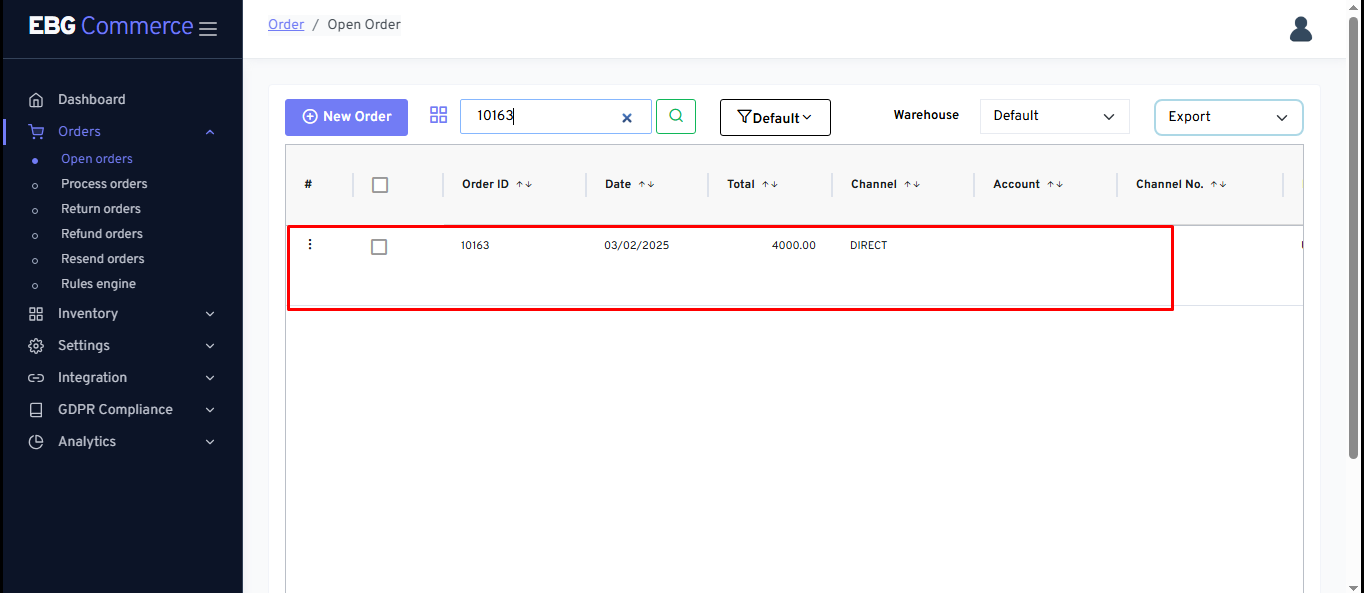
Result showing only order that match as per entered details
For example:
Create an order
eBG Commerce allows the seller to create orders manually for telephone clients or others that don’t use the seller’s website(s).
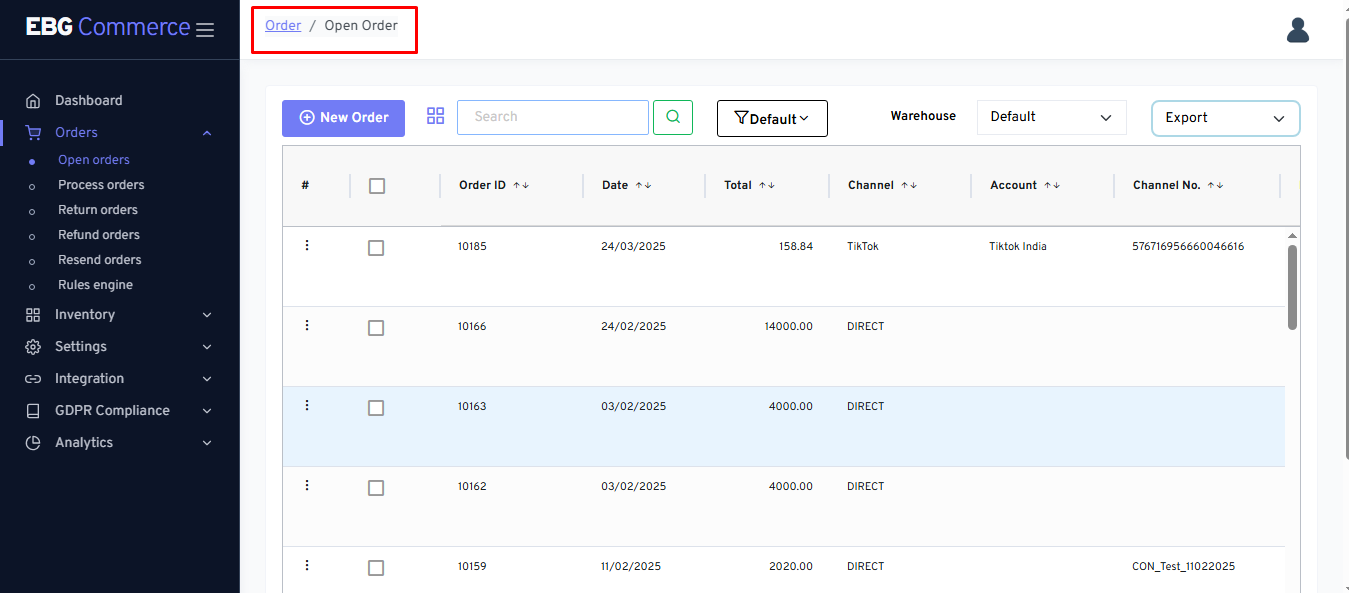
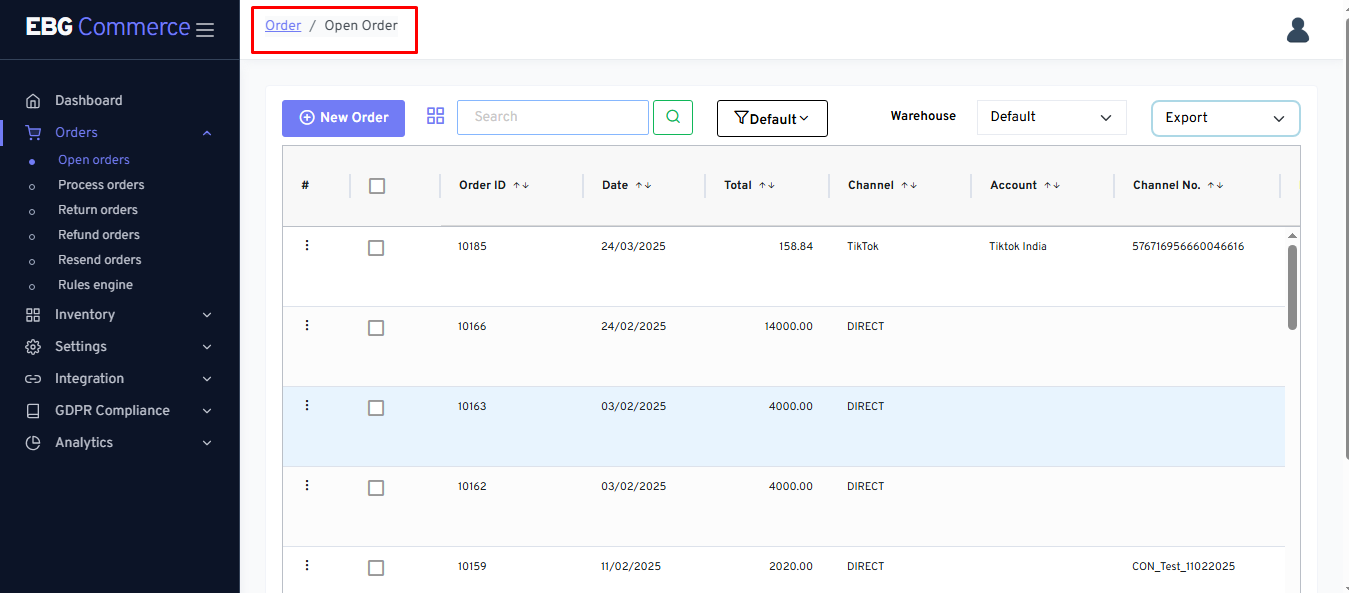
- Open the Orders section.
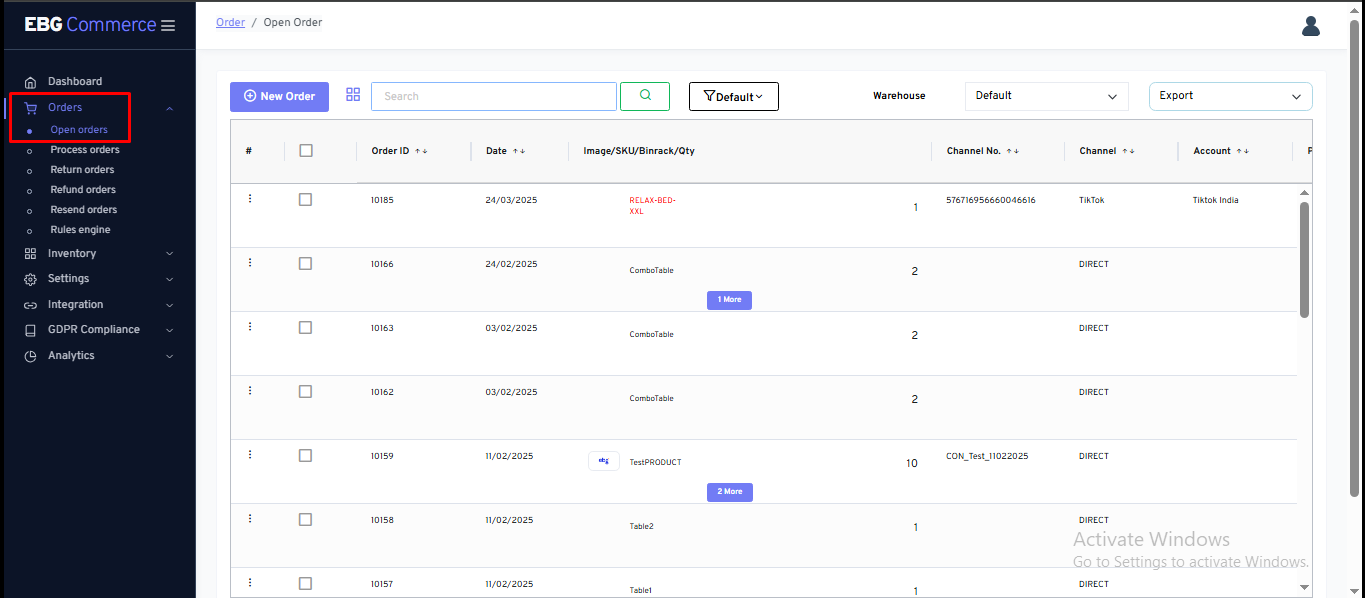
- Select Open Orders
- Click New Order
-
Enter the customer details and address in the Ship To fields. a. Select the correct Country from the drop down list.
-
If the billing address is different to the shipping address, then click on the Bill to Different Address link, and enter the name and address for billing.
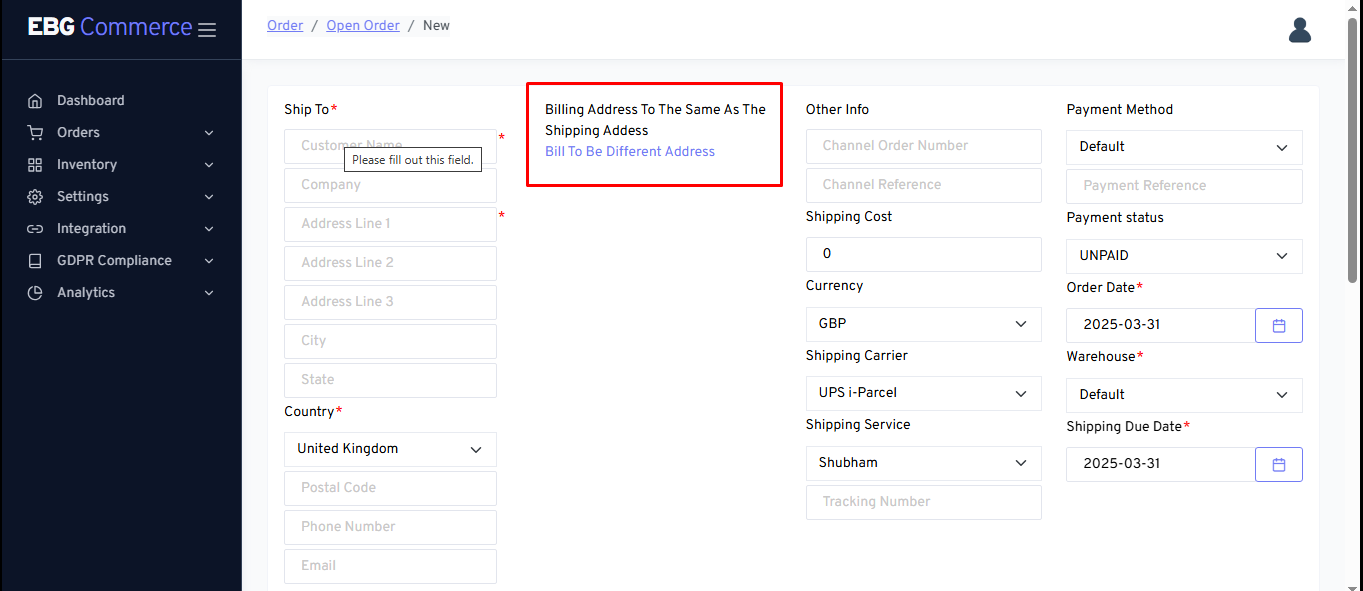
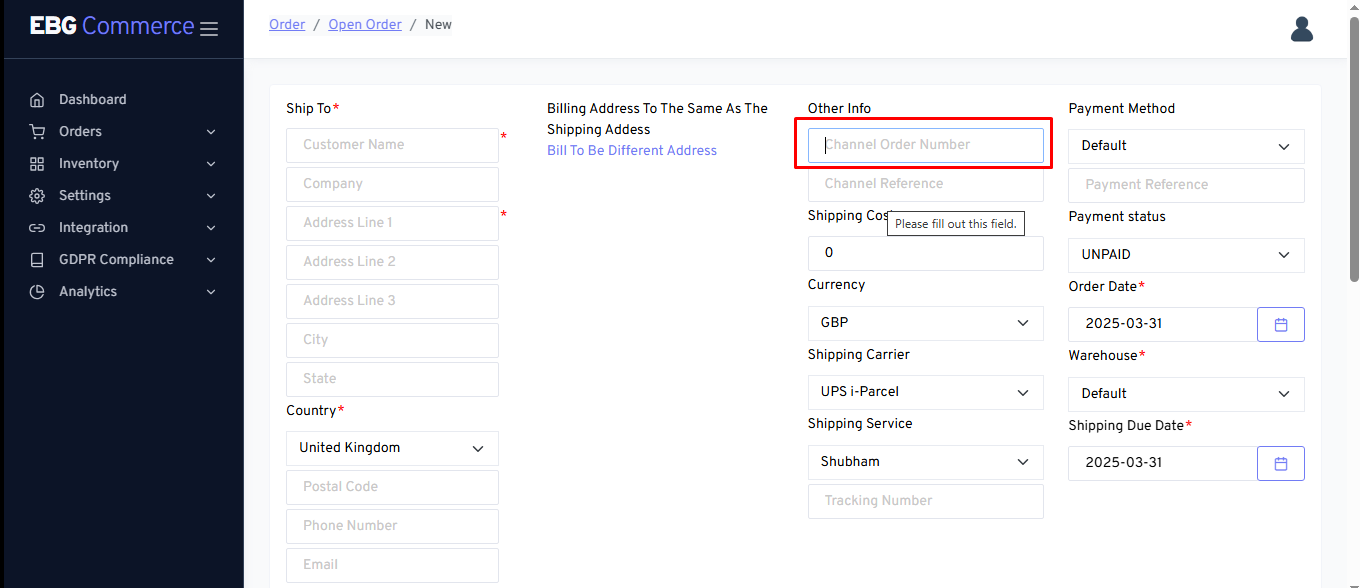
- Enter an order number or reference if appropriate under Other Info.
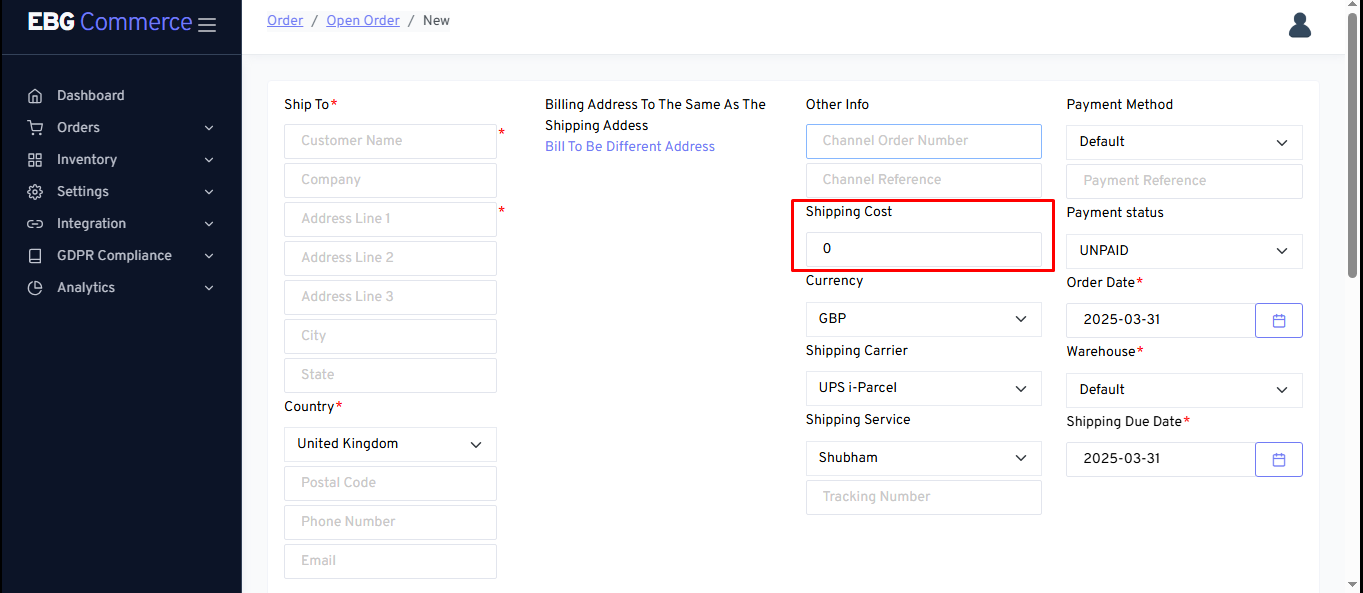
- Set the Shipping Cost for the order.
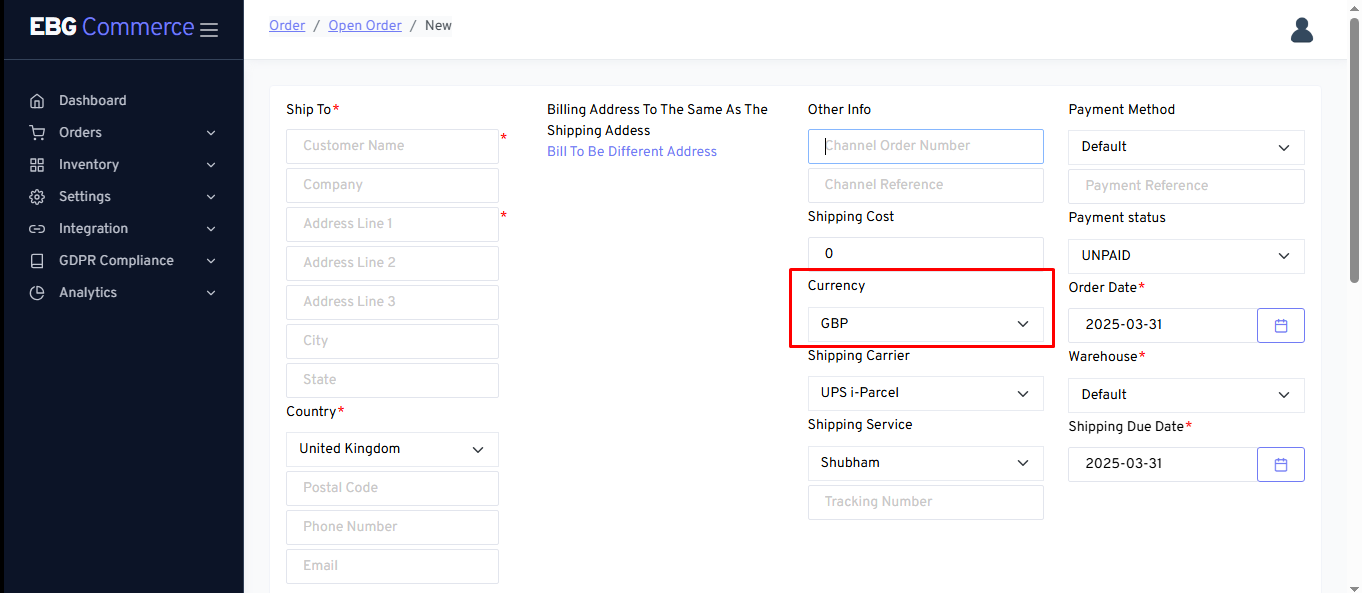
- If the currency selected is incorrect for this order, update it.
- Select the Shipping Carrier and Shipping Service that should be used to send this order to the customer.
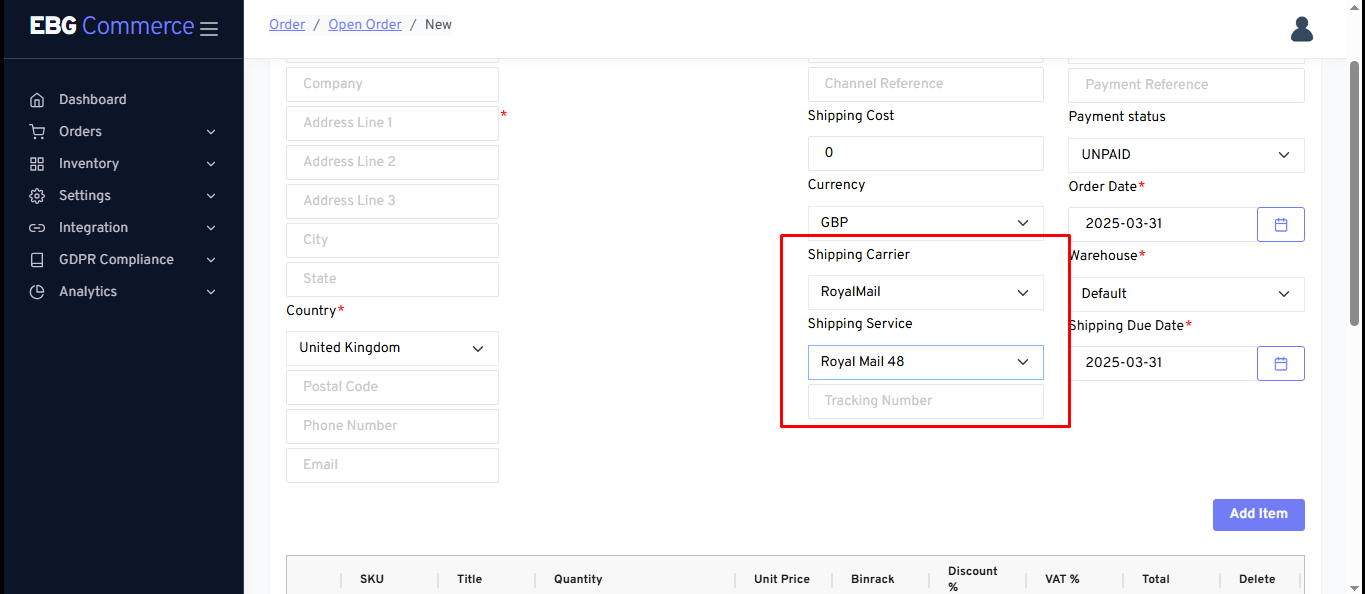
- If the seller have set up Payment Methods in eBG Commerce, select the correct one next.
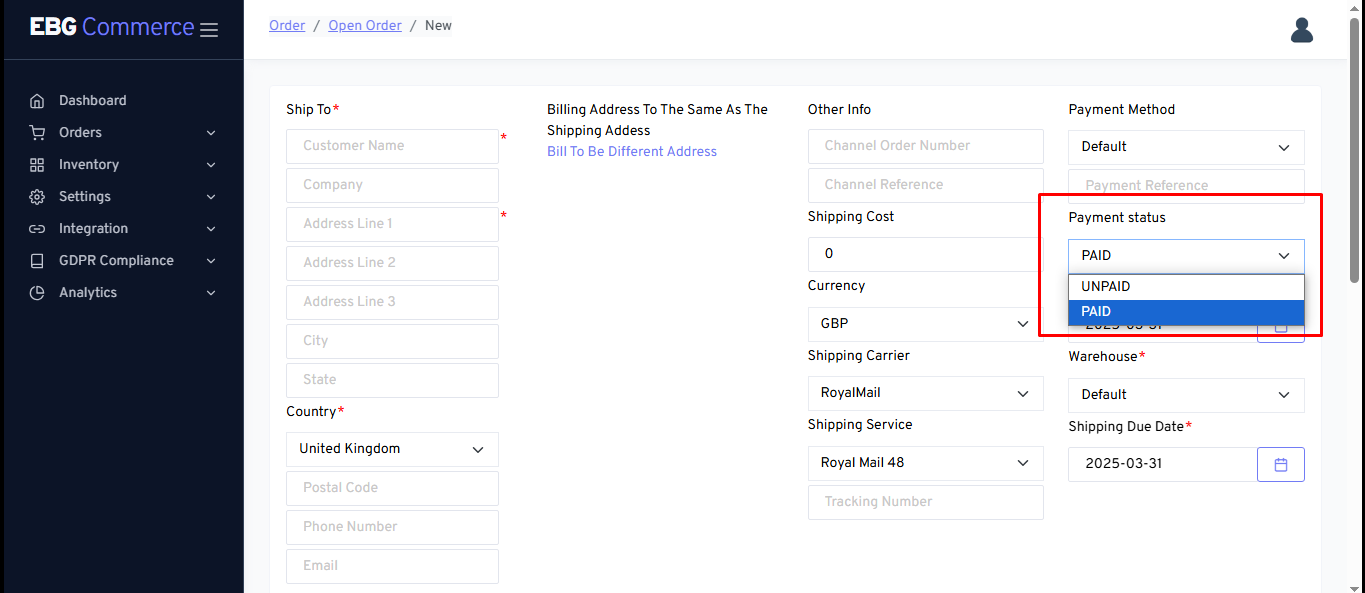
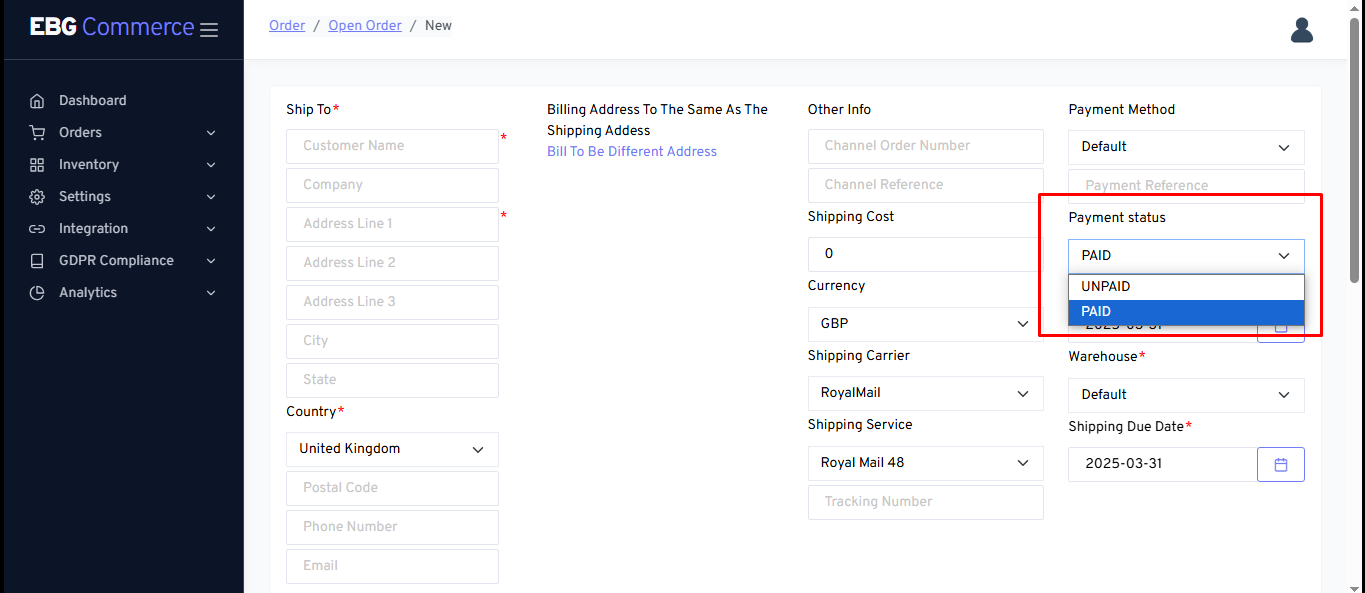
- Set the current Payment Status of the order.
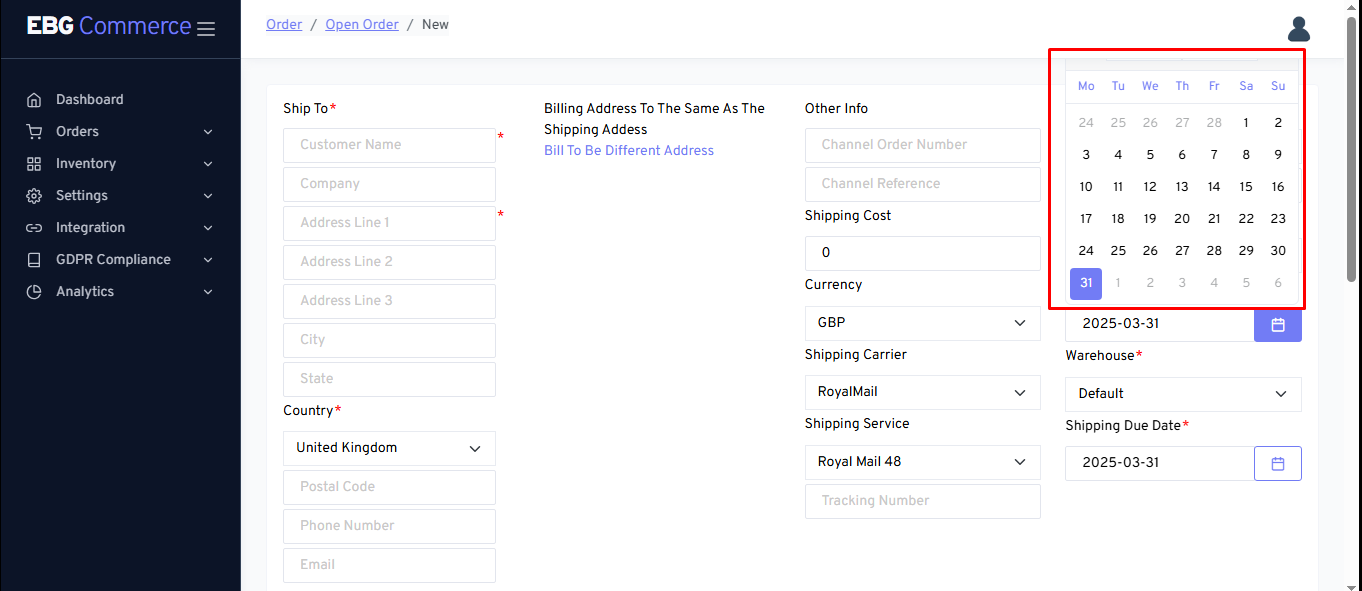
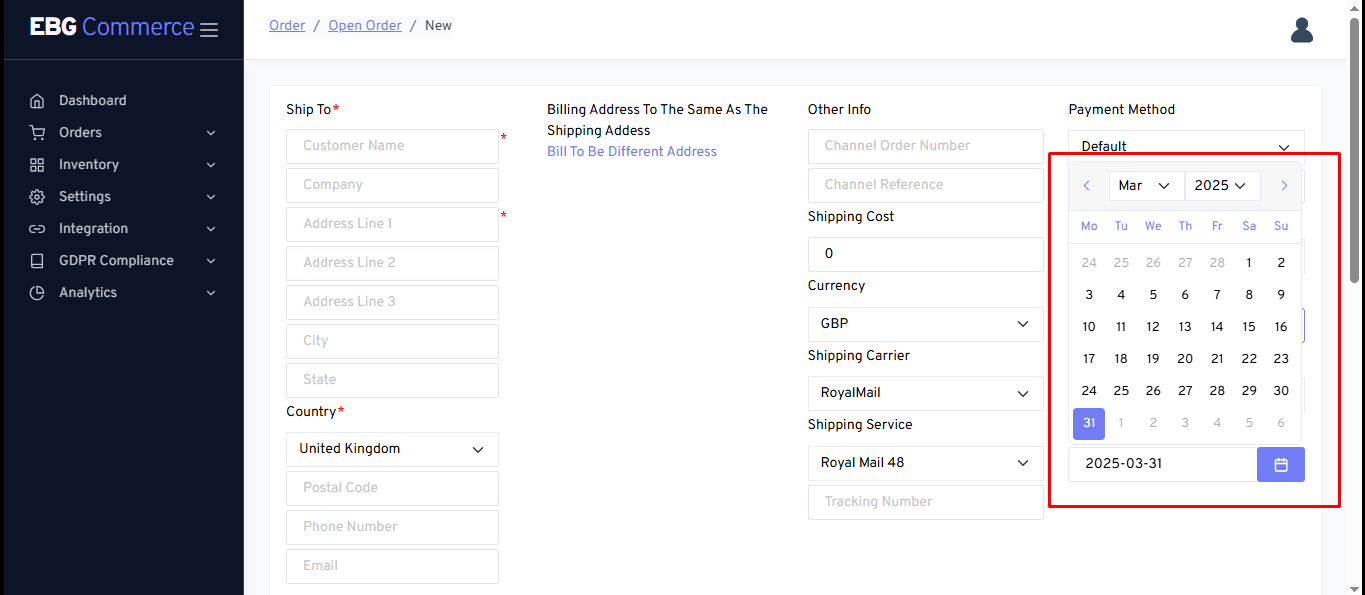
- If the order needs to be backdated, update the Order Date.
- Allocate the order to the Warehouse it will be shipped from.
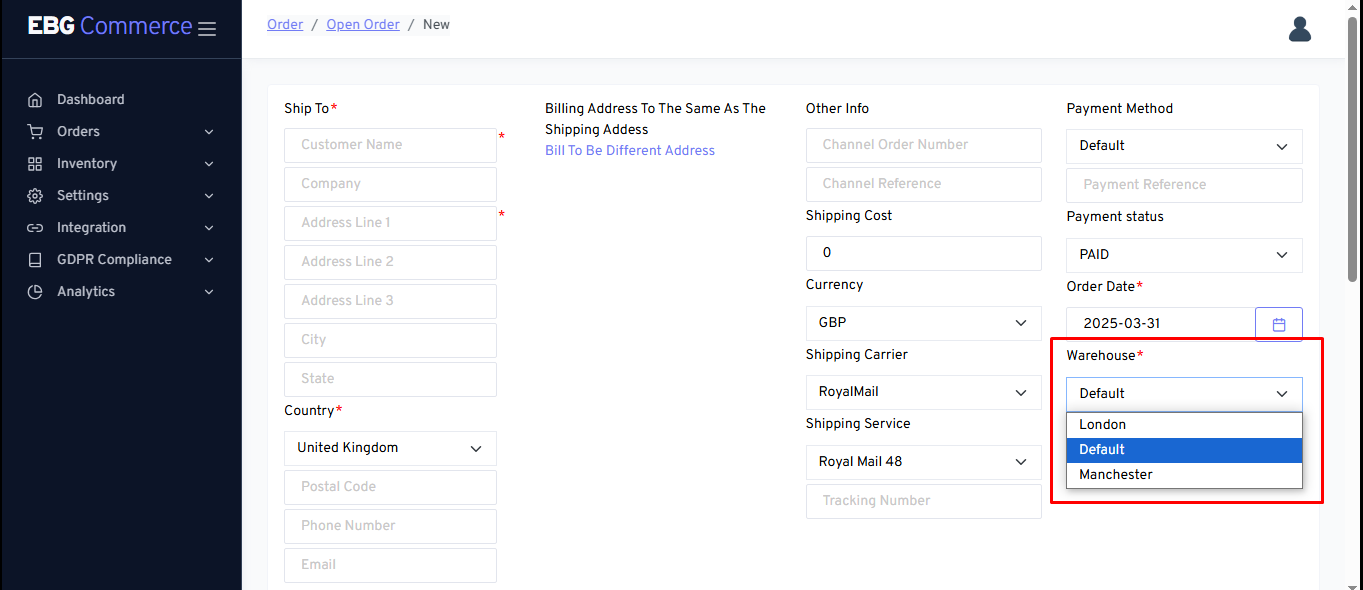
- Set the Shipping Due Date, if not the default of today.
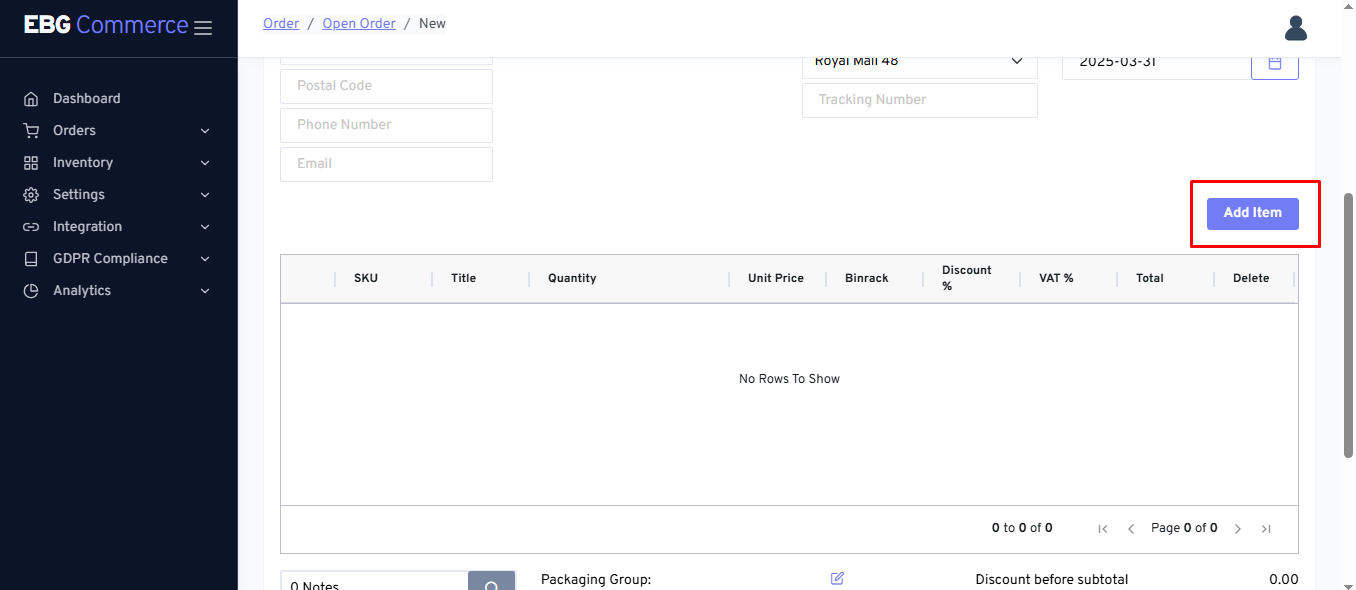
- To add products to the order: a. Click the Add Item button.
b. Enter a SKU or title (full or partial) in the search field, and click the Search button.
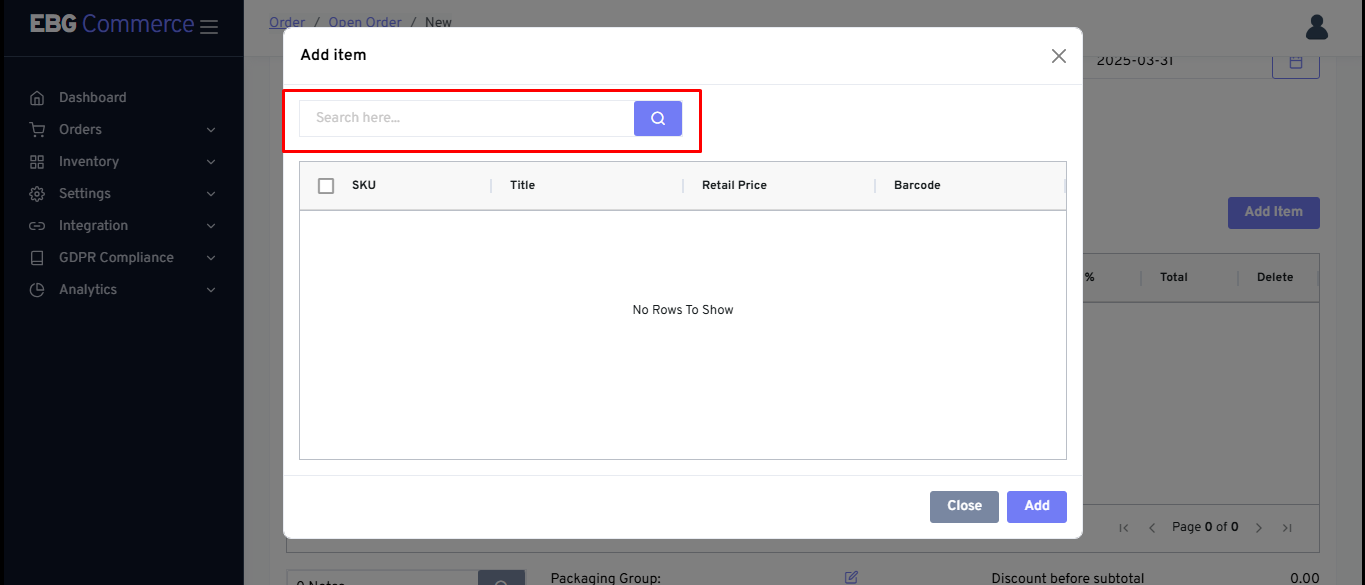
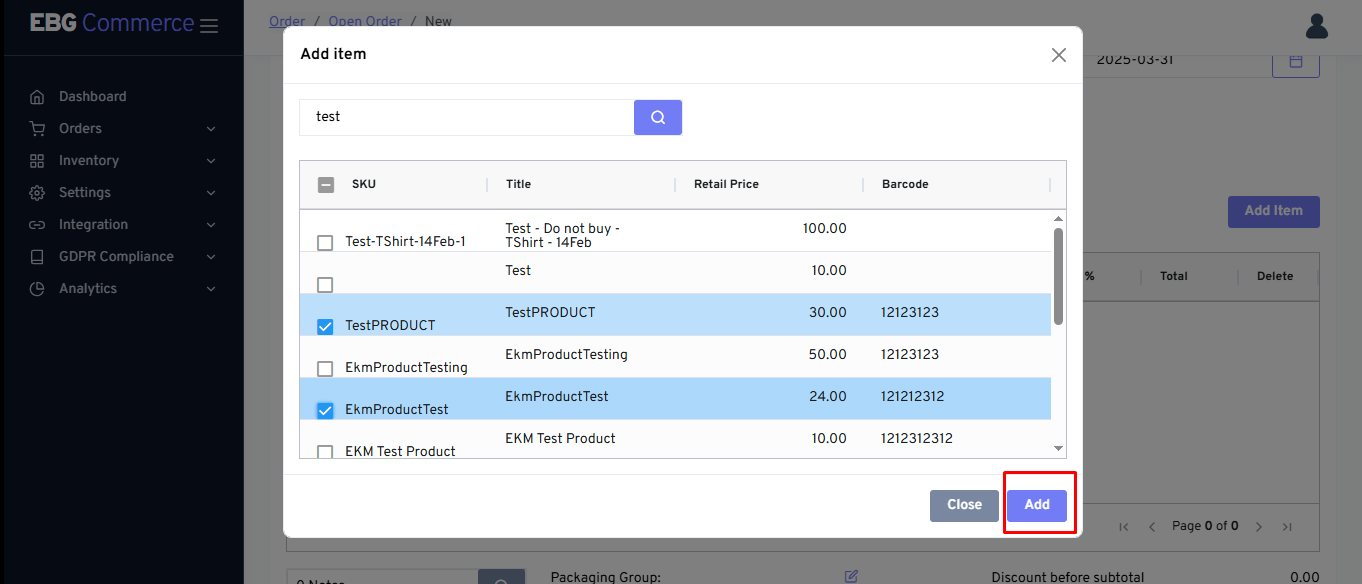
c. Tick the box for each item the seller want to add to the order.
i. Tick the box in the header row to select all items listed.
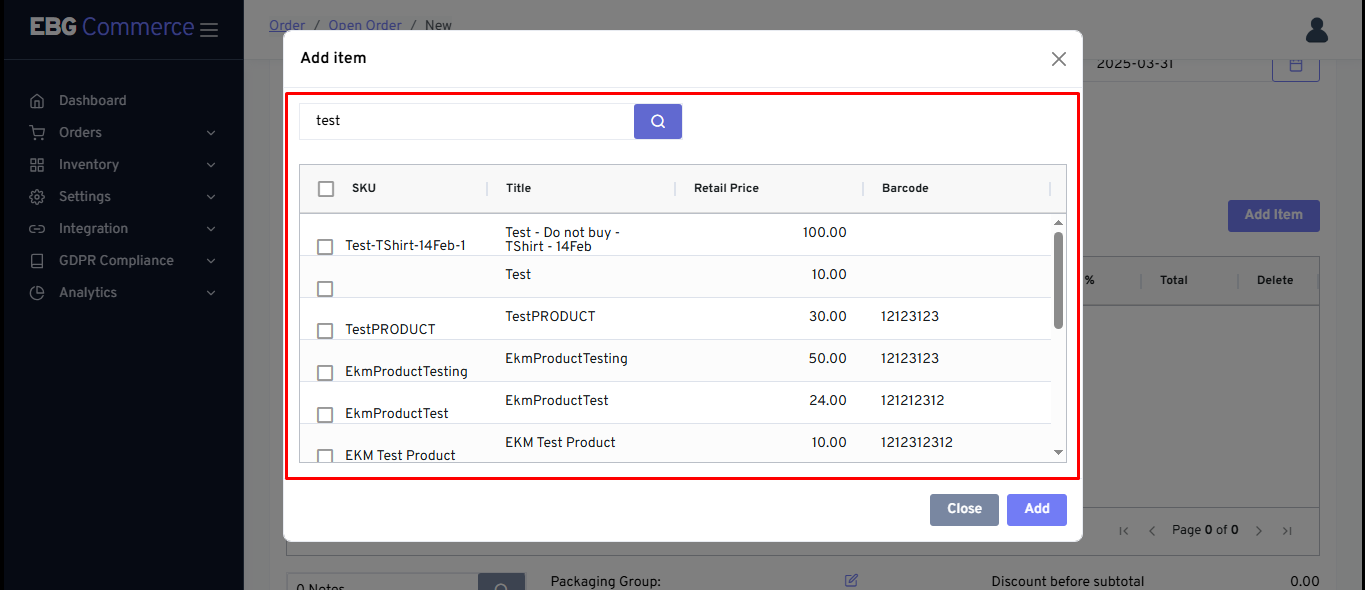
d. Click the Add button.
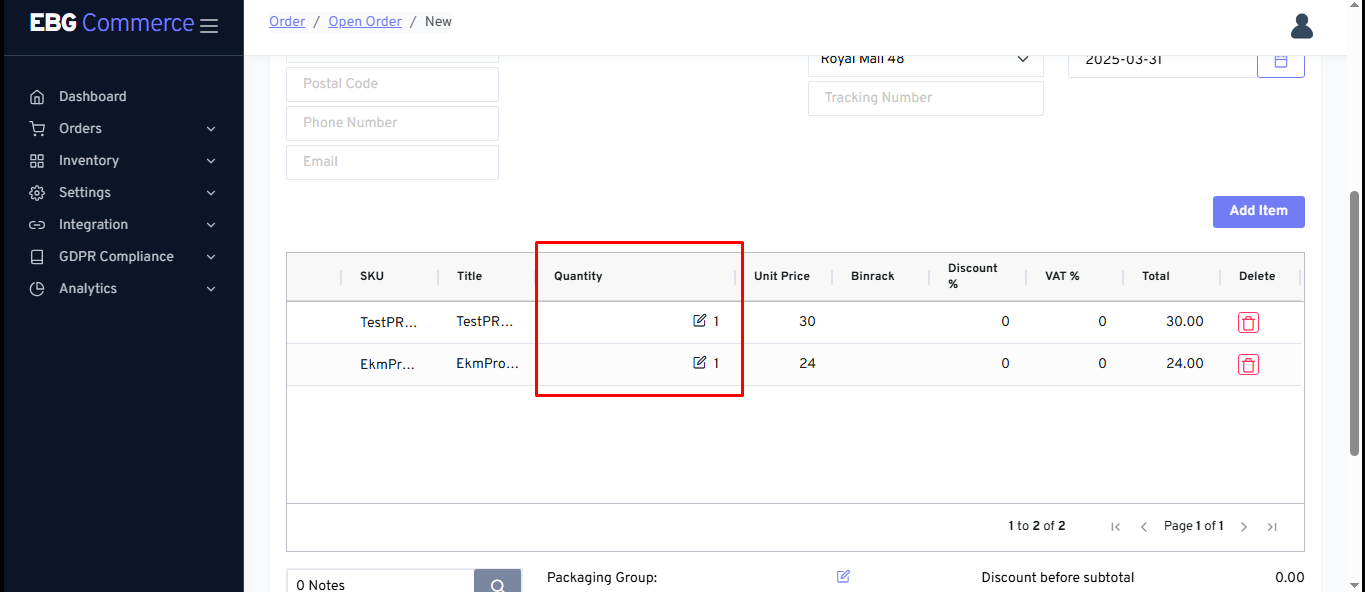
e. Edit the Quantity if necessary.
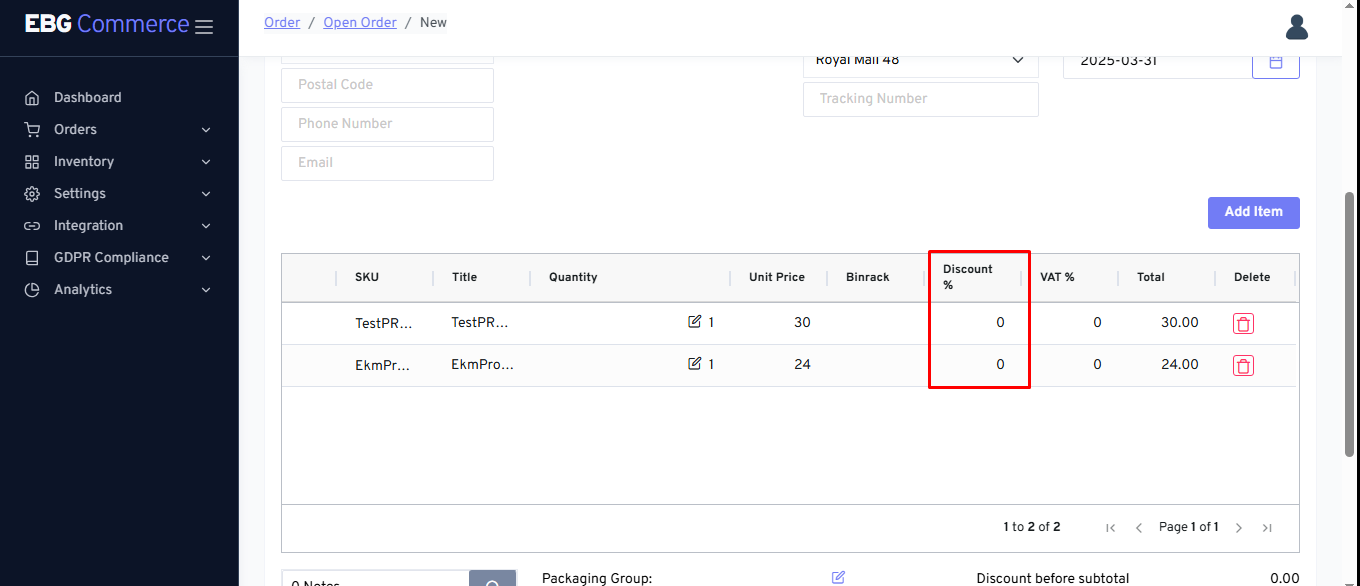
f. The Discount and the Unit Price can also be edited.
- Click Save to add the order to the Open Orders screen.
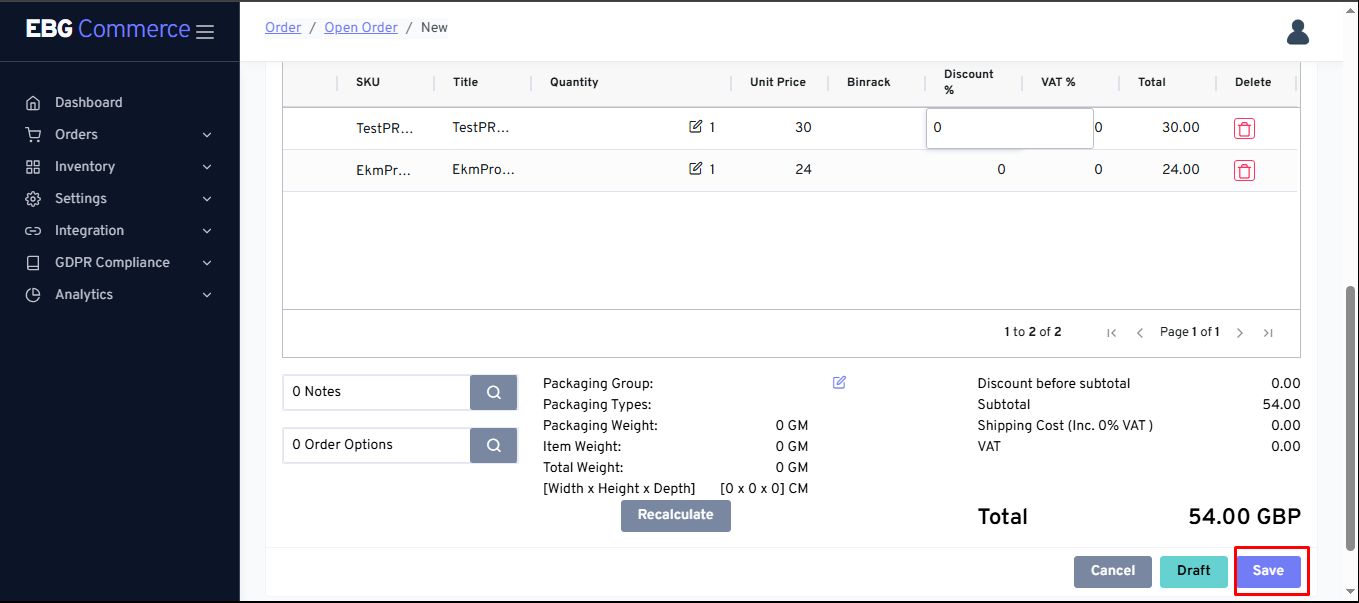
Please note - the shipping method and payment method dropdown lists will not populate unless the seller have created or integrated shipping services and created payment methods in Settings. For manual orders, the seller’re responsible for confirming payment, as there is no automatic method for eBG Commerce to confirm.
Edit an order
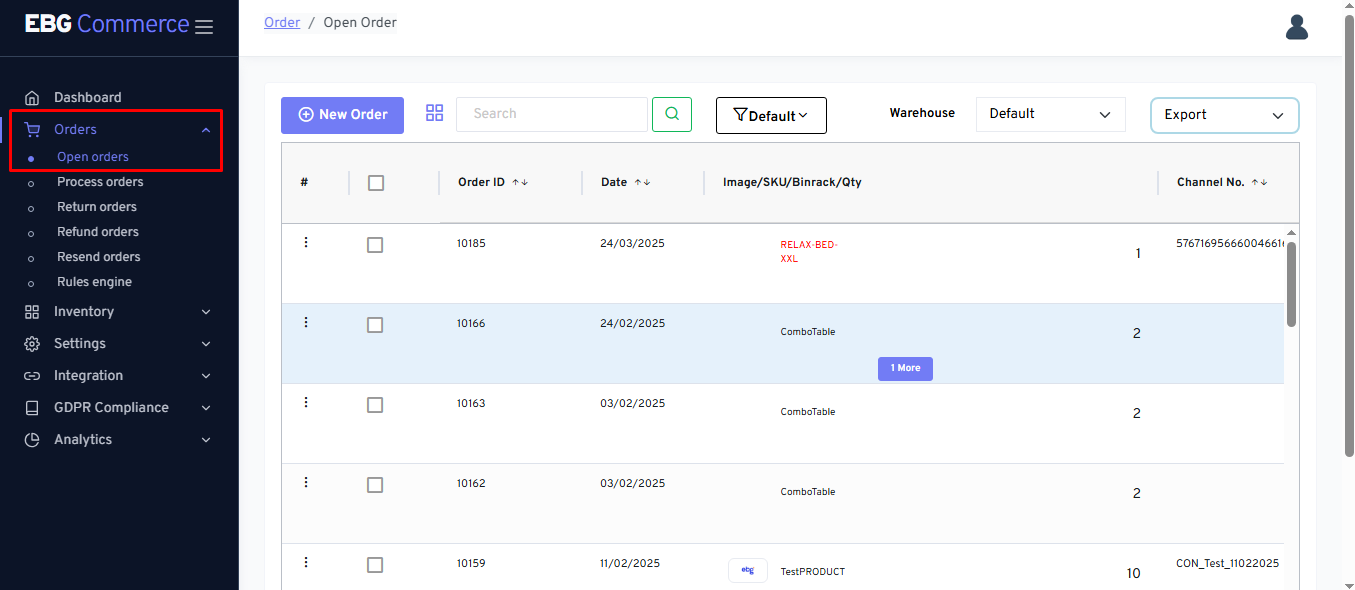
- Open the Orders section.
-
Select Open Orders.
-
Use Search to locate the order the seller want if it’s not immediately visible.
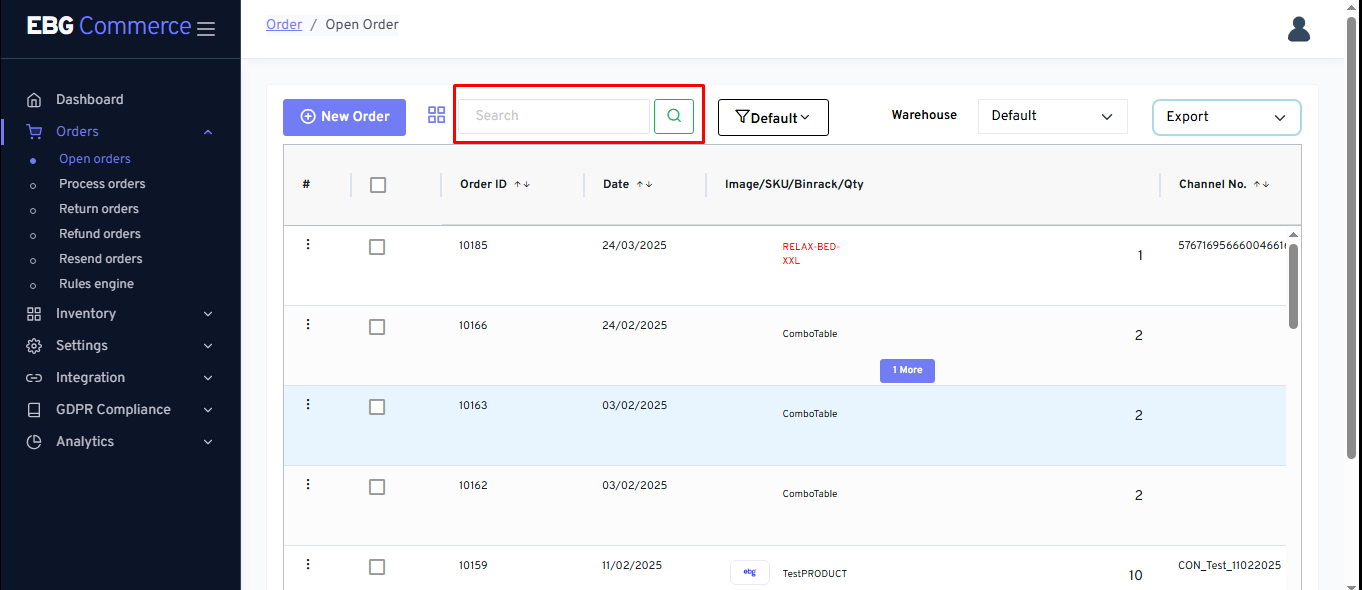
a. the seller can also click on a column heading to reorder the list by that field.
i. First click sorts Ascending.
ii. Second click sorts Descending.
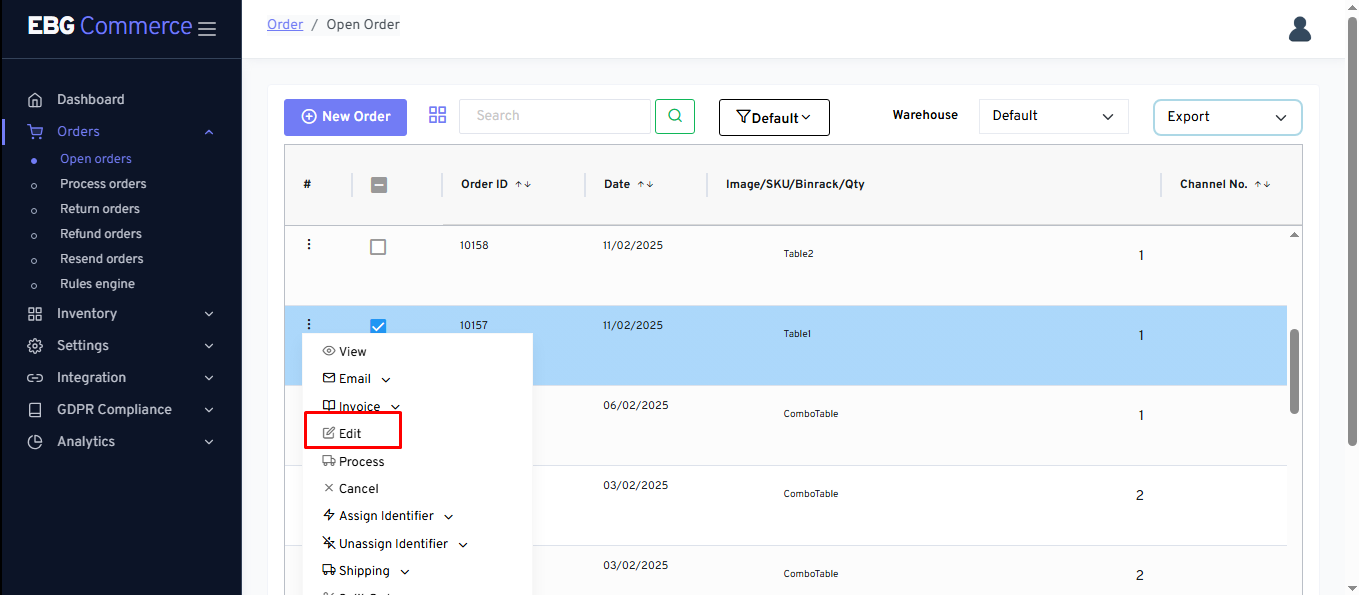
- Click the Action button for the order.
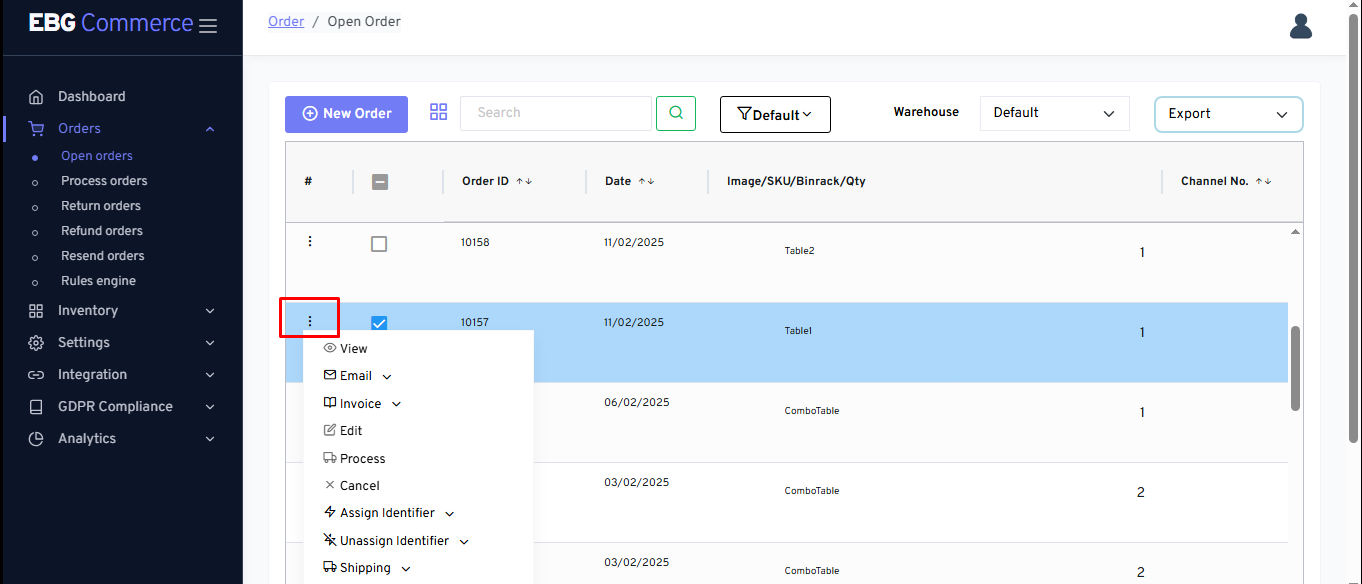
- Select Edit Order from the menu.
-
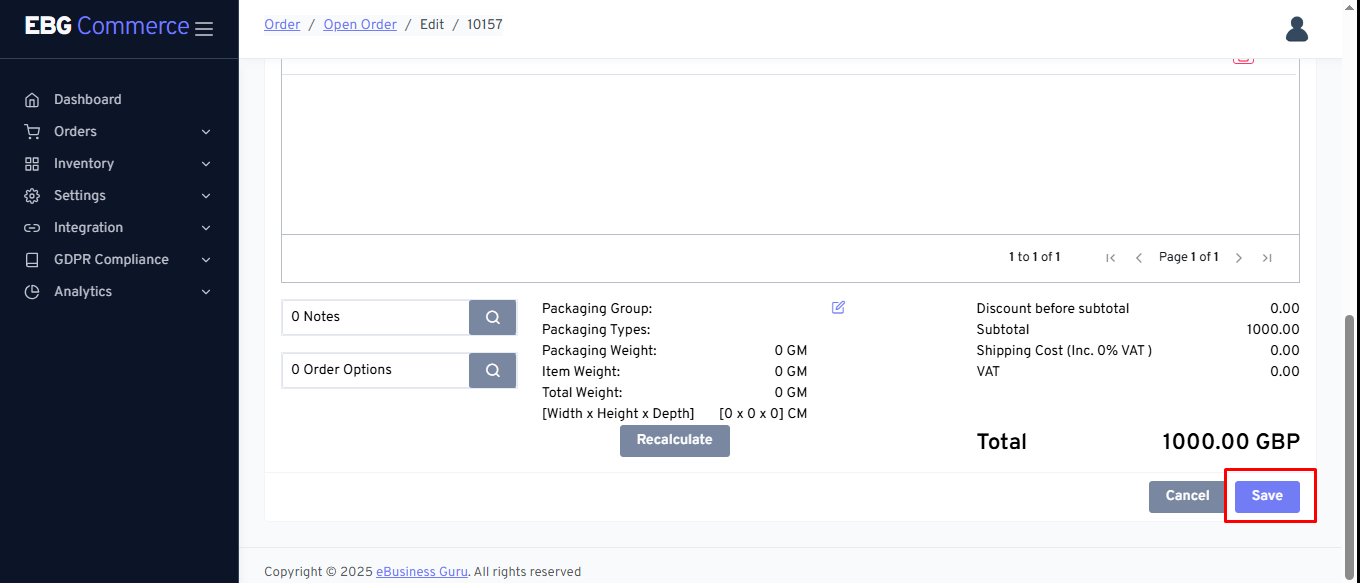
Amend any fields that need to be updated.
-
Click Save.
Amending the content of orders from an online platform or marketplace like Amazon may cause issues with automatic confirmation of dispatch. We advise the seller to avoid this where possible except for changing shipping services.
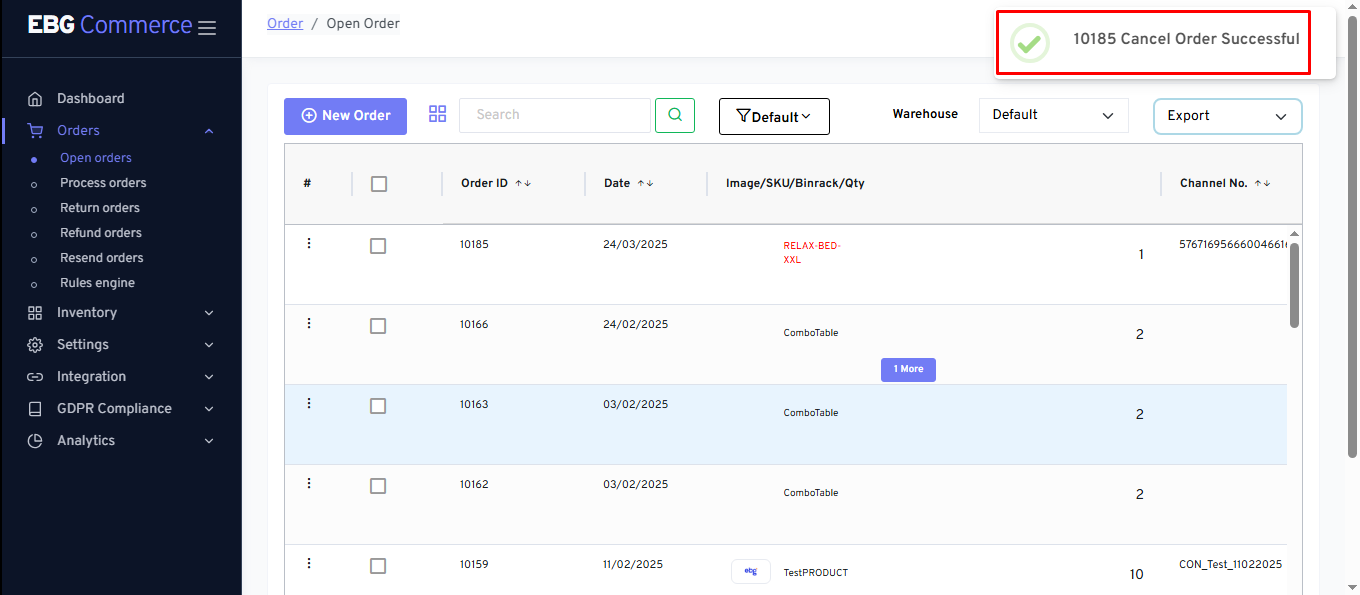
Cancel an order
If the seller can’t fulfill an order or the customer changes their mind, the seller can cancel it within eBG Commerce to prevent it being sent.
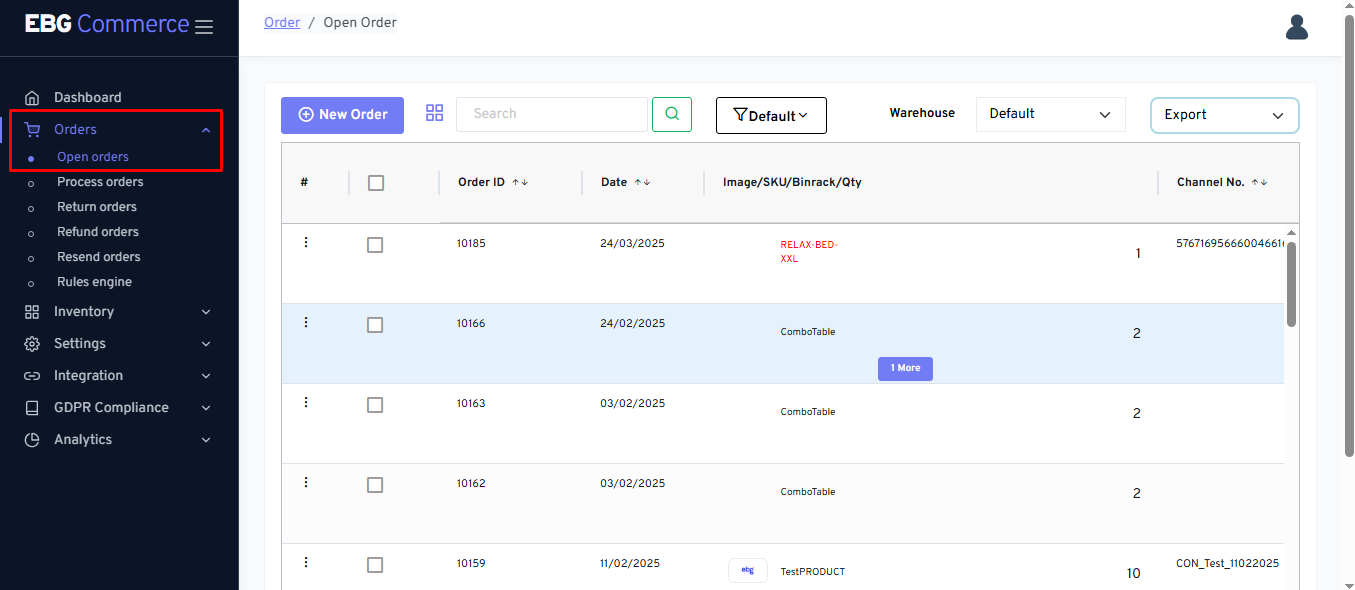
- Open the Orders section.
-
Select Open Orders.
-
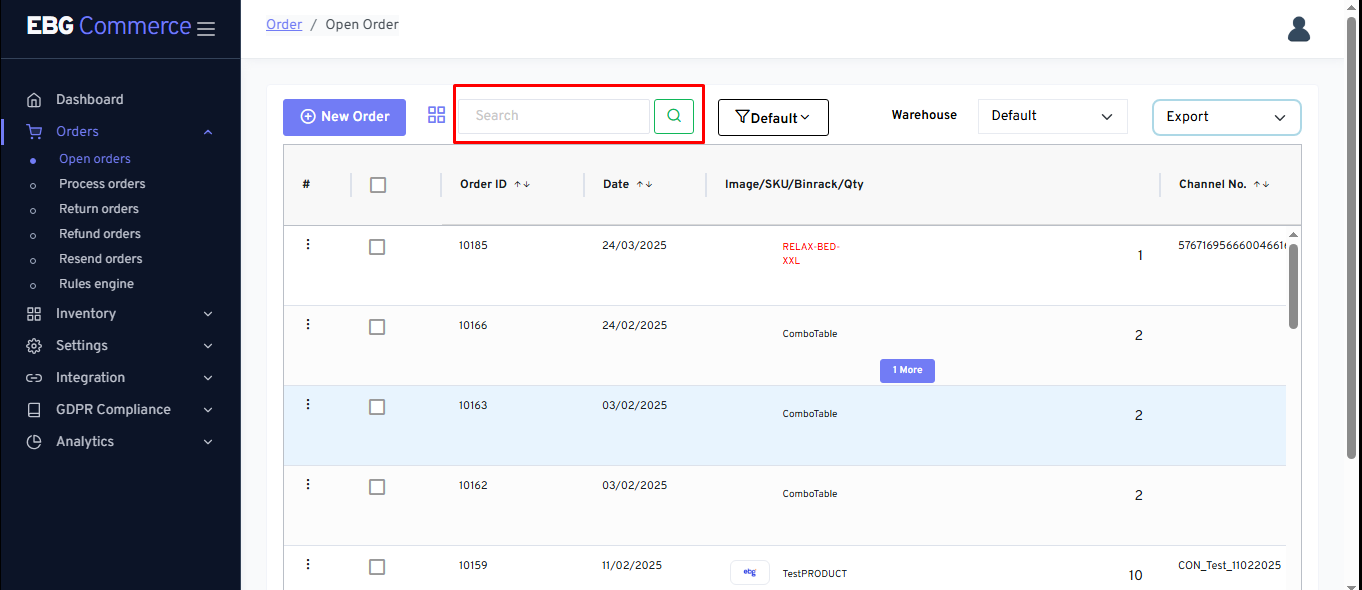
Use Search to locate the order the seller wants if it’s not immediately visible.
a. the seller can also click on a column heading to reorder the list by that field.
i. First click sorts Ascending.
ii. Second click sorts Descending.
- Click the Action button for the order.
- Select Cancel from the menu.
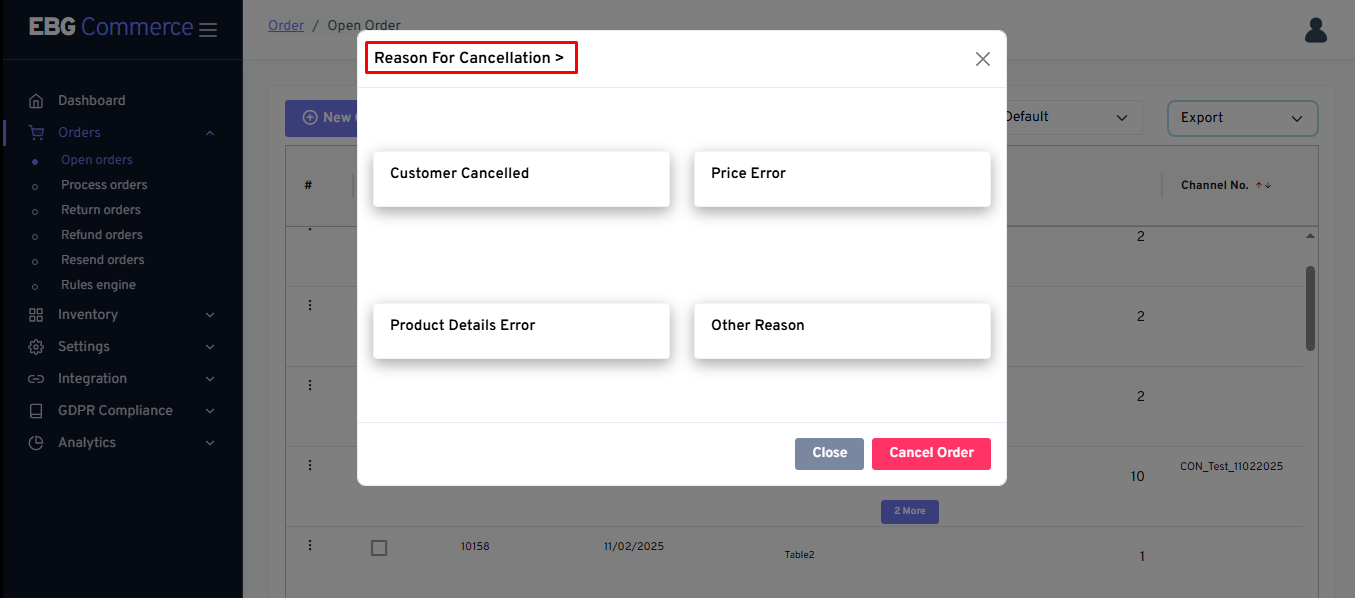
- Select the Reason for cancellation from the options shown.
- Click Cancel.
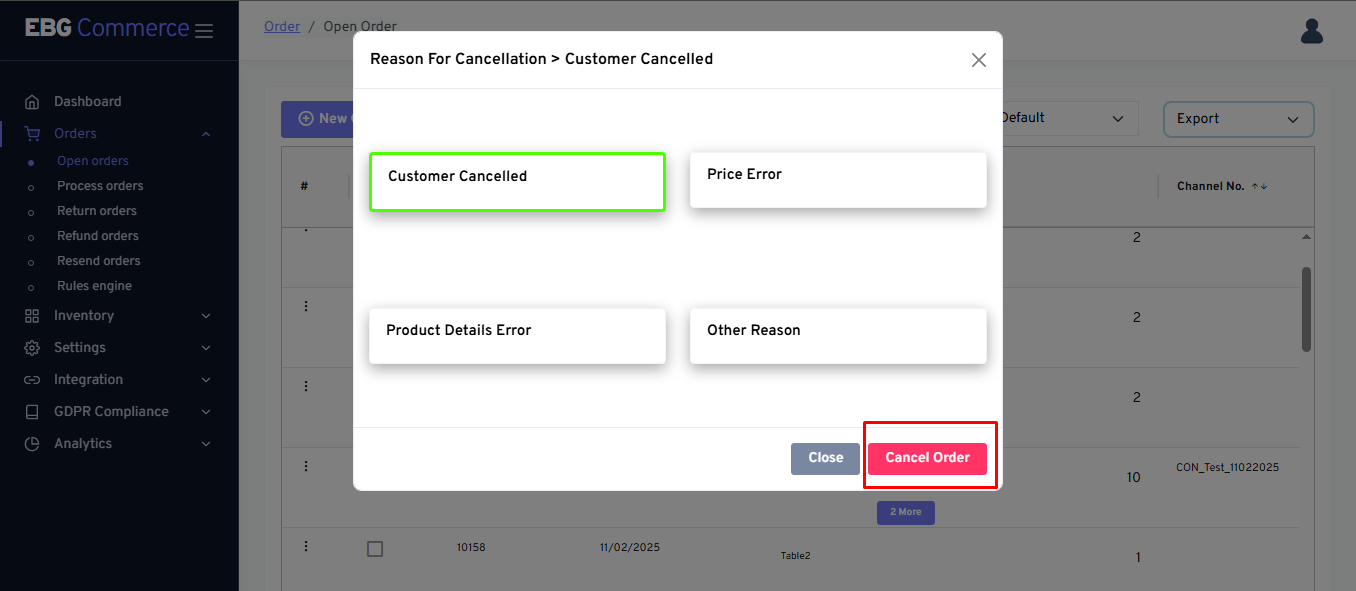
- The order will be marked as cancelled.